Free PDF Tools Online: Which Tool to Use for Every Task
A guide to free PDF tools online. Find the right tool to edit, merge, split, compress, sign, scan, and convert PDFs, with no sign-up.
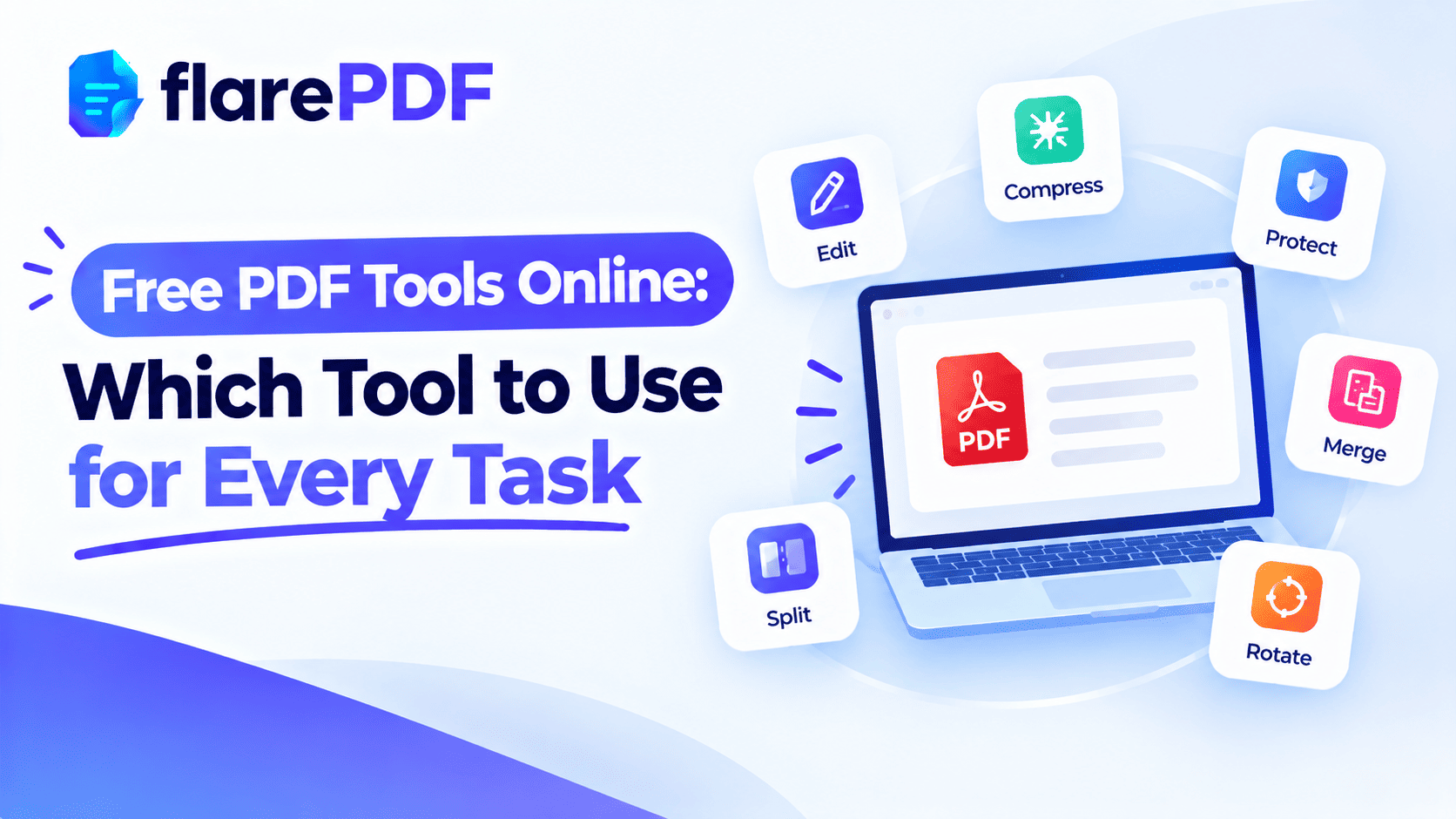
Free PDF Tools Online: Which Tool to Use for Every PDF Task
Free PDF tools online let you edit, merge, split, compress, sign, scan and convert PDFs in a web page, without installing software. The hard part is knowing which tool fits the job in front of you.
Maybe a portal says your file is too big. Maybe you need just one page from a long scan, or a contract needs your signature by tonight. Each problem has a different fix.
This guide walks through every FlarePDF tool. You’ll see what each one does, when to use it and which step-by-step guide to read next. It also covers ready-made workflows for job applications, study, contracts and small business. FlarePDF is free, with no sign-up.
What are free online PDF tools?
Free online PDF tools are web-based services that let you change PDF files without buying or installing software. You open a tool, upload your PDF, make a change such as merging, compressing or signing, then download the new file. Each tool usually does one job well.
Before online tools, most people needed expensive desktop software for even simple tasks. Today, a few clicks in a web page handle most everyday PDF work.
What is a PDF, in one line?
A PDF (Portable Document Format) is a file type that keeps a document looking the same on every device. For the full story, read our plain-English guide on what a PDF is.
The format follows an open international standard, ISO 32000. That’s why so many apps and websites, not just one company, can open and edit PDFs.
Why the right PDF tool matters
Using the wrong tool wastes time and can even damage a document. Squeezing a file too hard can blur important text. Drawing a black box can leave private details exposed.
Here’s where the right tool makes a real difference:
- Job applications: portals often want each document as a separate, small PDF.
- Study: you need to scan notes, pull quotes out of papers or share one chapter.
- Contracts: you need to sign, mark drafts and hide private details before sending.
- Official forms: visa, bank and government portals reject files that are too big or badly scanned.
- Freelancing: clients expect clean, branded, well-organized PDFs.
- Small business: invoices, receipts and quotes need merging, numbering and filing.
Knowing which tool to grab saves you from guesswork when a deadline is close.
How to use FlarePDF free tools, step by step
Every tool on FlarePDF follows the same simple pattern, so once you’ve used one, you know them all.
- Choose the tool that matches your task.
- Upload your PDF or images: drag them onto the page or pick them from your files.
- Adjust the options, such as page numbers, signature position or watermark text.
- Apply the change.
- Download your new file.
There’s no account to create, no email to enter and no login.
Which PDF tool do I need? (Quick finder)
Match your problem to the right tool in seconds.
File too big for a form or email? Use Compress PDF.
Several PDFs that should be one file? Use Merge PDF.
Need only certain pages? Use Split PDF.
Pages in the wrong order, sideways or unwanted? Use Organize PDF.
Need to change text or add content? Use the PDF Editor.
Need to sign a contract or form? Use Sign PDF.
Have paper documents? Use Scan to PDF.
Have photos to turn into a PDF? Use JPG to PDF.
Need a PDF page as an image? Use PDF to JPG.
Want to mark a file “Draft” or add a logo? Use Add Watermark to PDF.
Need numbered pages? Use Add Page Numbers to PDF.
Need to trim margins or edges? Use Crop PDF.
Want to copy words out of a PDF? Use Extract Text from PDF.
Tools to edit and sign PDFs
PDF Editor: change text and content
Use the PDF Editor when you need to change what’s on the page. That might mean fixing a typo, adding text or updating a date. It edits existing text in the original font, and adds text boxes, images, highlights and shapes.
- Tool: Edit PDFs online with the free PDF Editor
- Full guide: how to edit text and pages in a PDF
- On a Mac: how to edit a PDF on Mac for free
Sign PDF: add your signature
Use Sign PDF to add a signature to contracts, offer letters and forms. You draw or type your signature, place it on the right line and download the signed file.
- Tool: Sign PDF
- Full guides: how to insert a signature in a PDF and how to sign a PDF contract online
- Know the difference: electronic signature vs digital signature
Tools to organize PDF pages
Merge PDF: combine files into one
Use Merge PDF when several files need to become a single PDF. It’s common for job applications, monthly reports and invoice bundles.
- Tool: Merge PDF
- Full guide: how to combine multiple PDFs into one
Split PDF: separate pages into new files
Use Split PDF to break one PDF into smaller files, or to pull out only the pages you need. It’s ideal when a portal wants each document uploaded separately.
- Tool: Split PDF
- Full guides: how to split a PDF into multiple files and how to separate pages in a PDF
Organize PDF: reorder, rotate and delete pages
Use Organize PDF when the pages are right but the order isn’t. You can rearrange pages, turn sideways scans upright and remove blank or unwanted pages.
- Tool: Organize PDF
- Full guides:
Crop PDF: trim margins and edges
Use Crop PDF to cut away wide margins, scanner borders or empty space. It makes pages look cleaner and can help with file size.
- Tool: Crop PDF
Tools to reduce PDF size
Compress PDF: decrease the MB of a PDF
Use Compress PDF when a file is too large to email or upload. It shrinks images and removes unnecessary data, so the file takes up fewer MB or KB.
- Tool: Compress PDF
- Full guides:
Pro tip: If compressing alone doesn’t get the file small enough, delete pages you don’t need first, then compress again.
Tools to create and convert PDFs
Scan to PDF: turn paper into PDFs
Use Scan to PDF to turn paper documents into clean, shareable PDFs. It works well for certificates, receipts, ID copies and signed forms. Use your device camera or add photos you already have.
- Tool: Scan to PDF
- Full guides: how to scan a document to PDF and how to scan documents on iPhone
JPG to PDF: turn photos into a PDF
Use JPG to PDF when you have one or more images that need to become a single PDF page or document. This is the quickest way to turn phone photos of pages into a file you can submit.
- Tool: JPG to PDF
- Full guide: how to convert JPG to PDF
PDF to JPG: save pages as images
Use PDF to JPG when you need a page as a picture, for a presentation, a social post or an app that only accepts images.
- Tool: PDF to JPG
Tools to mark and finish PDFs
Add Watermark to PDF: label or brand your file
Use Add Watermark to PDF to stamp text like “Draft”, “Confidential” or “Sample” across pages. You can also use it to add your brand name as text.
- Tool: Add Watermark to PDF
- Full guide: how to add a watermark to a PDF
Add Page Numbers to PDF: number your pages
Use Add Page Numbers to PDF for reports, theses, legal bundles and manuals. Numbered pages are easier to reference and print.
- Tool: Add Page Numbers to PDF
Tools to get text out and keep data private
Extract Text from PDF: copy words out of a PDF
Use Extract Text from PDF to pull out the text, so you can paste it into a document, email or form. It also helps you check whether a “redacted” file still hides text it shouldn’t. It reads the text layer; for scanned pages, use the OCR in Scan to PDF.
- Tool: Extract Text from PDF
- Full guides: how to copy text from a PDF and what OCR is
Redacting private information
FlarePDF doesn’t have a separate redaction tool. Our guides show you how to remove private details properly, so they can’t be recovered:
Quick note: Never hide private details with a black box or highlight. The text underneath can still be copied.
Ready-made PDF workflows for common tasks
Many jobs need more than one tool. Here are proven combinations.
For a job or university application
- Scan each certificate separately with Scan to PDF.
- Split any combined scans so each document is its own file.
- Compress each file to fit the portal’s limit, such as 200KB.
- Rename files clearly, like “Ali_Degree.pdf”.
For students
- Scan handwritten notes into PDFs.
- Extract text from research papers for quotes, with citations.
- Split out the chapter you need to share with classmates.
- Number pages in your final thesis.
For contracts and agreements
- Watermark early versions as “Draft”.
- Edit small details like dates or names.
- Redact private details before sharing extra copies.
- Sign the final version and send it.
For small businesses
- Turn receipts into PDFs with JPG to PDF or Scan to PDF.
- Merge each month’s invoices into one file.
- Add page numbers for easy reference.
- Compress the bundle before emailing your accountant.
For HR teams
- Split combined pay slips into individual files.
- Watermark policies as “Confidential”.
- Sign offer letters.
- Organize onboarding packs in the right order.
What FlarePDF doesn’t do (yet)
Being clear about limits helps you pick the right tool faster.
- No PDF to Word or Word to PDF conversion. To get words out of a PDF, use Extract Text from PDF. To create a PDF from Word, use Word’s own Save as PDF option.
- No dedicated redaction tool. Use the redaction guides above.
- No password-protection tool. Many PDF apps, including Adobe Acrobat, offer this.
Is it safe to use online PDF tools?
Online PDF tools mean uploading your file to a website, so think before uploading very sensitive documents. That includes ID cards, bank statements and legal records.
Good habits:
- Upload only the pages you need. Split out the rest first.
- Read the site’s privacy policy before uploading.
- Keep your original file safe on your own device.
- Never rely on a watermark or black box to hide private data.
You can read how FlarePDF handles files on the FlarePDF privacy page. All processing happens in your browser, so your files are never sent to our servers.
Key features and benefits of FlarePDF
- Free to use: every tool costs nothing.
- No account or login: open a tool and start. No email needed.
- One simple pattern: choose, upload, adjust, apply and download.
- Thirteen tools in one place: edit, sign, merge, split, organize, crop, compress, scan, convert, watermark, number pages and extract text.
- Step-by-step guides: every tool links to a detailed how-to article.
- Watermark-free downloads: flarePDF never adds its own watermark to your files.
- File handling: PDFs up to 50MB. Files are processed in your browser and never sent to flarePDF's servers.
Why choose FlarePDF?
FlarePDF suits people who want quick, no-hassle PDF work. You don’t need to create an account or learn complex software. You pick the tool and get the job done.
It’s especially handy on shared office computers, school laptops and work devices where you can’t install apps. Because every tool works the same way, you won’t waste time figuring out a new layout each time.
Tips and common mistakes
- Keep the original. Always save an untouched copy before you edit, compress or redact.
- Use the right order. Merge first, then add page numbers, then compress.
- Don’t over-compress. Zoom in to check names, numbers and stamps after shrinking a file.
- Rename every new file. “Lease_Signed_Oct2026.pdf” beats “document (4).pdf”.
- Upload only what’s needed. Split out the relevant pages before sharing sensitive files.
- Sign last. Make every other change first, then sign the final version.
- Check page order. Flip through the whole file before you send it.
Real-world examples
A graduate in Lahore has his CNIC, degree and domicile in one scan. He splits it into three files and compresses each one under the job portal’s limit, then uploads them in minutes.
A student in Delhi scans her handwritten notes and adds page numbers. She shares one chapter with her study group by splitting out just those pages.
A freelance designer in Toronto watermarks her proposal as “Draft”, updates the final price in the editor and signs the contract before sending it.
A café owner in Dubai turns a month of receipt photos into one PDF with JPG to PDF. Then she compresses it and emails it to her accountant.
Popular guides to read next
- New to PDFs? Start with what a PDF is.
- File too big? Read how to compress a PDF to 200KB or 100KB.
- Need one page? See how to separate pages in a PDF.
- Signing something important? Read electronic signature vs digital signature.
- Working on a Mac? Try how to edit a PDF on Mac for free.
Frequently Asked Questions
Are FlarePDF PDF tools really free?
Yes. Every FlarePDF tool is free to use. You do not need to create an account, sign up or log in. Open the tool you need, upload your file, make your changes and download the result.
Do I need to install any software?
No. FlarePDF tools are online, so you use them through a website instead of installing an app. That makes them handy on work computers, shared laptops and devices where you cannot add new software.
Which PDF tool should I use to make a file smaller?
Use Compress PDF to reduce the file size, often measured in MB or KB. If it is still too big for an online form, delete unneeded pages, split the file, or rescan in grayscale before compressing again.
How do I turn photos into a PDF?
Use JPG to PDF. Upload one or more photos, arrange them in order, and create a single PDF. For paper documents, Scan to PDF or your phone’s built-in scanner also turns pages into a clean PDF.
How do I edit a PDF for free?
Open the free PDF Editor, upload your file, make your changes and download the edited PDF. For page changes like reordering or deleting, use Organize PDF instead, which is faster for whole pages.
Can I sign a PDF for free online?
Yes. Upload your PDF to Sign PDF, create your signature, place it on the page and download the signed file. This is an electronic signature, which most everyday contracts and forms accept.
What is a PDF?
A PDF, or Portable Document Format, is a file type that keeps a document looking the same on every device. It locks text, fonts, images and layout in place, which makes it ideal for sharing and printing.
Can FlarePDF convert PDF to Word?
No. FlarePDF currently converts between PDF and JPG images, and offers tools to edit, merge, split, compress, sign, scan and more. To copy words out of a PDF, use Extract Text from PDF instead.
Conclusion
Free PDF tools online make everyday document work fast and simple, as long as you pick the right one. Compress for size, merge to combine and split to separate. Organize to fix page order, sign to approve, and scan or convert to create PDFs. Keep your originals safe and check every file before you send it.
Ready to start? Explore FlarePDF free PDF tools now. No sign-up, no login.
Ready to try it yourself?
No sign-up, no upload — your files never leave your device.
Browse all PDF toolsKeep reading
More guides from the flarePDF blog