Why Is My PDF File So Large? 7 Causes and Fixes
Why is my PDF file so large? See the 7 most common causes, from photos and scans to fonts and editing history, plus simple free fixes for each.
Why Is My PDF File So Large? 7 Causes and Fixes
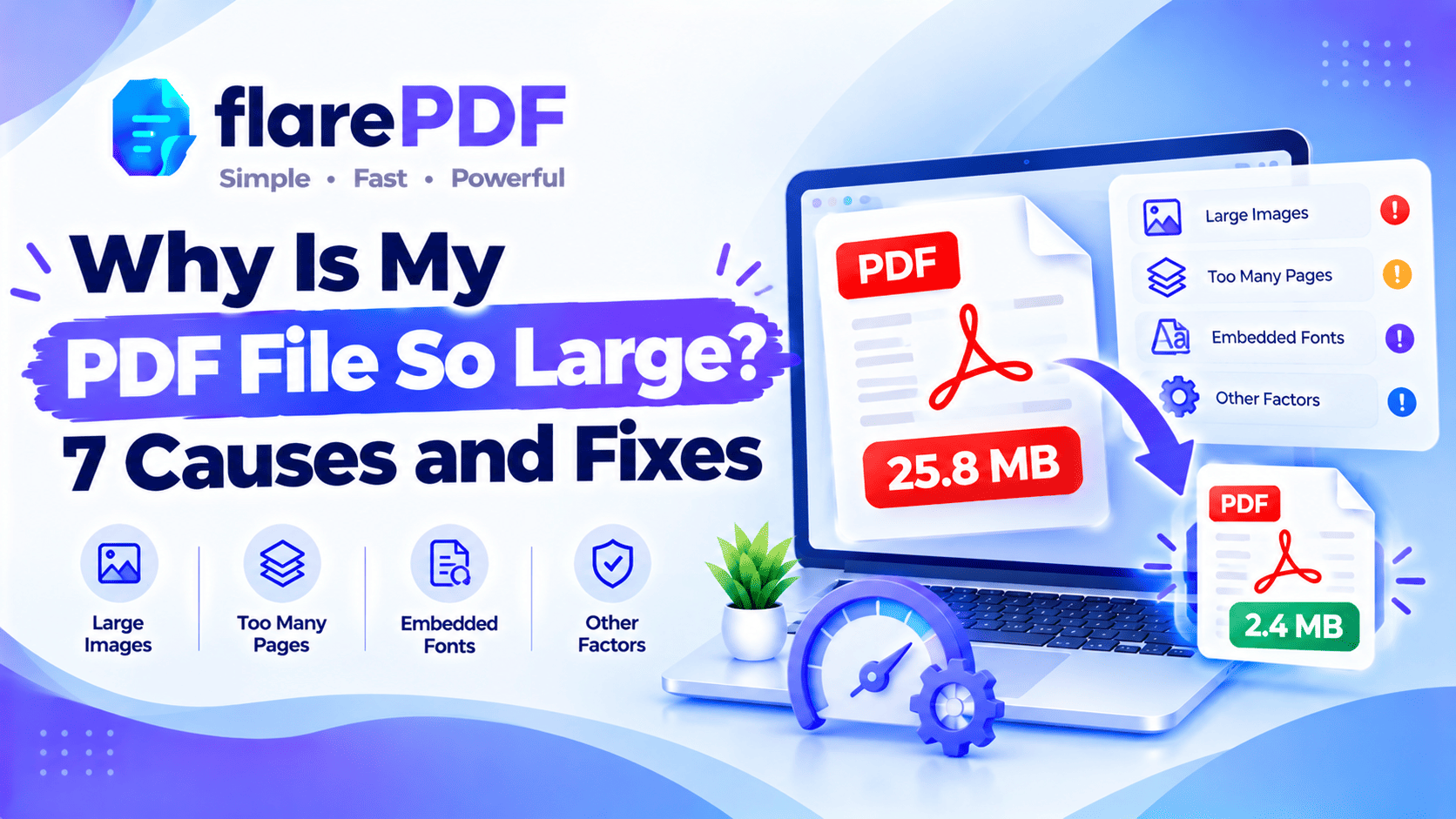
Why is your PDF file so large? Usually it’s high-resolution images or scanned pages. Other causes are embedded fonts, saved editing history, hidden content, heavy export settings and duplicate data from merging. Most of these can be fixed by compressing the file or re-saving it with smaller settings.
You’ve probably hit this at the worst moment. The upload portal says “file too large”. Gmail refuses the attachment. Your three-page document is somehow 18 MB.
This guide covers the seven causes, how to spot each one and how to fix it. FlarePDF tools are free, with no sign-up.
What makes a PDF file large?
A PDF file gets large when it holds heavy content, such as big images, scanned pages, full fonts or hidden data. Text on its own takes very little space. The file size depends on what’s inside the PDF, not how many pages it has.
That’s why a 200-page text report can be smaller than a three-page scan. Every PDF is a container. Text, images, fonts, form fields and extra data are all packed inside it.
The structure is defined in the official PDF standard, ISO 32000. For a plain-English overview, read our guide to what a PDF is.
Quick size check: what’s normal?
These are rough guides, not fixed rules. Use them to judge whether your file is unusually heavy.
Text-only document (letter, report, CV): usually a few hundred KB or less, even with many pages.
Document with a few photos or charts: often 1 to 5 MB.
Scanned document in color: often 1 MB or more per page at high settings.
Photo-heavy brochure or portfolio: can easily reach 10 MB or more.
If a short text document is several megabytes, something extra is hiding inside it.
Why a large PDF matters
A large PDF is more than an inconvenience. It can stop you from sending or submitting important documents on time.
Big files cause problems when you:
- Email documents: Gmail’s attachment limit is 25 MB, and Outlook.com is around 20 MB.
- Upload to portals: job sites, visa forms and university systems often cap files at 1 MB, 500 KB or even 200 KB.
- Share on phones: large files are slow to download on mobile data.
- Store many files: cloud storage fills up quickly.
- File court documents: e-filing systems usually set strict size limits.
If the file won’t send, read PDF too large to email? 6 ways to send it.
1. High-resolution images and photos
Fix in one line: compress the PDF, or shrink the images before adding them.
What happens
Modern phone cameras take very large photos, often several megabytes each. When you put them in a PDF, they go in at full size unless something shrinks them first.
A print-quality image is far bigger than what’s needed on screen. Most people reading on a phone or laptop won’t see the extra detail.
How to spot it
- The PDF contains photos, product images or screenshots.
- The file size is roughly the sum of all the photo sizes.
- Zooming in shows extremely sharp detail.
How to fix it
- Compress the PDF with FlarePDF Compress PDF to reduce image size.
- Resize photos first before you add them to Word or a PDF.
- Use JPG for photos and PNG only for logos or sharp graphics.
For quality-friendly settings, read how to compress a PDF without losing quality.
2. Scanned pages
Fix in one line: rescan at 200–300 DPI in greyscale, or compress the scanned PDF.
What happens
A scanned page isn’t text. It’s a picture of a page. Every scan is an image, so a 10-page scan is really 10 photos in one file.
Scan settings make a huge difference. Doubling the resolution from 300 DPI to 600 DPI gives four times as many pixels. Color scans are also much heavier than greyscale or black-and-white scans.
How to spot it
- You can’t select or copy the text, or the text was added later by OCR.
- The pages look slightly grey or show paper texture.
- The file was made with a scanner, the iPhone Notes app or a scanning app.
How to fix it
- Rescan at 200–300 DPI for normal documents. 600 DPI is rarely needed.
- Use greyscale or black and white for text-only documents.
- Crop the borders with Crop PDF to remove empty edges.
- Compress the scan with Compress PDF.
For better scan settings, read how to scan a document to PDF. To understand the hidden text layer in scans, see what OCR is.
3. Embedded fonts
Fix in one line: use common fonts, or let the app embed only the characters you used.
What happens
PDFs often carry their fonts inside the file, so the document looks right on every device. Usually, only the characters you used are embedded. This is called sub setting, and it keeps things small.
Sometimes the whole font file is embedded instead. Large fonts, such as those for Arabic, Urdu, Chinese or Japanese, can add several megabytes on their own.
How to spot it
- The document uses decorative, brand or non-Latin fonts.
- The file is large even though it’s mostly text.
- Acrobat Pro’s space audit shows fonts taking a big share.
How to fix it
- Use standard fonts such as Arial, Calibri or Times New Roman for everyday documents.
- Limit the number of fonts. Two or three is plenty.
- Re-save or compress the PDF, which often rebuilds the font data more efficiently.
Quick note: Don’t remove embedded fonts completely. Without them, the PDF may display incorrectly on other computers.
4. Saved editing history
Fix in one line: use “Save As” to a new file instead of “Save”.
What happens
Some PDF editors add changes to the end of the file each time you save, rather than rewriting the whole file. This is called an incremental save. It’s fast, but older content can stay inside the file.
After many rounds of editing, a PDF can carry a lot of material you can no longer see.
How to spot it
- The file has been edited and saved many times.
- The size keeps growing even when you delete content.
- Deleting pages barely changes the file size.
How to fix it
- Use File > Save As and save to a new file name. Many editors rewrite the whole file this way.
- Compress the PDF, which rebuilds the file.
- Start from the source document, such as the Word file, and export a fresh PDF.
5. Hidden content you can’t see
Fix in one line: remove attachments, layers and extra data, or compress to clean the file.
What happens
PDFs can carry content that doesn’t show on the page. Common examples include:
- Attached files, such as spreadsheets or images inside the PDF
- Layers from design or CAD software
- Comments and annotations
- Form fields and form data
- Page thumbnails stored inside the file
- Metadata, such as author and editing details
- Color profiles from print-ready exports
Each item may be small, but together they add up.
How to spot it
- A paperclip icon or “Attachments” panel appears in your PDF reader.
- A “Layers” panel appears, often in files from design or engineering software.
- There are many comments or sticky notes.
How to fix it
- Remove attachments you don’t need in your PDF reader.
- Delete unnecessary pages with Organize PDF.
- Compress the file to clean up extra data whether Compress PDF removes metadata and attachments]
- In Acrobat Pro, use Optimize PDF to discard hidden data.
6. Heavy export and conversion settings
Fix in one line: choose a “minimum size” or “online” export option when creating the PDF.
What happens
Apps like Word, Excel and PowerPoint often export PDFs for printing by default. Print settings keep images at high resolution, so the file is much larger than it needs to be for screen viewing.
Print to PDF can also make files larger. It may turn transparent images or complex graphics into big images.
How to spot it
- The PDF was created from Word, Excel, PowerPoint or design software.
- The original document has lots of images or charts.
- The PDF is much larger than you expected from the original.
How to fix it
- In Word on Windows: go to File > Save As > PDF, then choose Minimum size (publishing online).
- Check Word’s image settings: go to File > Options > Advanced > Image Size and Quality and avoid “Do not compress images”.
- In PowerPoint: compress pictures first with Picture Format > Compress Pictures.
- On Mac: in Preview, choose File > Export, then the Reduce File Size Quartz filter. It can blur images, so check the result.
For Mac-specific tips, read how to compress a PDF on Mac without making it blurry.
7. Merging files with duplicate content
Fix in one line: compress the merged PDF, or merge fewer files.
What happens
When you merge PDFs, each file brings its own fonts, images and settings. If every file has the same logo or font, the merged PDF may store several copies of it.
Merging also adds up the size of every file. Five 4 MB files make one 20 MB file, which is already close to email limits.
How to spot it
- The PDF was made by combining several files.
- Each source file has a logo, letterhead or the same fonts.
- The merged file is roughly the total of all the source files, or more.
How to fix it
- Compress each file before merging, or compress the merged file afterwards.
- Remove unneeded pages before you merge.
- Split the file into smaller parts with Split PDF if it still won’t fit.
For merging tips, read how to combine multiple PDFs into one.
Why did my PDF size increase after editing or merging?
A PDF size increase usually comes from added images, saved editing history, extra fonts or duplicated content from merging. Each save or merge can add data without removing the old material.
Common situations include:
- After editing: incremental saves keep earlier content. Use Save As to a new file.
- After adding a signature or image: high-resolution signature images or photos add weight.
- After merging: each file’s fonts and images are kept separately.
- After OCR: a hidden text layer is added on top of the scanned images.
- After printing to PDF: complex graphics may be converted into large images.
The fix is usually the same: compress the final file, or rebuild it from the source.
How to find what’s making your PDF large
To find the cause, check what kind of content the PDF holds. You can often tell in a minute or two.
- Check the page count. A large file with few pages usually means images or scans.
- Try selecting text. If you can’t, the pages are scans or images.
- Look for panels. Attachments, Layers or Comments panels point to hidden content.
- Think about where it came from. Scanners, phone apps and design software make heavier files.
- Use Acrobat Pro’s space audit if you have it: Optimize PDF > Advanced Optimization > Audit space usage. It shows how much space images, fonts and other content take.
Once you know the cause, pick the matching fix from the seven above.
How to fix a large PDF with FlarePDF
The quickest fix for most large PDFs is to compress them. Compression shrinks images and rebuilds the file, which tackles several causes at once.
Step-by-step: compress your PDF
- Open FlarePDF Compress PDF and upload your file.
- Choose a compression level if options are shown compression levels]
- Click the compress button and wait for the new file.
- Download the compressed PDF.
- Open it and zoom in to check that text and images are still clear.
Pro tip: Start with the lightest compression. Only move to stronger settings if the file is still too big.
If compression isn’t enough
- Remove pages you don’t need with Organize PDF.
- Split the file into parts with Split PDF.
- Rebuild heavy scans by converting them with PDF to JPG, shrinking the images, then using JPG to PDF.
Need to hit an exact upload limit? Read how to compress a PDF to 200KB or 100KB.
Key features and benefits of FlarePDF for large files
- Free to use: every FlarePDF tool costs nothing.
- No account or login: open the tool and start.
- Compression: shrinks image-heavy and scanned PDFs.
- Page tools: delete, split, and organize pages to cut size.
- Crop tool: trims empty borders from scans.
- Image route: PDF to JPG and JPG to PDF for heavy scans.
- File handling: file size limit, where files are processed and when they’re deleted]
Why choose FlarePDF to shrink a large PDF?
When a file is too big, you usually need a fix right away, not a software download. FlarePDF lets you compress, split and tidy PDFs in your browser, with no account or login.
Large files often contain personal documents, such as ID scans and bank statements. Read the FlarePDF privacy page to see how uploaded files are handled.
Tips and common mistakes
- Scan smarter. Use 200–300 DPI and greyscale for text documents.
- Shrink photos before adding them. It’s easier than fixing the PDF later.
- Export for screen, not print, when the file is going online or by email.
- Use Save As, not Save, after heavy editing.
- Don’t over-compress. Check that small text is still readable.
- Remove pages you don’t need before compressing.
- Keep your original file. Compression can’t be undone.
Real-world examples
A job applicant in Lahore scans his degree at 600 DPI in color, and the file is 12 MB. He rescans it at 300 DPI in greyscale, compresses it, and gets it under the portal’s limit.
A student in Pune exports a PowerPoint with photos as a PDF, and it’s too big for Moodle. She compresses the pictures in PowerPoint, exports again, and uploads it.
An office manager in Dubai merges five supplier contracts, each with the same letterhead. The merged file is 22 MB, so she compresses it before emailing.
A paralegal in New York edits a filing many times and the size keeps growing. She uses Save As to a new file, then compresses it for e-filing.
Related PDF tools you may need
- Too big to email? Read PDF too large to email? 6 ways to send it.
- Split instead of compress: read how to split a PDF into multiple files.
- Combining Word files? Read how to combine Word documents into one PDF.
- Every tool in one place: browse the free PDF tools guide.
Frequently Asked Questions
Why is my PDF file so large?
Most large PDFs contain high-resolution images or scanned pages. Other causes include embedded fonts, saved editing history, hidden attachments or layers, print-quality export settings, and duplicate content from merging. Compressing the PDF fixes most of these.
Why is my PDF so big when it only has a few pages?
The pages probably contain large images or scans. File size depends on content, not page count. A single high-resolution photo or color scan can be several megabytes, while dozens of text pages may take only a few hundred KB.
Why is my scanned PDF so large?
Each scanned page is stored as an image. High resolution and color scanning make those images very large. Rescan at 200 to 300 DPI in greyscale, crop the borders, then compress the PDF to reduce its size.
Why did my PDF get bigger after editing?
Many PDF editors add changes to the end of the file instead of rewriting it, so older content stays inside. Use Save As to a new file name, or compress the PDF, to rebuild it without the extra data.
Why is my PDF larger after merging?
Merging adds the size of every file together. Each file also brings its own fonts and images, so repeated logos or fonts can be stored several times. Compress the merged PDF, or remove unneeded pages before merging.
Do fonts make a PDF bigger?
Yes, sometimes. Most PDFs embed only the characters used, which keeps size small. But embedding complete fonts, especially large ones for Arabic, Urdu or Asian scripts, can add several megabytes. Using common fonts helps keep files smaller.
How do I find out what is making my PDF large?
Check whether the pages are scans or images, look for attachments or layers, and consider where the file came from. In Acrobat Pro, the Audit space usage tool shows exactly how much space each type of content takes.
Does compressing a PDF reduce quality?
It can, especially at strong settings. Compression mainly shrinks images, so photos may look softer. Text usually stays sharp. Start with the lightest setting, check the result, and only compress more if the file is still too large.
Conclusion
So, why is your PDF file so large? Usually it’s photos or scans, but fonts, editing history, hidden content, export settings and merging can all add weight. Spot the cause, then apply the matching fix. For most files, compression solves the problem in a minute. Keep your original, and check the quality before you send.
Ready to shrink your file? Try FlarePDF Compress PDF free. No sign-up, no login.
Keep reading
More guides from the flarePDF blog