Can You Unredact a PDF? How Fake Redactions Fail
Can you unredact a PDF? Real redactions can’t be reversed, but fake ones can leak. See how weak redactions get exposed and how to test your own file.
Can You Unredact a PDF? How Fake Redactions Get Exposed
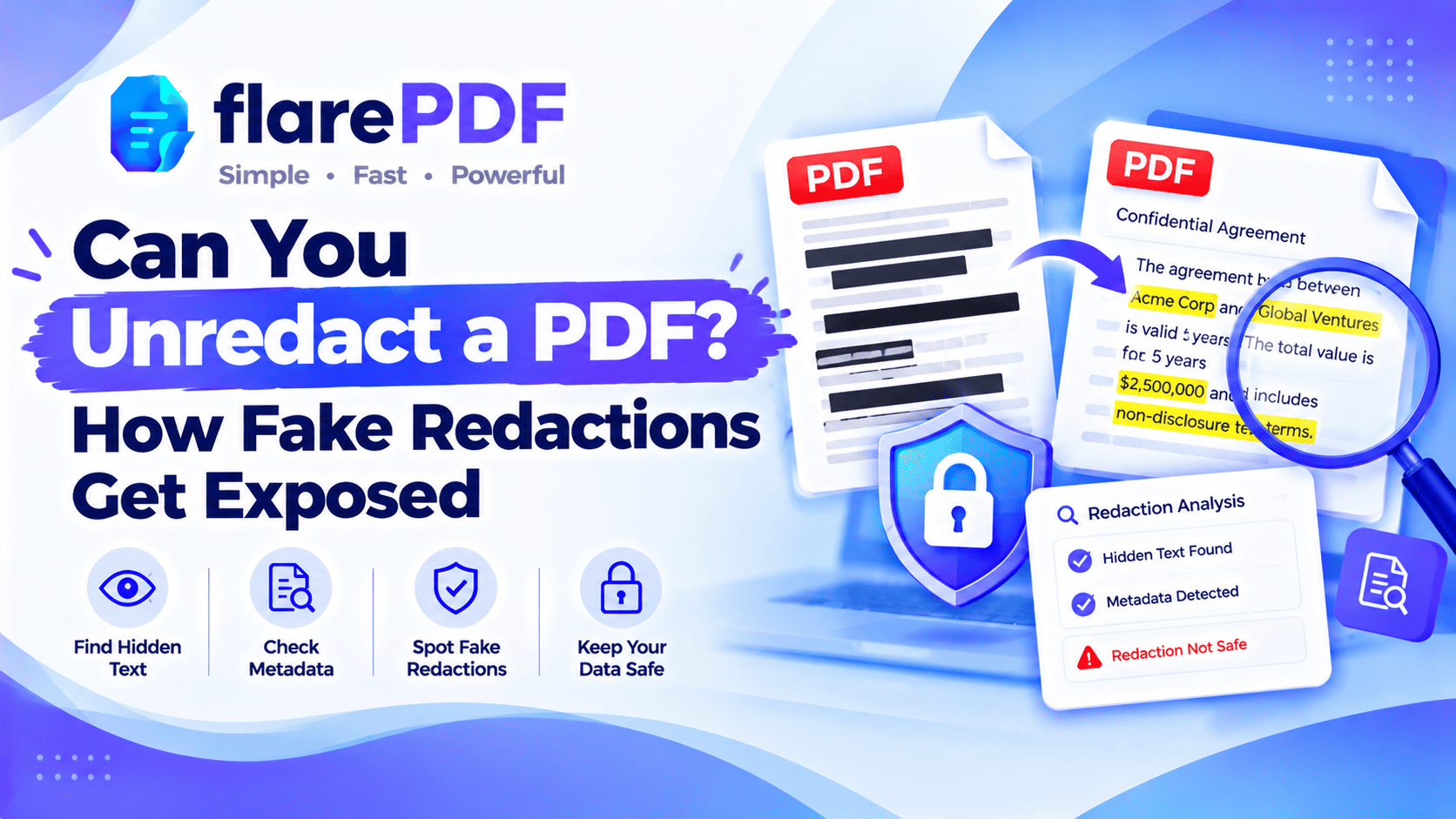
Can you unredact a PDF? If the redaction was done properly, no, because the hidden text has been deleted from the file. But many “redactions” are just black boxes or highlights placed over the words. The text is still underneath, so anyone can copy, search or extract it.
That gap between real and fake redaction has embarrassed law firms and government agencies. It also catches out ordinary people sharing bank statements and ID cards.
This guide explains why fake redactions fail and how to tell the difference. It also shows how to test your own file before you share it. FlarePDF checking tools are free, with no sign-up.
Can you really unredact a PDF?
Yes and no. A real redaction can’t be undone, because the original text no longer exists in the file. A fake redaction, like a black box or highlight, can often be reversed, because the words are still there underneath.
So the honest answer to “how to unredact a PDF” is this: it depends entirely on how the file was redacted.
Real redaction: the text is deleted and replaced with a black box. Nothing is left to recover.
Fake redaction: a black shape, highlight or marker sits on top of the text. The words are still in the file.
Flattened page: the page was turned into an image after the text was covered. The covered words are now just black pixels.
This article is about protecting documents, not exposing other people’s. If you’re checking a file you created, the tests later in this guide will show you whether your redactions are real.
What is a redaction in a PDF?
A redaction is the permanent removal of sensitive information from a document before it’s shared. In a PDF, a proper redaction deletes the selected text, images or data, then usually marks the spot with a black or coloured box so readers know something was removed.
The key word is “removal”. A redaction that only hides the text isn’t a redaction at all. It’s a cover.
For a full guide to doing it correctly, read our complete guide to permanently redacting a PDF.
Why fake redactions get exposed
Fake redactions get exposed because a PDF stores text separately from what you see on the page. The words sit in a hidden text layer. A black box drawn on top changes how the page looks, but not what the file contains.
Think of it like a sticky note on a printed page. You can’t see the word underneath, but it’s still printed there.
Learn more about how PDFs are built in our guide to what a PDF is.
The common ways weak redactions leak
Here’s how covered text can still escape a PDF. If any of these works on your own file, your redaction has failed.
- Copy and paste: selecting across the black box picks up the text underneath.
- Search: the file’s search feature finds the hidden words, even under a box.
- Text extraction: tools that pull text out of a PDF ignore shapes and highlights.
- Moving the box: many black shapes are annotations that can be moved or deleted.
- Hidden OCR layers: scanned PDFs often carry an invisible text layer that the black box doesn’t touch.
- Metadata: names and details can sit in the title, author or keywords fields.
- Comments and bookmarks: sensitive text may be repeated in notes, comments or bookmark titles.
- Earlier versions: some PDFs keep older page content inside the file after editing.
To see how scanned PDFs get a hidden text layer, read what OCR is.
Real redaction vs fake redaction
Here’s a quick way to judge any method.
Black highlight: FAKE. It changes the color only. The text can be copied and searched.
Black rectangle or shape: FAKE. It sits on top of the text, and it can often be moved.
Marker or pen drawing: FAKE. Same problem as a shape, and gaps often show letters.
Black highlight in Word, then saved as PDF: FAKE. The text goes straight into the PDF.
Acrobat Pro Redact tool, applied and saved: REAL. The text is deleted from the file.
Page flattened into an image after covering: REAL. No text layer is left underneath.
Whole page deleted: REAL. If the page is gone, nothing on it can leak.
Quick note: In Acrobat Pro, marking text for redaction isn’t enough. You must click Apply, then save. Until you apply, the text is still there.
Real-world redaction failures
Redaction mistakes aren’t just a beginner’s problem. Some of the best-known cases came from professionals.
- A 2019 US court filing: lawyers for Paul Manafort filed a document with black boxes that didn’t remove the text underneath. Reporters were able to read the hidden passages.
- A 2009 US government manual: a Transportation Security Administration (TSA) screening manual was posted online with redactions that could be removed. The hidden sections were soon public.
Both cases had the same root cause. Someone covered the text instead of removing it.
Quick note: Once a document has been shared, you can’t take it back. That’s why testing before you send matters so much.
Why proper redaction matters
A failed redaction can expose exactly what you meant to protect. The damage can be personal, financial, or legal.
People and organizations redact PDFs to:
- Share bank statements for visas or loans without full account numbers
- Send ID copies with CNIC, Aadhaar, Emirates ID or Social Security numbers hidden
- Respond to privacy requests, such as GDPR subject access requests in the UK and EU
- Release public records under FOIA in the US, or Right to Information laws in India and Pakistan
- File court documents with personal details removed
- Share HR files without revealing salaries or home addresses
- Publish case studies without client names
In many of these cases, privacy laws apply. A leak may need to be reported, so getting it right first time matters.
Can you undo a redaction in your own PDF?
If the redaction was applied properly, you can’t undo it, even in your own file. The text was deleted when the redaction was applied. The only way back is to open your original, unredacted copy.
This is why people searching “how to remove redaction from PDF” or “undo redaction from PDF” are often disappointed. The answer depends on the situation:
- You haven’t saved yet: in many apps, Edit > Undo reverses the redaction.
- You marked text but didn’t apply it: you can remove the redaction marks before applying.
- You applied and saved: the text is gone from that file. Use your original.
- You never kept an original: go back to the source, such as the Word file, the email attachment or the scanner.
Pro tip: Always redact a copy. Name it something like “Statement-REDACTED.pdf” and keep the original somewhere safe.
How to check if a PDF is properly redacted (5-step self-test)
To check your own PDF, try to find the hidden information the way anyone else would. If you can’t find it, your redaction is working.
Run these checks on the redacted copy before you share it:
- Search it. Press Ctrl + F (Command + F on Mac) and type a word or number you redacted. It should not be found.
- Copy across it. Select the area around the black box, copy it and paste it into a notepad. No hidden text should appear.
- Extract the text. Run the file through FlarePDF Extract Text from PDF and search the results for the redacted words. It reads the PDF's text layer, which is exactly where fake redactions leave the words behind.
- Try to move the box. Click the black area and try to drag or delete it. If it moves, the text is still underneath.
- Check the properties. Open File > Properties and look at the title, author and keywords fields. Check comments and bookmarks too.
If the file passes all five checks, your redactions are doing their job.
Quick note: Run these tests only on documents you created or are responsible for. They’re a quality check, not a way to read other people’s private information.
For more about what text a PDF still holds, see how to copy text from a PDF.
How to redact a PDF so it can’t be reversed
To make a redaction permanent, remove the text rather than cover it. Then remove hidden data and test the result.
With a real redaction tool
- Use a true Redact tool, such as the one in Adobe Acrobat Pro.
- Mark every word, number and image you want removed.
- Click Apply to delete the marked content.
- Run Sanitize (or “Remove Hidden Information”) to clear metadata and comments.
- Save as a new file and run the 5-step self-test.
For full Adobe steps, read how to redact in Adobe Acrobat, or see Adobe’s guide to removing sensitive content from PDFs.
With free tools (the flatten method)
- Convert the pages to images with PDF to JPG.
- Cover the sensitive text with a solid black box in any photo editor, then save.
- Rebuild the PDF with JPG to PDF.
- Test the new file with Extract Text from PDF.
Because the page is now an image, there’s no text layer left to leak. The trade-off is that the whole page can no longer be searched or copied.
For a full walkthrough, read how to black out text in a PDF.
Remove whole pages when you can
If an entire page is private, don’t redact it. Delete it with Organize PDF, or send only the pages that are needed with Split PDF.
What to do if you shared a fake redaction
If you’ve already sent a file with a failed redaction, act quickly. You can’t recall a file once it’s shared, but you can limit the damage.
- Stop sharing the file. Remove it from websites, shared folders and portals.
- Contact the recipients. Ask them to delete the faulty copy.
- Redact properly using a real redaction tool or the flatten method.
- Test the new copy with the 5-step self-test.
- Send the corrected file, clearly labelled as a replacement.
- Check your obligations. If personal data was exposed, privacy laws such as GDPR may require you to report it. In the UK, see the ICO’s guidance on reporting a personal data breach.
Quick note: This isn’t legal advice. If the leak involves sensitive personal or legal information, speak to a qualified adviser.
Key features and benefits of FlarePDF for safe redaction
- Free to use: every FlarePDF tool costs nothing.
- No account or login: open a tool and start.
- A free flatten workflow: PDF to JPG and JPG to PDF turn pages into images with no hidden text layer.
- A built-in check: Extract Text from PDF shows whether any text is still hiding in the file.
- Page tools: delete or split pages that are completely private.
- Clear labelling: add a “Redacted copy” watermark with Add Watermark to PDF.
- File handling: PDFs up to 50MB. Files are processed in your browser and never sent to flarePDF's servers.
Quick note: FlarePDF doesn’t have a dedicated one-click redaction tool. The flatten method and the self-test are the free, reliable alternatives.
Why choose FlarePDF to test and protect your redactions?
Most redaction failures happen because nobody checked the file before it went out. A two-minute test would have caught them.
FlarePDF gives you free tools to flatten pages and check for hidden text, with no account or login. Redacted documents usually contain sensitive details, so read the FlarePDF privacy page to see how uploaded files are handled.
Tips and common mistakes
- Never trust a black highlight. It only changes the color of the text.
- Always click Apply. In Acrobat Pro, marked text stays in the file until you apply the redaction.
- Redact every copy. Names and numbers often repeat in headers, footers and other pages.
- Remember scans. Scanned PDFs can hold a hidden OCR text layer under the black box.
- Clear the metadata. Check the title, author, comments and bookmarks.
- Save as a new file. Don’t overwrite your original, and don’t keep editing the same redacted file.
- Get a second check. For important files, ask a colleague to run the self-test too.
Real-world examples
An HR officer in Lahore shares a staff list with an outside auditor. She removes salary figures with a real redaction tool, then runs the self-test before sending.
A visa applicant in Hyderabad needs to hide part of his account number. He flattens the statement with PDF to JPG, covers the digits, rebuilds the PDF and checks it with Extract Text.
A data protection officer in London responds to a GDPR request. She applies redactions, sanitizes the file, and asks a colleague to test it before release.
A small law office in Texas prepares a court filing. A paralegal applies the redactions, saves a new copy, and searches it for each client name before filing.
Related PDF tools you may need
- Delete private pages: read how to delete pages from a PDF.
- Send only some pages: read how to separate pages in a PDF.
- Shrink a flattened file: use Compress PDF.
- Every tool in one place: browse the free PDF tools guide.
Frequently Asked Questions
Can you unredact a PDF?
Not if it was redacted properly. A real redaction deletes the text from the file, so nothing remains to recover. Fake redactions, like black boxes or highlights, only cover the text, so the words can often still be copied or searched.
Can redacted text be recovered?
Only when the redaction was fake. Text under a black box, highlight or marker is still in the file. Text removed with a real redaction tool, or covered on a page flattened into an image, is gone and can’t be recovered.
Why can I still copy text under a black box?
Because the box only sits on top of the page. A PDF stores text in a separate layer, so the words remain underneath. A real redaction tool deletes that text instead of just covering it.
Is black highlighting the same as redaction?
No. A black highlight only changes the color of the text. The words stay in the file and can be copied, searched, or extracted. Redaction removes the text completely and replaces it with a box.
Can you undo a redaction in your own PDF?
Only before you save. Once a redaction is applied and saved, the text is deleted from that file. To get the information back, open your original unredacted copy. That’s why you should always redact a copy, never the original.
Is Adobe’s Redact tool permanent?
Yes, once you click Apply and save the file. Marking text for redaction isn’t enough on its own. For extra safety, run Sanitize to remove hidden data, then test the saved file before sharing it.
How do I check if a PDF is properly redacted?
Search for the redacted words, try copying text across the black areas, and run the file through a text extractor. Also try moving the boxes and check the file’s properties, comments and bookmarks for hidden details.
What should I do if I shared a fake redaction?
Stop sharing the file, ask recipients to delete it, and redact the document properly. Test the new copy, then send it as a replacement. If personal data was exposed, check whether privacy laws require you to report it.
Conclusion
So, can you unredact a PDF? Not when the redaction is real. But black boxes, highlights and marker lines only cover the words, and that’s how fake redactions get exposed. Use a real redaction tool or flatten the page, clear hidden data, and test every file before you share it.
Check your redacted file now. Try Extract Text from PDF free. No sign-up, no login.
Ready to try it yourself?
No sign-up, no upload — your files never leave your device.
Check a redaction with Extract TextKeep reading
More guides from the flarePDF blog