How to Combine Word Documents Into One PDF (Free)
Learn how to combine Word documents into one PDF for free. Save each file as a PDF and merge them, or join them in Word first. Windows, Mac, and Google Docs.
How to Combine Word Documents Into One PDF
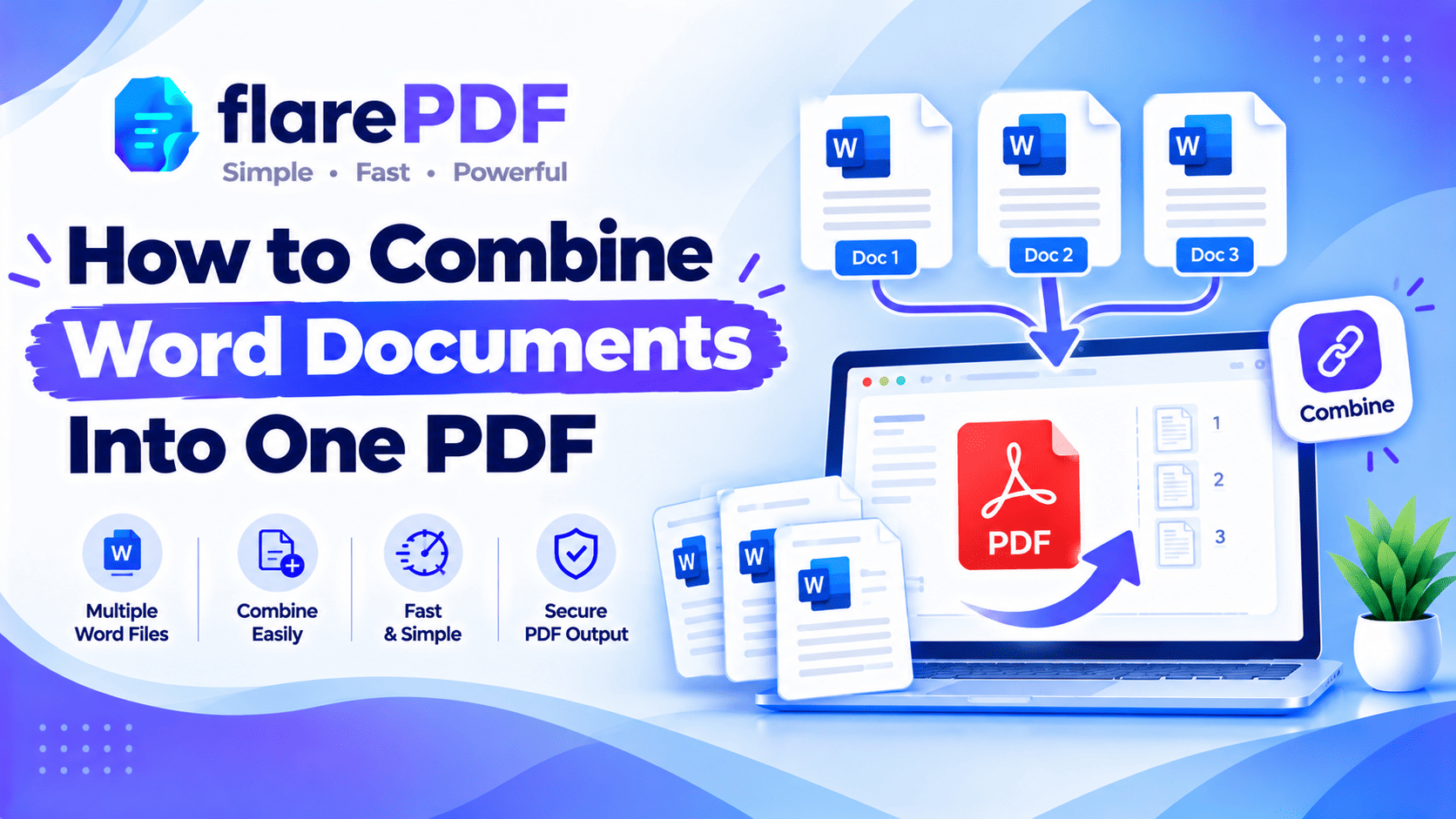
The easiest way to combine Word documents into one PDF is to save each Word file as a PDF, then merge the PDFs with a free tool. Or combine the documents inside Word first and save the result once as a PDF.
This comes up all the time. A job portal wants your CV, cover letter and references in one file. A professor wants every chapter in a single upload. You have five Word files and one upload button.
This guide covers three reliable methods, with steps for Windows, Mac, Word for the web and Google Docs. You’ll also learn how to keep the formatting and page numbers right. FlarePDF merge tool is free, with no sign-up.
What does it mean to combine Word documents into one PDF?
Combining Word documents into one PDF means turning several doc or doc files into a single PDF file, with each document’s pages in the order you choose. The original Word files stay as they are. You get one tidy PDF that’s easy to share, upload or print.
There are three ways to do it:
Save each, then merge: save every Word file as a PDF, then join the PDFs. Best for most people, and free on any computer.
Combine in Word first: pull all the documents into one Word file, then save it once as a PDF. Best when you want continuous page numbers and one table of contents.
Acrobat Pro Combine Files: add Word files directly and let Acrobat convert and merge them. Best if you already use Acrobat Pro.
Quick note: FlarePDF doesn’t convert Word files to PDF. Word does that for free with its built-in Save as PDF option. FlarePDF then joins the PDFs together.
Why combine Word documents into one PDF?
One PDF is easier to handle than a folder full of Word files. It looks the same on every device, and nobody can accidentally edit it.
People usually combine Word documents into one file for:
- Job applications: a CV, cover letter and certificates in one upload
- University work: chapters, an appendix and a title page in a single submission
- Visa and embassy files: supporting letters and statements in one document
- Tenders and proposals: technical and financial sections bundled together
- Monthly reports: separate team reports combined for management
- Freelance deliverables: a brief, invoice and terms sent as one file
PDFs also keep your fonts and layout fixed. Learn more in our guide to what a PDF is.
How to combine Word documents into one PDF with FlarePDF
To merge Word documents into one PDF for free, save each Word file as a PDF, then join them with an online PDF merger. It takes a few minutes and works on Windows, Mac and Chromebooks.
Step 1: Save each Word document as a PDF
- Open the first document in Microsoft Word.
- Go to File > Save As (or File > Save a Copy).
- Choose PDF as the file type.
- Click Save.
- Repeat for every Word document.
Pro tip: Put a number at the start of each file name, like “1-CV.pdf”, “2-Cover-Letter.pdf” and “3-References.pdf”. The files then sort in the right order automatically.
Step 2: Merge the PDFs into one file
- Open FlarePDF Merge PDF.
- Upload all the PDFs you just saved. You can add as many as you need.
- Arrange them in the right order with the Move up and Move down buttons.
- Click the merge button.
- Download your combined PDF and open it to check every page.
Need to move a single page after merging? Use Organize PDF to drag it into place. For more on merging PDFs, read how to combine multiple PDFs into one.
How to combine two Word documents into one Word file first
To combine Word documents into one Word file, open the first document and use Insert > Object > Text from File to add the others. Then save the combined file once as a PDF.
This method is best when you want one continuous document, with page numbers and headings that flow from start to finish.
In Word for Windows
- Open the document that should come first.
- Click where the next document should start, usually at the very end.
- Go to Layout > Breaks > Next Page to start the next document on a new page.
- Go to Insert, click the arrow next to Object, and choose Text from File.
- Select the next Word file and click Insert.
- Repeat for each remaining document.
- Choose File > Save As > PDF.
In Word for Mac
- Open the first document and click at the end.
- Add a section break (Layout > Breaks > Section Break (Next Page)).
- Go to Insert > Object > Text from File. On some versions this is Insert > File.
- Pick the next document and click Insert.
- Repeat, then choose File > Save As and set the format to PDF.
Quick note: Don’t confuse this with Review > Compare > Combine. That feature merges tracked changes from two versions of the same document. It doesn’t join different files.
How to combine Word documents into one PDF on Mac
On a Mac, save each Word file as a PDF, then combine the PDFs in Preview or with an online merger.
Save Word files as PDF on Mac
- Open the document in Word for Mac.
- Choose File > Save As.
- Set File Format to PDF.
- Choose Best for printing if you want to keep the layout exactly as it looks.
- Click Export or Save.
Combine the PDFs in Preview
- Open the first PDF in Preview.
- Choose View > Thumbnails.
- Drag the other PDF files from Finder into the thumbnail sidebar.
- Drag the thumbnails into the right order.
- Choose File > Export as PDF to save a new combined file.
For more of Preview’s tools, read how to edit a PDF on Mac for free. You can also use FlarePDF Merge PDF on a Mac for the same result.
How to combine Word documents into one PDF in Google Docs
Google Docs can open Word files and download them as PDFs, which you can then merge. It’s useful when you don’t have Microsoft Word installed.
- Upload your Word files to Google Drive.
- Open each file with Google Docs.
- Choose File > Download > PDF Document (.pdf).
- Repeat for each file.
- Merge the downloaded PDFs with an online PDF merger.
Quick note: Google Docs may swap fonts it doesn’t have and move some layout elements. Check each PDF before you merge, especially CVs and designed documents.
Word for the web works in a similar way. Open the file, then choose File > Download > Download as PDF.
How to combine Word documents in Adobe Acrobat
In Adobe Acrobat Pro, the Combine Files tool can add Word documents directly and merge them into one PDF. Acrobat converts each Word file as part of the process.
- Open Acrobat Pro.
- Go to All tools > Combine files.
- Click Add files and select your Word documents (and any PDFs or images).
- Drag the files into the right order.
- Click Combine, then save the new PDF.
The free Acrobat Reader doesn’t include Combine Files. If you only have Reader, use the “save each, then merge” method.
Free desktop option: LibreOffice Writer can open Word files and export them as PDFs with File > Export as PDF. Then merge them online.
How to keep formatting when combining Word documents
Your formatting stays most reliable when you convert each document on the computer where it was created. Word embeds your fonts in the PDF, so the layout looks the same everywhere.
Follow these rules for a clean result:
- Convert in Word, not in another app, when the document has special fonts or a complex layout.
- Use “Best for printing” on Mac, or the standard PDF option on Windows, to keep layout exact.
- Use section breaks, not page breaks, when you combine inside Word. Each document then keeps its own headers, footers and margins.
- Check images and tables. They’re the elements most likely to shift.
- Tick “Create bookmarks using Headings” under Options when saving as PDF on Windows. Readers can then jump between sections.
How to keep page numbers continuous
Page numbers restart at 1 in each document when you save the files separately. To fix that, add page numbers to the finished PDF instead.
- Remove page numbers from the Word documents, or leave them out when you create the PDFs.
- Merge the PDFs into one file.
- Add fresh page numbers with Add Page Numbers to PDF.
If you combine inside Word first, set the page numbers to continue: go to Insert > Page Number > Format Page Numbers and choose Continue from previous section.
How to combine Word documents with PDFs and images
To combine Word files with PDFs and images, turn everything into PDF first, then merge them all together.
- Word files: save as PDF in Word.
- Photos and scans: convert them with JPG to PDF, or create a clean scan with Scan to PDF.
- Existing PDFs: use them as they are.
Then merge every file with FlarePDF Merge PDF. This is perfect for job applications that need a CV plus scanned degree certificates.
For more on images, read how to combine images into one PDF.
How to combine Word documents into one PDF on iPhone or Android
On a phone, export each Word document as a PDF from the Word app, then merge the PDFs in your browser.
- Open the document in the Microsoft Word app.
- Use the menu (often ..or File) and choose Export or Save as PDF . Menu names can vary between Word app versions.
- Save the PDF to your Files app or downloads.
- Open Merge PDF in your mobile browser and add the PDF. It works in Safari and Chrome on phones.
- Download the combined file.
Key features and benefits of FlarePDF for combining documents
- Free to use: every FlarePDF tool costs nothing.
- No account or login: open the tool and merge.
- Works with any PDF: files saved from Word, Google Docs, scanners or other apps.
- Page tools: reorder, delete or rotate pages after merging.
- Finishing tools: add page numbers, a watermark or compression.
- File handling: PDFs up to 50MB. Files are processed in your browser and never sent to flarePDF's servers.
Why choose FlarePDF to merge your Word files?
Word already does a great job of saving files as PDFs. What it can’t do on its own is join separate PDFs into one.
FlarePDF covers that step for free, with no account or login. CVs and application documents often contain personal details, so read the FlarePDF privacy page to see how uploaded files are handled.
Tips and common mistakes
- Number your files first. “1-”, “2-”, “3-” at the start of each name keeps the order right.
- Check each PDF before merging. It’s easier to fix one document than the whole bundle.
- Remove blank pages. Stray page breaks often leave empty pages. Delete them with Organize PDF, or read how to delete pages from a PDF.
- Add page numbers last. Numbering the final PDF keeps them continuous.
- Watch the file size. If the combined file is too big for an upload, use Compress PDF.
- Name the final file clearly. Try “Ali-Khan-Job-Application.pdf” rather than “merged.pdf”.
- Keep the Word originals. You’ll need them if anything changes later.
Real-world examples
A job seeker in Karachi needs one PDF with her CV, cover letter and three certificates. She saves the Word files as PDFs, converts the scanned certificates with JPG to PDF, and merges everything.
A master’s student in Manchester writes each thesis chapter in a separate Word file. He combines them in Word with Text from File, sets continuous page numbers and saves one PDF.
An HR team in Bengaluru sends a new-joiner pack with a policy, a contract and a welcome letter. They merge the three PDFs and add page numbers to the final file.
A contractor in Dubai prepares a tender with technical and financial sections from different colleagues. He saves each section as a PDF, merges them in order, and compresses the file for the portal.
Related PDF tools you may need
- File too big for the portal? Read how to compress a PDF to 200KB or 100KB.
- Too large to email? Read PDF too large to email? 6 ways to send it.
- Need to split it again later? Read how to split a PDF into multiple files.
- Sign the final document: use Sign PDF.
- Every tool in one place: browse the free PDF tools guide.
Frequently Asked Questions
How do I combine Word documents into one PDF?
Save each Word document as a PDF using File, Save As, PDF. Then merge the PDFs with a free online tool like FlarePDF Merge PDF. Or combine the documents inside Word with Text from File, and save once as PDF.
How do I combine two Word documents into one PDF?
Open the first document, add a section break at the end, then use Insert, Object, Text from File to add the second. Save the combined file as a PDF. Or save both as PDFs and merge them.
How do I merge Word documents into one PDF for free?
Use Word’s built-in Save as PDF option for each file, which costs nothing. Then join the PDFs with a free merger such as FlarePDF Merge PDF, which needs no account or login.
Can I combine Word documents into one PDF without Adobe?
Yes. Word can save each document as a PDF, and a free online merger or Mac Preview can join them. Google Docs and LibreOffice can also convert Word files to PDF if you don’t have Word.
Will combining Word documents change the formatting?
Usually not, if you save each file as a PDF in Word on your own computer. Word embeds your fonts, so the layout stays fixed. Google Docs may swap fonts, so check those PDFs before merging.
How do I keep page numbers continuous across combined documents?
Leave page numbers out of the separate files, merge the PDFs, then add new numbers to the final PDF with a page numbering tool. If you combine in Word first, set numbering to continue from the previous section.
How do I combine Word documents and images into one PDF?
Save the Word files as PDFs and convert the images with a JPG to PDF tool. Then merge all the PDFs into one file and arrange them in the right order before downloading.
How do I change the order of documents in the combined PDF?
Arrange the files in the merge tool before you combine them. Numbering file names first, like 1-CV and 2-Letter, helps. To move single pages afterwards, use a page organizer and drag them into place.
Conclusion
Now you know how to combine Word documents into one PDF in three reliable ways. Save each file as a PDF and merge them, combine them in Word first for continuous numbering, or use Acrobat Pro’s Combine Files. Number your files, check the formatting, and add page numbers at the end.
Ready to join your files? Try FlarePDF Merge PDF free. No sign-up, no login.
Keep reading
More guides from the flarePDF blog