How to Compress a PDF to 200KB or 100KB (Free)
Learn how to compress a PDF to 200KB or 100KB for online forms. Free steps, fixes for files that stay too big, and tips to keep text readable.
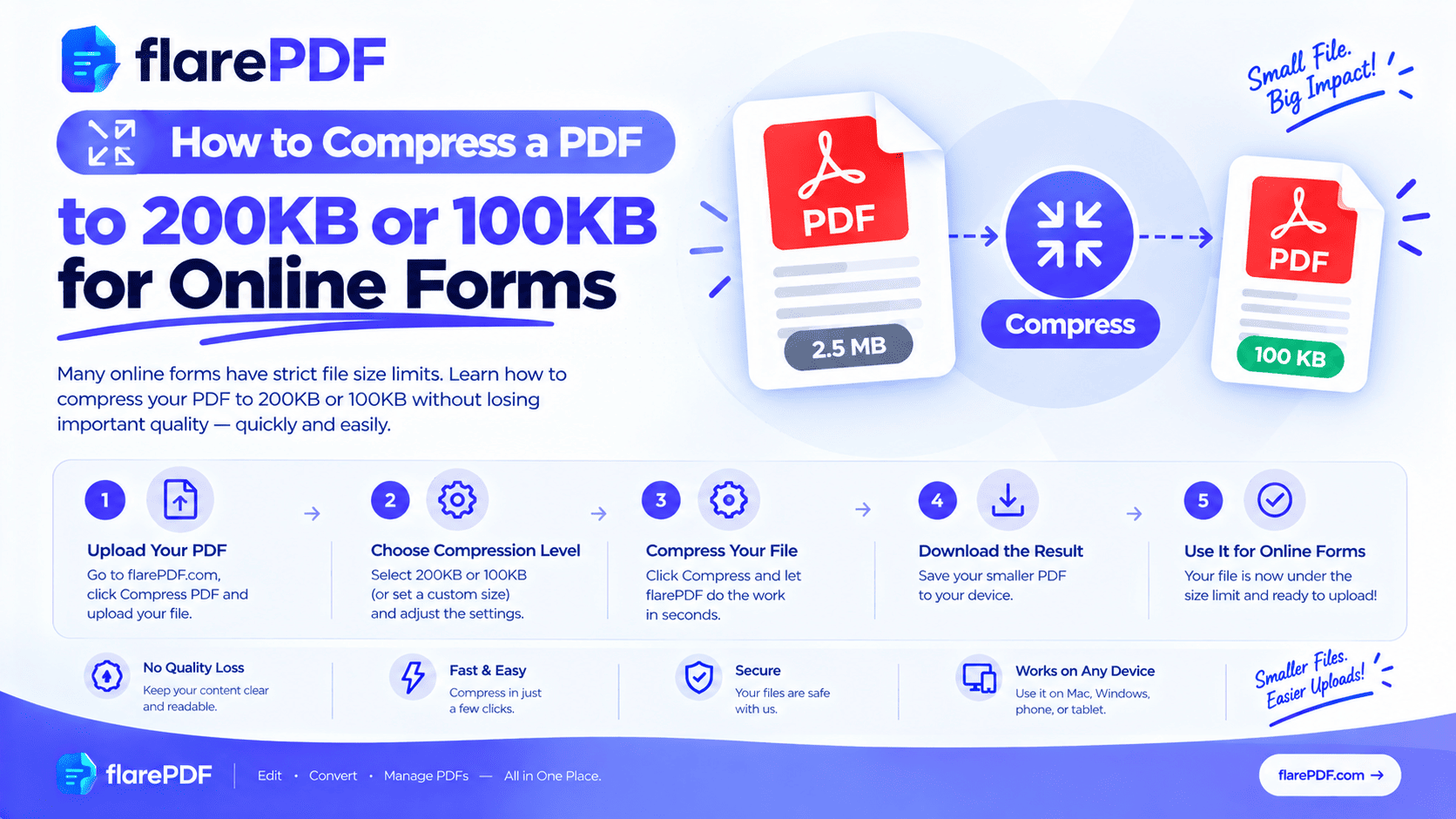
How to Compress a PDF to 200KB or 100KB for Online Forms
Here’s how to compress a PDF to 200KB: upload it to a free PDF compressor, choose strong compression, and check the new size. If it’s still too big, delete extra pages, rescan in grayscale, or rebuild the PDF from images.
You’re probably here because a form just said “file too large”. It happens all the time with job portals, university admissions, visa applications, and scholarship forms. The deadline is close, and your scan is 2MB when the limit is 200KB.
This guide shows you how to get your file under the limit. It covers the main method, six fixes for files that won’t shrink, phone and computer options, and how to keep text readable. FlarePDF compressor is free, with no sign-up.
What does it mean to compress a PDF to 200KB or 100KB?
Compressing a PDF to 200KB or 100KB means reducing its file size so it fits under an upload limit set by an online form. Compression shrinks images, removes hidden data, and simplifies the file. The goal is to get under the limit while keeping every word, number and stamp clear.
Most of a PDF’s size comes from images, especially scans and photos. Plain text takes up very little space. That’s why a 10-page typed document might be 80KB, while a single scanned page can easily be larger than 100KB on its own.
For the full background on shrinking PDFs, see our full guide to compressing PDFs without losing quality.
Why do online forms limit PDF size?
Online forms limit file size to save server storage, speed up uploads and make documents easier for staff to review. When thousands of people apply, every extra megabyte adds up.
Common places with strict limits include:
- Job portals: government and private job applications in Pakistan, India and beyond
- University admissions: degree certificates, transcripts and ID copies
- Visa and immigration portals: bank statements, passport copies and letters
- Scholarship forms: certificates, income proofs and recommendation letters
- Banking and KYC forms: CNIC, utility bills and proof of address
Quick note: Limits vary from portal to portal, and they can change. Always check the exact limit shown on your form before you start.
How many KB is 1 MB?
One megabyte is 1,024 kilobytes on Windows and 1,000 kilobytes on Mac and many websites. Either way, a 1MB file is about five times a 200KB limit and ten times a 100KB limit.
Here’s a quick way to picture it:
2 MB scan: about 2,000 KB, roughly 10 times a 200KB limit.
1 MB file: about 1,000 KB, roughly 5 times a 200KB limit.
500 KB file: 2.5 times a 200KB limit, 5 times a 100KB limit.
200 KB file: exactly at the limit, which is risky because some sites count size differently.
Pro tip: Aim a little below the limit. For a 200KB cap, target 180KB or less. For a 100KB cap, target 90KB. That safety margin avoids rejections caused by different size calculations.
How to check your PDF’s file size
- Windows: right-click the file and choose Properties.
- Mac: select the file and press Command + I (Get Info).
- iPhone: in the Files app, press and hold the file and tap Get Info.
- Android: in your Files app, tap the three dots next to the file and choose Details or Info.
How to compress a PDF to 200KB with FlarePDF, step by step
The quickest way to shrink a PDF for an online form is FlarePDF free PDF compressor. There’s no account to create.
- Open the Compress PDF page in your browser.
- Upload your PDF: drag it onto the page or pick it from your files.
- Choose the Strong compression level for small targets like 100KB.
- Compress the file.
- Download the smaller PDF. The tool shows how much smaller the file got.
- Check the size and open the file to confirm it’s readable.
If the file is under your limit and still clear, you’re done. If not, keep reading. The next section fixes almost every stubborn file.
Still too big? 6 ways to get a PDF under 200KB or 100KB
If one round of compression isn’t enough, work through these steps in order. Most files get under the limit by step 3.
1. Use the strongest compression setting
Try the highest compression level first. It shrinks images the most. Check readability afterward, because strong compression can soften scanned text.
2. Delete pages the form doesn’t need
Many scans include blank backs, cover pages or extra copies. Every page you remove saves space. Read how to delete pages from a PDF, or use Organize PDF to remove them.
Pro tip: If a form asks for “CNIC front and back”, it doesn’t need your whole document folder. Upload only what’s requested.
3. Split the file if the form allows several uploads
Some forms have separate upload boxes for each document. Split one large PDF into smaller files with Split PDF. Our guide on how to split a PDF into multiple files shows how.
4. Crop wide margins
Large white or dark borders around a scan add image data for nothing. Trim them with Crop PDF, then compress again.
5. Rescan in grayscale or black and white at a lower resolution
This is the most powerful fix for scanned documents. Color scans at high resolution are huge.
- Choose grayscale or black and white instead of color.
- Set the resolution to 150–200 DPI instead of 300 DPI or higher.
- Scan only the page area, not the whole scanner bed.
Read how to scan a document to PDF for scanner settings. On a phone, see how to scan documents on iPhone and choose the Black and White filter. You can also use Scan to PDF.
Quick note: Keep color, if the form needs it, for example for a photo, a coloured stamp or a signature in blue ink.
6. Convert to images, then rebuild the PDF
For very heavy scans, convert each page to an image with PDF to JPG. Then combine the images back into a PDF with JPG to PDF, and compress once more. PDF to JPG lets you pick the resolution and quality.
See how to convert JPG to PDF for the full steps.
Quick note: This turns every page into a picture, so the text can no longer be selected or searched. That’s fine for most forms, but keep your original file.
How to compress a PDF on Mac, Windows and phones
How to compress a PDF on Mac with Preview
- Open the PDF in Preview.
- Choose File > Export.
- In Quartz Filter, choose Reduce File Size.
- Save with a new name.
This often makes files much smaller, but it can blur text badly. Apple’s Preview User Guide explains the export options. For sharper results, read how to compress a PDF on Mac without making it blurry.
How to make a smaller PDF on Windows with Word
If your document starts in Microsoft Word, you can save a smaller PDF from the start:
- Choose File > Save As.
- Pick PDF as the file type.
- Under Optimize for, select Minimum size (publishing online).
- Save.
This works best for typed documents like resumes and cover letters. For scanned files, use an online compressor instead.
How to compress a PDF to 200KB on iPhone or Android
- Open the FlarePDF compress tool in Safari or Chrome on your phone.
- Upload the PDF from Files (iPhone) or your file manager (Android).
- Compress and download the smaller copy.
- Check the new size before uploading it to your form.
Will the compressed PDF still be readable?
It should be, but always check before you submit. An unreadable document is worse than a size error. The form may accept it, but an officer might reject your application later.
Before uploading, open the compressed PDF and:
- Zoom to 100% and read a few lines.
- Check names, numbers and dates, such as CNIC numbers, roll numbers and amounts.
- Look at stamps, signatures and photos to make sure they’re still clear.
- Compare with the original if anything looks blurry.
If the text looks fuzzy, step back to a lighter compression level. Then use another fix, like deleting pages or cropping, to make up the difference.
How to compress a PDF for email
Email limits are much bigger than form limits, but large scans can still exceed them. Gmail, for example, lets you attach files up to 25MB, as explained in Google’s help page on Gmail attachments. Larger files are sent as a Google Drive link instead.
If your PDF is too large to email:
- Compress it with the same steps above.
- Remove pages the recipient doesn’t need.
- Split it into two emails if needed.
- Share a cloud link instead of an attachment.
Real-world uses: job, admission and visa forms
Job applications in Pakistan
Government and private job portals often ask for a CNIC copy, degree and domicile, each with a small size limit. Scan each document separately in grayscale, compress it, and upload one per box.
University and scholarship forms in India
Admission and scholarship portals typically want marksheets, certificates and ID proofs as small PDFs. Remove blank pages, crop margins and compress before you upload.
Visa and immigration uploads
Visa portals for the UK, Canada, Australia and the UAE often ask for bank statements and passport copies. Statements can run many pages, so split them if each upload has its own limit, and compress each part.
Resumes and cover letters
Typed resumes usually shrink easily. Save from Word with Minimum size, or compress the PDF once. Most come out well under 200KB.
Key features and benefits of FlarePDF compressor
- Free to use: every FlarePDF tool costs nothing.
- No account or login: open the tool and start. No email needed.
- Simple steps: upload, compress, download and check.
- Related tools in one place: split, delete pages, crop, scan and convert on the same site.
- Compression options: Light, Recommended and Strong.
- File handling: PDFs up to 50MB. Files are processed in your browser and never sent to flarePDF's servers.
Why choose FlarePDF for form uploads?
When a portal rejects your file at 11 PM before a deadline, you don’t want to install software or create an account. FlarePDF lets you compress straight from your browser on a laptop or phone.
It also gives you every fallback tool in one place, so you can split, crop, delete pages or rebuild a scan without switching sites. For ID cards and bank statements, read how files are handled on the FlarePDF privacy page.
Tips and common mistakes
- Check the limit first. Don’t guess. Read the exact KB or MB limit on the form.
- Aim below the limit. Target 180KB for a 200KB cap, and 90KB for a 100KB cap.
- Keep the original. Always save your full-quality file before compressing.
- Don’t over-compress. Blurry text can get your application rejected later.
- Scan smart from the start. Grayscale at 150–200 DPI saves time later.
- Name files clearly. “Ali_Khan_CNIC.pdf” helps reviewers and avoids upload mix-ups.
- Merge only when asked. If the form wants one file, use Merge PDF first, then compress. Our guide on how to combine multiple PDFs into one explains it.
Real-world examples
A graduate in Lahore applies for a government job. The portal wants a degree scan under 200KB, but his phone scan is 1.8MB. He rescans in black and white, compresses it to 150KB, and uploads it in time.
A student in Hyderabad, India needs her marksheet under 100KB for a scholarship form. She crops the wide margins, deletes the blank back page and compresses it to 85KB.
A freelancer in Manila uploads a signed contract to a client portal with a 500KB limit. One round of compression takes it from 1.2MB to 320KB.
An applicant in Dubai has a 12-page bank statement for a visa portal. He splits it into three parts and compresses each one to fit the upload limit.
Related PDF tools you may need
- Need text from a scan instead? Read what OCR is, or try Extract Text from PDF.
- Sign before you upload: use Sign PDF, or follow how to insert a signature in a PDF.
- Fix a detail first: use the free PDF editor.
- Hide private numbers: learn how to permanently redact a PDF.
- New to PDFs? Start with what a PDF is.
Frequently Asked Questions
How do I compress a PDF to 200KB?
Upload the PDF to a free compressor like FlarePDF, choose the strongest compression, and download it. Check the new size. If it is still over 200KB, delete pages you do not need, rescan in grayscale, or split the file.
How do I reduce a PDF to 100KB without losing quality?
Start with the cleanest source you have. Text-based PDFs shrink easily. For scans, rescan in grayscale at 150 to 200 DPI, remove extra pages and crop margins, then compress. Always zoom in to confirm text stays readable.
Why is my PDF still too big after compressing?
Usually because it contains high-resolution scans or photos, or too many pages. Compression can only shrink images so far without making them unreadable. Remove extra pages, rescan at a lower resolution in grayscale, or split the file into parts.
How many KB is 1 MB?
One megabyte is 1,024 kilobytes on Windows and 1,000 kilobytes on Mac and many websites. Either way, a 1 MB file is roughly five times bigger than a 200KB limit and ten times bigger than a 100KB limit.
Can I compress a PDF on my phone?
Yes. Open a free online compressor like FlarePDF in your phone’s browser, upload the PDF from your files, compress it and download the smaller copy. Check the new size in your Files app before uploading it to the form.
Will compressing a PDF make it blurry?
Strong compression can make scans and photos slightly blurry, while normal text usually stays sharp. Always open the compressed file, zoom to 100 percent, and check names, numbers and stamps before submitting it to any form.
What should I do if a form says “file too large”?
Check the exact size limit on the form, then compress the PDF and compare the new size. Aim a little below the limit, such as 180KB for a 200KB cap, because some websites measure file size differently.
Can I compress a PDF to 50KB?
Sometimes. A one-page, text-based PDF can usually get under 50KB. A scanned page is harder, so rescan it in black and white at a lower resolution, crop the margins, and then compress it. Check that it stays readable.
Conclusion
Now you know how to compress a PDF to 200KB or 100KB for any online form. Start with strong compression and check the size, then aim a little below the limit. If the file won’t shrink, delete extra pages, crop margins, rescan in grayscale or split it. Always zoom in to confirm it’s readable before you submit.
Beat that upload error now. Try Compress PDF free. No sign-up, no login.
Ready to try it yourself?
No sign-up, no upload — your files never leave your device.
Open Compress PDFKeep reading
More guides from the flarePDF blog