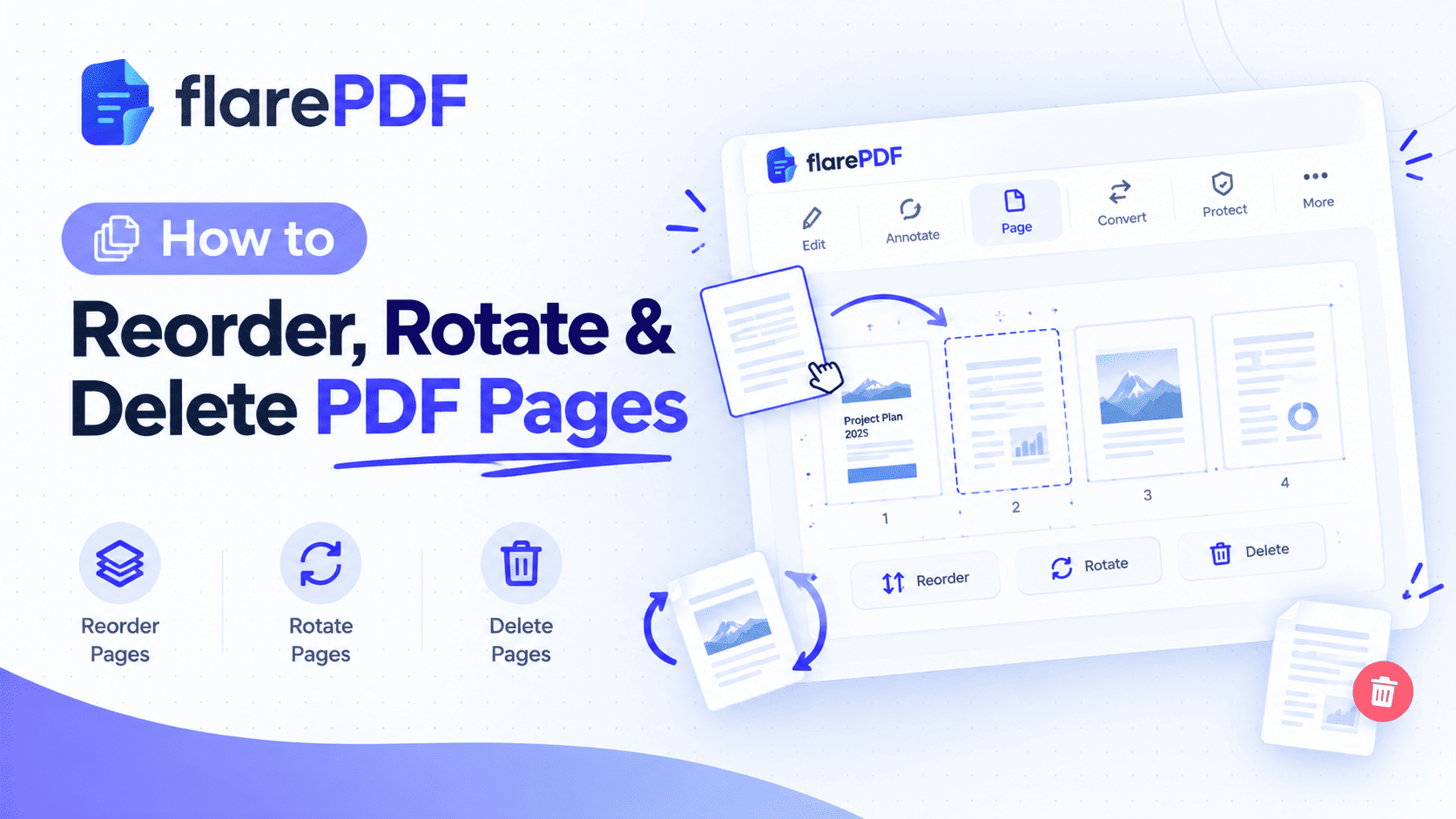
How to Delete Pages From a PDF (Windows, Mac, Phone)
Learn how to delete pages from a PDF for free on Windows, Mac, iPhone and Android. Remove one page, many pages or blank pages in minutes. No sign-up.
How to Delete Pages From a PDF (Windows, Mac, Phone)
To delete or remove pages from a PDF on any device:
- Open a free page remover such as Flare PDF Organize PDF.
- Upload your PDF to see every page as a thumbnail.
- Select the pages you want to remove.
- Click delete.
- Download your new, shorter PDF.
Most PDFs carry pages you don't need, such as a blank sheet from the scanner, an old cover page or a page with private details. Extra pages slow the reader down and make the file bigger. Some upload portals reject them altogether.
This guide covers how to delete pages from a PDF on Windows, Mac, iPhone and Android, plus Adobe Acrobat and Chrome. You'll learn to remove one page, many pages and blank pages, and what to do when a PDF won't let you. Flare PDF's tools are free, with no sign-up or login.
What Does It Mean to Delete Pages From a PDF?
Deleting pages from a PDF means removing whole pages from the document and saving a new version without them. Every page you keep stays exactly as it was, with the same text, images and quality. It's also called removing, cutting, erasing or eliminating PDF pages, and the steps are the same.
It's like pulling a few sheets out of a stapled report. You take out the pages you don't want, and the rest of the report stays the same.
A PDF is built from separate page objects, as defined in the open standard ISO 32000. That's why a page remover can take out one page cleanly without touching its neighbours.
What's the difference between deleting and extracting pages?
Deleting pages: You keep the same file and remove what you don't want. Best when most pages stay.
Extracting pages: You create a new file with only the pages you pick. Best when you need just a few pages.
If you only need two pages out of fifty, extracting is faster. The free Split PDF tool handles that.
Why You'd Remove Pages From a PDF
People remove PDF pages for very practical reasons.
- Job applications: Drop the instruction page from a form before you upload your CV pack.
- Official uploads: Visa, NADRA, passport and university portals often want only the pages they ask for.
- Scanned documents: Double-sided scanning adds a blank page after every sheet.
- Privacy: Remove a page with account numbers or personal details before sharing a file.
- Merged files: Delete duplicate pages after you combine several PDFs.
- File size: Fewer pages mean a smaller file that's easier to email.
Pro tip: If a page has private details, deleting the whole page is often safer than trying to hide parts of it.
How to Delete Pages From a PDF With Flare PDF
The simplest method, and the same on every device, is the free online PDF page remover from Flare PDF. It runs in your browser, with no software and no account.
- Open the Flare PDF Organize PDF page.
- Upload the PDF you want to edit.
- Select the pages you want to remove.
- Delete the selected pages.
- Check the thumbnails that remain.
- Download your new PDF.
Quick note: Keep the original file until you've opened the new one and checked it. If you remove the wrong page, you can start again from the original.
How do I remove one page from a PDF?
Select that single page's thumbnail, delete it and download the file. This is the most common job, such as removing a blank page or an unwanted cover sheet. The other pages stay in their original order.
How do I delete multiple pages at once?
Select every page you want gone, then delete them in one step. On a computer, hold Ctrl (Windows) or Command (Mac) to pick separate pages. Hold Shift and click to select a run of pages in a row.
How do I remove blank pages from a PDF?
Scroll the thumbnails, select every blank page and delete them together. Blank pages usually come from double-sided scanning of one-sided paper.
Pro tip: Zoom in before deleting a "blank" page. A faint stamp, note or signature is easy to miss in a small thumbnail.
How to Delete Pages From a PDF on Windows
Windows 10 and 11 don't include a PDF page editor, but you have two free options: an online page remover, or the built-in Microsoft Print to PDF trick.
Option 1: Use an online tool
Open the Organize PDF tool in Edge, Chrome or Firefox. Upload the file, remove the pages and download the result. This keeps links and other PDF features in place.
Option 2: Use Microsoft Print to PDF
This method "prints" a new PDF that contains only the pages you choose.
- Open the PDF in Microsoft Edge or any PDF viewer.
- Press Ctrl + P.
- Choose Microsoft Print to PDF as the printer.
- Under Pages, type only the pages you want to keep, such as 1-3, 5, 7-10.
- Click Print, then name and save the new file.
Pros: Built into Windows, works offline, no upload.
Cons: Links, bookmarks and fillable form fields are usually lost, and text may become harder to select in some files.
Quick note: You type the pages to keep, not the pages to delete. Write your list down first so you don't drop a page by mistake.
Can I delete PDF pages in Microsoft Edge or Chrome?
Not directly. Edge and Chrome can open, annotate and print PDFs, but they have no "delete page" button. You can use the same print trick, though. In Chrome, press Ctrl + P (or Command + P on Mac), choose Save as PDF, set custom pages and save. This also works on a Chromebook.
How to Delete Pages From a PDF on Mac
Mac users can remove PDF pages for free with Preview, the PDF app that comes with every Mac.
How do I delete a page in Preview?
- Open the PDF in Preview.
- Choose View, then Thumbnails, to show the page sidebar.
- Click the page you want to remove. Hold Command to select more pages, or Shift to select a range.
- Press the Delete key, or choose Edit, then Delete.
- Choose File, then Save.
Apple's Preview User Guide has more detail for your macOS version.
Pro tip: Preview saves straight over your original file. To keep a clean copy, choose File, then Duplicate, before you delete anything.
What if the Delete key doesn't work in Preview?
Make sure the page itself is selected in the sidebar, not text on the page. Click once on the thumbnail so it's highlighted, then press Delete. If the file is locked, Preview may block changes. See the troubleshooting section below.
Can I use the print trick on a Mac?
Yes. Choose File, then Print, enter the pages to keep, then click the PDF button and choose Save as PDF. As on Windows, interactive features may be lost.
How to Delete Pages From a PDF on iPhone and Android
Can I delete pages from a PDF on my iPhone?
Yes. The built-in Files app on iPhone and iPad can delete PDF pages.
- Open the PDF in the Files app.
- Show the page thumbnails. On iPhone, swipe right from the left edge or tap the screen to reveal them.
- Touch and hold the page you want to remove.
- Tap Delete.
- Tap Done to save.
Menu names can differ a little between iOS versions. If you don't see the thumbnails, open the file in Safari's share sheet and use an online page remover instead.
Quick note: The Files app saves changes to the same file. If you need the original, duplicate it first by touching and holding the file in the folder and choosing Duplicate.
How do I remove pages from a PDF on Android?
Android doesn't include a built-in PDF page editor, and Google Drive's viewer can't delete pages. The easiest option is an online tool in your phone's browser.
- Save the PDF to your phone or Google Drive.
- Open the Organize PDF page in Chrome.
- Upload the file and tap the pages you want gone.
- Delete them and download the new PDF.
Some PDF reader apps also include page editing. Check the app's permissions before you open private documents in it.
How to Delete Pages in Adobe Acrobat and Other Desktop Software
How do I delete pages in Adobe Acrobat?
In Adobe Acrobat, open the Organize Pages tool, select the pages and click the trash (delete) icon, then save. Page organizing is part of the paid Acrobat versions. The free Acrobat Reader lets you view and comment but usually can't remove pages. See the Adobe Acrobat User Guide for your version.
Can you delete pages from a PDF without Adobe?
Yes. You don't need Adobe at all. Free options include:
- An online page remover, which works on any device.
- Mac Preview, which is built into every Mac.
- The iPhone Files app.
- Microsoft Print to PDF on Windows, or Save as PDF in Chrome.
- Free desktop software such as PDFsam Basic.
How do I delete pages on Linux?
Use the free command-line tool qpdf to keep every page except the ones you name. For example, this removes page 4 from a file:
qpdf input.pdf --pages . 1-3,5-z -- output.pdf
Here "z" means the last page. See the qpdf documentation for more page-range examples.
Why Can't I Delete Pages From My PDF?
The most common reasons are password protection, editing restrictions, digital signatures or a damaged file. Here's how to handle each one.
The PDF is password-protected or restricted
Some PDFs block page changes even when you can open them. You'll need the owner's password or an unlocked copy. Ask the sender for an editable version. Only remove restrictions on files you own or have permission to change.
The PDF is digitally signed
Deleting a page from a signed PDF breaks the digital signature. The reader will then show it as invalid or changed. If pages must go, remove them before signing, then sign the final file. Our guide on how to sign a PDF contract online explains why this matters.
The file is damaged
If the PDF won't open properly, try re-saving it first. One quick fix is the print trick: print it to a new PDF, then delete pages from the new copy.
You're trying to delete content, not a page
If you only want to remove a paragraph, an image or a name, don't delete the whole page. Use the free PDF Editor to change content on a page. To hide sensitive details permanently, follow our guide on how to permanently redact a PDF.
Key Features and Benefits of Flare PDF Organize PDF
Free to use
You can delete pages from PDF files without paying.
No account or login
You don't create an account or log in. Open the tool, upload, remove the pages and download. That's useful on shared, school or office computers.
Visual page thumbnails
You see every page before you delete it, so blanks and duplicates are easy to spot.
More than deleting
The same tool lets you reorder and rotate pages, so you can fix the whole file in one place.
Why Choose Flare PDF?
Flare PDF suits anyone who wants to remove PDF pages quickly, without installing software or buying a license.
It's a good fit when you:
- Need to remove pages before an upload deadline.
- Don't have Adobe Acrobat.
- Use a work or school computer where you can't install apps.
- Want to keep links and other PDF features, which the print trick usually loses.
Quick note on privacy: Read any site's privacy policy before you upload personal documents like bank statements or ID copies. You can read Flare PDF's policy on the Privacy page.
Tips and Common Mistakes When Deleting PDF Pages
- Duplicate the file first. Preview and the iPhone Files app save over your original.
- Write down the page numbers. Note what to remove (or keep) before you start, especially with the print method.
- Zoom in on "blank" pages. Check for faint stamps, notes or signatures before deleting.
- Delete before you sign. Removing pages afterward breaks a digital signature.
- Re-number after deleting. If the file had page numbers, they'll now skip. Add fresh page numbers to your PDF once you're done.
- Compress last. Removing pages already shrinks the file. If it's still too big, compress the PDF as the final step.
- Rename the new file. A name like "Bank-Statement-Pages-1-3.pdf" helps you upload the right version.
Can I undo deleting a page from a PDF?
Only before you save, or if you still have the original. Most apps let you press Ctrl + Z or Command + Z right away. Once the new file is saved or downloaded, the deleted page is gone from that version, so keep your original until you're sure.
Does deleting pages reduce PDF file size?
Usually, yes. Removing pages, especially scanned or image-heavy ones, makes the file smaller. Text-only pages are small already, so deleting them saves less space.
Real-World Examples
The student
Hamza scans a 12-page assignment on both sides of the paper, and the scanner adds six blank pages. He selects all six, deletes them in one go and uploads a clean file to his class portal.
The job seeker
A job seeker in Lahore downloads an application form that includes two pages of instructions. She removes the instruction pages, fills in the rest and uploads only what the portal asks for.
The HR officer
An HR officer in Texas needs to share a policy document with a contractor. She deletes the pages with internal salary details and sends the rest.
The freelancer
A designer combines five client invoices into one PDF and notices two duplicate pages. He removes the duplicates before sending the file to his accountant.
Related PDF Tools You May Need
- Reorder and rotate pages: Use Organize PDF to fix page order and orientation, or read our full guide on how to reorder, rotate and delete PDF pages.
- Keep only a few pages: Split your PDF to extract just the pages you need into a new file.
- Combine files first: Merge PDF files into one, then remove duplicates.
- Shrink the result: Compress your PDF if it's still too large to email or upload.
- Trim scan edges: Crop PDF pages to cut dark borders instead of deleting the page.
Frequently Asked Questions
How do I delete pages from a PDF for free?
Upload your PDF to a free online page remover, select the pages you don't need, delete them and download the new file. Mac Preview and the iPhone Files app also remove pages for free. Flare PDF's Organize PDF tool needs no account or login.
Can you delete pages from a PDF without Adobe?
Yes. You can remove PDF pages with a free online tool, Mac Preview or the iPhone Files app. On Windows, use Microsoft Print to PDF and list only the pages you want to keep. None of these methods need Adobe Acrobat.
How do I delete pages from a PDF on Windows?
Use a free online page remover in your browser, or press Ctrl + P, choose Microsoft Print to PDF, enter only the pages you want to keep and print. The print method works offline but usually removes links and form fields.
How do I delete pages from a PDF on Mac?
Open the PDF in Preview, choose View and then Thumbnails, select the pages and press the Delete key. Then choose File and Save. Duplicate the file first if you want to keep the original version unchanged.
Can I delete pages from a PDF on my iPhone?
Yes. Open the PDF in the Files app, show the page thumbnails, touch and hold a page and tap Delete. Then tap Done. Menu names can vary slightly between iOS versions, so an online tool is a good backup.
How do I remove a blank page from a PDF?
Open the PDF in a page organizer, find the blank pages in the thumbnail view, select them and delete them together. Then save or download the file. Zoom in first, because some pages that look blank contain faint marks.
Why can't I delete pages from my PDF?
The file may be password-protected, restricted from editing, digitally signed or damaged. Ask the sender for an unlocked copy, remove pages before signing, or print the file to a new PDF and edit that copy instead.
Does deleting pages reduce PDF file size?
Usually, yes. Removing pages, especially scanned or image-heavy ones, makes the PDF smaller and easier to email or upload. Text-only pages are small already, so deleting them saves less space than deleting scans.
Conclusion
Now you know how to delete pages from a PDF on Windows, Mac, iPhone and Android. Use an online page remover for the same steps on any device, Preview on a Mac, the Files app on iPhone, or the print trick when you're offline. Keep your original until you've checked the new file, and delete pages before you sign.
Ready to clean up your file? Try the free Organize PDF tool now. No sign-up, no login.
Keep reading
More guides from the flarePDF blog