How to reorder, rotate & delete PDF pages
Rearrange messy document pages with visual thumbnail drag-and-drop, fix upside-down scans, and extract chapters.
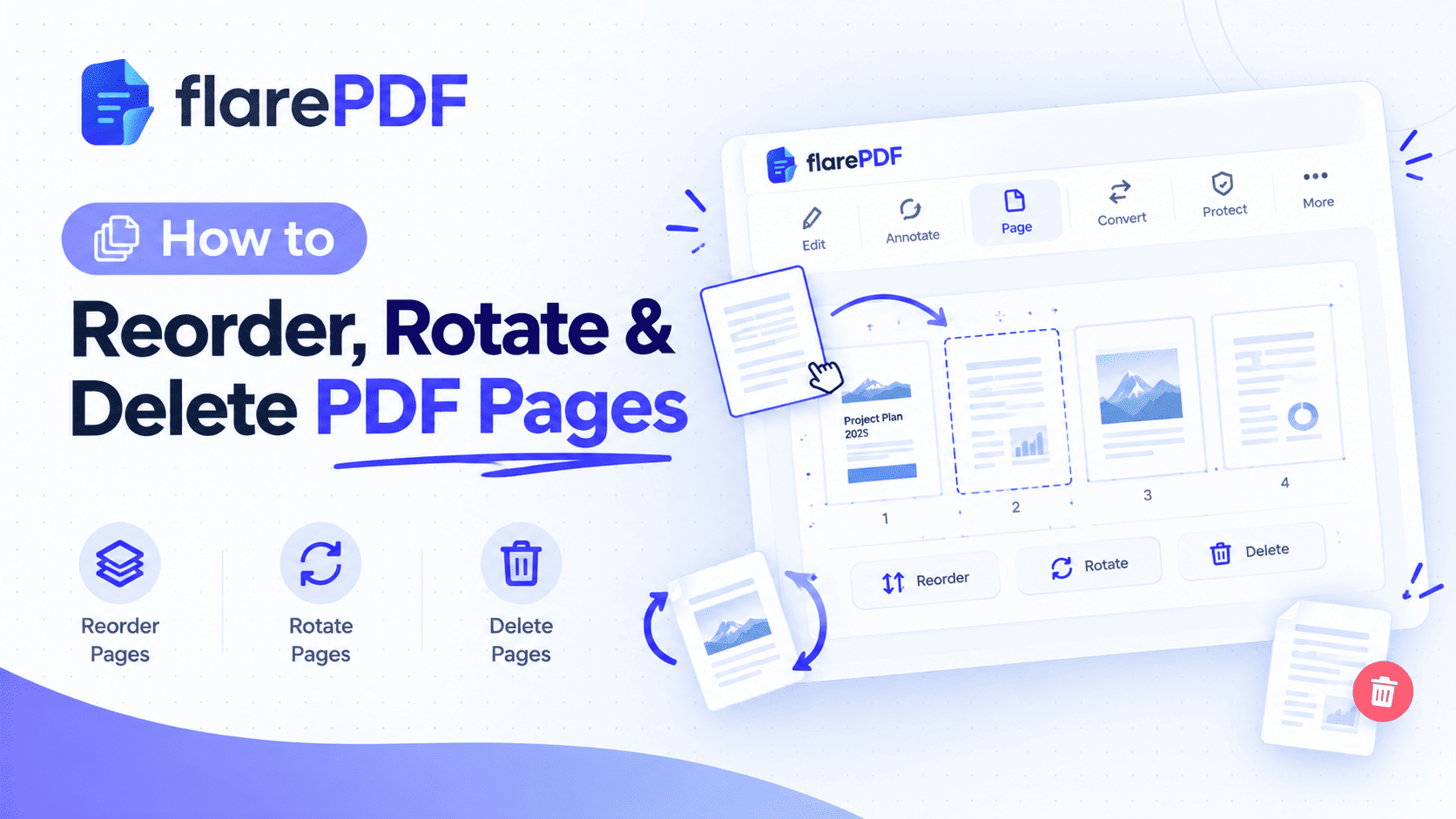
How to Reorder, Rotate and Delete PDF Pages on Any Device
Quick answer: Here is how to reorder, rotate and delete PDF pages in five steps:
- Open a free page organizer such as FlarePDF Organize PDF.
- Upload your PDF to see every page as a thumbnail.
- Drag the thumbnails into the right order.
- Rotate sideways pages and delete the ones you don't need.
- Download the fixed PDF.
A PDF with pages out of order, upside down or full of blank sheets looks careless. It can also confuse the person reading it. This happens all the time with scanned documents, merged files and exported reports.
This guide shows you how to fix all three problems. You'll learn the online method, the built-in options on Mac, Windows, iPhone and Android, and how to make rotation save permanently. FlarePDF's tools are free, and you never need to sign up or log in.
What Does It Mean to Organize PDF Pages?
Organizing PDF pages means changing the structure of a PDF without touching the content on each page. You can reorder pages into a new sequence, rotate pages between portrait and landscape, and delete pages you don't need. The result is a clean, correctly ordered file.
Think of it like fixing a stack of paper on your desk. You shuffle sheets into order, turn the sideways ones upright and throw away the blanks. You don't rewrite anything.
Each PDF page carries its own settings, including its rotation. The PDF format is an open ISO standard, ISO 32000, supported by the PDF Association. Under that standard, a page can be rotated in steps of 90 degrees. That is why every PDF tool offers rotation as left, right or 180 degrees.
Why Fixing Page Order and Orientation Matters
Messy pages cause real problems, not just cosmetic ones.
- Job applications: A recruiter opens your CV and finds the cover letter on page four. First impressions matter.
- Scanned documents: Scanners often feed pages backward, sideways or upside down.
- Official forms: Visa, bank and university offices may reject files with missing or disordered pages.
- Contracts: A signature page in the wrong place can cause confusion about what was agreed.
- Class notes: Students scanning handwritten notes often end up with pages in random order.
- File size: Deleting unneeded pages makes the file smaller and easier to email.
Pro tip: Fix page order before you share, sign or compress a PDF. Doing it later means repeating those steps.
How to Reorder, Rotate and Delete PDF Pages With FlarePDF
The quickest way to fix your file on any device is the free Organize PDF tool. It works in your web browser, and you don't need an account. [VERIFY: works on mobile browsers]
- Open the FlarePDF Organize PDF page.
- Upload the PDF you want to fix.
- Drag page thumbnails to change the page order.
- Rotate any sideways or upside-down page. [VERIFY: rotate option available]
- Delete blank, duplicate or unwanted pages. [VERIFY: delete option available]
- Download your organized PDF.
Quick note: Keep your original file until you've checked the new one. That way, you can start over if you delete the wrong page.
How to Change the Order of Pages in a PDF
To change the order of pages in a PDF, open it in a page organizer, drag each page thumbnail to its new position and save the file. The page contents stay the same. Only their sequence changes.
How do I rearrange PDF pages online?
Upload the file to an online PDF organizer and drag the thumbnails into place. This is the easiest method because it works the same on Windows, Mac, Chromebook and phones. With FlarePDF, you rearrange PDF pages online without installing anything.
How do I rearrange pages in a PDF on Mac?
Use the free Preview app that comes with every Mac.
- Open the PDF in Preview.
- Choose View, then Thumbnails, to show the sidebar.
- Drag a thumbnail up or down to its new position.
- Choose File, then Save.
How do I reverse the page order of a PDF?
Reversing a PDF means flipping the page sequence so the last page becomes the first. This fixes scans where the scanner fed pages back to front. In most tools you drag pages into reverse order by hand. For long files, check whether your tool has a one-click reverse option. [VERIFY: reverse order option in Organize PDF]
Pro tip: For a long document, move pages in small groups. Check the first and last few pages after each change.
How to Rotate PDF Pages
To rotate a PDF page, select it in a PDF organizer or editor, click rotate left or rotate right, and save the file. Each click turns the page 90 degrees. Two clicks turn it upside down.
How do I rotate only one page in a PDF?
Select just that page's thumbnail, then click rotate. Most tools rotate only the pages you select. Other pages keep their current orientation. This is perfect when one scanned page came out sideways in an otherwise normal file.
How do I rotate specific pages in a PDF?
Select several thumbnails at once, then rotate them together. On a computer, you can usually hold Ctrl (Windows) or Command (Mac) while clicking. This is handy when every chart or table page needs to turn to landscape.
How to Rotate a PDF Permanently (and Actually Save It)
This is the most common frustration with PDFs. You rotate a page, close the file and reopen it. The page is sideways again.
Rotation only saves when you use a tool that rotates the page itself, not just your view of it. Then you must save or download the new file.
Why does my PDF rotation not save?
Your PDF rotation doesn't save because you probably used a "rotate view" button. That button only turns the page on your screen. It doesn't change the file.
Rotate view: Changes how you see the page right now. It resets when you close the file. Browser viewers and the Rotate View option in Adobe Reader work this way.
Rotate page: Changes the page inside the file. The new orientation stays when you save, share or print. Page organizers and full PDF editors work this way.
How do I save a PDF after rotating?
Rotate the pages in a tool that edits the file, then save or download the result. In an online tool, download the new PDF. In Preview on Mac, choose File, then Save. Always reopen the saved file to confirm the rotation stuck.
Is there a keyboard shortcut to rotate a PDF?
Yes, most PDF apps have one. Common shortcuts include:
- Mac Preview: Command + R rotates right, and Command + L rotates left. These save when you save the file.
- Adobe Acrobat Reader: Ctrl + Shift + Plus (Windows) or Command + Shift + Plus (Mac) rotates the view clockwise. This view change doesn't save.
- Firefox PDF viewer: Press R to rotate clockwise and Shift + R to rotate counterclockwise. This is view only.
How to Change a PDF From Portrait to Landscape
To change a PDF from portrait to landscape, rotate the page 90 degrees left or right and save the file. The page turns sideways, so its width becomes its height.
The reverse works the same way. To change a PDF from landscape to portrait, rotate it 90 degrees in the opposite direction.
Quick note: Rotation turns the whole page, including its content. If your text sits upright on a portrait page, rotating it will turn the text sideways too. If you need upright text on a wider page, you must change the layout in the original document (such as Word) and export a new PDF.
Common reasons to switch orientation:
- Wide spreadsheets and charts read better in landscape.
- Letters and forms usually belong in portrait.
- Mixed reports often need both, one page at a time.
How to Delete Pages From a PDF
To delete pages from a PDF, open it in a page organizer, select the pages you don't need, click delete and save the new file. The remaining pages keep their order.
How do I delete a page from a PDF online?
Upload the file to an online organizer, select the page and remove it. Then download the cleaned-up PDF. This works on any device with a browser, so you don't need special software. You can delete PDF pages for free with FlarePDF.
How do I remove a blank page from a PDF?
Find the blank page in the thumbnail view, select it and delete it. Blank pages usually come from double-sided scanning of single-sided paper. Scroll through every thumbnail, because near-blank pages with faint marks are easy to miss.
Can I delete several pages at once?
Yes. Select multiple thumbnails, then delete them together. On most desktop tools, hold Ctrl or Command while you click. Hold Shift to select a range of pages in a row.
How to Reorder, Rotate and Delete PDF Pages on Each Device
Your device may already have a built-in way to organize PDF pages. Here is how each one works.
How to delete pages from a PDF on Mac using Preview
Mac users can delete, rotate and reorder PDF pages for free with Preview. It's the fastest option for most Mac tasks.
- Open the PDF in Preview.
- Choose View, then Thumbnails.
- Select the page or pages you want to remove.
- Press the Delete key, or choose Edit, then Delete.
- Choose File, then Save.
To rotate in Preview, select a thumbnail and choose Tools, then Rotate Left or Rotate Right. To reorder, drag thumbnails up or down. Apple's Preview User Guide covers more options.
Pro tip: Preview saves over the original file. Duplicate the file first (File, then Duplicate) if you want to keep the untouched version.
How to delete or rotate PDF pages on iPhone and iPad
The Files app on iPhone and iPad can rotate and delete PDF pages.
- Open the PDF in the Files app.
- Show the page thumbnails. On iPhone, swipe right from the left edge or tap the document to reveal them.
- Touch and hold a thumbnail.
- Choose Rotate Left, Rotate Right or Delete.
- Tap Done to save.
On many recent iOS versions, you can also drag thumbnails to reorder pages. Menu names may differ slightly between iOS versions.
How to rotate or delete PDF pages on Android
Android doesn't include a built-in tool to edit PDF pages. Most people use an online organizer in Chrome, or a PDF app. To use FlarePDF on Android, open the Organize PDF page in your browser, upload the file, make your changes and download it. [VERIFY: mobile support]
How to rotate a PDF on Windows 10 and 11
Windows doesn't have a built-in PDF page editor, but Microsoft Edge can open PDFs and rotate the view. To rotate pages permanently, use an online organizer or a full PDF editor.
Pro tip: Windows has a handy trick for deleting pages. Open the PDF, press Ctrl + P and choose Microsoft Print to PDF as the printer. Enter only the pages you want to keep, such as 1-3, 5, and print. This creates a new PDF without the other pages. Mac has the same trick through File, Print, then Save as PDF.
How to rotate a PDF in Adobe Acrobat Reader
Acrobat Reader's View, then Rotate View option turns pages on screen only. It doesn't save. Permanent rotation and page deletion use Acrobat's Organize Pages tool. That tool may not be available in the free Reader. Check the Adobe Acrobat User Guide for your version.
How to rotate a PDF in Google Drive
Google Drive's PDF preview is built for viewing, not editing. To rotate a PDF permanently, download it from Drive, fix it with a PDF organizer and upload the new file back to Drive.
How to rotate a PDF in Firefox, Chrome or Edge
Browser PDF viewers can rotate pages on screen, but the change is usually temporary. Firefox uses the open-source PDF.js viewer by Mozilla. Its rotate options sit in the Tools menu (the double-arrow icon). Chrome and Edge show a rotate button in the toolbar. To keep the rotation, use a tool that saves the page itself.
How to rotate pages in Bluebeam Revu
In Bluebeam Revu, open the Thumbnails panel, right-click a page and choose the rotate option. Save the file afterward. Menu names can vary between Revu versions, so check your version's help if you don't see it.
How to Add, Replace, Copy or Extract PDF Pages
Organizing a PDF often means more than moving pages around. These related tasks come up all the time.
How do I add pages to a PDF document?
To add pages to a PDF, merge it with another PDF that contains the new pages, then move them into place. Use the free Merge PDF tool to combine the files. Then open the result in Organize PDF to fix the order.
How do I replace a page in a PDF?
Delete the old page, add the new one and move it into the same position. In practice, that means three quick steps: delete the page, merge in the new page, then reorder.
How do I copy or extract pages from a PDF?
To extract pages, split the PDF and keep only the pages you need. The Split PDF tool lets you pull out pages into a separate file. Your original file stays unchanged.
How do I erase content on a PDF page?
Deleting a page removes the whole page. To remove text or an image on a page, use a PDF editor instead. The free PDF Editor handles on-page changes. To hide sensitive details permanently, read our guide on how to redact a PDF.
Key Features and Benefits of FlarePDF Organize PDF
Free to use
FlarePDF's tools are free. You can organize as many documents as you need without paying. [VERIFY: usage or file size limits]
No account or login
You don't create an account or log in. Open the page, upload your file and get to work. That is helpful on shared or work computers where you'd rather not save passwords.
Visual thumbnail view
Seeing every page as a thumbnail makes it easy to spot problems. Sideways pages, blanks and duplicates stand out right away. [VERIFY: thumbnail preview]
Works alongside related tools
Page fixes often lead to other tasks. FlarePDF also offers tools to merge, split, compress, crop, sign and number PDF pages.
Why Choose FlarePDF?
FlarePDF suits anyone who wants to fix a PDF quickly without extra steps. There's no software to install and no account to create.
It works well when you:
- Need to fix one file fast before a deadline.
- Don't have Adobe Acrobat or another paid editor.
- Use a computer where you can't install software.
- Want to reorder, rotate and delete pages in one place.
Quick note on privacy: Check any site's privacy policy before uploading personal documents. You can read FlarePDF's policy on the Privacy page. [VERIFY: file processing and deletion details before adding any claim]
Tips and Common Mistakes When Organizing PDF Pages
Small slips can undo your work. Here's what to watch for.
- Keep a backup of the original. Some apps, like Preview, save over your file. Make a copy first.
- Don't confuse rotate view with rotate page. If rotation disappears when you reopen the file, you only rotated the view.
- Check page order before you save. Scroll through all the thumbnails once more before you download.
- Zoom in on "blank" pages. Some pages look empty in thumbnails but contain a faint signature or stamp.
- Organize before you merge or compress. Fix each file first, then compress the PDF at the very end.
- Add page numbers last. Once the order is final, add page numbers to your PDF so they match the new sequence.
- Rename files clearly. Use names like "Rental-Application-Final-2026.pdf" instead of "scan_0043.pdf".
Can I undo deleting a page from a PDF?
Usually only before you save. Once you download or save the new file, the deleted page is gone from that version. That's why keeping your original file matters. If you still have it, simply start again.
Real-World Examples
The student
Hamza scans ten pages of handwritten notes on his phone. Three come out sideways and two land in the wrong place. He opens the file in an online organizer, rotates the sideways pages, drags the others into order and uploads the clean PDF to his class portal.
The job seeker
A job seeker in Chicago merges her CV, cover letter and certificates into one file. The certificates appear before the CV. She moves the cover letter to page one, the CV next and the certificates last, then sends it.
The office worker
An accounts assistant receives a 40-page scanned invoice batch with a blank page after every sheet. She selects all the blank pages, deletes them in one go and cuts the file in half.
The small business owner
A shop owner in Karachi needs to send only three pages of a long supplier agreement to her accountant. She extracts those pages into a new file and keeps the full contract in her records.
Related PDF Tools You May Need
- Combine files: Merge PDF files online before organizing them into one document.
- Pull out pages: Use Split PDF to extract the pages you want into a new file.
- Trim margins: Crop PDF pages to remove messy scan edges.
- Scan paper pages: Turn paper into a PDF with the free Scan to PDF tool.
- Sign the final file: Once pages are in order, sign your PDF online.
- Learn more: Our short Organize PDF guide and our guide on how to edit text and pages in a PDF cover related tasks.
Frequently Asked Questions
How do I rearrange pages in a PDF for free?
Upload your PDF to a free online organizer, drag the page thumbnails into the order you want and download the new file. On a Mac, you can also drag thumbnails in the Preview sidebar and save. FlarePDF's Organize PDF tool needs no account or login.
How do I rotate one page in a PDF and save it?
Select only that page's thumbnail in a PDF organizer or editor, click rotate left or right, then save or download the file. Avoid "rotate view" buttons in browsers and Adobe Reader, because they only change your screen and do not save the rotation.
Why does my PDF rotation not save?
Your rotation probably only changed the view, not the file. Browser viewers and the Rotate View option in Adobe Reader work this way. To rotate a PDF permanently, use a page organizer or editor that rotates the page itself, then save the new file.
How do I delete pages from a PDF on Mac?
Open the PDF in Preview, choose View and then Thumbnails, select the pages you want to remove and press the Delete key. Then choose File and Save. Duplicate the file first if you want to keep the original version.
How do I change a PDF from portrait to landscape?
Rotate the page 90 degrees left or right in a PDF organizer and save the file. The whole page turns, including its content. If you need upright text on a landscape page, change the layout in the original document and export a new PDF.
How do I remove a blank page from a PDF?
Open the PDF in a page organizer, find the blank page in the thumbnail view, select it and delete it. Then save or download the file. Zoom in first, because some pages that look blank contain faint stamps, notes or signatures.
Can I delete or rotate PDF pages on my phone?
Yes. On iPhone and iPad, open the PDF in the Files app, touch and hold a page thumbnail, then choose rotate or delete. On Android, which has no built-in page editor, open an online PDF organizer in your browser instead.
Does rotating or deleting pages reduce PDF quality?
No. Rotating, reordering and deleting pages change the page structure, not the content itself. Text and images stay the same quality. Deleting pages can also make the file smaller, which helps when you need to email or upload it.
Conclusion
Now you know how to reorder, rotate and delete PDF pages on any device. Use thumbnails to spot problems fast, rotate the page itself so the change saves, and keep your original file until you've checked the new one. A few minutes of cleanup makes any document look professional.
Ready to fix your file? Try the free Organize PDF tool now. No sign-up, no login.
Ready to try it yourself?
No sign-up, no upload — your files never leave your device.
Open Organize Tool