How to edit text & pages in a PDF
Learn how to rewrite text in place, insert new paragraphs, rotate, and delete pages with zero subscription paywalls.
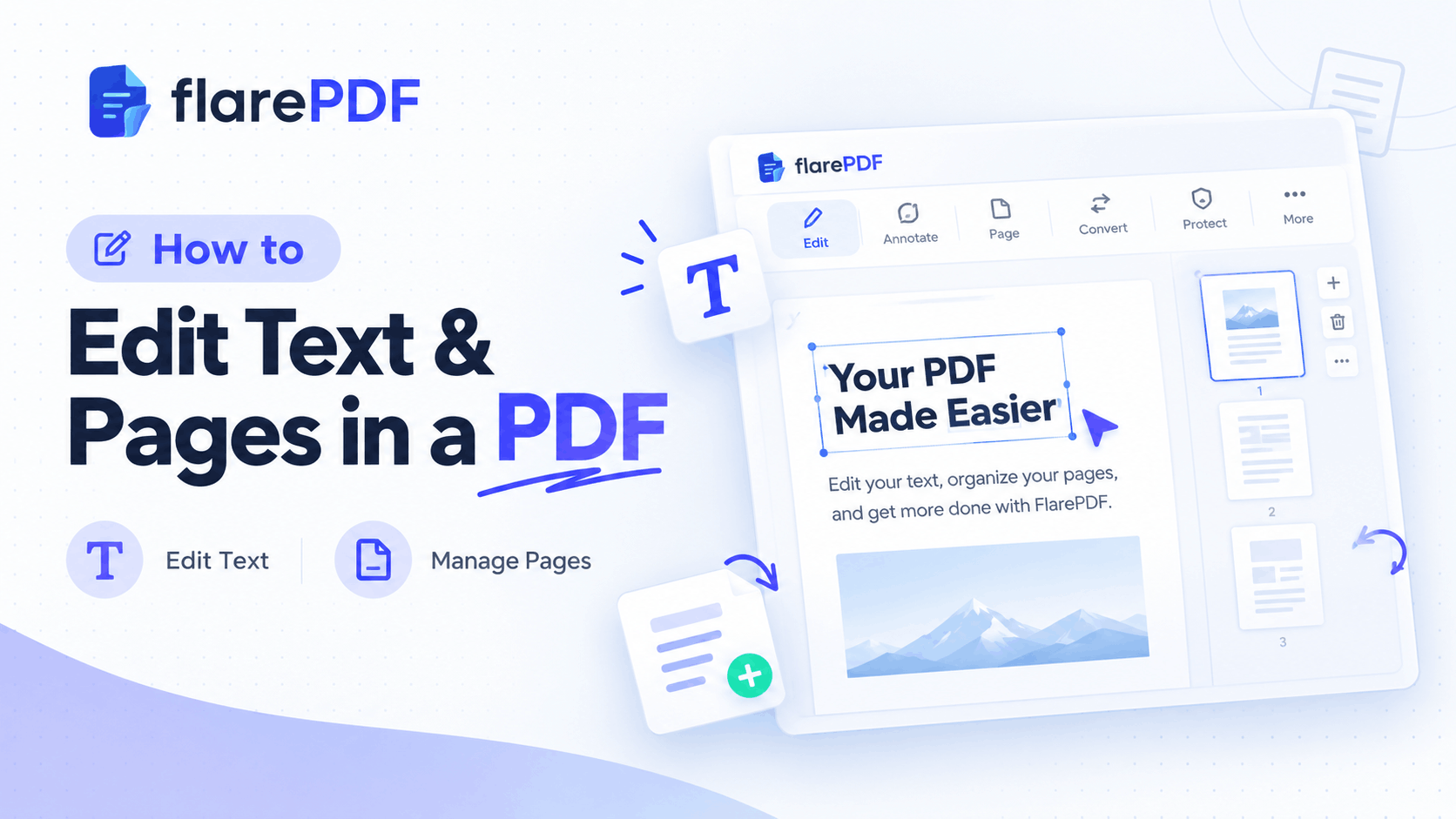
The fastest way to edit text and pages in a PDF is to open the file in a free online PDF editor, make your changes, and download the new version. You don't need to create an account. You also don't need expensive software.
Most people get stuck because a PDF is built to look the same everywhere, not to be changed. That makes even a small typo fix feel hard. This guide shows you how to edit text and pages in a PDF on any device, and how to fix scanned files. FlarePDF is free, and no sign-up is required.
What Is PDF Editing?
PDF editing means changing the content or structure of a Portable Document Format file after it is created. You can change text, fonts and images, or add new text boxes. You can also delete, reorder, rotate, insert, crop and merge pages. It is different from simply viewing or annotating a file.
The PDF format itself is maintained as an open standard. If you want the technical background, the PDF Association is a good place to start.
Text Editing vs. Page Editing
These two tasks sound alike, but they work differently.
- Text editing changes what is written on a page. Examples are fixing a spelling mistake, updating a phone number, or adding a line to a form.
- Page editing changes the layout of the whole document. Examples are deleting a blank page, moving page 5 to the front, or rotating a sideways scan.
Page edits are usually easy and reliable. Text edits are trickier, because a PDF does not store text like a Word file does.
Why Learning How to Edit a PDF Matters
Almost every important document ends up as a PDF. That includes contracts, invoices, resumes, school forms and government applications. Sooner or later, one of them needs a fix.
Here are the moments when people search for this:
- Work: You spot a wrong date in an invoice five minutes before sending it.
- Study: You need to remove the cover page from lecture notes or combine two assignments.
- Official forms: You must add your details to an admission or tax form.
- Freelancing: A client sends a PDF and asks you to update prices or swap a logo.
Knowing the right method saves time. It also keeps you from paying for software you will only use once.
Which Method Do You Need? A Quick Decision Guide
Before you start, pick the path that matches your problem. Choosing well saves you a lot of frustration.
Only rearranging or deleting pages? Use a page organizer. It is the simplest job, and results are clean.
Quick text fix on a normal PDF? Use a browser-based PDF editor, or convert the file in Microsoft Word.
Scanned document or photo of a page? Run OCR first. Without it, the text is just a picture.
Sensitive file, like a bank statement or ID? Prefer offline software on your own device.
Locked or read-only PDF? You need the owner's permission or password before editing.
Keep this guide in mind as you read. The next sections walk through each path.
How to Edit Text and Pages in a PDF with FlarePDF (Step by Step)
Start with the free FlarePDF PDF Editor. It runs from a web page, so there is nothing to install.
- Open the online PDF editor in your browser.
- Upload the PDF you want to change from your device.
- Select the text area or page you want to fix. Click to place a text box, or click existing text to change it. [VERIFY: confirm whether existing text can be edited directly or only new text added]
- Type your change and adjust the font style and size so it matches the page.
- Check the whole page. Look for overlapping words or shifted lines.
- Download your edited PDF and keep the original as a backup.
Pro tip: Zoom in before you save. Small spacing errors are easy to miss at 100 percent.
If you only need to work with pages, skip the editor. Use Organize PDF instead. It is built for page-level jobs.
How Do You Edit Text in a PDF?
Open the PDF in an editor that supports text editing. Click the text, type your changes, match the font, and save a new copy. If the editor cannot change existing text, add a new text box over it or convert the file to Word first.
There are three practical ways to do this.
Method 1: Use an Online PDF Editor
An online editor is the quickest option for a small fix. You upload the file, click the text, and type. It suits edit PDF online jobs like a name change or an updated date.
Some online tools only let you add new text. They cannot rewrite the original words. Always test with a small change first.
Method 2: Convert the PDF to Word
This is the classic free trick. Open the PDF in Microsoft Word, and Word turns it into an editable document. Edit the text, then save or export it back to PDF.
The catch is layout. Complex pages with tables, columns or unusual fonts can shift. Pro tip: This works best for text-heavy files like letters, reports and essays.
Method 3: Use Google Docs
Upload the PDF to Google Drive, right-click it, and open it with Google Docs. You can then change the text and download the result as a PDF.
This is a solid edit PDF for free option. Expect some formatting changes, especially with images and special fonts.
How Do You Change Text Without Ruining the Layout?
Short answer: Match the original font, keep the new text about the same length, and check every line after editing. Long replacements push text into other areas, so shorten your wording where you can.
Layout problems are the number one complaint. These habits help:
- Match the font style and size to the surrounding text.
- Replace like with like. Swap a six-digit number for another six-digit number.
- Use white space wisely. If your new text is longer, reduce spacing instead of the font size.
- Zoom in and scan for overlaps before you save.
If the original font is not available, the editor swaps in a similar one. That is normal. It just means you should review the final page carefully.
How Do You Add, Delete and Rearrange Pages in a PDF?
Open the PDF in a page organizer and switch to thumbnail view. Drag pages to reorder them, select a page to delete it, or insert pages from another file. Then save the result as a new PDF.
Page work is where free tools shine. Here is how each task works.
Delete Pages
Deleting is useful for blank pages, old cover sheets or private pages you don't want to share. Select the page thumbnail, remove it, and save. Use Organize PDF to do this in one place.
If you want to keep only some pages, Split PDF can pull out the range you need.
Reorder Pages
Drag a thumbnail to a new position. Check the order once more before saving. A wrong order in a contract or report looks careless.
Add or Insert Pages
To add pages from another file, first combine the files with Merge PDF. Then fix the order in the organizer. Our merge PDF guide covers this in detail.
You can also turn photos into pages. Use JPG to PDF for images, or Scan to PDF for paper documents.
Rotate and Crop
A sideways scan is a common annoyance. Rotate the page in the organizer. To trim margins or remove unwanted edges, use Crop PDF.
For a deeper look at page tools, read our guide to organizing PDF pages.
How Do You Edit a PDF Without Adobe Acrobat?
You can edit a PDF without Adobe Acrobat using Microsoft Word, Google Docs, Mac Preview, a browser editor, or a free online tool. Each option has limits, so pick the one that matches your task.
Adobe Acrobat Pro is powerful, but you don't need it for everyday edits. Here is what else you can use, by device.
Edit a PDF on Windows
The easiest route on Windows is Word. Right-click the file, choose Open with, and select Word. Edit, then use Save As and choose PDF.
The Microsoft Edge browser also opens PDFs and lets you highlight, draw and add text. It is handy for quick markup. For page changes, a free online organizer is simpler.
Edit a PDF on Mac
Mac users have Preview built in. Open the PDF, show the thumbnail sidebar, and drag pages to reorder them. Press Delete to remove a page. You can also add text boxes, shapes and a signature.
Preview does not rewrite existing text. It adds new text on top. Apple explains the tools in the official Preview user guide.
Edit a PDF in Google Chrome
Chrome opens PDFs and lets you fill some form fields. It is not a true editor. However, you can print the PDF and choose Save as PDF with a page range. That is a quick way to keep only certain pages.
Edit a PDF on iPhone
The Files app on iPhone can rotate, delete and insert pages from a thumbnail view. It also has markup tools for drawing and adding text. This is enough for most quick page tweaks.
Edit a PDF on Android
Android phones can open PDFs in Google Drive or other viewers. For real editing, an online editor in your mobile browser is the practical choice.
Quick note: Free desktop and mobile apps such as Foxit, PDF24, Xodo and WPS Office also offer editing features. Their tools and limits differ, so check what each one includes before you commit.
How Do You Edit a Scanned PDF?
Use OCR, which stands for optical character recognition. OCR reads the letters in a scanned image and converts them into real, selectable text. Once the text is recognized, you can edit it like any other document.
A scanned PDF is really a photo of a page. That is why you can't click on the words. The computer sees pixels, not letters.
Follow this simple flow:
- Check if it is scanned. Try to select a word. If nothing highlights, it is an image.
- Run OCR with a tool that supports it, such as Adobe Acrobat, PDFelement or a free online converter.
- Proofread the result. OCR makes mistakes, especially with blurry scans or handwriting.
- Edit and save a new PDF.
If you just need the words out of a file, try Extract Text from PDF. Then paste the text into Word and rebuild the page.
Pro tip: A clean, straight, well-lit scan gives far better OCR results. Use Scan to PDF to capture paper documents properly from the start.
Why Can't I Edit My PDF? Common Problems and Fixes
Most PDFs resist editing for one of three reasons. The file is a scanned image, the author locked editing with permissions, or the text was flattened into shapes. Each problem has a different fix.
Here is how to solve the most common issues.
The Text Won't Select
This means the file is probably a scanned image. Run OCR, as described above.
The PDF Is Read-Only or Password-Protected
Some PDFs carry permission settings that block editing, printing or copying. The owner can remove these with the password. Only edit files you own or have permission to change.
Text Overlaps After Editing
This happens when new text is longer than the old text or uses a different font. Shorten the wording, match the font, and adjust spacing.
The Font Changed
If the original font is not available, the editor replaces it. Choose the closest match, or convert the file through Word and pick a font you have installed.
Editing Images Inside a PDF
Images in a PDF are usually fixed in place. The easiest fix is often to export the page as a picture with PDF to JPG, edit the image, and convert it back with JPG to PDF.
Is It Safe to Edit PDFs Online?
It depends on the document and the website. Everyday files like class notes or a public CV are usually fine. For contracts, bank records or ID documents, offline software is the safer choice.
Any time you upload a file to a website, you share it with a service. That is fine for low-risk documents. It is a poor idea for highly private ones.
Privacy note: Before you upload anything sensitive, read the site's policy. You can read how FlarePDF handles privacy on its Privacy page. [VERIFY: confirm where files are processed and how long they are kept]
For sensitive files, follow these habits:
- Use offline tools on your own computer.
- Remove private details you don't need to share. Our redact PDF guide explains how.
- Delete downloaded copies you no longer need.
Key Features and Benefits of Editing PDFs with FlarePDF
FlarePDF is built for quick, no-fuss PDF jobs. Here is what that means for you.
Free to Use
Every tool on FlarePDF is free. You can edit, merge, split and compress without paying.
No Account or Login
You don't create an account or log in. Open a tool, use it, and go.
Easy to Use
Each tool has one clear job. That keeps things simple, even if you have never edited a PDF before.
Related Tools in One Place
Editing rarely stops at one step. You might edit, then compress, then sign. FlarePDF keeps those tools together, so you don't need to hunt for a new website each time.
Why Choose FlarePDF for Editing PDFs?
FlarePDF suits people who want fast, low-effort PDF work. There is no setup, no account and no learning curve to climb.
It is a good fit when:
- You need a quick fix and don't want to install software.
- You want one place for editing, organizing, signing and compressing.
- You are working from a shared or borrowed computer and would rather not log in anywhere.
It is not the right tool for everything. For very sensitive files, offline software may suit you better. Being honest about that helps you choose well.
Tips and Common Mistakes When Editing PDFs
A few simple habits prevent most editing headaches.
- Keep a backup of the original. Save your edits as a new file, like "contract-v2.pdf".
- Check the page order before you save. It takes ten seconds and prevents embarrassing errors.
- Match fonts and sizes. Mismatched text looks obvious and unprofessional.
- Zoom in and proofread. Small overlaps hide at normal zoom.
- Rename files clearly. Use names like "resume-2026-final.pdf", not "scan_0043.pdf".
- Compress large files before emailing. Use Compress PDF to make attachments easier to send. Our compress PDF guide has more tips.
- Don't edit legal wording without approval. Changing a signed contract without agreement can cause real problems.
Common mistake: Editing the original file and overwriting it. Always work on a copy.
Real-World Examples of Editing Text and Pages in a PDF
A Student Preparing Assignments
Sara has lecture notes with a blank page and a wrong cover sheet. She deletes both pages, moves her summary to the front, and adds page numbers with Add Page Numbers to PDF. Then she submits one clean file.
A Freelancer Updating a Client Quote
Ali gets a PDF quote from a client with an old date. He updates the date, checks the layout, and sends it back. He then uses Sign PDF to add his signature. Our sign PDF guide covers this step.
An HR Team Preparing Onboarding Packs
An HR assistant merges a welcome letter, a policy document and a form into one file. She reorders the pages and adds a "Confidential" mark with Add Watermark to PDF.
A Small Business Owner Fixing an Invoice
A shop owner spots a wrong amount on an invoice. He edits the number, matches the font, and compresses the file before emailing it to the customer.
Editing PDFs in Pakistan: Urdu Text, CNIC and Official Forms
Many people in Pakistan edit PDFs for admission forms, CVs, FBR filings and NADRA-related documents. The steps in this guide work the same way. A few local points are worth knowing.
- Urdu text is harder to edit. Urdu Nastaliq fonts are often embedded in the PDF, and many editors cannot match them. If the font is missing, characters can break or change shape. [VERIFY: confirm Urdu and Nastaliq support in the FlarePDF editor]
- Convert carefully. A PDF to Word conversion may scramble right-to-left Urdu. Proofread every line.
- Protect ID documents. CNIC copies are sensitive. Avoid uploading them to unknown sites, and remove details you don't need to share.
- Check form rules. Government portals often set file size and format limits. Compress or crop your file if needed.
For scanned CNIC copies or forms, Scan to PDF and Compress PDF are useful companions.
Related PDF Tools You May Need
Editing is often just one step. These free tools handle the next one.
- Merge PDF: Combine several files into one document.
- Split PDF: Pull out the pages you need.
- Organize PDF: Reorder, rotate and delete pages.
- Compress PDF: Shrink a file before emailing it.
- Sign PDF: Add your signature to a finished document.
Frequently Asked Questions About Editing PDFs
How do I edit text in a PDF for free?
Open the file in a free online PDF editor such as the FlarePDF PDF Editor, click the text area, type your change, and download the file. You can also convert the PDF in Microsoft Word, edit it, and save it back to PDF.
Can I edit a PDF without Adobe Acrobat?
Yes. Free options include Microsoft Word, Google Docs, Mac Preview and browser-based editors. Word and Google Docs convert the PDF into an editable file, while Preview and online editors let you add text and manage pages directly.
How do I edit a scanned PDF?
Run the file through OCR, which stands for optical character recognition. OCR reads the image and turns it into real text you can select and change. After that, edit the text and save a new PDF.
How do I add, delete or rearrange pages in a PDF?
Open the file in a page organizer, view the page thumbnails, then drag pages into a new order or delete the ones you do not need. Save the result as a new PDF and keep the original as a backup.
Why can't I edit my PDF?
Usually the PDF is a scanned image, or the author has locked editing with permissions. Scanned files need OCR. Locked files need the owner's password or permission. Some PDFs are also flattened, which removes editable text.
Is it safe to edit PDFs online?
It depends on the site and the document. For everyday files like a CV or class notes, a trusted online tool is usually fine. For contracts, bank statements or ID documents, use offline software and read the privacy policy first.
How do I change the font in a PDF without breaking the layout?
Use an editor that can match the original font, and keep the size close to the old text. If the font is not installed, the editor may substitute another one. Check the whole page before saving.
How do I merge or split PDF pages?
Use a merge tool to combine several files into one, or a split tool to pull out page ranges into separate files. Both take a few clicks. Always check the page order before you download.
Conclusion
Now you know how to edit text and pages in a PDF, whether the file is normal, scanned or on your phone. Pick the right method for your task, match fonts, check page order, and always keep a backup of the original.
Ready to fix your file? Try the free FlarePDF PDF Editor now. No sign-up, no login. Need to reorder or remove pages first? Open Organize PDF.
Keep reading
More guides from the flarePDF blog