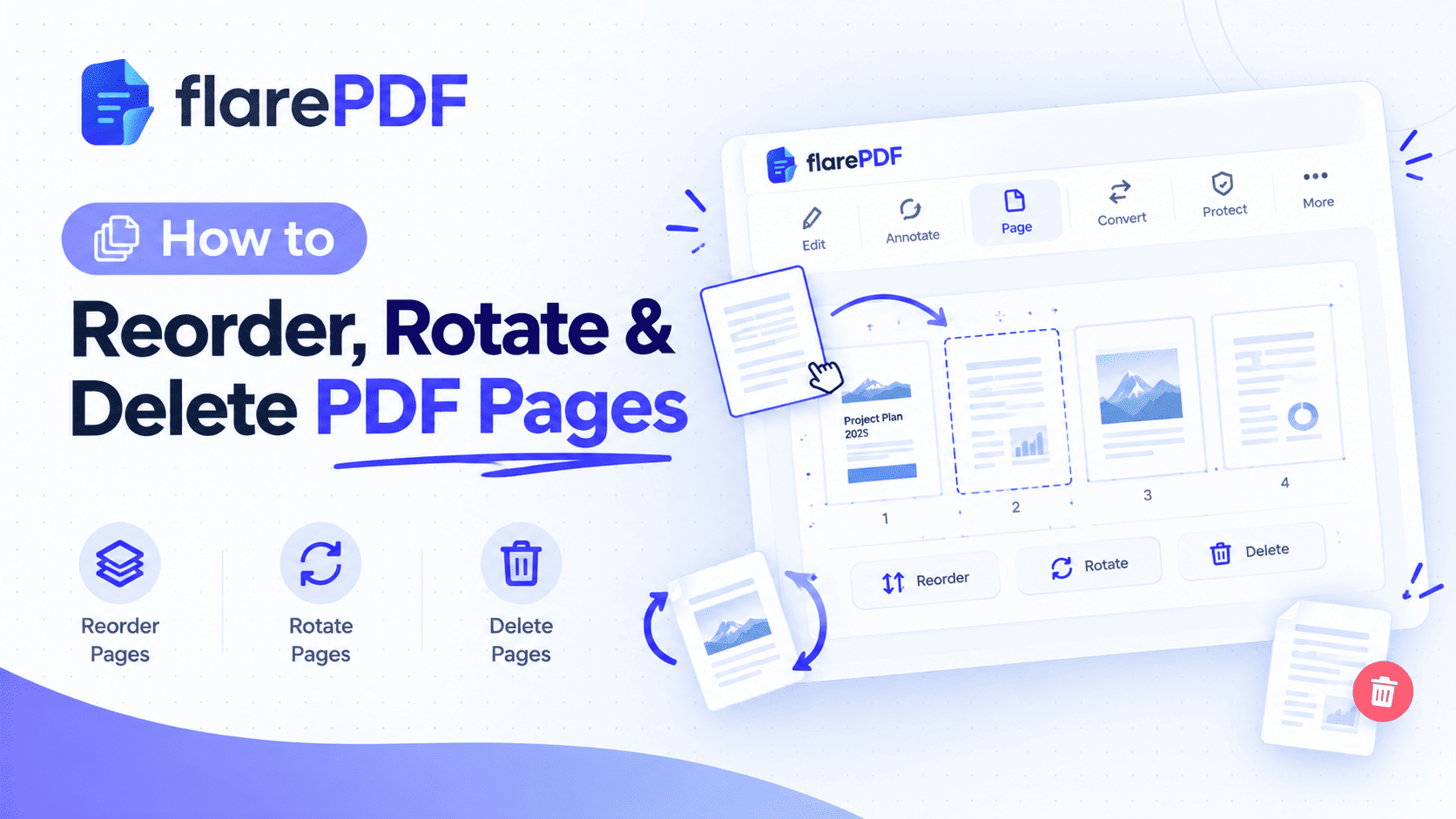
How to Add Pages to a PDF (Insert, Append or Replace)
Learn how to add pages to a PDF for free. Insert pages in the middle, append to the end, add blank pages or replace a page on Mac, iPhone or Windows.
How to Add Pages to a PDF (Insert, Append or Replace)
To add or insert pages into a PDF for free, follow these five steps:
- Open the free FlarePDF Merge PDF tool.
- Upload your main PDF and the file that holds the new pages.
- Merge them into one PDF.
- Open the result in Organize PDF and drag the new pages into place.
- Download your updated PDF.
Sometimes a PDF is missing something: a signed page, a new certificate, an updated price sheet or a cover page. Rebuilding the whole document from scratch takes far too long.
This guide covers how to add pages to a PDF in three ways: insert a page in the middle, append pages at the start or end, and replace an old page with a new one. You'll find steps for Flare PDF, Mac Preview, iPhone, Windows, Android and Adobe Acrobat, plus how to add blank pages, images and scans. Flare PDF's tools are free, with no sign-up or login.
What Does It Mean to Add Pages to a PDF?
Adding pages to a PDF means placing one or more new pages into an existing PDF document. You can insert pages between existing ones, append them at the beginning or end, or replace a page with an updated version. The pages already in the file keep their original content and quality.
It's like slipping new sheets into a ring binder. You choose where each sheet goes, and nothing else in the binder changes.
Every PDF is made of separate page objects, as defined in the open standard ISO 32000. That's why tools can add, move or swap single pages without damaging the rest of the file.
What's the difference between merging and inserting pages?
Merging: Joins two or more whole PDFs, one after another. Best when you're combining complete documents.
Inserting: Places specific pages at a chosen spot inside one PDF. Best when you're adding one or two pages to a document that already exists.
In practice, many free tools insert pages by merging first and then moving the pages into position. If you're combining several full documents, read our guide on how to combine multiple PDFs into one document.
Why You'd Need to Add Pages to a PDF
Adding pages is one of the most common PDF fixes at work, school and home.
- Job applications: Add a new certificate or reference letter to your existing CV pack.
- Visa and university forms: Insert a missing document page before you upload the file.
- Contracts: Put a signed signature page back into the full agreement, or add an annexure.
- Reports: Replace an outdated chart page without rebuilding the whole report.
- Scanned documents: Insert a page the scanner skipped.
- Invoices and expenses: Append receipts or a terms page to the end.
Pro tip: Keep each new page as its own PDF before you start, named clearly, such as "Page-5-Updated-Price-Sheet.pdf". That makes it easy to put in the right spot.
How to Add Pages to a PDF With Flare PDF
The simplest free method that works on any device uses two Flare PDF tools together. You merge PDF files online to bring the new pages in, then use Organize PDF to move them to the right place. No software or account is needed.
- Open the Merge PDF tool in your browser.
- Upload your main PDF first, then the PDF with the new pages.
- Merge the files into one PDF and download it.
- Open the merged file in Organize PDF.
- Drag the new pages to the exact spot where they belong.
- Download your updated PDF.
Quick note: If the new pages belong at the very end, you can skip steps 4 and 5. Just upload the main file first and the new pages last, then merge.
Is the new page an image, a Word file or a paper document?
Turn it into a PDF first, then add it.
- Photo, screenshot or JPG: Use the free JPG to PDF converter.
- Paper page: Use the free Scan to PDF tool to turn it into a clean PDF page.
- Word or PowerPoint file: Choose File, then Save As or Export, and save it as a PDF.
How to Insert a Page Into the Middle of a PDF
To insert a page into the middle of a PDF, bring the new page into the file and move it between the right two pages before saving. Every tool below does this. They just use different buttons.
Insert pages with Flare PDF
Merge your main PDF with the new page, then open the result in Organize PDF. Drag the new page between the pages where it belongs, then download. For more on moving pages, see our guide on how to reorder, rotate and delete PDF pages.
Insert pages on Mac with Preview
Preview has a built-in Insert command for adding pages from another file.
- Open your main PDF in Preview.
- Choose View, then Thumbnails.
- Click the page that should come before the new page.
- Choose Edit, then Insert, then Page from File.
- Pick the PDF with the new page, then click Open.
- Choose File, then Save.
You can also drag a PDF from Finder straight into the thumbnail sidebar and drop it between two pages. Apple's Preview User Guide has more detail for your macOS version.
Pro tip: Preview saves over the original file. Choose File, then Duplicate, first if you want to keep a clean copy.
Insert pages on iPhone or iPad
The Files app can insert pages into a PDF without an extra app.
- Open the PDF in the Files app.
- Show the page thumbnails. On iPhone, swipe right from the left edge or tap the screen.
- Touch and hold the page that should come before the new one.
- Choose Insert from File, then pick the PDF you want to add.
- Tap Done.
The same menu also offers Insert Blank Page and Scan Pages, so you can scan a paper page straight into the document. Menu names can vary a little between iOS versions. See the iPhone User Guide for your version.
How to Append Pages to the Beginning or End of a PDF
To append pages, add the new file before or after your main PDF and save them as one document. Appending is the easiest way to add pages, because nothing needs to move once the files are joined.
How do I add a page to the end of a PDF?
Upload your main PDF first and the new pages second, then merge. The new pages land at the end automatically. This is perfect for adding receipts, appendices or terms and conditions.
How do I add a page to the front of a PDF?
Upload the new page first and your main PDF second, then merge. Use this for adding a cover page, a cover letter or a table of contents to the start of a document.
How do I append a PDF in Foxit?
In Foxit PDF Editor, open your main PDF, choose Organize, then Insert, then From File. Pick the file and set it to go after the last page. The free Foxit PDF Reader may not include page insertion, depending on your version.
How to Replace a Page in a PDF
To replace a page in a PDF, add the new page in the right spot and delete the old one. Some desktop editors do this in one step. Free tools use two quick steps.
Replace a page with Flare PDF
- Merge your main PDF with the new page.
- Open the merged file in Organize PDF.
- Drag the new page next to the old one.
- Delete the old page.
- Download the updated file.
For more help with step 4, see our step-by-step guide on how to delete pages from a PDF.
Replace a page on Mac
In Preview, insert the new page with Edit, then Insert, then Page from File. Then select the old page in the thumbnails and press Delete. Save the file.
Replace a page in Adobe Acrobat
Acrobat has a dedicated Replace option under its Organize Pages tool. Select the page, choose Replace, pick the new file and set which pages to swap. This needs a paid Acrobat version. The free Acrobat Reader doesn't include page editing.
Quick note: When you replace a page, check that the new page uses the same page size and orientation. A US Letter page inside an A4 document looks slightly uneven.
How to Add a Blank Page to a PDF
To add a blank page, use a built-in "Insert Blank Page" option, or merge a one-page blank PDF into your file.
- Mac Preview: Select the page that should come before the blank, then choose Edit, then Insert, then Blank Page.
- iPhone Files app: Touch and hold a page thumbnail, then choose Insert Blank Page.
- Adobe Acrobat: In Organize Pages, choose Insert, then Blank Page.
- Any device: Create an empty document in Word or Google Docs, export it as a PDF, then merge it in with Flare PDF.
Blank pages are useful for double-sided printing, for adding space for handwritten notes, or for keeping chapters starting on the right-hand page.
How to Add Pages to a PDF on Windows, Android and Linux
How do I add pages to a PDF on Windows?
Windows 10 and 11 don't include a tool for adding pages to a PDF. Microsoft Edge can view and annotate PDFs, but not insert pages. Use a free online tool in your browser instead, or a desktop editor such as Adobe Acrobat or Foxit.
How do I add pages to a PDF on Android?
Android has no built-in PDF page editor, and Google Drive can't insert pages. Open the Merge PDF tool in Chrome, upload your PDF and the new page, merge, then reorder the pages in Organize PDF if needed.
How do I add pages to a PDF on Linux?
Use the free command-line tool qpdf to build a new file from page ranges. This example inserts new.pdf after page 3 of main.pdf:
qpdf main.pdf --pages main.pdf 1-3 new.pdf main.pdf 4-z -- output.pdf
To replace page 3 instead, use 1-2 and 4-z around the new file. See the qpdf documentation for more page-range examples.
How to Add Pages in Adobe Acrobat
In Adobe Acrobat, open the Organize Pages tool, choose Insert and pick where the new pages should go. Acrobat can insert pages from a file, from the clipboard, from a scanner or as blank pages.
- Open your PDF in Acrobat.
- Open the Organize Pages tool.
- Choose Insert, then pick From File or Blank Page.
- Select the file and choose before or after which page to place it.
- Save the document.
Page organizing is part of paid Acrobat versions. Menu names change between updates, so check the Adobe Acrobat User Guide if yours looks different.
Why Can't I Add Pages to My PDF?
The usual reasons are password protection, editing restrictions or a digital signature.
- Password or restrictions: Some PDFs block page changes. Ask the sender for an unlocked copy, and only remove restrictions on files you own or have permission to change.
- Digital signatures: Adding or replacing pages changes the file, which can invalidate a digital signature or flag it as modified. Add all pages first, then sign the final version. Our guide on how to sign a PDF contract online explains why.
- Wrong file type: You can only add PDF pages. Convert images, Word files and scans to PDF first.
- Damaged file: If the PDF won't open properly, re-save it or print it to a new PDF, then try again.
Key Features and Benefits of Flare PDF for Adding Pages
Free to use
You can add pages to PDF files using FlarePDF's free tools.
No account or login
You never create an account or log in. Open the tool, upload, merge and download.
Works with any page source
Combine Merge PDF with JPG to PDF and Scan to PDF to add photos, screenshots and paper pages, not just existing PDFs.
Full control over page position
Organize PDF lets you move new pages exactly where they belong and remove the pages you're replacing.
Why Choose Flare PDF?
Flare PDF suits anyone who wants to add, insert or replace PDF pages without installing software or paying for an editor.
It's a good fit when you:
- Need to add a missing page before an upload deadline.
- Don't have Adobe Acrobat or another paid PDF editor.
- Use a work or school computer where you can't install apps.
- Want to add pages, reorder them and shrink the file in one place.
Quick note on privacy: Check any site's privacy policy before uploading personal documents like ID copies, contracts or bank statements. You can read Flare PDF's policy on the Privacy page.
Tips and Common Mistakes When Adding PDF Pages
- Keep the original. Save a copy before you add or replace anything.
- Know the exact position. Write down "insert after page 4" before you start, so you don't have to hunt later.
- Match page size and orientation. Mixed A4 and Letter pages look uneven. Rotate sideways pages before saving.
- Add pages before signing. Changing a signed PDF can break the signature.
- Re-number after adding. If the document has page numbers, they won't update by themselves. Add fresh page numbers to your PDF once the order is final.
- Compress if you added scans. Scanned pages add a lot of size. Compress the PDF as the last step if it's too big to email.
- Check the final file. Scroll through every page before you send it.
Does adding pages reduce PDF quality?
No. Adding pages doesn't change the pages already in the file. The new pages keep the quality of their source file, so use a clear scan or a high-quality image for the best result.
Real-World Examples
The student
Ayesha's university portal rejects her application because one transcript page is missing. She scans the page on her phone, merges it into her PDF, drags it into place after page 2 and uploads the corrected file.
The job seeker
A job seeker in Karachi earns a new certification after preparing his application pack. He converts the certificate photo to PDF and appends it to the end of his existing file.
The freelancer
A consultant in Chicago gets a client's signed signature page back as a separate scan. She replaces the unsigned page in the contract with the signed version and keeps one complete, final copy.
The small business owner
A shop owner updates one page of her product price list. Instead of re-exporting the whole catalog, she replaces just that page and sends the new file to customers.
Related PDF Tools You May Need
- Combine whole documents: Merge PDF files when you're joining several full PDFs, not just adding a page.
- Move or remove pages: Use Organize PDF to drag pages into place or delete the ones you're replacing.
- Reuse a page from another PDF: Split a PDF to pull out one page, then add it to your main file.
- Turn photos into pages: Convert images with JPG to PDF before adding them.
- Shrink the result: Compress your PDF after adding large scans.
Frequently Asked Questions
How do I add pages to a PDF for free?
Merge your PDF with the file that holds the new pages using a free online tool, then drag the pages into position and download. Mac Preview and the iPhone Files app also insert pages for free. Flare PDF needs no account or login.
Can you add a page to a PDF without Adobe?
Yes. You can add pages with free online tools, Mac Preview's Insert command, or the iPhone Files app's Insert from File option. On Linux, the free qpdf tool inserts pages from the command line. None of these need Adobe Acrobat.
How do I insert a page into the middle of a PDF?
Bring the new page into the file, then move it between the right two pages. In Mac Preview, select the page before the spot and choose Edit, Insert, Page from File. With Flare PDF, merge the files, then reorder in Organize PDF.
How do I add a blank page to a PDF?
In Mac Preview, choose Edit, Insert, Blank Page. On iPhone, touch and hold a page thumbnail in the Files app and tap Insert Blank Page. On other devices, export an empty document as a PDF and merge it into your file.
How do I replace a page in a PDF?
Add the new page next to the old one, then delete the old page and save. Adobe Acrobat has a one-step Replace option in Organize Pages. Free tools need two steps: merge the new page in, then remove the old one.
Can I add pages to a PDF on my iPhone?
Yes. Open the PDF in the Files app, show the thumbnails and touch and hold a page. Choose Insert from File, Insert Blank Page or Scan Pages, then tap Done. Menu names can vary slightly between iOS versions.
Why can't I add pages to my PDF?
The PDF may be password-protected, restricted from editing or digitally signed. Ask for an unlocked copy, add pages before signing, and convert images or Word files to PDF first, because you can only insert PDF pages.
Does adding pages break a signed PDF?
It can. Adding or replacing pages changes the file, which can invalidate a digital signature or mark the document as modified. Add every page you need first, then sign the final version of the PDF.
Conclusion
Now you know how to add pages to a PDF in all three ways: insert pages in the middle, append them to the start or end, or replace an old page with a new one. Convert images and scans to PDF first, add pages before signing, and re-number the document once the order is final.
Ready to update your file? Try the free Merge PDF tool now. No sign-up, no login.
Keep reading
More guides from the flarePDF blog