What Is OCR? Optical Character Recognition Explained
What is OCR? Learn what OCR stands for, how optical character recognition works, how accurate it is, and free ways to OCR a PDF or photo.
What Is OCR? Optical Character Recognition Explained
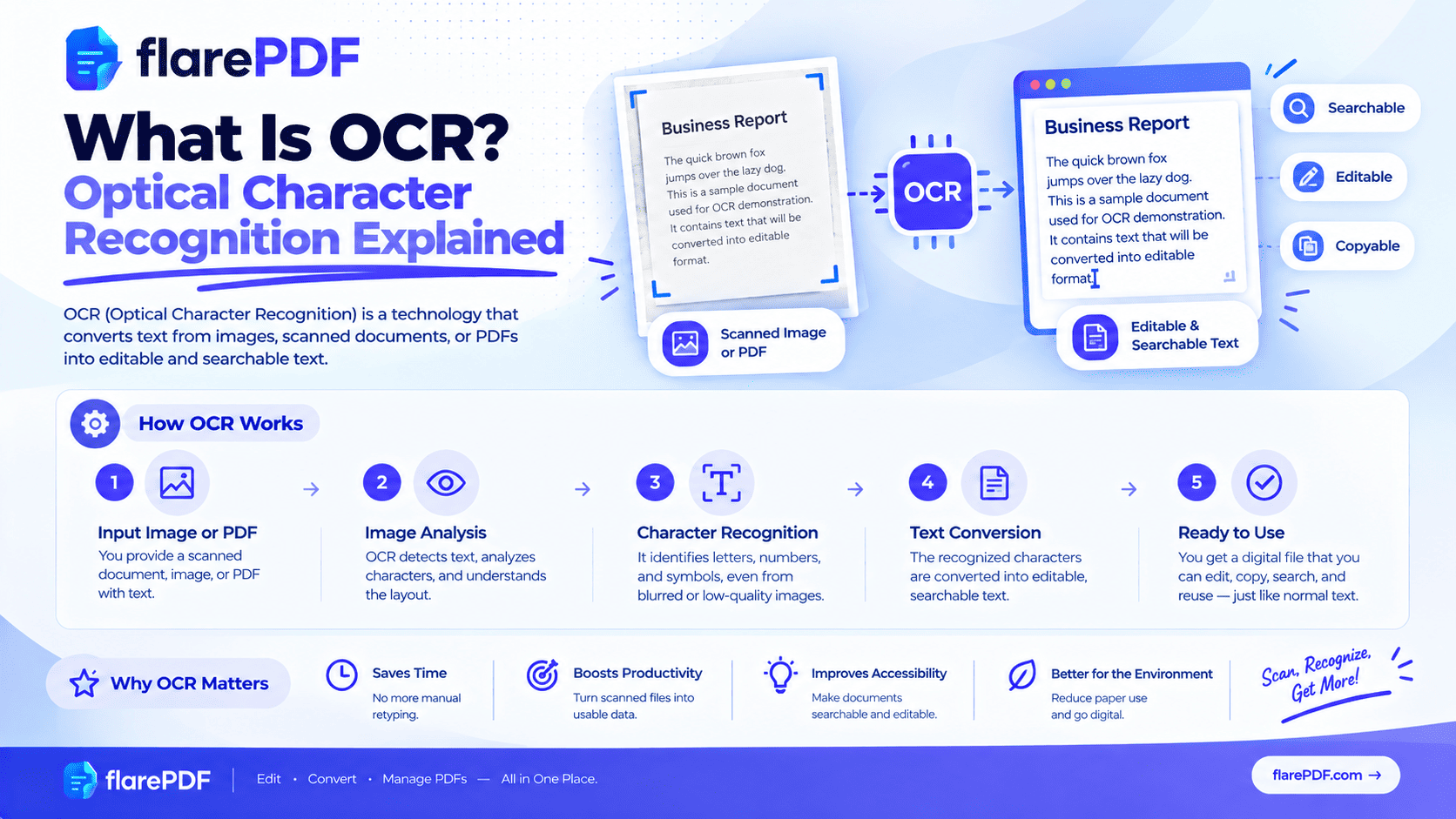
What is OCR? OCR (optical character recognition) is technology that reads text in images, scans and photos and turns it into real text you can search, copy and edit.
You’ve probably used it without knowing. Your phone copies words from a photo, Google finds a line inside a scanned PDF, or an airport machine reads your passport. All of that is OCR.
This guide explains it in plain English. You’ll learn what OCR stands for, how it works step by step and how accurate it really is. You’ll also see how it differs from ICR and OMR, and the free ways to use it on your own documents. FlarePDF’s tools are free, with no sign-up.
What is OCR (optical character recognition)?
OCR is technology that recognises letters, numbers and symbols in an image and converts them into machine-readable text. It turns a picture of words into actual words. A scanned page, a photo of a sign or a screenshot becomes text you can search, copy, edit or have read aloud.
Without OCR, a scanned document is just a picture. Your computer sees pixels, not words. You can look at it, but you can’t search it, copy a sentence from it or fix a typo in it.
OCR bridges that gap. It’s the reason a stack of paper records can become a searchable digital archive.
What does OCR stand for?
OCR stands for optical character recognition. “Optical” means it works from images. “Character” means letters, numbers and symbols. “Recognition” means identifying what each one is.
You’ll also see the term optical character reader. That’s the device or software that performs optical character recognition. Early OCR was done by dedicated reading machines, so the name stuck.
For readers in Pakistan and India, here’s the meaning in Urdu and Hindi:
- OCR full form in Urdu: او سی آر کا مطلب ہے آپٹیکل کریکٹر ریکگنیشن
- OCR full form in Hindi: ओसीआर का फुल फॉर्म ऑप्टिकल कैरेक्टर रिकग्निशन है
In computer terms, OCR is a branch of computer vision and pattern recognition: teaching machines to “see” and understand text.
Why does OCR matter?
Huge amounts of important information still exist only on paper or as scanned images. OCR makes that information usable.
Here’s why it matters in everyday life:
- Work: search thousands of scanned contracts for one clause in seconds
- Study: turn photographed lecture notes or textbook pages into text you can quote
- Official forms: pull details from ID cards, utility bills and certificates without retyping
- Finance: extract totals and dates from invoices, receipts and bank statements
- Freelancing: convert a client’s scanned brochure into editable text for translation or redesign
- Accessibility: let screen readers read printed documents aloud for blind and low-vision users
Without OCR, all of that means typing by hand. That’s slow, expensive and full of mistakes.
How does OCR work?
OCR works by cleaning up an image, finding the text in it, recognising each character and then checking the result. Here’s the process in five plain-English steps.
- Capture the image. A scanner or camera creates a picture of the page.
- Clean it up. The software straightens tilted pages (deskewing), removes specks (despeckling) and boosts contrast, often turning the image black and white (binarization).
- Find the text. It separates text from pictures and tables, then splits the text into lines, words and individual characters. This is called layout analysis and segmentation.
- Recognise each character. It compares each shape against known letters using pattern matching, or uses machine learning trained on millions of examples.
- Check and output. It checks words against a dictionary to fix likely errors, then outputs editable text or adds a hidden text layer to the original file.
Each recognised character usually gets a confidence score. Low-confidence words are the ones most likely to be wrong, so some tools highlight them for you to check.
Is OCR artificial intelligence?
Modern OCR usually is. Older systems matched shapes against stored templates, which worked only with a few known fonts. Today’s OCR mostly uses machine learning and neural networks, so it can handle many fonts, layouts and languages.
The open-source Tesseract OCR engine is a good example. Its newer versions use a neural network model to recognise text lines.
What is OCR scanning?
OCR scanning means scanning a document and running OCR on it, so the result contains real text instead of just an image. A plain scan gives you a picture of a page. An OCR scan gives you the picture plus searchable, copyable text.
That’s what “scan to OCR” means on office scanners and printers. Choose it, and the machine saves a searchable PDF instead of an image-only one.
Scanning vs OCR: what’s the difference?
Scanning: Captures an image of the page. You can view it and print it, but you can’t search, copy or edit the words.
OCR: Reads the image and recognises the text. It turns the scan into searchable, editable text.
Scanning + OCR: The most useful combination. You keep the original look and gain searchable text.
If you need to scan paper first, see our guide on how to scan a document to PDF. For phones, read how to scan documents on iPhone.
OCR vs ICR vs OMR: what’s the difference?
These three technologies sound similar, but each reads a different kind of mark.
OCR (optical character recognition): Reads printed or typed text, like books, letters, invoices and forms. Best for documents created by a printer or computer.
ICR (intelligent character recognition): Reads handwriting. It adapts to different writing styles and works best on neat, separate letters in form boxes.
OMR (optical mark recognition): Reads marks, not letters, such as filled bubbles on exam answer sheets, ticked boxes on surveys and ballot papers.
IWR (intelligent word recognition): Reads whole handwritten words rather than single letters, which helps with joined-up writing.
Many modern tools combine OCR and ICR. Printed text is still much easier for software to read than handwriting.
Barcodes and QR codes are different again. Scanners read them as patterns, not characters, so that isn’t OCR.
What is OCR used for?
OCR is everywhere once you start looking. Here are the most common uses.
Everyday uses
- Copying text from photos: grab a phone number from a poster or a quote from a book page
- Translating signs and menus: apps read the text, then translate it
- Searching scanned PDFs: find a word inside a scanned contract or report
- Studying: turn lecture notes or textbook pages into text you can edit and quote
- Accessibility: read printed letters aloud with text-to-speech
Business and government uses
- Document management: digitizing paper archives so staff can search them
- Invoice and receipt processing: pulling supplier names, dates and totals into accounting software
- Forms processing: reading application forms in banks and offices
- Identity checks: reading passports and ID cards at airports and banks
- Traffic systems: reading licence plates at toll booths and car parks
In Pakistan, banks and telecom companies often read CNIC details this way. In India, universities and offices use OCR to digitize old records and exam documents.
Is OCR accurate?
OCR is very accurate on clean, printed text in common fonts, but accuracy drops quickly with poor-quality images. Always proofread the result, especially names, numbers and dates.
What affects OCR accuracy?
- Image quality: blurry, dark or tilted photos cause errors.
- Resolution: 300 DPI is a widely recommended minimum for scans.
- Fonts: standard fonts work best. Decorative or very small text is harder.
- Layout: columns, tables and text over images can confuse the reading order.
- Handwriting: neat print is manageable, but messy writing often fails.
- Language and script: Latin-script languages tend to work best. Complex scripts like Urdu Nastaliq, with its sloping, joined letters, are much harder for most tools.
- Paper condition: stains, folds and faded ink reduce accuracy.
Common OCR mistakes to watch for
OCR often confuses characters that look alike:
- 0 (zero) and O (letter O)
- 1 (one), l (lowercase L) and I (capital i)
- rn and m
- 5 and S
- cl and d
Pro tip: If numbers matter, such as on bank statements, invoices or ID numbers, check every one against the original. A single wrong digit can cause real problems.
What is an OCR PDF?
An OCR PDF is a scanned PDF that has been through text recognition. It looks exactly like the original scan, but a hidden text layer sits underneath. That layer lets you search, select and copy the words.
Image-only PDF vs searchable PDF
Image-only (scanned) PDF: Each page is a picture. Ctrl + F finds nothing, and you can’t select text.
Searchable (OCR) PDF: Looks the same, but has a hidden text layer. You can search, select and copy words.
Native (digital) PDF: Made directly from Word or another app. It has real text from the start and doesn’t need OCR.
To learn more about how PDFs store text, read our plain-English guide on what a PDF is.
What is a searchable PDF?
A searchable PDF is simply the result of running OCR on a scan. Its main benefit is that you can find any word with Ctrl + F (Command + F on Mac). It’s ideal for contracts, archives and research papers.
How to OCR a PDF for free
You don’t need expensive software. Here are free options:
- Google Drive and Docs: upload the PDF, right-click it and choose Open with > Google Docs. Google’s help page on converting PDF and photo files to text covers the limits.
- iPhone, iPad and Mac: use Live Text to select text in images and many scanned pages.
- Windows 11: use Text actions in the Snipping Tool, or PowerToys Text Extractor.
- Android: use Google Lens to copy text from a screenshot or photo.
For full step-by-step instructions on every device, see our guide on how to copy text from a PDF, even scanned ones.
How to extract text from a PDF with FlarePDF
To pull all the text out of a PDF at once, use FlarePDF’s Extract Text from PDF tool. It’s free, and there’s no account to create.
- Open the Extract Text from PDF page.
- Upload your PDF drag-and-drop and/or file picker]
- Start the extraction. exact button label]
- Review the text against the original.
- Copy or save the result copy button and/or .txt download]
Quick note: whether the tool runs OCR on scanned or image-only pages. If it doesn’t, replace this line with: “This tool works on PDFs that already have a text layer. For scanned PDFs, use one of the free OCR methods above first.”]
A short history of OCR
OCR is older than most people think. Here’s how it developed.
- 1910s: Early reading machines appear. The optophone turned printed letters into sounds for blind readers. Inventor Emanuel Goldberg built a machine that read characters and converted them into telegraph code.
- 1970s: Ray Kurzweil develops a reading machine that could read many different fonts aloud for blind users.
- 1980s to 2000s: Tesseract is developed at Hewlett-Packard, released as open source in 2005, and later developed with Google’s support.
- Today: AI-based OCR is built into phones, browsers and office apps. Apple’s Live Text, Google Lens and Microsoft’s Snipping Tool all read text from images instantly.
What once needed a room-sized machine now happens in your pocket in under a second.
Is online OCR safe for private documents?
Online OCR means uploading your file to a website, so think before you upload sensitive documents. That includes CNICs, passports, bank statements and medical or legal records.
Good habits:
- Upload only what you need. Split the PDF and keep just the relevant pages.
- Read the site’s privacy policy before you upload.
- For highly sensitive files, use the OCR built into your own device, such as Live Text, Snipping Tool or Google Lens.
You can read how FlarePDF handles files on the FlarePDF privacy page.
OCR and redaction: a warning
Drawing a black box over text in a scanned PDF doesn’t remove the image underneath. OCR can often still read it. Learn how to permanently redact a PDF so private details are gone for good.
Key features and benefits of FlarePDF’s text tool
- Free to use: every FlarePDF tool costs nothing.
- No account or login: open the tool and start. No email needed.
- Simple steps: upload, extract and copy.
- Related tools in one place: scan, split, compress and edit PDFs on the same site.
- File handling: file size limit, where files are processed and when they’re deleted]
Why choose FlarePDF?
FlarePDF suits anyone who needs text out of a PDF quickly, without installing software or creating another account. It’s handy on work computers, shared laptops and phones.
It also gives you the tools around OCR. You can scan paper to PDF first, split out the pages you need, and edit or compress the result afterward.
Tips for better OCR results
- Scan at 300 DPI or higher. Low resolution is the most common cause of errors.
- Keep pages flat and straight. Tilted or curved pages confuse character recognition.
- Use even lighting. Avoid shadows and flash glare when using your phone.
- Choose black and white for text-only pages. High contrast helps OCR.
- Proofread numbers and names. These are the most costly mistakes.
- Split long files. Some free OCR tools have size or page limits, so process large scans in parts.
- Keep the original. Always save the untouched scan alongside the OCR version.
Real-world examples
A university student in Lahore photographs ten pages from a library reference book. She runs them through Google Docs OCR and quotes the passages in her thesis, with full citations.
A law office assistant in London receives 200 scanned contracts. After OCR, she finds every contract mentioning a specific clause with a single search.
A freelance translator in Delhi gets a scanned Hindi brochure. He uses OCR to get the text, fixes a few recognition errors, then translates it into English.
A small business owner in Texas scans supplier invoices each month. OCR pulls out dates and totals, so she no longer types them into her spreadsheet.
Related PDF tools you may need
- Scan paper to PDF: use Scan to PDF before running OCR.
- Edit the text afterward: open the free PDF editor, or read how to edit text and pages in a PDF.
- On a Mac? See how to edit a PDF on Mac for free.
- Shrink large scans: use Compress PDF, or read how to compress a PDF without losing quality.
- Turn photos into a PDF: use JPG to PDF, or follow how to convert JPG to PDF.
Can you remove OCR from a PDF?
Yes. Convert the pages to images with PDF to JPG, then rebuild the file with JPG to PDF. The new PDF is image-only, with no hidden text layer.
Frequently Asked Questions
What does OCR stand for?
OCR stands for optical character recognition. It is technology that reads letters and numbers in images, scans and photos and turns them into real text. An optical character reader is the device or software that does the reading.
What is OCR used for?
OCR is used to turn scanned documents and photos into searchable, editable text. Common uses include digitizing paper records, making PDFs searchable, extracting data from invoices, reading ID cards, translating text in photos and helping screen readers read printed pages aloud.
How does OCR work?
OCR cleans up an image, finds the areas that contain text, and splits them into lines, words and characters. It then recognizes each character using pattern matching or machine learning, checks the results against a dictionary, and outputs editable text.
Is OCR accurate?
OCR is very accurate on clear, printed text in common fonts. Accuracy drops with blurry scans, low resolution, unusual fonts, handwriting and complex scripts. Always proofread OCR output, especially names, numbers and dates, before you rely on it.
Can OCR read handwriting?
Sometimes. Standard OCR is built for printed text, so handwriting often causes errors. Handwriting recognition, sometimes called ICR, does better with neat writing, but messy or joined-up handwriting is still hard for most tools.
What is the difference between OCR and ICR?
OCR reads printed, typed text. ICR, or intelligent character recognition, is designed to read handwriting and adapts to different writing styles. Many modern tools combine both, but printed text is still far easier for software to read accurately.
What is an OCR PDF?
An OCR PDF is a scanned PDF that has been through text recognition. It still looks like the original scan, but a hidden text layer lets you search, select and copy the words. It is also called a searchable PDF.
Is there a free OCR option?
Yes. Google Docs can convert scanned PDFs and images to text through Google Drive, iPhones and Macs offer Live Text, Windows 11 has Text Actions in the Snipping Tool, and Android phones have Google Lens. All are free.
Conclusion
So, what is OCR? It’s optical character recognition, the technology that turns pictures of text into real, searchable, editable words. It cleans the image, finds the text, recognises each character and checks the result. It’s very accurate on clean printed pages but still needs a human check on numbers, handwriting and complex scripts.
Ready to get text out of your PDF? Try Extract Text from PDF free now. No sign-up, no login.
Keep reading
More guides from the flarePDF blog