How to Scan Documents on iPhone (Notes and Files App)
Learn how to scan documents on iPhone with the free Notes and Files apps. Scan multiple pages to PDF, find your scans and send them. No app needed.
How to Scan Documents on iPhone (Notes and Files App)
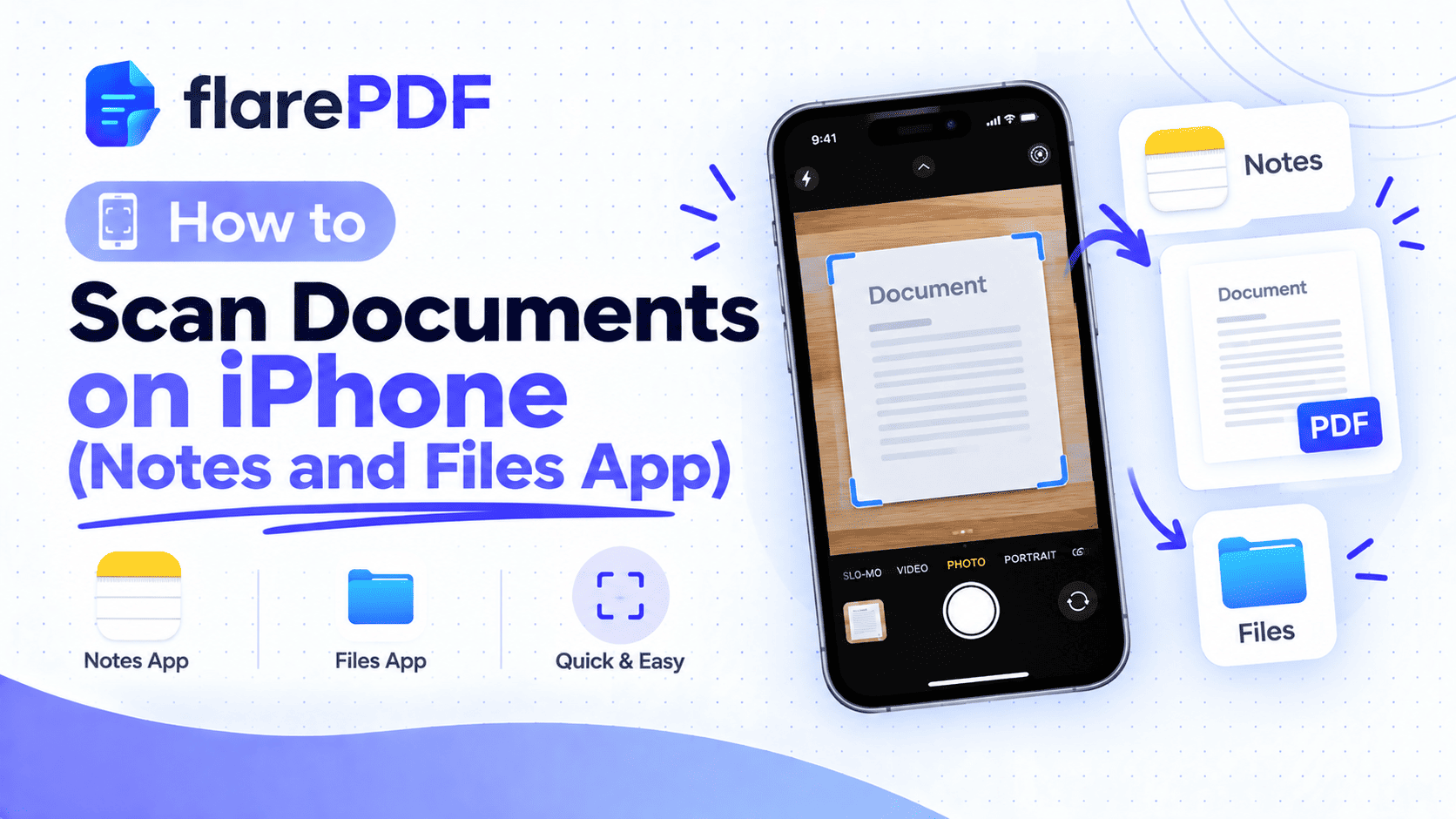
Quick answer: To scan a document on iPhone with the Notes app:
- Open Notes and start a new note.
- Tap the attachment (paperclip) or camera icon, then Scan Documents.
- Hold your iPhone over the page until it captures, or tap the shutter.
- Tap Keep Scan, scan more pages, then tap Save.
- Tap Share, then Save to Files to keep it as a PDF.
The Files app also has a Scan Documents option that saves a PDF straight into any folder you choose.
You don't need a scanner, or even an extra app. Your iPhone already has a good document scanner built in, but many people don't know where to find it. This guide shows you how to scan documents on iPhone with both Notes and Files, how to scan several pages into one PDF, where your scans are saved, and what to do next. FlarePDF tools are free, with no sign-up or login.
What Does It Mean to Scan a Document on iPhone?
Scanning a document on iPhone means using the built-in scanner in Notes or Files to capture a paper page and save it as a PDF. The scanner finds the page edges, straightens the angle and removes shadows, so the result looks like a clean copy rather than an ordinary photo. You can scan several pages into one file.
The result is a standard PDF, the same format offices and portals expect. PDF is an open international standard, ISO 32000, so your scan opens the same way on any phone or computer.
Scan vs photo: what's the difference?
iPhone photo: Captures everything in view, including the table, your fingers and shadows. It's often crooked and saved as a large image.
iPhone scan: Detects the page, crops it, corrects the angle and cleans up the background. It's saved as a PDF that looks like a proper copy.
Why Scan Documents With Your iPhone?
Your phone is the scanner you always have with you.
- Applications: Scan your CNIC, degree or passport for job, visa, NADRA or university portals.
- Contracts: Sign a paper agreement and send back a clean PDF in minutes.
- Receipts: Scan expenses on the spot instead of losing paper slips.
- School: Scan homework, assignments and handwritten notes.
- Records: Keep digital copies of important papers in iCloud Drive or on your phone.
Pro tip: Scanning needs no internet connection. You can scan offline and send the PDF later.
How to Scan in the Notes App on iPhone
Notes is the most popular way to scan on iPhone, because it's quick and keeps every page together.
- Open the Notes app and tap the new note button.
- Tap the attachment (paperclip) icon, or the camera icon on older iOS versions.
- Choose Scan Documents.
- Hold your iPhone above the page. In Auto mode, it captures as soon as the page is steady and in focus. In Manual mode, tap the shutter button.
- Drag the corner handles to adjust the crop, then tap Keep Scan. Tap Retake if it's blurry.
- Scan the next page, or tap Save when you're finished.
Your scan now appears inside the note as a document.
Pro tip: For an even faster start, touch and hold the Notes icon on your Home Screen and choose Scan Document.
How do I save a Notes scan as a PDF?
Open the scan, tap Share, then choose Save to Files. Pick a folder in iCloud Drive or On My iPhone and tap Save. The scan is saved as a PDF you can upload or attach anywhere.
How do I rename or edit a scan in Notes?
Tap the scan to open it, then use the tools at the bottom of the screen.
- Crop: Adjust the page edges.
- Filter: Switch between Color, Grayscale, Black & White and Photo.
- Rotate: Turn a sideways page upright.
- Add pages: Tap the plus button to scan more pages into the same document.
- Delete: Remove a page you don't need.
To rename the scan, tap its title at the top and type a clear name, such as "CNIC Front and Back".
Menu names can change slightly between iOS versions. Apple's iPhone User Guide has the current steps for your version.
How to Scan Documents in the Files App on iPhone
The Files app scans straight to a PDF in the folder you choose. It's ideal when you need the file ready for uploading.
- Open the Files app.
- Go to the folder where you want the PDF, such as iCloud Drive or On My iPhone.
- Tap the More button (three dots) at the top of the screen.
- Choose Scan Documents.
- Capture each page, adjust the crop if needed, then tap Save.
The PDF appears in that folder right away, usually named "Scanned Document". Touch and hold it, then choose Rename to give it a clear name.
Quick note: Files scans don't live inside a note, so they're easier to find when a website asks you to upload a file.
Notes vs Files: Which Should You Use?
Both apps use the same scanner. The difference is where the scan ends up.
Notes app: Saves the scan inside a note. Great for keeping scans with notes or checklists, and the scanned text can be searched in Notes. You share it as a PDF when needed.
Files app: Saves a PDF directly into a folder. Best when you'll upload, email or attach the file, because it's already a PDF in the right place.
Pro tip: Use Files for documents you're about to submit, and Notes for scans you want to keep organized with other notes.
How to Scan Multiple Pages Into One PDF on iPhone
Keep scanning without tapping Save until you've captured the last page. Each page you keep is added to the same document. When you tap Save, every page is stored together in one PDF.
- Front and back of an ID card: Scan the front, flip the card, scan the back, then save.
- Long documents: Scan in page order so you won't need to rearrange them later.
- Missed a page? Open the scan in Notes and tap the plus button to add it.
If you scanned pages as separate files, join them with the free Merge PDF tool. See our guide on how to combine multiple PDFs into one.
Where Do Scanned Documents Go on iPhone?
It depends on which app you used.
- Notes: The scan stays inside the note where you made it. Open Notes and use the search bar to find it. You can search for words in the scan, or open the attachments view.
- Files: The PDF is saved in the folder you were in when you scanned. Check the Recents tab in Files if you can't remember which folder.
How do I find scanned documents on my iPhone?
Search in the app you used. In Notes, tap the search bar and type the note title or a word from the scan. In Files, open Recents or use the search field at the top.
How to Send or Share a Scanned Document From iPhone
Open the scan, tap Share and pick how to send it.
- Email: Choose Mail to attach the PDF to a new message.
- WhatsApp or Messages: Choose the app to send the PDF in a chat.
- Airdrop: Send it straight to a nearby iPhone, iPad, or Mac.
- Save to Files: Keep a copy for uploading later.
Quick note: You can also start a scan from inside Mail. Tap in the message body, open the format or attachment options above the keyboard, and choose Scan Document.
How do I make an iPhone scan smaller?
Scan in Black & White or Grayscale, then compress the PDF if needed. Color scans of several pages can be large. Run the PDF through the free Compress PDF tool. For strict limits like 200KB, follow our guide on how to compress PDF files without quality loss.
How to Get a Clear Scan on iPhone
Good light and a flat page matter more than any setting.
Light: Use daylight or bright, even light. Make sure your phone doesn't cast a shadow.
Background: Put the page on a dark, plain surface so the edges stand out.
Angle: Hold the iPhone directly above the page, parallel to it.
Filter: Use Black & White or Grayscale for text, and Color for ID cards, stamps and photos.
Can I copy text from a scanned document on iPhone?
Often, yes, with Live Text on supported iPhones. Open the scan, then touch and hold a word to select text and copy it. Notes also makes scanned text searchable. Results depend on your iOS version and how clear the scan is.
How do I scan on iPad?
The steps are the same as on iPhone. Use Notes or Files and choose Scan Documents. The larger screen makes it easier to check the crop.
Can I scan with my iPhone straight to a Mac?
Yes, with Continuity Camera. On your Mac, right-click in a Finder folder or on the desktop, choose Import from iPhone, then Scan Documents. Scan on your iPhone, tap Save, and the PDF appears on your Mac.
Why Is the Scan Documents Option Missing on My iPhone?
The usual causes are an outdated iOS version, a note in the wrong account, or camera restrictions.
- Update iOS: Go to Settings, then General, then Software Update.
- Check the Notes account: Notes stored in some email accounts don't support attachments, including scans. Create the note in iCloud or On My iPhone instead.
- Check camera access: If Screen Time or other restrictions block the camera, the scanner won't open.
- Try the Files app: If Notes won't work, use Files and choose More, then Scan Documents.
How to Scan to PDF With FlarePDF on iPhone
You can also use the free FlarePDF Scan to PDF tool in Safari. It's a browser-based option when you want to scan and then go straight on to merge, compress or sign the file. [VERIFY: camera capture vs photo upload in mobile Safari]
- Open the Scan to PDF page in Safari.
- Capture or upload each page. [VERIFY: multi-page support]
- Adjust the pages if needed. [VERIFY: crop, rotate and reorder options]
- Create the PDF.
- Download it to the Files app.
What to Do After Scanning on iPhone
Fix pages
Rotate, reorder or remove pages with the free Organize PDF tool. See our guides on how to reorder, rotate and delete PDF pages and how to delete pages from a PDF.
Add a missing page
Scan the page separately, then follow our guide on how to add pages to a PDF.
Sign the document
Use iPhone Markup or the free Sign PDF tool. Read how to insert a signature in a PDF for every method.
Hide private details
Don't just draw over account numbers. Follow our guide on how to permanently redact a PDF.
Key Features and Benefits of FlarePDF Tools for iPhone Scans
Free to use
FlarePDF tools are free, so you can finish your scans without paying. [VERIFY: usage or file size limits]
No app or account
Everything works in Safari, with no account or login. That's handy when your phone is low on storage.
The right next steps
Merge, compress, organize and sign your scanned PDF, all in one place.
Why Choose FlarePDF?
Your iPhone handles the scanning. FlarePDF helps with everything after it, without another app to install.
It's a good fit when you:
- Need to shrink a scan to meet an upload limit.
- Want to combine several scans into one PDF.
- Need to sign or fix pages before sending.
Quick note on privacy: ID cards and certificates are sensitive. Read any site's privacy policy before uploading them. You can read FlarePDF policy on the Privacy page. [VERIFY: file processing and deletion details before adding any claim]
Tips and Common Mistakes When Scanning on iPhone
- Clean your camera lens. A smudged lens makes every scan soft.
- Use Manual mode for tricky pages. Auto mode can capture too early on glossy or curved paper.
- Check each page before saving. Zoom in on small text, stamps and signatures.
- Rename your scans. "Degree-Certificate.pdf" is far easier to find than "Scanned Document 3".
- Save to Files before uploading. Websites can't always see scans that are still inside Notes.
- Choose the right filter. Black & White makes text crisp, but it can hide colored stamps.
- Keep the original paper. Some offices still ask to see it.
Real-World Examples
The student
Hamza scans six pages of his handwritten assignment in Notes, saves the scan to Files and uploads the PDF to his class portal before the deadline.
The job seeker
A job seeker in Lahore uses the Files app to scan her CNIC front and back into one PDF in her "Applications" folder. She compresses it and uploads it to the job portal.
The freelancer
A consultant in Chicago signs a client's paper contract, scans it with Notes and emails the PDF from her iPhone in under five minutes.
The small business owner
A shop owner in Karachi scans supplier receipts in Black & White each evening and sends them to her accountant at the end of the month.
Related PDF Tools You May Need
- Combine scans: Merge PDF files into one document.
- Fix pages: Use Organize PDF to rotate, reorder or delete pages.
- Shrink for uploads: Compress your scanned PDF.
- Convert photos: Turn existing pictures into a PDF with JPG to PDF.
- Sign it: Sign your PDF online.
Frequently Asked Questions
How do I scan a document with my iPhone?
Open Notes, start a new note, tap the attachment or camera icon and choose Scan Documents. Hold your iPhone over the page, tap Keep Scan, then Save. You can also open the Files app, tap More and choose Scan Documents.
How do I scan documents in the Files app?
Open Files and go to the folder where you want the PDF. Tap the More button, choose Scan Documents, capture each page and tap Save. The PDF is saved straight into that folder, ready to upload or share.
Where do scanned documents go on iPhone?
Scans made in Notes stay inside the note where you created them. Scans made in the Files app are saved as PDFs in the folder you were in. Check the Recents tab in Files or search in Notes to find them.
How do I save a Notes scan as a PDF?
Open the scan in Notes, tap the Share button and choose Save to Files. Pick a folder in iCloud Drive or On My iPhone and tap Save. Your scan is saved as a PDF you can upload or attach.
Can I scan multiple pages into one PDF on iPhone?
Yes. Keep scanning pages without tapping Save, and each page is added to the same document. When you tap Save after the last page, all pages are stored together in one PDF.
Do I need an app to scan documents on iPhone?
No. The Notes and Files apps that come with iPhone both include a free document scanner. They detect page edges, straighten the angle and save scans as PDFs without any extra app or subscription.
Why is the Scan Documents option missing on my iPhone?
Your iOS may need updating, or the note may be in an account that does not support attachments. Create the note in iCloud or On My iPhone, check camera restrictions, or use the Files app to scan instead.
How do I make an iPhone scan smaller?
Scan text pages in Black & White or Grayscale, which creates smaller files than color. If the PDF is still too large, compress it with a free PDF compressor and check that small text remains readable.
Conclusion
Now you know how to scan documents on iPhone with the free Notes and Files apps. Use Notes to keep scans with your notes, and Files to save a PDF straight into a folder for uploading. Scan in good light, keep every page in one document, then compress, organize or sign the PDF before you send it.
Need to finish your scan? Try the free Scan to PDF tool and FlarePDF other tools now. No sign-up, no login.
Keep reading
More guides from the flarePDF blog