How to Split a PDF Into Multiple Files (Free Guide)
Learn how to split a PDF into multiple files for free. Separate pages, extract a range or save one page on Windows, Mac, iPhone or Android. No sign-up.
How to Split a PDF Into Multiple Files (Free Guide)
Quick answer: To split or separate a PDF into multiple files for free:
- Open the free FlarePDF Split PDF tool.
- Upload your PDF.
- Choose how to split it: by page range, every page, or selected pages.
- Click split.
- Download your new, smaller PDF files.
A long PDF is often more than you need. You may want only the signature page from a contract, one chapter from a textbook, or one month from a year of bank statements. Sometimes the file is simply too big to email or upload.
This guide shows you how to split a PDF into multiple files on any device. It covers the free online method, the built-in options on Windows, Mac, iPhone and Android, and Adobe Acrobat. You'll also learn how to save just one page, extract a range and break up a large PDF for upload limits. FlarePDF is free, with no sign-up or login.
What Does It Mean to Split a PDF?
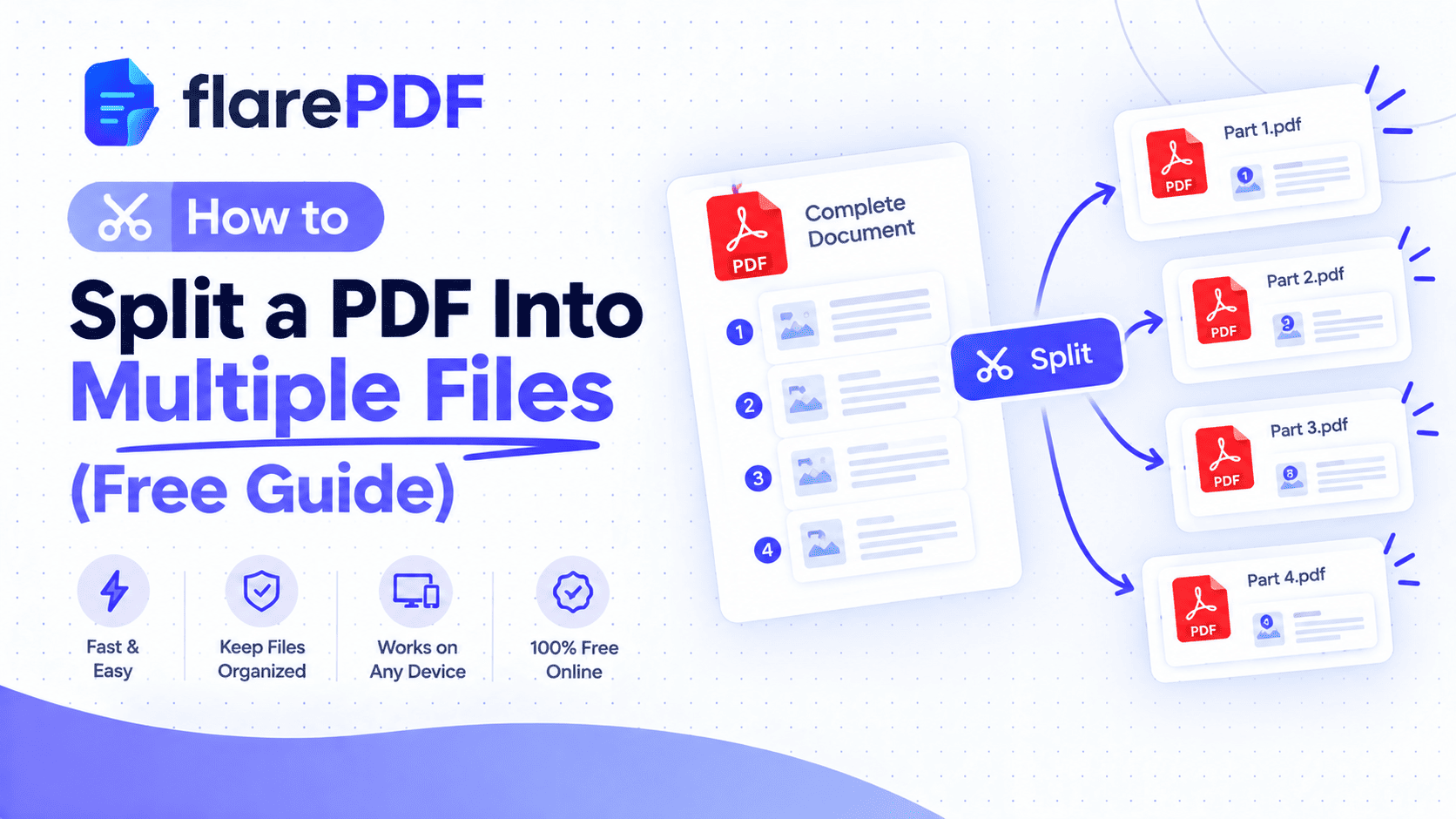
Splitting a PDF means dividing one PDF document into two or more separate PDF files. You can split it by page ranges, turn every page into its own file, or pull out only the pages you need. The original file stays unchanged, and every page keeps its original content and quality.
Think of it like taking a thick binder apart into smaller folders. Each folder holds its own set of pages, and nothing on the pages changes.
PDF is an open international standard, ISO 32000. Each page is stored as its own object, so a PDF splitter can separate pages cleanly without damaging them.
What's the difference between splitting, extracting and deleting pages?
Splitting: Breaks one PDF into several new files. Best when you need the whole document in smaller parts.
Extracting: Creates one new file with only the pages you pick. Best when you need just a few pages.
Deleting: Keeps the same file and removes pages you don't want. Best when most pages stay.
If deleting suits you better, see our guide on how to delete pages from a PDF.
Why You'd Split a PDF Into Separate Files
Splitting a PDF solves everyday problems at work, school and home.
- Upload limits: Job, visa, NADRA and university portals often cap file size or ask for each document separately.
- Email limits: Large PDFs can bounce. Smaller parts send easily.
- Sharing only what's needed: Send a client the one page they asked for, not the whole report.
- Combined scans: Separate a stack of scanned documents into individual files.
- Study material: Break a textbook or lecture notes into chapters.
- Records: Split a year of bank statements or invoices by month.
Pro tip: Before you split, write down which pages go where, such as "1-3 CV, 4-6 certificates, 7 ID copy." It makes the job quicker and avoids mistakes.
How to Split a PDF Into Multiple Files With FlarePDF
The simplest way that works on any device is the free online PDF splitter from FlarePDF. It runs in your browser, so there's nothing to install and no account to create. [VERIFY: works in mobile browsers]
- Open the FlarePDF Split PDF page.
- Upload the PDF you want to split. [VERIFY: file size limit]
- Choose a split option, such as page ranges or every page. [VERIFY: split modes available]
- Enter the page ranges if needed, for example 1-3, 4-6, 7-10.
- Click split to create your new files.
- Download the files. [VERIFY: individual downloads or a ZIP file]
Quick note: Your original PDF stays the same. Keep it until you've opened each new file and checked it.
Ways to Split a PDF
Different jobs need different split methods. Here are the most common ones.
By page range:You choose ranges such as 1-5 and 6-10. Each range becomes its own file. Best for chapters or separate documents inside one scan.
Every page into its own file: A 10-page PDF becomes 10 one-page PDFs. Sometimes called "bursting" a PDF.
Every N pages:Split into equal chunks, such as every 5 pages. Useful for long reports or scanned batches.
Selected pages only: Pick specific pages and save them as one new file. This is what most people mean by "extract pages."
By file size:Split into parts under a size limit, such as 5MB, for email or upload portals.
Not every tool offers every method. [VERIFY: which of these methods FlarePDF Split PDF supports] Desktop tools such as Adobe Acrobat Pro and the free PDFsam Basic also offer splitting by bookmarks and by size.
How do I split a PDF into separate pages?
Choose the "every page" option, or enter each page as its own range. For example, a 4-page PDF split by the ranges 1, 2, 3 and 4 gives you four single-page files. This is handy when each page is a different document, such as receipts or certificates.
How do I extract pages from a PDF?
Select only the pages you need and save them as one new PDF.For example, enter 2-4 to create a file with just those three pages. The rest of the original stays untouched.
How do I save only one page of a PDF?
Split out that single page, or "print" just that page to a new PDF. In an online splitter, enter the page number as its own range. In Chrome, Edge or any print dialog, choose Save as PDF or Microsoft Print to PDF and type the page number under Pages.
Pro tip:The print method is the fastest way to save one page on almost any device. It may drop links and fillable form fields, though, so use a splitter for interactive PDFs.
How to Split a PDF on Windows
Windows 10 and 11 don't include a PDF splitter, but you can use an online tool or the built-in print trick.
Option 1: Use an online splitter
Open the Split PDF tool in Edge, Chrome or Firefox. Upload the file, set your ranges and download the parts. You get all the pieces in one go, with the PDF structure kept intact. [VERIFY: links and bookmarks preserved after splitting]
Option 2: Use Microsoft Print to PDF
- Open the PDF in Microsoft Edge or another PDF viewer.
- Press Ctrl + P.
- Choose Microsoft Print to PDF as the printer.
- Under Pages, type the first range, such as 1-5.
- Click Print and save the file.
- Repeat for each remaining range.
Pros: Built into Windows, works offline, no upload needed.
Cons: One range at a time, and links, bookmarks and form fields are usually lost.
How to Split a PDF on Mac
Mac users can split a PDF for free with Preview, the PDF app built into every Mac.
Method 1: Drag pages out of Preview
- Open the PDF in Preview.
- Choose View, then Thumbnails.
- Select the pages you want. Hold Command to pick separate pages, or Shift to pick a range.
- Drag the selected thumbnails onto your desktop or into a Finder folder.
Preview creates a new PDF containing just those pages. Repeat for each part you need.
Method 2: Print to PDF with a page range
- Open the PDF in Preview and choose File, then Print.
- Under Pages, choose a range, such as From 1 to 5.
- Click the PDF menu at the bottom and choose Save as PDF.
- Name and save the file, then repeat for the next range.
Apple's Preview User Guide has more page options for your macOS version.
Quick note: Dragging pages out leaves your original PDF unchanged. Deleting pages in Preview and pressing Save, however, overwrites it. Duplicate the file first if you're unsure.
How to Split a PDF on iPhone, iPad and Android
Can I split a PDF on my iPhone?
Yes. The easiest way is an online splitter in Safari. Open the Split PDF page, upload the file from the Files app, set your ranges and save the new files back to Files.
To save just a few pages, you can also use the print option. Open the PDF, tap Share, then Print, and choose a page range. On many iOS versions, you can then spread two fingers on the preview to open it as a new PDF and share or save it. Menu steps vary between iOS versions.
How do I split a PDF on Android?
Use the built-in print-to-PDF option or an online splitter.
- Open the PDF in your PDF viewer or Google Drive.
- Tap the menu, then Print.
- Choose Save as PDF as the printer.
- Open the page settings and select the pages you want.
- Tap the download or PDF button and save.
For several parts at once, an online splitter in Chrome is faster. [VERIFY: mobile browser support]
How do I split a PDF on a Chromebook?
Use Chrome's print dialog or an online splitter. Press Ctrl + P, choose Save as PDF, set Pages to Custom, enter your range and save. Repeat for each part.
How to Split a PDF in Adobe Acrobat and Adobe Reader
How do I split a PDF in Adobe Acrobat?
In Adobe Acrobat, open the Organize Pages tool and choose Split. You can split by number of pages, file size or top-level bookmarks. Then choose where to save the output files and click Split. See the Adobe Acrobat User Guide for steps in your version.
Can I split a PDF in Adobe Reader?
Not directly. The split feature is part of the paid Acrobat versions, so the free Acrobat Reader can't split files. You can still use Reader's print dialog to "print" a page range to a new PDF, or use a free online splitter.
Can I split a PDF without Adobe Acrobat?
Yes. Free options include:
- an online splitter on any device
- Mac Preview
- the print-to-PDF trick in Windows, Chrome or Android
- the free desktop tool PDFsam Basic
How do I split a PDF on Linux?
Use free command-line tools such as pdfseparate or qpdf.
- One file per page: pdfseparate input.pdf page-%d.pdf
- Every 10 pages: qpdf --split-pages=10 input.pdf part.pdf
See the qpdf documentation for more options.
How to Split a Large PDF for Email or Upload Limits
Split a large PDF into smaller parts, and check that each part fits the size limit.Many email services cap attachments at about 20 to 25MB. Gmail allows up to 25MB, according to Gmail Help.
- Check the file size first. On Windows, right-click the file and choose Properties. On Mac, select it and press Command + I.
- Work out roughly how many parts you need. A 60MB scan may need three parts of about 20MB each.
- Split by page ranges, keeping related pages together.
- Name each part clearly, such as "Report-Part-1-of-3.pdf".
- Check each part's size before sending.
Pro tip: Splitting isn't always the best fix. If you'd rather keep one file, compress the PDF instead. Our guide on how to compress PDF files without quality loss explains how to hit targets like 200KB or 1MB.
How do I unmerge a PDF?
Split it back into the separate documents it was made from. If you combined a CV, cover letter and certificates into one file, use page ranges to separate each document again. To join files in the first place, see our guide on how to combine multiple PDFs into one.
Why Can't I Split My PDF?
The usual reasons are password protection, editing restrictions, a digital signature or a damaged file.
- Password or restrictions: Some PDFs block changes. Ask the sender for an unlocked copy. Only remove restrictions on files you own or have permission to change.
- Digital signatures: Splitting creates new files without the original signature, so the parts won't carry a valid signature. Keep the full signed original as your official copy.
- Damaged file: If the PDF won't open properly, re-save it or print it to a new PDF, then split that copy.
Does splitting a PDF reduce quality?
No. Splitting only separates pages, so text and images keep their original quality. The print-to-PDF method can sometimes flatten text or drop links, so use a splitter for the cleanest result.
Key Features and Benefits of FlarePDF Split PDF
Free to use
You can split PDF files without paying anything. [VERIFY: usage or file size limits]
No account or login
You never create an account or log in. Open the tool, upload, split and download. That's handy on shared, school or office computers.
Flexible split options
Split by range or pull out only the pages you need. [VERIFY: split modes available]
Related tools in one place
After splitting, you can merge, compress, organize or sign the new files with other free FlarePDF tools.
Why Choose FlarePDF?
FlarePDF suits people who want to split a PDF quickly, without installing software or paying for Acrobat.
It's a good fit when you:
- Need to send or upload only part of a document.
- Don't have Adobe Acrobat, and Reader can't split.
- Use a work or school computer where you can't install apps.
- Want to split all your ranges in one go instead of printing each one separately.
Quick note on privacy: Check any site's privacy policy before you upload personal documents like bank statements or ID copies. You can read FlarePDF's policy on the Privacy page. [VERIFY: file processing and deletion details before adding any claim]
Tips and Common Mistakes When Splitting PDFs
- Plan your ranges first. Write down which pages belong in which file.
- Check page order before splitting. If pages are out of order, fix them first using our guide on how to reorder, rotate and delete PDF pages.
- Keep the original. Don't delete the full PDF until you've checked every part.
- Name files clearly. "Bank-Statement-March-2026.pdf" beats "split_3.pdf".
- Re-number if needed. Split files keep the old page numbers printed on the page. Add fresh page numbers to each new file if that matters.
- Don't split signed originals for official use. Keep the full signed file as your record.
- Use a splitter for interactive PDFs. The print trick can remove links and form fields.
Real-World Examples
The student
Hamza downloads a 300-page textbook PDF for his course. He splits it by chapter so each file opens quickly on his phone and he can study one topic at a time.
The job seeker
A job seeker in Lahore has one scan with her CV, degree and ID card. The portal asks for each document separately, so she splits the file into three parts by page range and uploads each one.
The HR team
An HR officer in Texas receives a 50-page scan of new-hire forms for five employees. She splits it every 10 pages so each employee's paperwork goes into their own file.
The small business owner
A shop owner keeps all her supplier invoices for the year in one PDF. Her accountant asks only for March, so she extracts those pages and sends a small, tidy file.
Related PDF Tools You May Need
- Join files back together: Merge PDF files when you need to combine parts into one document.
- Fix page order or rotation: Use Organize PDF before or after splitting.
- Add a missing page: Follow our guide on how to add pages to a PDF.
- Shrink instead of splitting:Compress your PDF to keep one file under a size limit.
- Turn pages into images: Convert pages with PDF to JPG when you need pictures, not PDFs.
Frequently Asked Questions
How do I split a PDF into multiple files for free?
Upload your PDF to a free online splitter, choose page ranges or split every page, then download the new files. Mac Preview and the print-to-PDF option in Windows, Chrome and Android also split PDFs for free. FlarePDF needs no account or login.
How do I split a PDF into separate pages?
Choose the option to split every page, or enter each page number as its own range. A 10-page PDF then becomes 10 single-page files. On a Mac, you can also drag individual thumbnails from Preview onto your desktop.
How do I save only one page of a PDF?
Open the print dialog, choose Save as PDF or Microsoft Print to PDF, and enter just that page number under Pages. Or use an online splitter and enter the single page as its own range. Both create a new one-page PDF.
Can I split a PDF without Adobe Acrobat?
Yes. You can split a PDF with a free online tool, Mac Preview, the print-to-PDF option on Windows, Chrome or Android, or the free desktop tool PDFsam Basic. The free Adobe Reader cannot split PDFs on its own.
How do I split a PDF on Mac?
Open the PDF in Preview, show the thumbnails, select the pages you want and drag them onto your desktop. Preview saves them as a new PDF. You can also choose File, Print, set a page range and save as PDF.
How do I split a large PDF for email?
Check the file size, then split it into parts that each fit your email limit, such as under 25MB for Gmail. Keep related pages together and name each part clearly. If you'd rather send one file, compress it instead.
Does splitting a PDF reduce quality?
No. Splitting only separates pages, so text and images keep their original quality. The print-to-PDF method can sometimes remove links or form fields, so use a PDF splitter for interactive documents.
Why can't I split my PDF?
The file may be password-protected, restricted from editing, digitally signed or damaged. Ask the sender for an unlocked copy, keep signed originals intact, or print the PDF to a new file and split that copy instead.
Conclusion
Now you know how to split a PDF into multiple files on any device. Use an online splitter for several parts at once, Preview on a Mac, or the print-to-PDF trick to save a single page. Plan your page ranges, keep the original, and name each new file clearly.
Ready to break up your file? Try the free Split PDF tool now. No sign-up, no login.