How to Scan a Document to PDF (Phone and Computer)
Learn how to scan a document to PDF for free on iPhone, Android, Windows or Mac. Scan multiple pages into one PDF and get clear, small files. No sign-up.
How to Scan a Document to PDF (Phone and Computer)
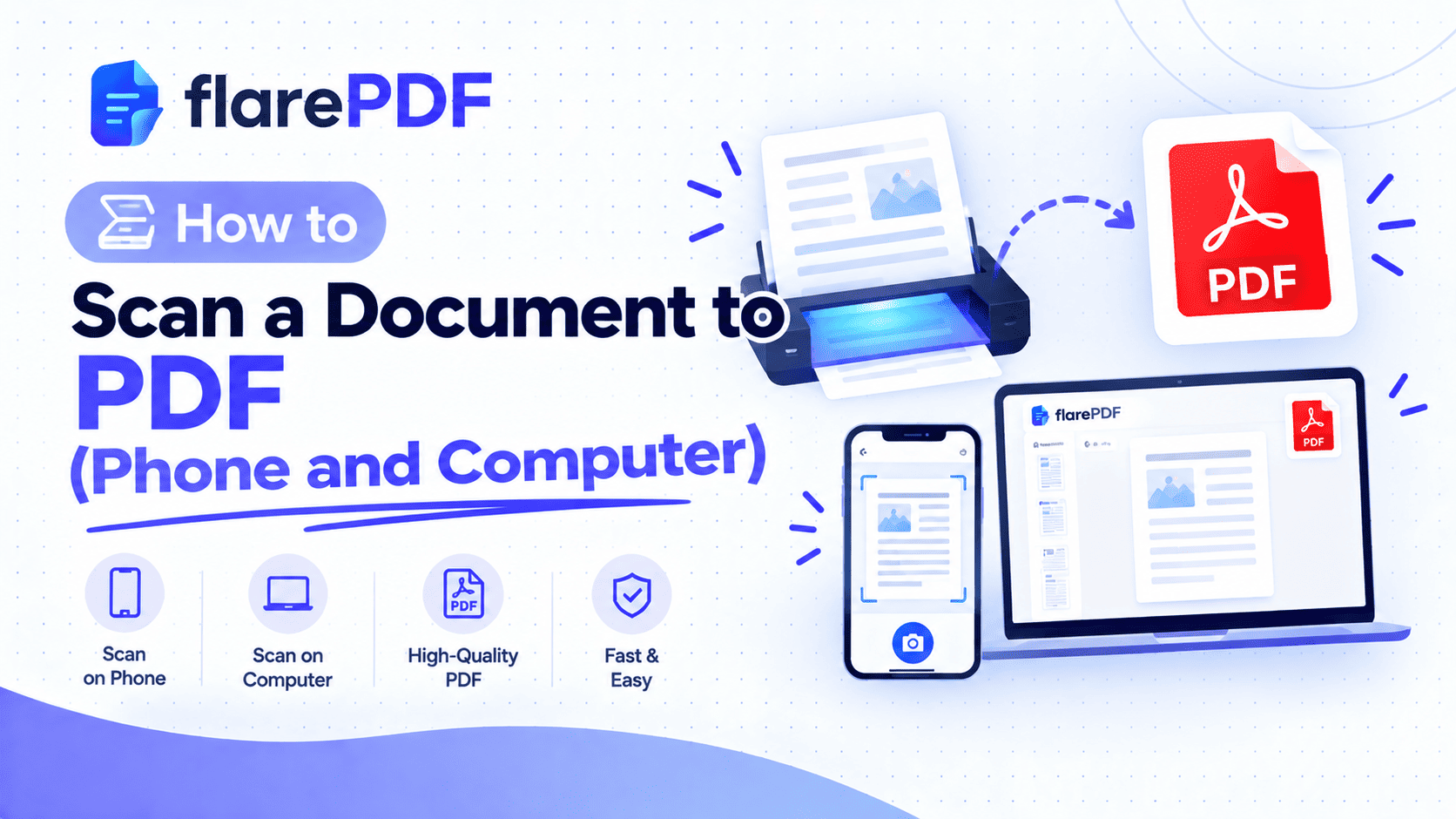
Quick answer: To scan a document to PDF on your phone or computer:
- Open a scanner, such as the free FlarePDF Scan to PDF tool, your iPhone's Notes app or Google Drive on Android.
- Place the document on a flat, well-lit surface.
- Capture each page.
- Crop and adjust the edges.
- Save the pages as one PDF and download or share it.
Many forms, job portals and offices still ask for a "scanned copy" of your documents. You may not own a scanner, or your phone photos come out crooked, dark and huge.
This guide shows you how to scan a document to PDF with whatever you have. You'll learn the free online method, the built-in scanners on iPhone and Android, and how to scan with a printer on Windows or Mac. You'll also learn how to scan multiple pages into one PDF, get a sharp result and keep the file small. FlarePDF is free, with no sign-up or login.
What Does It Mean to Scan a Document to PDF?
Scanning a document to PDF means capturing a paper page with a scanner or phone camera and saving it as a PDF file. Good scanning tools straighten the page, crop the edges and boost contrast so the result looks like a clean copy of the original. Several pages can be saved together in one PDF.
PDF is the usual format because it opens the same way on every device and keeps pages in order. It's an open international standard, ISO 32000, which is why offices, universities and government portals accept it.
What is a scanned copy?
A scanned copy is a digital image of a paper document, usually saved as a PDF or JPG. When a form asks for a scanned copy of your CNIC, degree or passport, it wants a clear digital version of the original. It shouldn't be a casual photo with your fingers and the table in view.
Scanned copy: A digital file of the original, made with a scanner or scanner app. You can upload or email it.
Photocopy: A paper copy made on a copier. It isn't digital until you scan it.
Why Scan Documents to PDF?
Scanning turns paper into files you can send, store and search.
- Applications: Job, visa, NADRA, passport and university portals usually ask for scanned PDFs.
- Contracts: Sign a paper contract by hand, then scan it and send it back the same day.
- Expenses: Scan receipts for reimbursements or tax records.
- Study: Scan handwritten notes and assignments to submit or share.
- Backups: Keep digital copies of important documents in case the paper is lost.
- Less clutter: Store years of paperwork in a single folder.
Pro tip: A phone scanner app is very different from a normal photo. Scanner modes detect the page edges, fix the angle and remove shadows. Use them whenever you can.
How to Scan a Document to PDF With FlarePDF
The simplest way that works in any browser is the free online scanner from FlarePDF. There's no app to install and no account to create. [VERIFY: how Scan to PDF works, such as live camera capture vs uploading photos]
- Open the FlarePDF Scan to PDF page on your phone or computer.
- Capture or upload each page of your document. [VERIFY: camera access in mobile browsers]
- Adjust the crop and order of the pages. [VERIFY: crop, rotate and reorder options]
- Create the PDF.
- Download the file and check every page.
Quick note: Scan in good light and keep the paper flat. A clean capture matters more than any setting you choose afterwards.
How do I scan multiple pages into one PDF?
Capture every page in one session, then save them together as a single PDF. Most phone scanners add pages one after another until you tap Save. [VERIFY: multi-page scanning in Scan to PDF] If you've already scanned pages as separate files, join them with the free Merge PDF tool. Our guide on how to combine multiple PDFs into one explains each step.
How to Scan a Document With Your iPhone
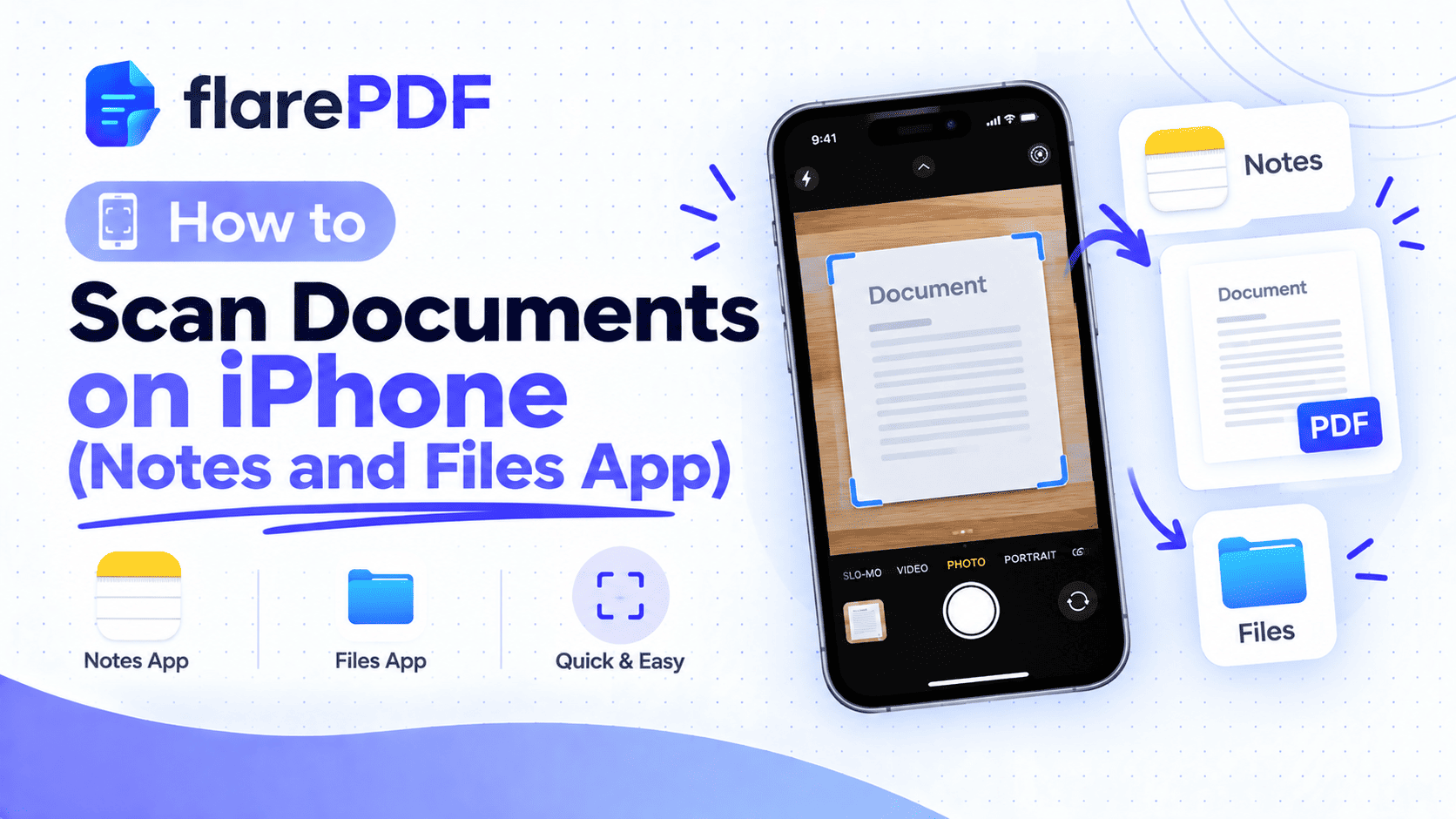
iPhone has two free built-in scanners, Notes and Files, and both save scans as PDFs.
Method 1: Scan with the Notes app
- Open Notes and create a new note.
- Tap the camera or attachment icon, then Scan Documents.
- Hold your iPhone over the page. It captures automatically when the page is in focus, or you can tap the shutter button.
- Drag the corners to adjust the crop if needed, then tap Keep Scan.
- Scan the next page, or tap Save when you're done.
To get the PDF, open the scan in the note, tap Share, then Save to Files or send it directly.
Method 2: Scan with the Files app
- Open Files and go to the folder where you want the PDF.
- Tap the More button (three dots), then Scan Documents.
- Capture each page, then tap Save.
The PDF is saved straight into that folder, which makes it easy to upload later. Menu names vary slightly between iOS versions. See the iPhone User Guide for your version.
Where do scanned documents go on iPhone?
It depends on the app. Scans made in Notes stay inside that note until you share or save them elsewhere. Scans made in Files are saved as PDFs in the folder you chose.
Pro tip: You can scan on iPad the same way. The bigger screen makes checking the crop easier.
How to Scan Documents on Android
Most Android phones can scan to PDF with the free Google Drive app.
- Open Google Drive.
- Tap the + (New) button, then Scan.
- Point the camera at the page and take the photo.
- Crop or adjust the page, then tap + to add more pages.
- Tap Save, choose a name and folder, and the PDF is saved to Drive.
You can then download it to your phone or share it by email or WhatsApp. Google's Drive Help Center has the latest steps for your version.
Quick note: Some phones, including many Samsung models, have a document mode built into the camera. When it detects a page, tap the scan prompt to capture a straightened copy.
How to Scan a Document to Your Computer
To scan to a computer, you need a scanner or an all-in-one printer connected by USB or Wi-Fi. No scanner? Scan with your phone and send the PDF to your computer instead.
How do I scan a document on Windows 10 or 11?
- Place the document face down on the scanner glass, or in the feeder.
- Open the Windows Scan app (free from the Microsoft Store) or your printer maker's app.
- Choose your scanner under Source.
- Pick the file type, color mode and resolution.
- Click Scan and save the file.
If the app only offers image formats like JPG or PNG, scan as an image, then turn it into a PDF with the free JPG to PDF converter. Printer apps from brands like HP, Canon and Epson often save straight to PDF and can combine several pages.
How do I scan a document on Mac?
- Connect your scanner and place the document on it.
- Open Image Capture and select your scanner.
- Click Show Details, then set Format to PDF.
- Tick Combine into single document for multi-page scans, if shown.
- Choose where to save, then click Scan.
You can also use Preview: choose File, then Import from [your scanner]. Apple's Image Capture User Guide covers the settings in more detail.
Can I scan with my iPhone directly to my Mac?
Yes, with Continuity Camera. Right-click on the desktop or in a Finder folder, choose Import from iPhone or iPad, then Scan Documents. Scan the pages on your iPhone and tap Save. The PDF appears on your Mac.
How to Get a Clear, Readable Scan
A clear scan comes from good light, a flat page and the right settings. These choices matter most.
Lighting: Use daylight or bright, even light. Avoid overhead lamps that cast your shadow across the page.
Background: Place the page on a dark, plain surface so the edges stand out.
Angle: Hold the phone directly above the page, parallel to it.
Color mode: Use black and white or grayscale for text documents. Use color for photos, stamps and ID cards with colored security features.
Resolution: About 300 DPI suits printing and fine text. About 150–200 DPI is usually enough for screen viewing and online uploads.
What resolution should I scan documents at?
Use 300 DPI for documents you'll print or archive, and 150–200 DPI for online forms and email. Higher resolution gives sharper text but much larger files. Phone scanner apps usually choose a sensible resolution for you.
Should I scan in color or black and white?
Use black and white or grayscale for plain text pages. They're smaller and often easier to read. Use color when the color carries meaning, such as signatures in blue ink, official stamps, photos or ID cards.
Pro tip: If a portal rejects your file for being too big, rescan in grayscale before you try heavy compression. It often halves the size with no loss of readability.
What to Do After Scanning Your Document
Most scans need one or two finishing touches before you send them.
Fix page order, rotation and blank pages
Open the PDF in a page organizer to drag, rotate or delete pages. Use the free Organize PDF tool. See our guides on how to reorder, rotate and delete PDF pages and how to delete pages from a PDF.
Trim dark edges
Crop away table edges and shadows. The free Crop PDF tool tidies up scans that weren't cropped perfectly.
Make the file smaller
Compress the scan if it's too large to email or upload. Scans are often several megabytes per page. The free Compress PDF tool shrinks them. For targets like 100KB or 200KB, follow our guide on how to compress PDF files without quality loss.
Sign the scanned document
Add your signature digitally instead of printing again. Use the free Sign PDF tool, or read how to insert a signature in a PDF.
Can I edit a scanned document?
Only partly. A scan is an image of the page, so you can't directly change the words. You can add text, signatures and notes on top with the free PDF Editor. To make the text copy able or searchable, the scan needs OCR (optical character recognition). [VERIFY: whether Extract Text from PDF supports OCR on scanned pages] Learn more in our guide on how to edit text and pages in a PDF.
Hide private details before sharing
Don't just draw a box over an account or ID number. Covered text can sometimes still be read. Follow our guide on how to permanently redact a PDF.
Key Features and Benefits of FlarePDF Scan to PDF
Free to use
You can scan documents to PDF without paying anything. [VERIFY: usage or file size limits]
No app or account
There's nothing to install and no account to create. That makes it handy on shared computers or when your phone is short on storage.
Works with related tools
After scanning, you can merge, organize, crop, compress and sign your PDF with other free FlarePDF tools.
Simple workflow
Capture, adjust and save in a few steps. [VERIFY: Scan to PDF features and workflow]
Why Choose FlarePDF?
FlarePDF suits people who need a clean scanned PDF without installing a scanner app full of ads or creating an account.
It's a good fit when you:
- Need a scanned copy for an application today.
- Don't want to install another app.
- Use a shared or office computer.
- Want to scan, compress and sign in one place.
Quick note on privacy: Scanned ID cards, passports and certificates are sensitive documents. Read any site's privacy policy before uploading them. You can read FlarePDF's policy on the Privacy page. [VERIFY: file processing and deletion details before adding any claim]
Tips and Common Mistakes When Scanning Documents
- Avoid shadows. Stand so your body doesn't block the light.
- Keep pages flat. Smooth out folds, and press books gently open.
- Check every page. Zoom in on small print, stamps and signatures before sending.
- Scan in order. Capture pages in sequence so you don't need to reorder later.
- Don't over-compress. A tiny file that nobody can read will be rejected.
- Name files clearly. "CNIC-Front-Back.pdf" beats "Scan_0007.pdf".
- Keep the original paper. Some offices still ask to see the physical document.
Real-World Examples
The student
Ayesha scans her handwritten assignment with the iPhone Notes app, capturing all eight pages in one go. She saves it as a PDF and uploads it to her class portal.
The job seeker
A job seeker in Lahore scans his CNIC front and back, degree and experience letter with Google Drive. He merges them into one PDF, compresses it under the portal's size limit and submits his application.
The freelancer
A consultant in Chicago signs a client's paper contract by hand. She scans it with her Mac and a printer, crops the edges and emails the signed PDF within minutes.
The small business owner
A shop owner in Karachi scans a month of supplier receipts in grayscale, combines them into one file and sends it to her accountant.
Related PDF Tools You May Need
- Combine scans: Merge PDF files into one document.
- Fix pages: Use Organize PDF to rotate, reorder or remove pages.
- Shrink for uploads: Compress your scanned PDF.
- Convert existing photos: Turn pictures into PDFs with JPG to PDF.
- Sign it: Sign your PDF online once it's scanned.
Frequently Asked Questions
How do I scan a document to PDF for free?
Use a free scanner such as FlarePDF Scan to PDF, the iPhone Notes or Files app, or Google Drive on Android. Capture each page in good light, adjust the crop and save the pages as one PDF. None of these options need a paid app.
How do I scan a document with my iPhone?
Open Notes, create a note, tap the camera or attachment icon and choose Scan Documents. Hold your iPhone over the page, tap Keep Scan, then Save. You can also open the Files app, tap More and choose Scan Documents.
How do I scan documents on Android?
Open Google Drive, tap the plus button and choose Scan. Photograph the page, adjust the crop, tap plus to add more pages and then tap Save. Drive saves the scan as a PDF you can download or share.
How do I scan a document to my computer?
Connect a scanner or all-in-one printer, place the page on the glass and open the Windows Scan app, your printer's app, or Image Capture on Mac. Choose PDF if available, set the color and resolution, then click Scan and save.
How do I scan multiple pages into one PDF?
Scan every page in one session and tap Save only after the last page. Phone scanners like Notes and Google Drive add pages one after another. If your pages are already separate files, combine them with a free PDF merger.
What is a scanned copy?
A scanned copy is a digital image of a paper document, usually saved as a PDF or JPG. It is made with a scanner or scanner app and shows the original clearly, so you can upload, email or store it.
What resolution should I scan documents at?
Use about 300 DPI for documents you will print or archive. About 150 to 200 DPI is usually enough for online forms and email. Higher resolution gives sharper text but creates much larger files.
How do I make a scanned PDF smaller?
Scan in grayscale or black and white for text pages, use around 150 to 200 DPI, and crop empty margins. Then compress the PDF with a balanced setting and check that small text is still readable.
Conclusion
Now you know how to scan a document to PDF with your phone or computer. Use FlarePDF in your browser, Notes or Files on iPhone, Google Drive on Android, or a scanner on Windows or Mac. Scan in good light, keep pages flat and in order, then compress, organize or sign the PDF before you send it.
Ready to turn paper into a PDF? Try the free Scan to PDF tool now. No sign-up, no login.