How to combine multiple PDFs into one document
Stitch presentations, chapters, and separate invoices together in your preferred order in seconds.
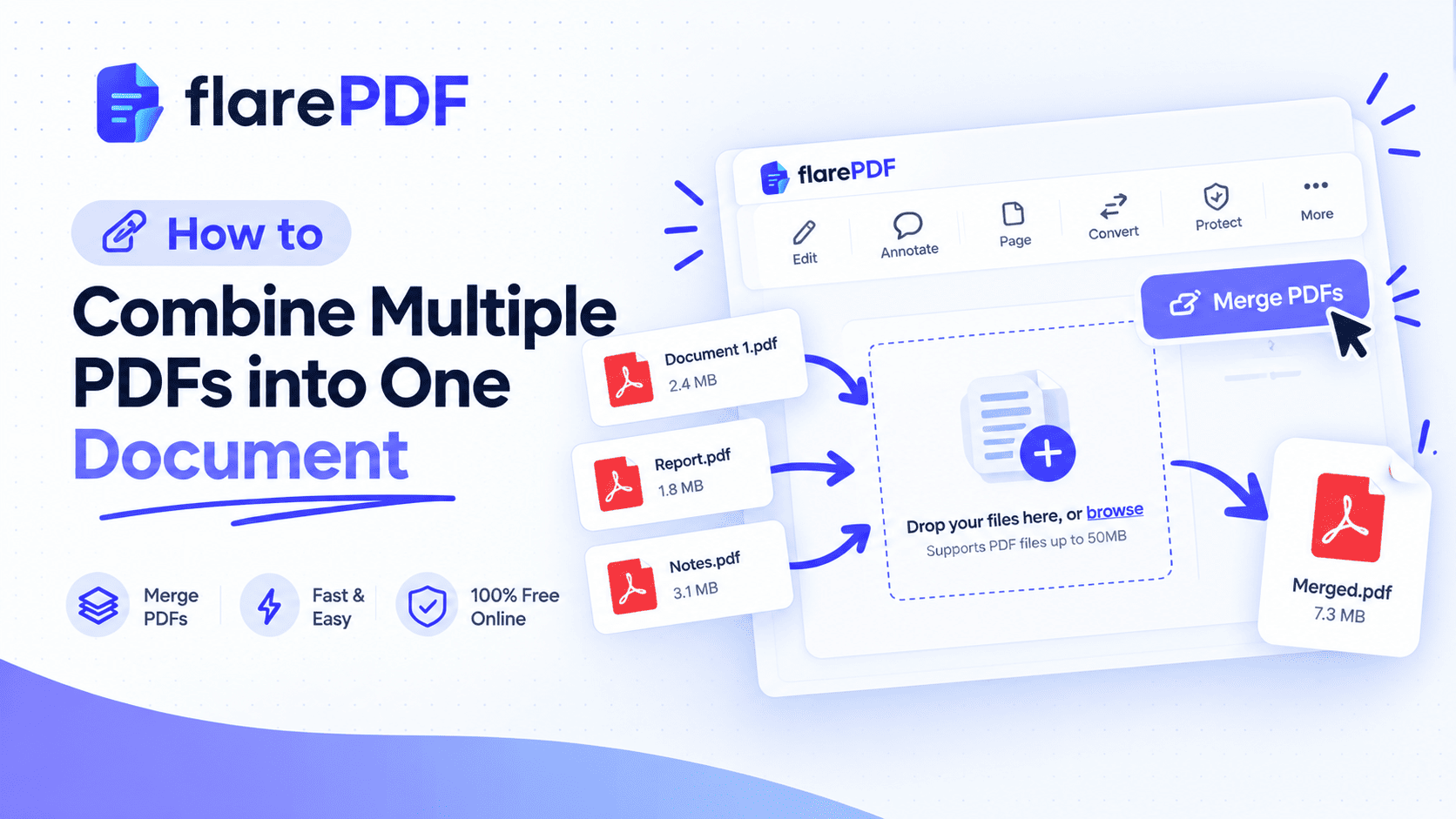
How to Combine Multiple PDFs Into One Document
Quick answer: Here is how to combine multiple PDFs into one document in five steps:
- Open a free PDF merger such as FlarePDF Merge PDF.
- Upload all the PDF files you want to join.
- Drag the files into the order you need.
- Click merge to combine them into a single PDF.
- Download your new, combined file.
Sending five separate attachments is messy. The reader may open them in the wrong order, miss one, or give up halfway. Many upload forms also accept only one file.
This guide shows you how to merge PDF files the easy way. You'll learn the online method, the built-in options on Mac, iPhone and Windows, and how to combine Word files, images and scans into one PDF. FlarePDF's tools are free, and you never need to sign up or log in.
What Does It Mean to Combine PDF Files?
Combining PDF files means joining two or more separate PDFs into one single document. The pages from each file are placed one after another in the order you choose. People also call this merging, uniting, joining, connecting, collating or consolidating PDFs.
Think of it like stapling several reports together into one booklet. Every page stays exactly as it was. Only the packaging changes, from many files to one.
PDF is an open international standard, ISO 32000, maintained with support from the PDF Association. Because every PDF follows the same structure, pages from different sources can be joined cleanly. That's why a scanned receipt, a Word export and a bank statement can all live in one file.
Is merging the same as attaching a PDF to a PDF?
No. Merging adds the pages of one PDF into another. Attaching embeds a whole file inside a PDF as a hidden attachment. With attaching, readers must open the attachment panel to find it. For most people, merging is what they actually want, because every page shows up in one scroll.
Why Combine Multiple PDFs Into One File?
A single, well-ordered PDF saves time for you and the person reading it.
- Job applications: Put your cover letter, CV and certificates in one file, so nothing gets missed.
- Visa and university forms: Many portals accept only one upload per section.
- Office reports: Join monthly reports, invoices or receipts into one document for your manager or accountant.
- Client work: Freelancers often send a proposal, a contract and a price sheet together.
- Class notes: Students can consolidate scanned lecture notes into one file per subject.
- Email: One attachment is easier to send, find and forward than ten.
Pro tip: Name your merged file clearly, such as "Ali-Khan-Visa-Documents-2026.pdf". A clear name helps the receiver and helps you find it later.
How to Combine Multiple PDFs Into One Document With FlarePDF
The fastest way to join PDF files on any device is the free FlarePDF PDF merger. You don't need an account, a login or any software download.
- Open the FlarePDF Merge PDF page in your browser.
- Upload the PDF files you want to combine. [VERIFY: maximum number of files and file size limit]
- Arrange the files in the order they should appear.
- Click the merge button to create one PDF.
- Download the combined file to your device.
Quick note: Keep your original files until you've checked the merged PDF. If something looks wrong, you can simply merge again.
How do I combine two PDF files into one?
Upload both PDFs to a PDF merger, put them in the right order and click merge. The second file's pages are added after the first file's pages. The steps are the same whether you merge two files or twenty.
How do I combine PDF files for free?
Use a free online PDF merger or a free built-in tool on your device. FlarePDF lets you merge PDF files online for free with no sign-up. Mac Preview and the iPhone Files app are also free options, covered below.
How to Get the File Order Right Before You Merge
Wrong page order is the most common merging mistake. A few minutes of planning prevents it.
How do I change the order of files when merging PDFs?
Most PDF mergers let you drag files into order before you click merge. Put the file that should come first at the top or on the left. Check the order once more before merging.
What if I need to change pages after merging?
Open the merged PDF in a page organizer, then drag, rotate or delete pages as needed. The free Organize PDF tool lets you fix page order after merging. This is useful when a page from one file needs to sit between pages of another file.
Pro tip: Number your source files before you upload them, such as "01-Cover.pdf", "02-CV.pdf" and "03-Certificates.pdf". Many tools and file browsers sort by name, so the order stays correct.
How to Combine PDF Files on Mac
Mac users have two free built-in ways to merge PDFs: Preview and Finder. Both come with every Mac.
How do I combine PDF documents in Preview?
Open the first PDF in Preview, show the thumbnails and drag the other PDFs into the sidebar. Here are the steps:
- Open the first PDF in Preview.
- Choose View, then Thumbnails, to show the page sidebar.
- Drag another PDF from Finder into the sidebar, where you want its pages to go.
- Drag thumbnails to fine-tune the page order.
- Choose File, then Export as PDF, to save the combined file.
Apple's Preview User Guide covers more page options.
Quick note: Drop the new file between thumbnails, not onto one. Dropping it onto a thumbnail can attach it in a different way instead of adding its pages.
Pro tip: Use Export as PDF instead of Save. That creates a new merged file and leaves your first original untouched.
How do I merge PDFs on Mac using Finder?
Select the PDFs in Finder, right-click and choose Quick Actions, then Create PDF. Finder combines the selected files into one new PDF in the same folder. This works well when your files are already named in the right order.
How to Combine PDF Files on Windows 10 and 11
Windows does not include a built-in tool to merge PDF files. Microsoft Edge can open and read PDFs, but it can't join them.
The simplest option on Windows is an online PDF merger in your browser. Open the Merge PDF page, upload your files, arrange them and download the result. There's nothing to install, which helps on work computers where you can't add software.
If you prefer desktop software, Adobe Acrobat, Foxit PDF Editor and the open-source PDFsam Basic can all merge PDFs.
How to Combine PDFs on iPhone and iPad
You can combine PDFs on iPhone and iPad with the built-in Files app.
- Open the Files app and go to the folder with your PDFs.
- Tap the More button (three dots), then tap Select.
- Select the files you want to combine, in order.
- Tap the More button again, then tap Create PDF.
The Files app creates a new combined PDF in the same folder. This also works with photos and screenshots saved in Files, so you can mix images and PDFs. Menu names can vary a little between iOS versions.
How to Merge PDF Files on Android
Android does not include a built-in PDF merger, and Google Drive can't combine PDFs on its own. The easiest option is an online PDF merger in Chrome or another mobile browser.
- Save your PDFs to your phone or Google Drive.
- Open the Merge PDF page in your browser.
- Upload the files and put them in order.
- Merge and download the new PDF. [VERIFY: mobile browser support]
How to Combine PDFs on Chromebook and Linux
How do I merge PDFs on a Chromebook?
Use an online PDF merger in the Chrome browser. Chromebooks don't have a built-in PDF merging tool. Since online tools run in the browser, they work on a Chromebook the same way they work on any computer.
How do I combine PDFs on Linux?
Linux users can merge PDFs from the terminal with free tools like pdfunite or qpdf.
- pdfunite (part of Poppler): pdfunite file1.pdf file2.pdf combined.pdf
- qpdf (qpdf documentation): qpdf --empty --pages file1.pdf file2.pdf -- combined.pdf
The last file name is always the output. Most Linux distributions offer these tools through their package manager. An online merger works too if you prefer not to use the terminal.
How to Combine PDFs in Adobe Acrobat, Foxit and Bluebeam
Many offices already use a desktop PDF program. Here's how merging works in the most common ones.
How do I combine files in Adobe Acrobat?
In Adobe Acrobat, open the Combine Files tool, add your files, arrange them and click Combine. Acrobat can also combine Word, Excel, PowerPoint and image files into one PDF. The free Acrobat Reader app doesn't include the full Combine Files feature. See the Adobe Acrobat User Guide for your version.
How do I combine PDF files in Foxit?
In Foxit PDF Editor, use the Combine Files option (sometimes shown as "From Multiple Files"), add your PDFs and combine them. To append one PDF to the end of another, open the first file and use the Insert Pages option from the Organize menu. The free Foxit PDF Reader may not include merging, depending on your version.
How do I combine PDFs in Bluebeam Revu?
Bluebeam Revu has a Combine command, found under the Document menu in recent versions. Add your files, set the order and run it. Menu locations can change between Revu versions, so check your version's help if you can't find it.
Quick note: You don't need desktop software just to merge files. A free online merger does the same basic job without installation.
How to Combine Word Documents, Images and Scans Into One PDF
Real-world documents rarely arrive as neat PDFs. Here's how to handle mixed formats.
How do I combine Word documents into one PDF?
Save each Word document as a PDF first, then merge the PDFs. In Word, choose File, then Save As (or Export), and pick PDF as the format. Once every document is a PDF, upload them all to a PDF merger and combine them.
Another option is to insert the documents into one Word file first. In Word, use Insert, then Object, then Text from File. Then save the single Word file as a PDF. This works well when you want consistent page numbers and formatting.
How do I combine PowerPoint and PDF files?
Export the PowerPoint file as a PDF, then merge it with your other PDFs. In PowerPoint, choose File, then Save As or Export, and choose PDF. Now it's just another PDF you can combine.
How do I combine images or JPGs into one PDF?
Convert your images to PDF, then merge them with any other PDFs. The free JPG to PDF converter turns photos, screenshots and scans into PDF pages. [VERIFY: PNG and other image formats supported] Then use the merger to join them with your other documents.
This is handy for receipts, ID card photos and screenshots of payment confirmations.
How do I combine scanned documents into one PDF?
Scan each page to PDF, then merge the scans into one file. Use the free Scan to PDF tool to turn paper pages into PDFs with your phone. Then merge them, and use Organize PDF to fix any sideways or out-of-order pages.
How do I put two PDF pages onto one sheet?
That's a different task from merging. To place two pages side by side on one sheet, print the PDF with "2 pages per sheet" selected and choose Save as PDF or Microsoft Print to PDF as the printer. Merging joins files; this changes page layout.
How to Reduce File Size After Merging PDFs
A merged PDF is roughly as large as all its parts added together. Ten scanned files can quickly become too big for email or upload portals.
Before merging: Delete pages you don't need from each file. Fewer pages means a smaller result.
After merging: Run the combined file through a compressor to shrink it for sharing.
Use the free Compress PDF tool as your final step. For more detail, read our guide on how to compress a PDF.
Pro tip: Scanned pages make files much larger than text-based PDFs. If a portal has a strict size limit, compress the file and check the result before uploading.
Key Features and Benefits of FlarePDF Merge PDF
Free to use
FlarePDF's tools are free. You can combine PDF files without paying anything. [VERIFY: usage or file size limits]
No account or login
You never create an account or log in. Open the page, upload your files and merge. That saves time and keeps things simple on shared or office computers.
Simple drag-and-drop order
Arranging files before merging is quick and visual. [VERIFY: drag-and-drop file ordering]
A full set of related tools
Merging is often just one step. FlarePDF also lets you organize, split, compress, crop, sign and number PDF pages, so you can finish the whole job in one place.
Why Choose FlarePDF?
FlarePDF suits people who want to combine PDFs quickly, without extra steps or software.
It's a good fit when you:
- Need one file for an application or upload portal right now.
- Don't have Adobe Acrobat or another paid PDF editor.
- Use a computer where you can't install software.
- Want to merge, reorder and compress in the same place.
Quick note on privacy: Check any site's privacy policy before uploading personal documents like passports or bank statements. You can read FlarePDF's policy on the Privacy page. [VERIFY: file processing and deletion details before adding any claim]
Tips and Common Mistakes When Merging PDFs
- Check the order before you merge. Reordering afterward is possible but takes extra time.
- Keep your originals. Don't delete source files until you've opened and checked the merged PDF.
- Unlock protected files first. Password-protected PDFs often can't be merged. Open them with the password you were given and save an unlocked copy, if you're allowed to.
- Expect some features to drop. Bookmarks, form fields and links may not always carry over. Test important interactive PDFs after merging.
- Match page sizes where you can. Mixing A4 and US Letter works, but pages may look uneven. The Crop PDF tool can trim messy scan edges.
- Add page numbers last. Once the order is final, add page numbers to your PDF so they run correctly across all pages.
- Compress before you send. Large merged files may bounce from email or fail upload limits.
Does merging PDFs reduce quality?
No. Merging only joins pages, so text and images keep their original quality. Quality only changes if you compress the file afterward. Even then, light compression usually keeps documents perfectly readable.
Why can't I merge my PDF files?
The most common reasons are password protection, a damaged file or a file that isn't really a PDF. Try opening each file on its own first. Remove any password if you're authorized, re-save damaged files, and convert images or Word files to PDF before merging.
Real-World Examples
The student
Sara scans handwritten notes for three chapters on her phone. She merges them into one PDF per subject, fixes two sideways pages and uploads each file to her class portal.
The job seeker
A job seeker in Lahore needs to upload one file for an online application. He merges his cover letter, CV and four certificates, compresses the result and submits it in minutes.
The HR team
An HR officer in Texas collects a new hire's signed offer letter, ID copy and tax forms. She combines them into one employee file, adds page numbers and stores it in the company records.
The small business owner
A shop owner collects a month of supplier invoices and receipt photos. She converts the photos to PDF, merges everything by date and sends one tidy file to her accountant.
Related PDF Tools You May Need
- Fix page order: Use Organize PDF to reorder, rotate or delete pages after merging.
- Break files apart: Split a PDF when you need only certain pages from a long document.
- Shrink the result: Compress your merged PDF before emailing or uploading it.
- Sign the final file: Sign your PDF online once everything is combined.
- Learn more: Our short Merge PDF guide and Organize PDF guide cover related tasks.
Frequently Asked Questions
How do I combine multiple PDFs into one for free?
Upload your PDFs to a free online merger, arrange them in order, click merge and download the new file. Mac Preview and the iPhone Files app also merge PDFs for free. FlarePDF's Merge PDF tool needs no account or login.
How do I merge PDF files without Adobe?
Use a free online PDF merger, Mac Preview, the iPhone Files app or free desktop tools like PDFsam Basic. On Linux, pdfunite and qpdf work from the terminal. None of these options require Adobe Acrobat to combine files.
How do I combine PDF files on a Mac?
Open the first PDF in Preview, choose View and then Thumbnails, and drag other PDFs into the sidebar. Then choose File and Export as PDF. You can also select files in Finder, right-click and choose Quick Actions, then Create PDF.
Can I combine PDFs on my iPhone?
Yes. Open the Files app, tap the More button, tap Select and choose your PDFs in order. Then tap the More button again and choose Create PDF. The Files app saves a new combined PDF in the same folder.
Does merging PDFs reduce quality?
No. Merging only joins pages together, so text and images keep their original quality. Quality changes only if you compress the merged file afterward, and light compression usually keeps documents clear and readable.
Can I combine a PDF and a JPG into one file?
Yes. Convert the JPG into a PDF first using a JPG to PDF converter, then merge it with your other PDFs. On iPhone, the Files app can combine images and PDFs directly using the Create PDF option.
How do I combine Word documents into one PDF?
Save each Word document as a PDF using File and Save As or Export, then merge the PDFs with a PDF merger. You can also insert all documents into one Word file first, then save that file as a single PDF.
Why can't I merge my PDF files?
Your files may be password-protected, damaged or not true PDFs. Open each file separately to check it. Remove passwords if you are authorized, re-save damaged files, and convert Word files or images to PDF before trying to merge again.
Conclusion
Now you know how to combine multiple PDFs into one document on any device. Put your files in the right order, merge them, then organize and compress the result if needed. One clean, well-named file makes every application, report and email easier for the person reading it.
Ready to join your files? Try the free Merge PDF tool now. No sign-up, no login.