How to Edit a PDF on Mac for Free (Preview and Online)
Learn how to edit a PDF on Mac for free with Preview and a free online editor. Add text, sign, highlight, fill forms, and manage pages. No sign-up.
How to Edit a PDF on Mac for Free (Preview and Online)
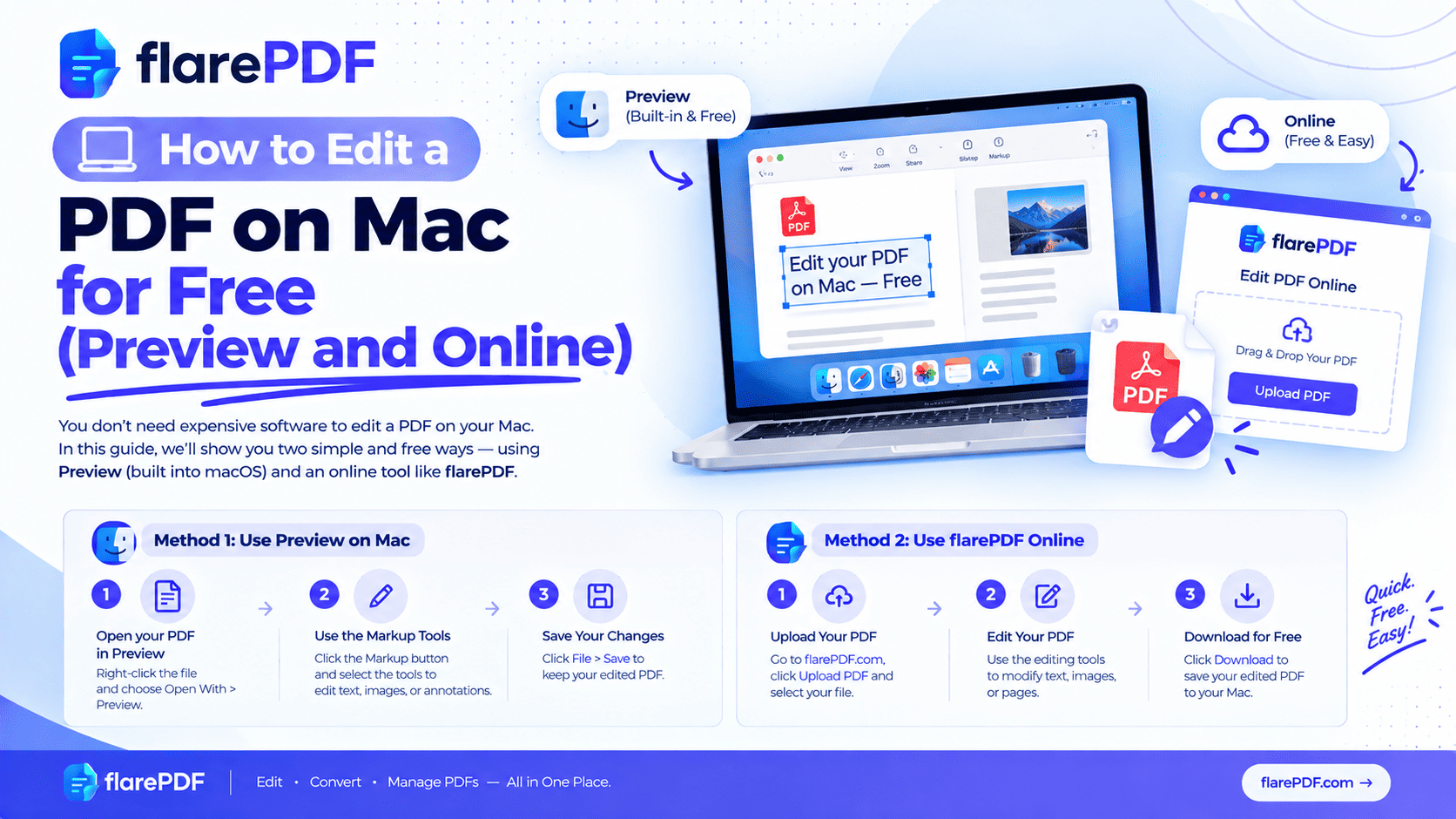
Here’s how to edit a PDF on Mac for free: open it in Preview and click the Markup button to add text, highlights, shapes or a signature. Preview can’t change text that’s already in the PDF, so use a free online PDF editor for that.
That gap is where most Mac users get stuck. You try to fix a typo on a resume or update a date on an invoice, and nothing happens when you click the words.
This guide covers both methods step by step. You’ll learn what Preview can and can’t do, and how to edit existing text online. We also cover signing, filling forms, managing pages and undoing mistakes. FlarePDF’s editor is free, with no account and no sign-up.
What does it mean to edit a PDF on a Mac?
Editing a PDF on a Mac means changing a PDF file’s content or pages using Apple’s Preview app or another PDF editor. That can mean adding text, signatures, highlights, and comments. It can also mean deleting, reordering and rotating pages, or changing the original text itself. Preview handles most of these, but not existing text.
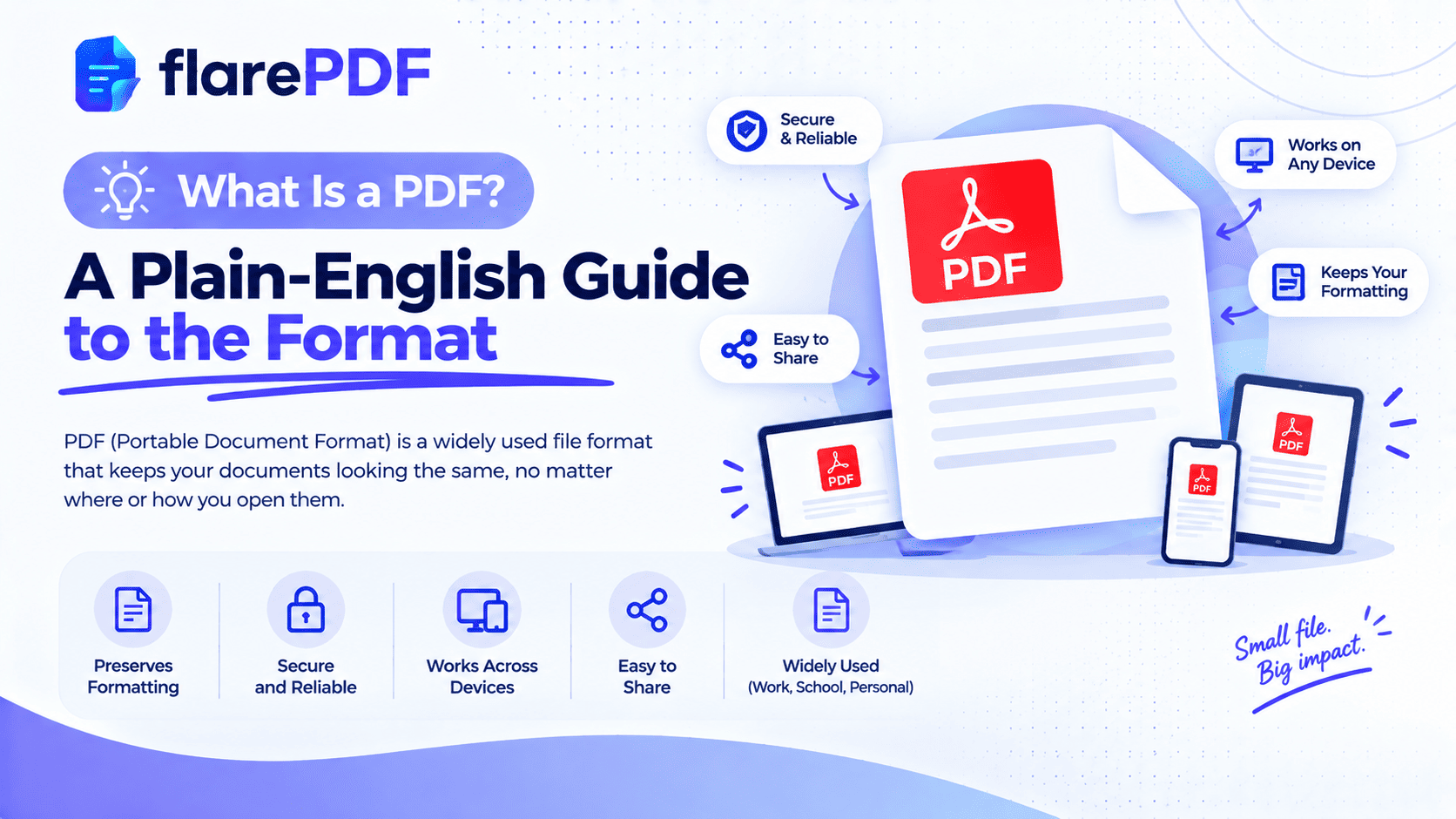
That last point surprises a lot of people. PDFs store each line of text in a fixed position, which is why they look the same everywhere. It’s also why they’re harder to change than a Word file. If you’re new to the format, our plain-English guide on what a PDF is explains how it works.
For a device-neutral walkthrough, see our full guide to editing PDFs.
Why would you need to edit a PDF on your Mac?
Most important paperwork arrives as a PDF. Sooner or later, you’ll need to change one.
Here are the most common reasons Mac users edit PDFs:
- Job applications: filling in a PDF application form or fixing a typo in your resume
- Contracts: signing a lease, offer letter or client agreement on your MacBook
- Study: highlighting a research paper or annotating lecture slides
- Official forms: completing visa, bank or government forms in the UK, UAE, US or Pakistan
- Freelancing: adding comments to a client proof or updating dates and prices on an invoice
- Admin: removing blank pages, rotating sideways scans or combining files before sending
Printing, writing by hand and scanning it all back in wastes time and paper. Editing on your Mac takes minutes.
What can Preview do, and what can’t it do?
Preview comes free on every Mac, and it’s more powerful than most people realize. But it has one big limit.
Preview can: add text boxes, sign documents, highlight, underline and strike through text, add notes, shapes and arrows, fill in forms, and delete, reorder, rotate, insert, crop and merge pages.
Preview can’t: change or delete the text that’s already in the PDF, swap the original fonts, or reflow paragraphs after an edit.
Online PDF editor: can change existing text in your browser, along with adding content and managing pages confirm which of these the FlarePDF editor supports].
Quick note: Some people hide old text by drawing a white box over it in Preview, then typing on top. That only covers the words. The original text stays in the file and can still be copied or found by search.
Method 1: How to edit a PDF in Preview
Every step below uses Preview, the PDF viewer built into macOS. Apple’s Preview User Guide for Mac covers every tool in more detail.
Pro tip: Before you start, choose File > Duplicate to make a copy. Preview saves changes as you go, so a copy protects your original.
How to open the Markup toolbar
- Double-click your PDF. It opens in Preview by default.
- Click the Markup button (a pen tip inside a circle) near the search box.
- Or choose View > Show Markup Toolbar, or press Shift + Command + A.
The Markup toolbar holds almost every editing tool you need.
How do I add text to a PDF on Mac?
This is how to type on a PDF on Mac, whether you’re filling a blank line or adding a note.
- Open the Markup toolbar.
- Click the Text tool, shown as a T inside a box.
- A text box appears on the page. Type your words.
- Drag the box to where you want it.
- Click the A (Text Style) button to change font, size and color.
Pro tip: Match the font and size to the surrounding text, so your additions look neat and intentional.
How to sign a PDF on Mac
- Open the Markup toolbar and click the Sign button.
- Choose Create Signature.
- Sign with your trackpad, hold a signature on paper up to your camera, or use your iPhone if prompted.
- Click your saved signature to place it on the page.
- Drag and resize it to fit the signature line.
Preview saves your signature for next time. For more signing methods, read how to insert a signature in a PDF. For contracts, see how to sign a PDF contract online.
How to highlight and comment on a PDF
- Select the text you want to mark.
- Click the Highlight button in the toolbar.
- Click the small arrow next to it to pick a color, underline or strikethrough.
- To add a comment, choose Tools > Annotate > Note and type your note.
This is ideal for studying a research paper or giving feedback on a client proof.
How do I fill out a PDF form on a Mac?
- Open the form in Preview.
- If the PDF has form fields, click into each box and type.
- Tick checkboxes by clicking them.
- If the boxes don’t respond, the form isn’t fillable. Use the Text tool to type on top instead.
- Save the file when you’re done.
How to delete, reorder and rotate pages in Preview
First, choose View > Thumbnails to show the page sidebar.
- Delete a page: click its thumbnail and press the Delete key. Hold Command to select several pages at once.
- Reorder pages: drag a thumbnail up or down to a new spot.
- Rotate a page: select it and press Command + R (right) or Command + L (left).
- Insert a page: choose Edit > Insert, then Page from File or Blank Page.
For other devices and more detail, see how to delete pages from a PDF, how to add pages to a PDF and how to reorder, rotate and delete PDF pages.
How to crop a PDF in Preview
- Choose the Rectangular Selection tool in the Markup toolbar.
- Drag a box around the area you want to keep.
- Choose Tools > Crop, or press Command + K.
Quick note: Preview’s crop mostly hides the area outside your box rather than deleting it. Never use cropping to remove private details. Follow our guide to permanently redact a PDF instead. To crop online, try Crop PDF.
How to merge PDFs in Preview
- Open the first PDF and show the thumbnail sidebar.
- Drag a second PDF from Finder into the sidebar, where you want its pages to go.
- Rearrange the pages if needed.
- Choose File > Export as PDF to save the combined file.
If dragging feels fiddly, merge PDF files online instead, or read how to combine multiple PDFs into one.
Quick edits without opening Preview
Select a PDF in Finder and press the Space bar to open Quick Look. Click the Markup button to add text, a signature or a quick sketch without opening a full app.
Method 2: How to edit a PDF on Mac for free online with FlarePDF
When you need to change text that’s already in the PDF, Preview can’t help. Use the free FlarePDF PDF editor in Safari or Chrome instead. There’s nothing to download and no account to create.
- Open the PDF Editor in Safari or Chrome on your Mac.
- Upload your PDF drag-and-drop and/or file picker]
- Edit the content you need to change whether the editor can change existing text, add text boxes, images and shapes]
- Manage pages if needed whether page delete, reorder and rotate are available inside the editor]
- Apply your changes and check every page.
- Download your edited PDF.
Pro tip: Open your downloaded file in Preview afterward. A quick scroll confirms the fonts and layout came through cleanly.
What is the best free PDF editor for Mac?
There’s no single best option. It depends on what you need to change. Here’s an honest comparison of free tools that work on a Mac.
Preview: Built into every Mac. Best for adding text, signing, highlighting, filling forms and managing pages. Can’t edit existing text.
FlarePDF PDF Editor: Free online, with no sign-up. Best for quick edits in Safari or Chrome without installing anything confirm existing-text editing]
Adobe Acrobat Reader: Free to download. Best for comments, filling forms and signatures. Changing the original text needs Acrobat Pro.
LibreOffice Draw: Free desktop app. It can open a PDF and change its text, but complex layouts may shift.
Google Docs: Free in your browser. It converts a PDF into an editable document, but most of the original layout is lost.
For most people, Preview plus a free online editor covers almost every job. The combination costs nothing and needs no extra apps.
Why can’t I edit text in a PDF on my Mac?
Usually, it’s because Preview isn’t built to change existing text. It’s a viewer and markup tool, so it adds things on top rather than changing what’s there.
There are two other common causes:
- It’s a scanned PDF. Each page is a picture, so there’s no real text to change.
- It’s locked. The author may have set permissions that block editing. Only remove restrictions on files you own or have permission to change.
How do I edit a scanned PDF on Mac?
Scanned pages need OCR (text recognition) before you can work with the words. On recent versions of macOS, Live Text can recognize text in images and many scanned pages, so you can select and copy it.
Our guide on how to copy text from a PDF, even scanned ones shows free ways to do this. Once you have the text, you can paste it into a new document. Or pull it out in one go with Extract Text from PDF.
How do I undo changes in Preview?
Press Command + Z to undo recent changes. Preview also keeps older versions of your file automatically.
To go further back:
- Choose File > Revert To.
- Click Browse All Versions.
- Scroll through the timeline and pick an earlier version.
- Click Restore.
Preview autosaves, so you can’t always “close without saving” to escape a mistake. That’s why duplicating the file first is such a useful habit.
Key features and benefits of FlarePDF’s editor
- Free to use: every FlarePDF tool costs nothing.
- No account or login: open the editor and start. No email needed.
- Nothing to install: it runs as an online tool you open in Safari or Chrome.
- Easy steps: upload, edit, apply and download.
- Related tools in one place: sign, merge, compress, crop and watermark on the same site.
- File handling: file size limit, where files are processed and when they’re deleted]
Why choose FlarePDF on your Mac?
FlarePDF suits Mac users who hit Preview’s limits and don’t want to install another app. It’s handy on a work MacBook where you can’t add software, or a shared iMac in a library or lab.
You don’t need to learn a new program for a two-minute fix. For details on how uploaded files are handled, see the FlarePDF privacy page.
Tips and common mistakes
- Duplicate first. Use File > Duplicate before editing, so your original stays safe.
- Don’t fake edits with white boxes. Covered text is still in the file and can be copied or searched.
- Match fonts. Use the A button in Preview to match size and style, so additions look professional.
- Check every page before sending. Scroll the whole file, especially after merging or deleting pages.
- Export when you’re done. File > Export as PDF creates a clean final copy.
- Watch the file size. Edits and images can grow a file. Our guide on how to compress a PDF on Mac without making it blurry can help.
- Name files clearly. “Lease_Signed_Oct2026.pdf” is easier to find than “document(3).pdf”.
Real-world examples
A university student in Lahore gets assignment feedback as a PDF on her MacBook Air. She highlights each comment in Preview, adds notes, and sends the marked-up copy back to her group.
A job seeker in Toronto spots a typo in his PDF resume an hour before applying. He fixes it online in Safari, downloads the new file and checks it in Preview.
A freelance designer in Dubai receives a client contract. She signs it in Preview with her trackpad, deletes a blank last page, and emails it back in minutes.
A small business owner in Texas needs to update the date on a PDF price list. She edits it online, then adds her logo as a watermark before posting it.
Related PDF tools you may need
- Sign without Preview: use Sign PDF on any device.
- Rearrange pages online: use Organize PDF to reorder, rotate or delete pages.
- Shrink the file: use Compress PDF, or read how to compress a PDF without losing quality.
- Split it up: use Split PDF, or follow how to split a PDF into multiple files.
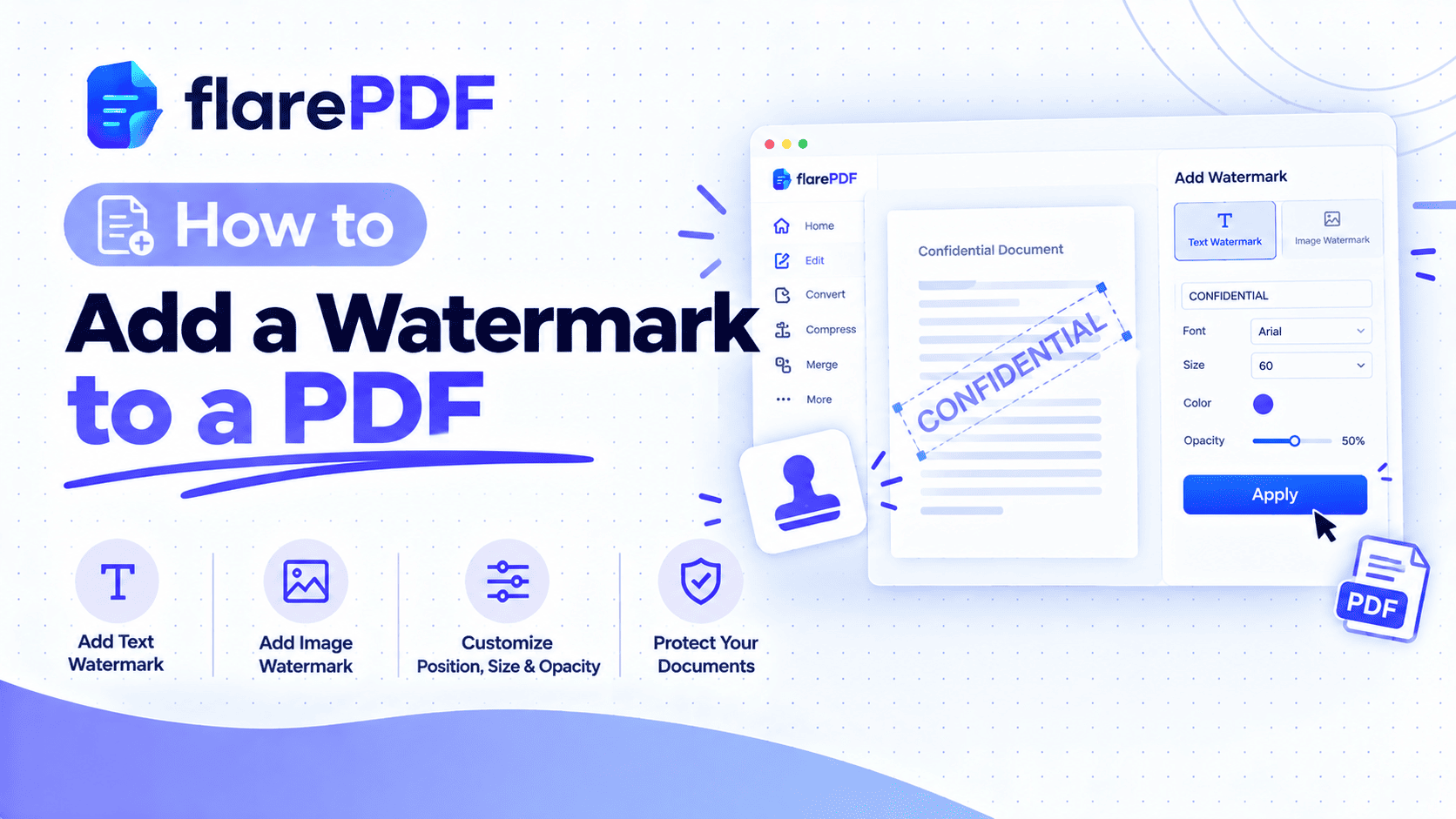
- Mark it: learn how to add a watermark to a PDF for drafts and branding.
Frequently Asked Questions
How do I edit a PDF on a Mac for free?
Open the PDF in Preview and click the Markup button to add text, highlights, shapes or a signature. To change text that is already in the PDF, use a free online editor like FlarePDF in Safari or Chrome. Neither option needs a new app.
Can you edit a PDF in Preview?
Yes, partly. Preview can add text boxes, signatures, highlights, notes and shapes, fill forms, and delete, reorder, rotate or crop pages. It cannot change text that is already in the PDF or swap the original fonts.
Why can’t I edit text in a PDF on my Mac?
Preview is a viewer and markup tool, not a full text editor, so it cannot change the original words. The PDF may also be a scan or locked with permissions. Use a PDF editor, or run OCR first for scanned files.
How do I add text to a PDF on Mac?
Open the PDF in Preview, click the Markup button, then click the Text tool, shown as a T. A text box appears on the page. Type your words, drag the box into place, and use the A button to change font and size.
How do I sign a PDF on a Mac?
In Preview, open the Markup toolbar and click the Sign button. Create a signature with your trackpad, your Mac’s camera or your iPhone, then click it to place it on the page. Drag and resize it to fit the signature line.
How do I delete pages from a PDF in Preview?
Choose View, then Thumbnails, to show the page sidebar. Click the page you want to remove, hold Command to select more, and press the Delete key. Then save the file or choose File, then Export as PDF.
What is the best free PDF editor for Mac?
For most people, Preview is the best free choice for adding text, signing and managing pages. For changing existing text without installing anything, a free online editor like FlarePDF is a good fit. LibreOffice Draw is a free desktop option.
How do I undo changes in Preview?
Press Command + Z to undo recent changes. To go back further, choose File, then Revert To, then Browse All Versions, and pick an earlier copy. Duplicating the PDF before you start editing is the safest habit.
Conclusion
Now you know how to edit a PDF on Mac for free. Use Preview for text boxes, signatures, highlights, forms and page changes. When you need to change the words already in the file, switch to a free online editor. Duplicate your file first, check every page, and never hide text with white boxes.
Ready to fix that PDF? Try the FlarePDF PDF Editor free now. No sign-up, no login.
Keep reading
More guides from the flarePDF blog