How to Copy Text From a PDF (Even Scanned Ones)
Learn how to add a watermark to a PDF for free. Add Draft, Confidential or logo watermarks online, in Word or in Acrobat. No sign-up needed.
How to Copy Text From a PDF (Even Scanned Ones)
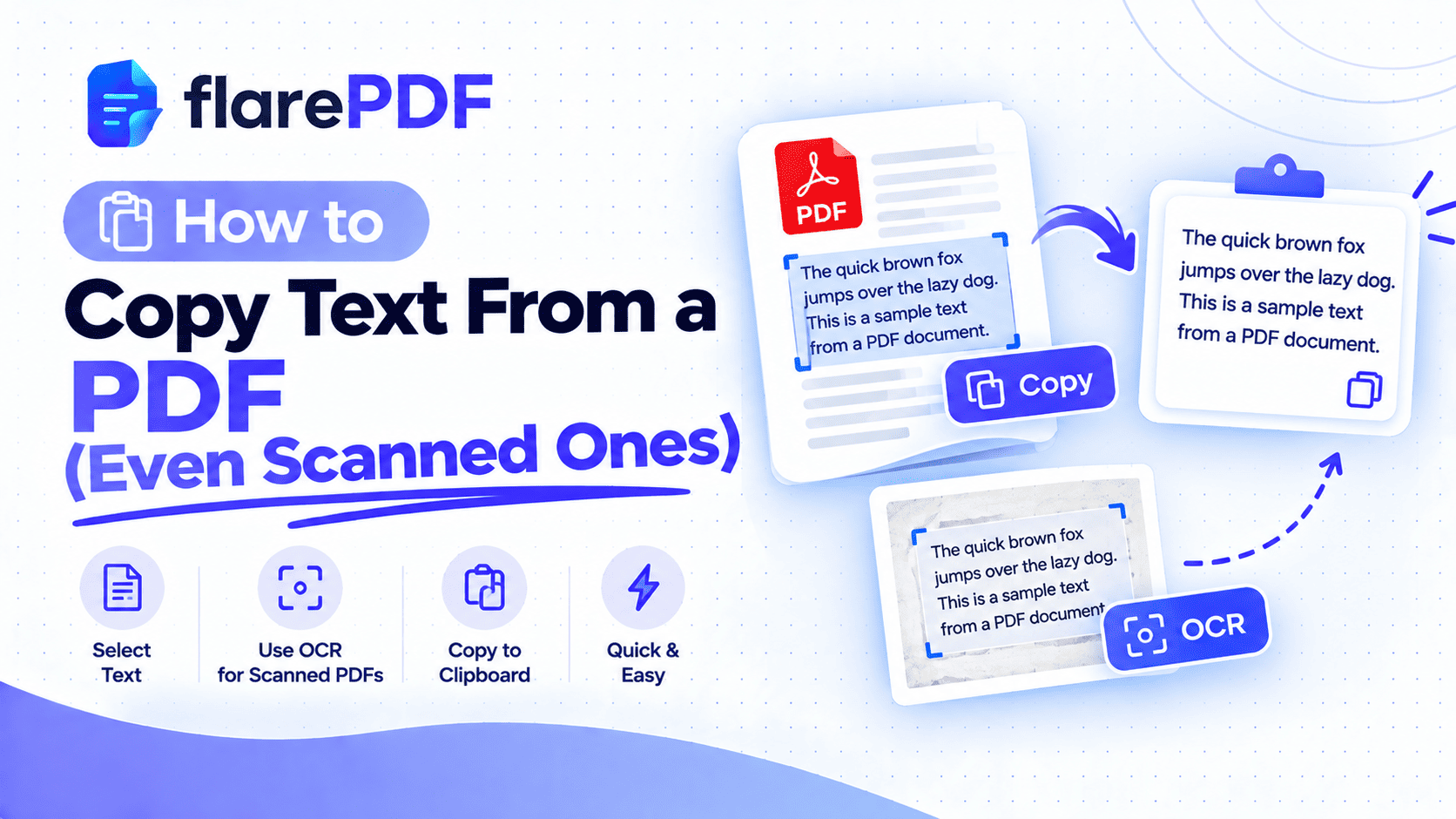
Here's how to copy text from a PDF: open it, choose the text selection tool, drag across the words, press Ctrl + C (Command + C on Mac), and paste. If nothing highlights, the PDF is a scanned image. It needs OCR before you can copy anything.
That second case is where most people get stuck. You try to grab a paragraph from a contract, a bank statement or your lecture notes, and the cursor just draws a blue box.
This guide shows you how to copy text from a PDF on Windows, Mac, iPhone and Android. You'll also learn free ways to pull text out of scanned pages, and how to fix pastes that come out garbled or broken. Flare PDF text tool is free, with no account and no sign-up.
What does it mean to copy text from a PDF?
Copying text from a PDF means selecting the words stored in the file's text layer and placing them on your clipboard. You can then paste them into a document, email or form. This only works when the PDF contains real text. Scanned PDFs store pictures of words, so they need OCR first.
The PDF format, defined in the ISO 32000 PDF standard, can hold text, fonts and images on the same page. That flexibility is why two PDFs that look the same can behave very differently when you try to copy from them.
Why do some PDFs let you copy text and others don't?
It all comes down to whether the page has a text layer. Here's the quick breakdown:
Native (digital) PDF: Made from Word, Google Docs, a website or an app. It has a real text layer, so you can select, search and copy words right away.
Scanned (image-only) PDF: Made by a scanner or a phone camera. Each page is a photo. There's nothing to select until OCR adds text.
Searchable PDF: A scanned PDF that has already been through OCR. It still looks like a scan, but a hidden text layer lets you select and copy words.
Pro tip: Press Ctrl + F (Command + F on Mac) and search for a word you can see on the page. If the viewer finds it, the PDF has a text layer. If it finds nothing, you're looking at a scan.
Why does copying text from PDFs matter?
PDFs are built to look the same everywhere, not to be edited. That's great for sharing, but it's frustrating when you need the words somewhere else.
Here are the most common reasons people need to copy and paste from a PDF:
- Work: pulling clauses from a contract, figures from a report or details from an invoice
- Study: quoting a research paper or lecture slides in an assignment, with proper citation
- Official forms: copying your details from a certificate or ID letter into an online application
- Job hunting: copying a job description into your notes so you can tailor your resume
- Freelancing: extracting a client's text so you can translate, proofread or redesign it
Retyping all of that by hand is slow and full of typos. Copying takes seconds.
How to copy text from a PDF with FlarePDF, step by step
The quickest way to pull all the text out at once is Flare PDF Extract Text from PDF tool. It's free, and you don't need an account.
- Open the Extract Text from PDF page in your browser.
- Upload your PDF using drag-and-drop and/or the file picker]
- Start the extraction exact button label]
- Review the text to make sure every page came through.
- Copy the text or save it.
Quick note: For scanned pages, whether the Extract Text tool runs OCR on scanned or image-only pages. If it doesn't, replace this line with: "This tool works on PDFs that already have a text layer. For scans, use one of the free OCR methods below."]
How to copy and paste from a PDF on Windows
Microsoft Edge or Google Chrome
Both browsers have a built-in PDF viewer, so you don't need extra software.
- Right-click the PDF and choose Open with, then Microsoft Edge or Google Chrome.
- Click and drag across the text you want.
- Press Ctrl + C to copy.
- Click where you want the text and press Ctrl + V to paste.
To grab everything on a page, click inside the text and press Ctrl + A first.
Scanned pages on Windows: Snipping Tool and Power Toys
If the text won't highlight, Windows 11 can read it from a screenshot.
- Snipping Tool: Press Windows + Shift + S and snip the area. Open the snip in Snipping Tool, click Text actions, then choose Copy all text.
- Power Toys Text Extractor: Install Microsoft Power Toys, press Windows + Shift + T and drag a box over the text. It goes straight to your clipboard. Microsoft's Power Toys Text Extractor guide covers setup and language options.
How do I copy text from a PDF document on Mac?
Apple Preview
- Open the PDF in Preview.
- Go to Tools and choose Text Selection.
- Drag across the words you want.
- Press Command + C, then Command + V wherever you need the text.
Scanned PDFs on Mac: Live Text
On supported Macs with recent versions of macOS, Live Text can recognize words in images. Open the scanned page in Preview and try dragging over the text. If it highlights, copy it as normal.
If it doesn't, take a screenshot with Command + Shift + 4. Open the screenshot and select the text with Live Text.
How to copy text from a PDF on iPhone or iPad
- Open the PDF in the Files app (or in Books).
- Touch and hold a word until it highlights.
- Drag the blue handles to cover the text you want.
- Tap Copy, then paste it into Notes, Mail or any other app.
For scanned pages: Take a screenshot, open it in Photos, and tap the Live Text icon in the corner. Then touch and hold to select the words and tap Copy.
If you're scanning paper with your phone in the first place, our guide on how to scan documents on iPhone walks you through the Notes and Files apps.
How to copy text from a PDF on Android
- Open the PDF in the Google Drive PDF viewer.
- Touch and hold a word until the selection handles appear.
- Drag the handles to cover your text.
- Tap Copy.
For scanned pages: Take a screenshot and open it with Google Lens (from Google Photos or the Google app). Tap Text, select the words, and tap Copy.
How to copy text in Adobe Acrobat Reader
- Open the PDF in Adobe Acrobat Reader.
- Choose the Select tool (the arrow cursor).
- Drag across the text and press Ctrl + C or Command + C.
If the copy option is greyed out, the author has probably restricted copying. More on that in the troubleshooting section below.
Free Acrobat Reader can't run OCR on its own. Adobe Acrobat Pro has a Scan & OCR tool that turns scans into selectable text, but the free methods below work for most people.
How to copy text from a scanned PDF (free OCR methods)
To copy text from a scanned PDF, run it through OCR first, then copy the recognized text. You have several free options.
Option 1: FlarePDF Extract Text
If the tool supports OCR, describe it here as the first option and link to the free PDF text extractor. If it doesn't, delete this option.]
Option 2: Google Drive and Google Docs
This is one of the most reliable free ways to OCR a PDF.
- Upload the PDF to Google Drive.
- Right-click the file and choose Open with, then Google Docs.
- Google creates a new Doc with the recognized text below an image of the page.
- Copy what you need, or keep the Doc as an editable version.
Google's help page on converting PDF and photo files to text lists file size and layout limits. For a very large scan, split the PDF into smaller parts first.
Option 3: Your phone or computer's built-in tools
You've already seen these above:
- Live Text on iPhone, iPad and Mac
- Snipping Tool Text actions or Power Toys Text Extractor on Windows
- Google Lens on Android
They work best for a page or a few paragraphs at a time.
What is OCR?
OCR stands for optical character recognition. It's technology that looks at an image of a page, recognizes the letters and numbers, and turns them into real text. That text can be selected, searched, copied and edited. Accuracy is high on clean printed pages but lower on blurry scans and handwriting.
How do you make a PDF searchable?
To make a PDF searchable, run it through an OCR tool that saves a searchable PDF. The pages keep their scanned look, but a hidden text layer sits underneath. After that, Ctrl + F works, and you can select text normally.
How do you convert a PDF to a TXT file?
Copy the extracted text into a plain text editor like Notepad (Windows) or TextEdit in plain text mode (Mac). Then save it with a .txt extension. Plain text strips all formatting, which is handy for data work, translation tools or AI chatbots.
Why can't I copy text from my PDF? (Troubleshooting)
Nothing highlights when you drag
The PDF is almost certainly a scan with no text layer. Use one of the OCR methods above.
"No text could be extracted from this file"
You'll see this message (or something similar) when a tool finds only images. It's the same reason ChatGPT can't extract text from a PDF sometimes. Run OCR first, then try again with the searchable version.
Copied text shows weird characters
Garbled symbols usually mean the PDF's fonts don't map their characters properly. Ligatures like "fi" and "fl" often break too. Running OCR on that page usually gives cleaner text than copying directly.
Every line breaks in the wrong place
PDFs place text by position on the page, so each line ends with a hard break. To fix it, paste as plain text with Ctrl + Shift + V (Command + Shift + Option + V on Mac). Then use find and replace to remove extra line breaks.
Columns and tables come out jumbled
Multi-column pages often copy across columns instead of down. Select one column at a time. For tables, copy row by row, or paste into a spreadsheet and tidy it up there.
Copying is blocked by security settings
Some PDFs allow viewing but block copying. That's a choice the author made.
Quick note: Only remove or work around copy restrictions on files you own or have clear permission to use. If you need text from someone else's protected file, ask them for an editable copy.
Key features and benefits of Flare PDF text tool
- Free to use: FlarePDF tools cost nothing.
- No account or login: Open the page and start. No sign-up, no email needed.
- Simple steps: Upload, extract and copy, without learning new software.
- Related tools in one place: Edit, split, scan and convert PDFs on the same site.
- File handling: file size limit, where files are processed and when they're deleted]
Why choose Flare PDF?
FlarePDF suits anyone who needs text out of a PDF quickly and doesn't want to install software or create another account. It's a good fit if you only do this now and then, or on a shared or work computer.
You also don't need to remember which app on which device has a hidden copy feature. One online tool handles the job. For details on how files are handled, see the FlarePDF privacy page.
Tips and common mistakes
- Test for a text layer first. A quick Ctrl + F search saves you from dragging over a scan for nothing.
- Proofread OCR output. OCR often confuses "0" and "O", "1" and "l", and "rn" and "m". Check numbers twice, especially on invoices and bank statements.
- Scan at a good resolution. Clear, flat, well-lit pages give far better OCR results. Our guide on how to scan a document to PDF covers settings that help.
- Paste as plain text. It avoids odd fonts, colors and spacing in your document.
- Copy one column at a time. It keeps sentences in the right order.
- Keep the original PDF. Your copied text is a working copy, not a replacement.
- Cite what you copy. For assignments and articles, always credit the source.
Real-world examples
A university student in Lahore needs quotes from a scanned journal article for an assignment. She opens the PDF with Google Docs, copies three paragraphs, checks them against the scan, and adds the citation.
An HR coordinator in Texas receives a job description as a PDF. She copies the text from the PDF in Edge and pastes it into the company careers page in under a minute.
A freelance translator gets a 20-page brochure from a client. He extracts all the text at once, pastes it into his translation software and delivers on time.
A small business owner needs invoice totals for her monthly accounts. She copies the figures from each supplier PDF and double-checks every number before filing.
Related PDF tools you may need
- Change the words inside the PDF instead: use the free PDF editor, or read our guide on how to edit text and pages in a PDF.
- Turn paper into a PDF first: use Scan to PDF before you extract the text.
- Copy only certain pages: split your PDF and keep just the pages you need. Our guide on splitting a PDF into multiple files shows how.
- Need images, not text? Convert PDF pages to JPG.
- Sharing a sensitive document? Learn how to permanently redact a PDF so hidden text can't be copied out.
Frequently Asked Questions
How do I copy text from a PDF?
Open the PDF, pick the text selection tool, and drag across the words you want. Press Ctrl + C on Windows or Command + C on Mac, then paste with Ctrl + V or Command + V. On phones, touch and hold a word, then tap Copy.
Why can't I copy text from my PDF?
Most often, the PDF is a scanned image with no text layer, so there is nothing to select. Less often, the author has restricted copying in the security settings. Run OCR on scanned files, and ask the owner about restricted ones.
How do I copy text from a scanned PDF?
Run OCR first. Free options include opening the PDF with Google Docs from Google Drive, Live Text on iPhone and Mac, Text actions in the Windows Snipping Tool, and Google Lens on Android. Always proofread the result against the original page.
What does OCR stand for?
OCR stands for optical character recognition. It is technology that looks at an image of a page, recognizes the letters and numbers, and turns them into real text you can select, search, copy and edit.
How do I make a PDF searchable?
Run the PDF through an OCR tool that saves a searchable PDF. It keeps the scanned look but adds a hidden text layer underneath. Afterward, Ctrl + F finds words, and you can select and copy text normally.
Can I copy text from a password-protected PDF?
If you know the password and copying is allowed, yes. Some PDFs block copying even after they open. Only remove or bypass those restrictions on files you own or have clear permission to use, and ask the sender for an editable copy otherwise.
Why does copied PDF text have weird characters or line breaks?
PDFs store text by position on the page, not as flowing paragraphs, which causes a hard break at the end of every line. Weird symbols usually mean the font lacks proper character mapping. Paste as plain text and clean up, or use OCR.
Can OCR read handwriting?
Sometimes. OCR is very accurate on clear, printed text, but neat handwriting gives mixed results and messy handwriting often fails. Scan at a good resolution, keep the page flat and well lit, and expect to correct some words by hand.
Conclusion
Now you know how to copy text from a PDF on any device. Normal PDFs need just a drag and Ctrl + C. Scanned PDFs need OCR first, and Google Docs, Live Text, Snipping Tool and Google Lens all handle that for free. When pastes come out messy, paste as plain text and copy one column at a time.
Want all the text in one go? Try Extract Text from PDF free now. No sign-up, no login.