What Is a PDF? A Plain-English Guide to the Format
What is a PDF? Learn what PDF stands for, how PDF files work, how to open and make one, and how PDF compares to Word and JPG. Plain-English guide.

What Is a PDF? A Plain-English Guide to the Format
What is a PDF? A PDF is a file format that keeps a document looking exactly the same on any phone, computer or printer.
You've probably opened hundreds of them: bank statements, boarding passes, job offers, university notices. Yet most people never learn what makes a PDF different from a Word file or a photo. That gap causes real problems. Maybe you can't edit a file, can't copy a line from it, or can't send it because it's too large.
This guide explains PDFs in plain English. You'll learn what PDF stands for, how it works, the main types, and how to open, make and edit one. When you're ready to work on your own files, FlarePDF's tools are free, with no sign-up.
What is a PDF file?
A PDF (Portable Document Format) is a file format created by Adobe in 1993 that keeps a document looking the same on every device. It locks text, fonts, images and layout in place. That means a PDF displays and prints exactly as the author intended, whatever software or screen the reader uses.
That's the whole point of a PDF. When you send a Word file, it can shift on someone else's computer. When you send a PDF, it can't.
PDF files end with the .pdf file extension. Behind the scenes, browsers and email apps identify them by the MIME type application/pdf.
What does PDF stand for?
PDF stands for Portable Document Format. "Portable" means the file travels between devices and systems without changing. "Document format" means it's a standard way to store a finished document.
People in Pakistan and India often search for the meaning in their own language:
- PDF full form in Urdu: پی ڈی ایف کا مطلب ہے پورٹیبل ڈاکیومنٹ فارمیٹ
- PDF full form in Hindi: पीडीएफ का फुल फॉर्म पोर्टेबल डॉक्यूमेंट फॉर्मेट है
In computer terms, it's simply a fixed-layout document format. It's built for sharing and printing, not for writing.
How does a PDF work?
A PDF works by packing everything a page needs into one file. That includes the text, the fonts, the images and the exact position of every element. Your device doesn't need the original app or fonts to show it correctly.
Here's what's inside a typical PDF, in plain terms:
- Text: stored as real characters, so you can search for it and copy it
- Embedded fonts: the font files travel inside the PDF, so the text looks right everywhere
- Vector graphics: lines and shapes that stay sharp at any zoom level
- Raster images: photos and scans made of pixels
- Page layout: the exact position of every item on every page
- Metadata: details like the title, author and creation date
- Extras: links, bookmarks, form fields, annotations, attachments and digital signatures
Technically, a PDF is a collection of "objects" organised into a page tree. You never see that structure. You just see pages that look right.
The rules for all of this are published in the ISO 32000 PDF standard. Because the standard is open, any company can build software that reads and writes PDFs, not just Adobe.
Why do PDFs look the same on every device?
They don't depend on the reader's setup. A Word document asks your computer, "Do you have this font?" If the answer is no, it swaps in another one, and the layout shifts.
A PDF carries its own fonts and fixed page positions. So a resume made on a Mac in Lahore looks identical on a Windows laptop in London.
What is a PDF used for?
PDFs are used whenever a document must look exactly right and stay unchanged. That covers most important paperwork in daily life.
Here are the most common uses:
- Job applications: resumes and cover letters that keep their design
- Study: assignments, theses, lecture notes and research papers
- Contracts: agreements that need signatures and a fixed layout
- Finance: invoices, receipts, bank statements and tax forms
- Government forms: visa, passport and ID applications in the UAE, UK, US and Pakistan
- Publishing: ebooks, manuals, menus and brochures
- Printing: print-ready files for shops and printers
- Archiving: records that must stay readable for years
Why do people send documents as PDFs?
There are three reasons. PDFs look the same for everyone, they're hard to change by accident, and almost every device can open them for free.
Quick note: That "hard to change" quality is a strength for sharing. It's also why editing a PDF later can feel tricky. We'll cover that below.
PDF vs Word vs JPG: what's the difference?
The format you choose depends on what you need the file to do. Here's a quick comparison.
PDF: Fixed layout. Holds many pages, text, images, links, forms and signatures. Best for sharing, printing, signing and archiving finished documents.
Word (DOCX): Flexible layout that can shift between devices. Easy to edit. Best for writing and collaborating on drafts.
JPG: A single flat image made of pixels. Text can't be selected without OCR. Best for photos and quick image sharing.
PNG: A single image, like JPG, but sharper for screenshots and graphics. It supports transparent backgrounds. Best for logos and screen captures.
EPUB: A reflowable ebook format whose text adjusts to screen size. Best for reading books on phones and e-readers.
HTML: A web page format whose layout adapts to the browser. Best for websites, not printable documents.
Is a PDF the same as a Word document?
No. Word is for writing and editing. PDF is for sharing a finished version.
A common workflow is to write in Word or Google Docs, then save the file as a PDF before you send it.
What is the difference between a PDF and a JPEG?
A JPEG (or JPG) is one picture. A PDF is a document that can hold many pages, real text and images together.
You can turn photos into a PDF with JPG to PDF. You can turn PDF pages back into images with PDF to JPG.
What are the different types of PDF?
Not every PDF behaves the same way. Here are the types you're most likely to meet.
Native, scanned and searchable PDFs
- Native (digital) PDF: made from Word, Google Docs or another app. It has a real text layer, so you can search and copy words.
- Scanned (image-only) PDF: made by a scanner or phone camera. Each page is a picture, so you can't select text.
- Searchable PDF: a scanned PDF that has gone through OCR (optical character recognition). It looks like a scan, but a hidden text layer makes the words selectable.
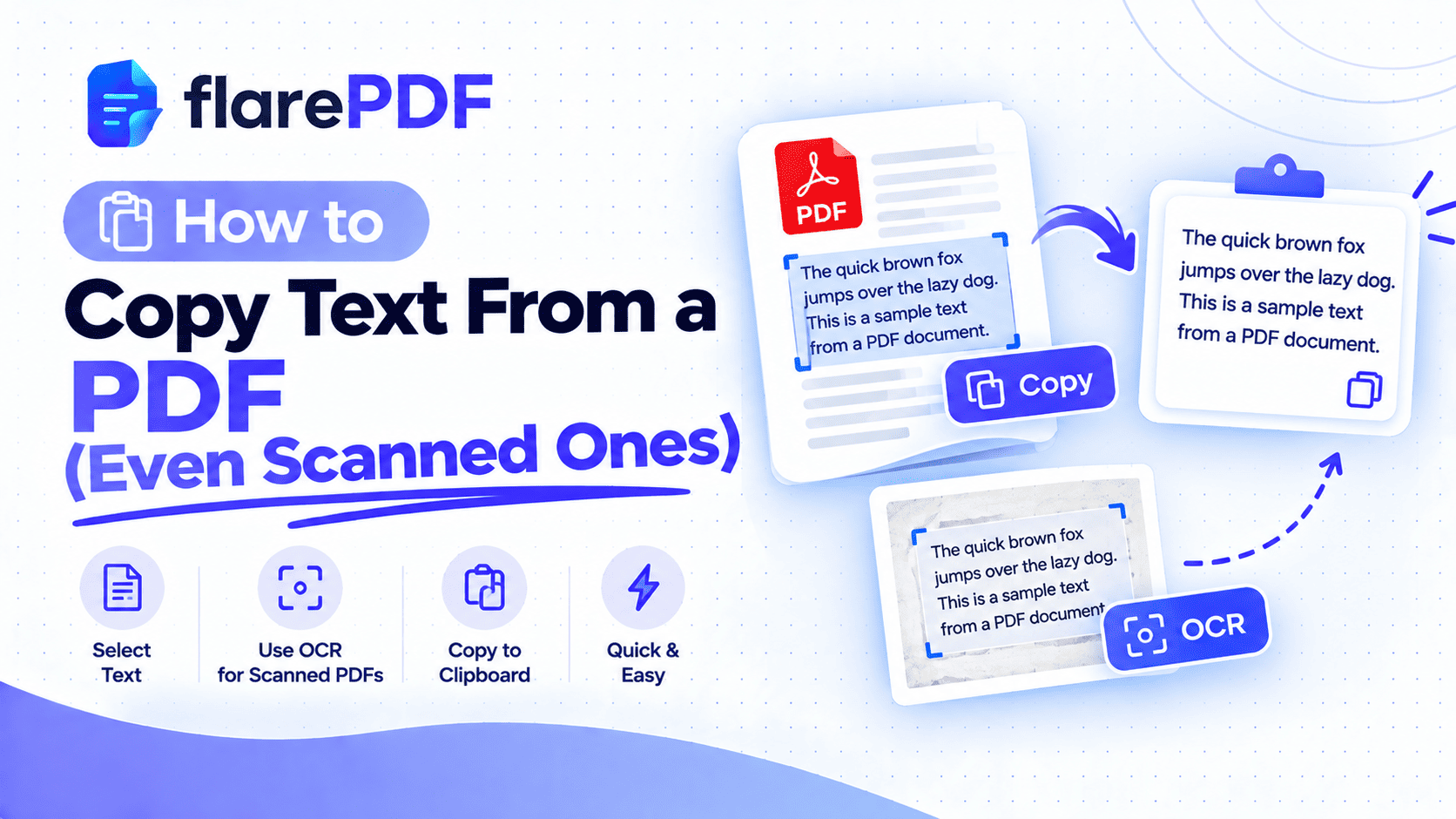
If you're stuck with a scan, our guide on how to copy text from a PDF, even scanned ones shows free ways to fix it.
Fillable PDF forms
A fillable PDF has form fields like text boxes, checkboxes and dropdowns. You can type into them directly, which is common for government and HR forms.
Password-protected PDFs
These need a password to open, or they restrict actions like printing, copying or editing. Banks often send statements this way.
Digitally signed PDFs
A digitally signed PDF carries a certificate-based signature that proves who signed it. It also shows whether the file changed after signing. That's different from simply placing an image of your signature on a page.
Optimized (linearized) PDFs
An optimized PDF is set up so the first page loads quickly online, even before the whole file downloads. You may see it called "Fast Web View".
Special-purpose PDF standards
Some industries use stricter versions of PDF, each with its own ISO standard:
- PDF/A (ISO 19005): for long-term archiving. It embeds everything needed to display the file in the future.
- PDF/X (ISO 15930): for professional printing. It controls colour and fonts for print shops.
- PDF/UA (ISO 14289): for accessibility. It makes PDFs work properly with screen readers.
- PDF/E (ISO 24517): for engineering drawings and technical documents.
Courts, archives and government offices in places like Canada and the UK often ask for PDF/A when you submit records.
The PDF Association is a good place to learn more about these standards.
A short history of the PDF
Adobe invented the PDF in the early 1990s. Co-founder John Warnock described the idea in 1991 in a project called Camelot. His goal was simple: any document, on any computer, should look the same.
Here's how it grew:
- 1991: John Warnock writes the Camelot paper describing the idea.
- 1993: Adobe launches PDF along with Adobe Acrobat.
- Mid-1990s: Adobe makes its PDF reader free, which helps PDFs spread worldwide.
- 2008: PDF becomes an open international standard, ISO 32000-1.
- 2017: PDF 2.0 is published as ISO 32000-2, with an update in 2020.
Today, no single company owns how PDFs work. That's why so many free apps and websites, including FlarePDF, can create and edit them.
How to open a PDF file
To open a PDF, double-click it or tap it. Almost every device has a free PDF viewer built in.
On Windows
Windows usually opens PDFs in Microsoft Edge by default. You can also right-click the file, choose Open with and pick another app.
On Mac
Macs open PDFs in Preview, which can view, highlight, sign and rearrange pages. Many people find Preview is the only PDF reader they need on a Mac.
On iPhone and iPad
Tap the PDF in the Files app, Mail or Messages. You can also save PDFs to Books for reading later.
On Android
Tap the PDF to open it in Google Drive or your phone's file app. Both include a free PDF viewer.
In any web browser
Chrome, Edge, Firefox and Safari all open PDFs. Drag the file into a browser window, and it opens in a new tab.
Is Adobe Acrobat Reader free?
Yes. Adobe Acrobat Reader is free for viewing, printing, commenting and filling in forms. You don't need it for basic viewing, though, since your device already has a viewer.
How to make a PDF
You can make a PDF from almost any document using "Save as PDF" or "Print to PDF". No special software is needed.
From Microsoft Word
Go to File, then Save As, and choose PDF as the file type.
From Google Docs
Go to File, then Download, and choose PDF Document (.pdf).
From any app on Windows
Press Ctrl + P, then choose Microsoft Print to PDF as the printer. Pick a name and folder, and save.
From any app on Mac
Press Command + P, click the PDF button at the bottom, and choose Save as PDF.
On iPhone
Open the document or web page, tap Share, then Print. Spread two fingers on the preview to open it as a PDF, then tap Share again to save it to Files.
On Android
Open the document, tap the menu, choose Print, and set the printer to Save as PDF.
From photos or paper
- Photos: combine one or more images into a PDF with JPG to PDF.
- Paper documents: use Scan to PDF, or follow our guide on how to scan a document to PDF.
- iPhone users: our guide on how to scan documents on iPhone covers the Notes and Files apps.
Can you edit a PDF?
Yes, but you need a PDF editor. PDFs are designed for viewing, so a word processor can't easily change one.
Why is editing hard? A PDF stores each word or line as a separate object in a fixed position. It doesn't store flowing paragraphs like Word does. When you change one sentence, the text around it doesn't reflow the way you'd expect.
A PDF editor handles this for you. You can add text, fix typos, insert images, sign or rearrange pages. Try the free FlarePDF editor, or read our guide on how to edit text and pages in a PDF.
Pro tip: If you still have the original Word or Google Docs file, edit that and save a new PDF. It's often faster for big changes.
How to work with a PDF using FlarePDF, step by step
Once you know what a PDF is, the next step is getting things done with it. FlarePDF's free PDF tools all follow the same simple pattern:
- Choose the tool you need, such as Merge, Compress or Sign.
- Upload your PDF. [VERIFY: drag-and-drop and/or file picker]
- Adjust the options for that task, like page order or signature position.
- Apply the change.
- Download your new PDF.
There's no account to create and no login.
What can you do with a PDF? (Related tools)
Here's a quick map of common PDF tasks. Each one links to a free FlarePDF tool and a step-by-step guide.
Organize your pages
- Merge PDFs: join several files into one with Merge PDF. See how to combine multiple PDFs into one.
- Split a PDF: break one file into smaller files with Split PDF. See how to split a PDF into multiple files.
- Reorder or rotate pages: use Organize PDF. See how to reorder, rotate and delete PDF pages.
- Add or delete pages: read how to add pages to a PDF and how to delete pages from a PDF.
- Trim the margins: use Crop PDF.
Make files smaller
- Compress a PDF: shrink large files for email with Compress PDF. See how to compress a PDF without losing quality.
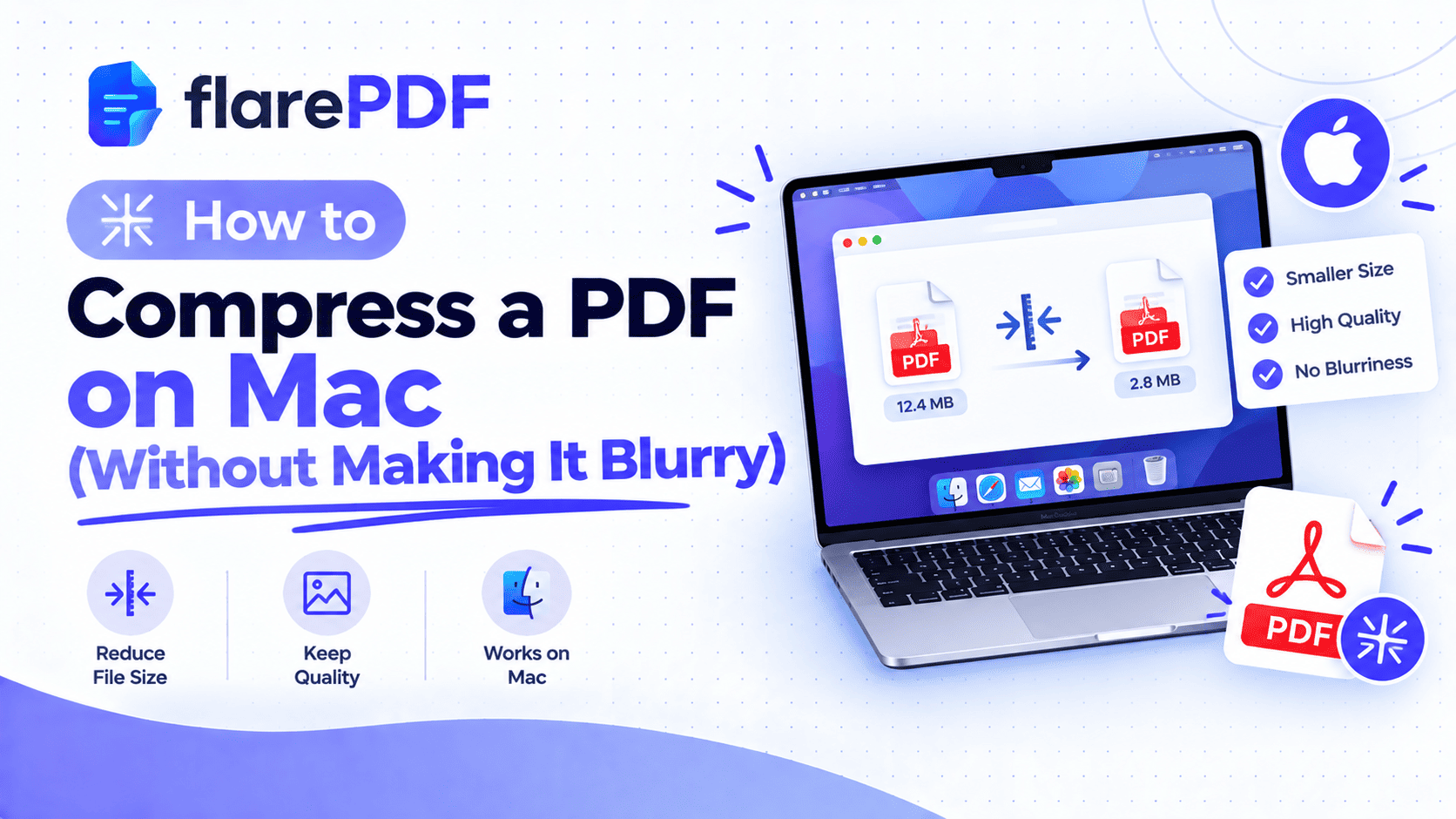
- On a Mac: read how to compress a PDF on Mac without making it blurry.
Sign and mark documents
- Sign a PDF: add your signature with Sign PDF. See how to insert a signature in a PDF and how to sign a PDF contract online.
- Add a watermark: stamp "Draft" or your logo with Add Watermark to PDF. See how to add a watermark to a PDF.
- Number your pages: use Add Page Numbers to PDF.
Get content out
- Extract text: pull words out with Extract Text from PDF.
- Save pages as images: use PDF to JPG.
Protect private information
- Redact a PDF: learn how to permanently redact a PDF so hidden data can't be recovered.
Are PDF files safe?
Most PDFs are safe, but they can carry harmful links, hidden scripts or attached files. Attackers sometimes send fake invoices or "urgent" notices as PDFs to trick people into clicking.
Stay safe with these habits:
- Open PDFs only from people and sites you trust.
- Be careful with unexpected attachments, especially ones that ask you to log in or "enable content".
- Keep your browser and PDF viewer updated. Updates fix known security holes.
- Hover over links before clicking to check where they really go.
- Don't treat black boxes as safe. A shape drawn over text doesn't remove it. Use proper redaction instead.
For details on how FlarePDF handles files you upload, see the FlarePDF privacy page. [VERIFY: file processing location and deletion policy, if you want to state them here]
Key features and benefits of FlarePDF
- Free to use: every FlarePDF tool costs nothing.
- No account or login: open a tool and start. No email needed.
- Easy to use: each tool follows the same upload, adjust and download steps.
- Many tools in one place: edit, merge, split, compress, sign, watermark, scan, convert and extract text on the same site.
- File handling: [VERIFY: file size limit, where files are processed and when they're deleted]
Why choose FlarePDF?
FlarePDF suits people who need to get a PDF task done quickly without installing software or creating another account. That makes it handy on shared office computers, school laptops and phones.
You don't need to learn a complex program for a two-minute job. Pick the tool, upload your file and download the result.
Tips and common mistakes
- Keep the original file. Save your Word or Google Docs version before you convert it to PDF.
- Name files clearly. "Ali_Khan_Resume_2026.pdf" is easier to find than "scan001.pdf".
- Check page order before you send. Flip through every page, especially after merging.
- Watch the file size. Many email services and upload portals have size limits, so compress large PDFs first.
- Use a native PDF when you can. Saving directly from Word gives sharper, searchable text than printing and scanning.
- Don't fake redaction. Black boxes and white-out shapes often leave the text underneath readable.
- Use PDF/A for long-term records if an archive or court asks for it.
Real-world examples
A university student in Islamabad writes her assignment in Google Docs. She downloads it as a PDF so the formatting stays intact when her professor opens it.
A job seeker in New York saves his resume as a PDF. The recruiter sees his fonts and layout exactly as he designed them.
A freelance designer combines five client invoices into one PDF and compresses it. It now fits under her email attachment limit.
A small business in Dubai scans signed delivery receipts to PDF. Each month, the owner merges them into a single record for the accountant.
Frequently Asked Questions
What does PDF stand for?
PDF stands for Portable Document Format. Adobe created it in the early 1990s so documents would look the same on any computer, phone or printer, regardless of the software or fonts installed. The file extension is .pdf.
What is a PDF file used for?
PDFs are used to share documents that must look exactly right, such as resumes, contracts, invoices, forms, ebooks and manuals. They keep layout, fonts and images fixed, so everyone sees and prints the same pages.
How do I open a PDF file?
Double-click it. Windows usually opens PDFs in Microsoft Edge, and Macs open them in Preview. On phones, tap the file in Files on iPhone or Google Drive on Android. Any modern web browser can also open PDFs.
Can you edit a PDF?
Yes, but it takes the right tool. PDFs are built for viewing, not editing, so word processors cannot change them easily. A PDF editor lets you add text, images, signatures and pages, or fix small mistakes.
Is a PDF the same as a Word document?
No. A Word document is built for writing and editing, and its layout can shift between devices. A PDF is built for sharing and printing, so its layout stays fixed. Many people write in Word, then save as PDF.
What is the difference between a PDF and a JPG?
A JPG is a single image. A PDF is a document that can hold many pages, real selectable text, images, links and forms. Use JPG for photos and PDF for documents you want to share, print or sign.
Who invented the PDF?
Adobe invented the PDF. Co-founder John Warnock described the idea in 1991 in a project called Camelot, and Adobe released PDF with Acrobat in 1993. It became an open international standard, ISO 32000, in 2008.
Are PDF files safe to open?
Most are, but PDFs can contain harmful links or hidden scripts. Open PDFs only from people and sites you trust, keep your PDF viewer and browser updated, and be careful with unexpected attachments, especially ones asking you to log in.
Conclusion
So, what is a PDF? It's the Portable Document Format, the go-to way to share documents that must look the same everywhere. PDFs lock in fonts, images and layout. Every device can open them free, and they come in types for scans, forms, printing and archiving.
Now that you know how PDFs work, put that knowledge to use. Try FlarePDF's free PDF tools now. No sign-up, no login.
Keep reading
More guides from the flarePDF blog