How to Remove Blank Pages From a Scanned PDF (Free)
Learn how to remove blank pages from a scanned PDF for free. Find and delete empty pages fast, and stop your scanner from adding them next time.
How to Remove Blank Pages From a Scanned PDF
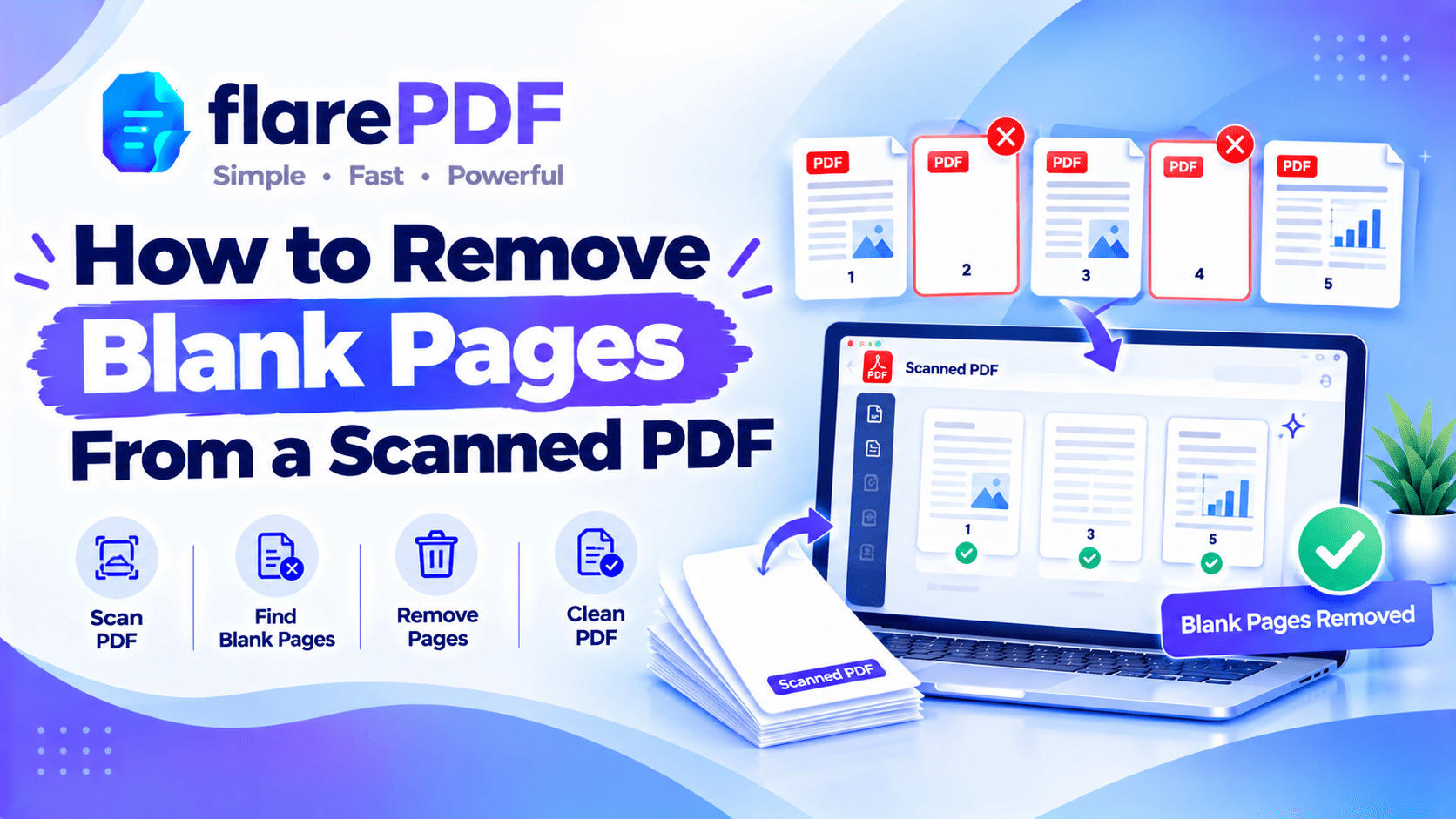
To remove blank pages from a scanned PDF, open it in a page organizer and view the pages as thumbnails. Then select every blank page, delete them and save. To stop blank pages coming back, turn on your scanner’s “skip blank pages” setting, or scan single-sided.
Blank pages are one of the most common scanning annoyances. You scan a 10-page contract and get 20 pages, half of them empty backs. Or a separator sheet slips in, and now your file looks unprofessional.
This guide shows you how to find and remove blank pages quickly, in a browser, Acrobat, on a Mac or on an iPhone. You’ll also learn how to stop them at the source. FlarePDF’s tools are free, with no sign-up.
What are blank pages in a scanned PDF?
Blank pages in a scanned PDF are empty or nearly empty pages that the scanner captured by mistake. They usually come from the backs of single-sided sheets, separator pages or double-fed paper. Each one is still stored as a full page image, so it adds to the page count and file size.
Some blank pages are perfectly white. Others are “near-blank”: they show faint specks, shadows, punch holes or text bleeding through from the other side.
For general page removal, read our full guide to deleting pages from a PDF. This guide focuses on blank pages from scans.
Why does my scanner add blank pages?
Scanners add blank pages because they capture every side of every sheet they’re set to scan, whether or not there’s anything on it. The most common causes are:
- Double-sided (duplex) scanning: the scanner captures the empty back of each single-sided page.
- Separator or cover sheets: blank sheets placed between documents get scanned too.
- Double feeds: two sheets stick together, causing gaps or extra empty captures.
- Accidental captures: phone scanning apps can snap an empty desk or blank sheet.
- Skip blank pages is off: many scanners have this setting, but it’s often off by default.
- The blank-page setting is too strict: dust, shadows or bleed-through make a blank page look “not blank” to the scanner.
Knowing the cause helps you fix today’s file and prevent it next time.
Why removing blank pages matters
Blank pages make a document harder to read and more awkward to share. Removing them is a quick win.
Cleaning up blank pages helps you:
- Look professional: clients and offices notice messy scans.
- Reduce file size: every scanned page is an image, even an empty one.
- Meet upload limits: job, visa and university portals often cap file size or page count.
- Make printing cheaper: no wasted paper or ink.
- Keep page numbers sensible: “page 3 of 20” is confusing when only 10 pages have content.
- Speed up review: readers don’t have to scroll past empty pages.
If your scan is still too heavy after cleanup, read why your PDF file is so large.
Is this page really blank?
Before you delete anything, take a second look. A page can look empty in a small thumbnail but still hold something important.
Check for faint signatures or initials. Light pen marks can disappear in a thumbnail.
Check for stamps or seals. A pale office stamp may be the only thing on the page.
Check for page numbers. A numbered page may be intentionally blank, such as “This page intentionally left blank”.
Check for handwritten notes. Pencil notes are easy to miss.
Check the corners. Small reference numbers or barcodes often sit at the edges.
Pro tip: Zoom in on any page you’re unsure about. It takes two seconds and could save you from deleting a signed page.
How to find blank pages fast
The quickest way to find blank pages is to view all pages as thumbnails, side by side. Empty pages stand out immediately as plain white squares.
Use these patterns to speed things up:
- Duplex scans: if your originals were single-sided, the blank pages are usually every other page, often the even-numbered ones (2, 4, 6 and so on).
- Batch scans: separator sheets sit between documents, so look at the start and end of each section.
- End of the file: a blank last page is common when the scanner picks up an extra sheet.
Pro tip for very long scans: split the PDF into single pages with Split PDF. Sort the files by size, and the blank pages will usually be the smallest. That tells you their page numbers. Then delete those pages from the original file.
How to remove blank pages from a scanned PDF with FlarePDF
To remove blank pages for free, open the PDF in an online page organizer, delete the empty pages and download the clean file. No software or account is needed.
Step-by-step
- Open FlarePDF Organize PDF and upload your scanned PDF.
- Scan the thumbnails for blank or near-blank pages.
- Select each blank page multi-select support]
- Delete the selected pages.
- Check that the remaining pages are in the right order.
- Download the cleaned PDF.
Quick note: FlarePDF doesn’t detect blank pages automatically. You choose which pages to delete, so nothing important gets removed by mistake.
Keep only the pages you need
If most of the file is blank, it can be faster to keep the good pages than to delete the bad ones. Use Split PDF to extract just the page ranges with content, such as 1, 3, 5, 7. custom page selection in Split PDF]
For more page tasks, see how to reorder, rotate and delete PDF pages.
How to delete multiple blank pages at once
To delete several blank pages at once, select them together in thumbnail view, then delete them in one step. This works in most page organizers, Acrobat and Mac Preview.
The usual shortcuts are:
- Ctrl + click (Windows) or Command + click (Mac) to select separate pages
- Shift + click to select a run of pages in a row
For a duplex scan with blank backs, select every even-numbered page that’s blank, then delete them all together.
Quick note: After a big delete, flick through the whole file once. It’s easy to catch a real page by accident when selecting many at once.
How to remove blank pages in Adobe Acrobat
In Adobe Acrobat Pro, use Organize Pages to select blank pages and delete them. Some versions include extra tools for finding blank pages whether current Acrobat has a built-in “remove blank pages” option]
- Open the scanned PDF in Acrobat Pro.
- Go to All tools > Organize pages.
- Ctrl + click (or Command + click) each blank page thumbnail.
- Click the Delete (trash) icon.
- Click OK to confirm, then save the file.
The free Acrobat Reader doesn’t let you delete pages. Use an online page organizer or Mac Preview instead.
How to remove blank pages from a PDF on Mac
On a Mac, Preview can delete blank pages and save the change.
- Open the PDF in Preview.
- Choose View > Thumbnails or View > Contact Sheet to see many pages at once.
- Command + click each blank page.
- Press the Delete key.
- Choose File > Save.
Pro tip: Contact Sheet view shows pages in a large grid, which makes blank pages very easy to spot.
For more of Preview’s tools, read how to edit a PDF on Mac for free, or see Apple’s Preview User Guide.
How to remove blank pages on iPhone
On an iPhone, delete blank pages while you’re still reviewing the scan, before you save it. If the PDF is already saved, use an online organizer or the Files app.
While scanning in Notes or Files
- After scanning, tap the thumbnail at the bottom left to review your pages.
- Swipe to a blank page.
- Tap the trash icon to delete it.
- Tap Done, then Save.
After the PDF is saved
- In the browser: open Organize PDF in Safari and delete the blank pages. mobile browser support
- In the Files app: open the PDF, show the page thumbnails, then touch and hold a blank page to find a delete option iOS menu names]
For better phone scans, read how to scan documents on iPhone.
How to stop your scanner from adding blank pages
The best fix is prevention. Turn on your scanner’s blank-page setting, or scan single-sided when your originals are single-sided.
1. Turn on “skip blank pages”
Most document scanners and multifunction printers have a setting for this. It may be called:
- Skip blank page
- Blank page removal
- Remove blank pages
- Delete blank page
Look in your scanner’s app or driver settings, often under “Advanced” or “Document settings” exact setting names for Epson, Canon, HP, Brother and Scan Snap
2. Adjust the sensitivity
Some scanners let you set how strict the blank-page check is. If near-blank pages with specks slip through, raise the sensitivity slightly. If real pages with light text are being skipped, lower it.
3. Scan single-sided when possible
If every original is printed on one side only, switch from duplex (double-sided) to simplex (single-sided). The empty backs won’t be captured at all.
4. Clean the scanner glass
Dust and smudges on the glass can make a blank page look like it has content. That stops “skip blank pages” from working properly.
5. Prepare the paper
- Remove separator sheets before scanning, or scan each document separately.
- Fan the stack to prevent double feeds.
- Remove sticky notes, staples and folded corners.
Free scanning software option
If your scanner’s own app has no blank-page setting, free scanning apps can help. NAPS2 is a free, open-source scanning app for Windows, Mac and Linux NAPS2 blank-page exclusion feature]
For more scanning advice, read how to scan a document to PDF.
Blank page in Word or Pages before saving as PDF?
If the blank page comes from a Word or Pages document, delete it in the original file before exporting. This isn’t a scanning problem.
The usual causes are an extra empty paragraph or a page break at the end. Turn on formatting marks, delete the extra lines or breaks, then save as PDF again.
What to do after removing blank pages
Your file is cleaner, but a few quick finishing steps make it better.
- Renumber pages: if the scan had printed page numbers, they’re still on the pages. For new, continuous numbers, use Add Page Numbers to PDF.
- Shrink the file: removing blank pages helps, but scans are still heavy. Use Compress PDF if needed.
- Trim borders: remove dark scanner edges with Crop PDF.
- Check OCR text: deleting pages doesn’t affect the searchable text on the remaining pages.
Key features and benefits of FlarePDF for cleaning scans
- Free to use: every FlarePDF tool costs nothing.
- No account or login: open a tool and start.
- Visual page control: see thumbnails and choose exactly which pages to remove.
- Flexible options: delete blank pages or extract only the good ones.
- Finishing tools: compress, crop, and number pages after cleanup.
- File handling: file size limit, where files are processed and when they’re deleted]
Why choose FlarePDF to remove blank pages?
Cleaning up a scan should be quick. You shouldn’t need to install software or create an account just to delete a few empty pages.
FlarePDF lets you remove blank pages in your browser, then compress or tidy the file if needed. Scanned documents often contain personal details, so read the FlarePDF privacy page to see how uploaded files are handled.
Tips and common mistakes
- Zoom in before deleting. Faint signatures and stamps can hide in thumbnails.
- Keep the original scan. Save the cleaned file under a new name.
- Use the duplex pattern. Blank backs usually fall on every other page.
- Don’t delete “intentionally blank” pages in legal or official documents without checking.
- Check page order afterwards. Make sure nothing moved during editing.
- Fix the scanner, not just the file. Turn on skip blank pages for next time.
- Rename the clean file clearly. Try “Contract-Signed-Clean.pdf”.
Real-world examples
An office assistant in Lahore scans a 12-page agreement on a duplex scanner. The file has 24 pages, so she deletes the 12 blank backs in Organize PDF before emailing it.
A student in Chennai scans handwritten notes on her iPhone. She removes two accidental blank captures in the scan review screen before saving.
A bookkeeper in Dubai scans a week of invoices with separator sheets between suppliers. She deletes the separators, then compresses the file for her accounting upload.
A legal assistant in London prepares a court bundle. She removes empty pages but keeps the pages marked “intentionally left blank”, which the bundle rules require.
Related PDF tools you may need
- Delete other pages: read how to delete pages from a PDF.
- Separate a scan into files: read how to separate pages in a PDF.
- Fix sideways scans: read how to rotate a PDF permanently.
- Hit an upload limit: read how to compress a PDF to 200KB or 100KB.
- Every tool in one place: browse the free PDF tools guide.
Frequently Asked Questions
How do I remove blank pages from a scanned PDF?
Open the PDF in a page organizer such as FlarePDF Organize PDF, view the pages as thumbnails, select the blank ones and delete them. Then check the remaining pages and download or save the cleaned file.
How do I delete multiple blank pages at once?
Select them together in thumbnail view, using Ctrl + click on Windows or Command + click on Mac. Then delete them in one step. This works in most page organizers, Adobe Acrobat Pro and Mac Preview.
Can I remove blank pages from a PDF automatically?
Some scanners and paid tools can detect blank pages automatically. The most reliable automatic option is your scanner’s skip blank pages setting. For existing PDFs, removing pages by hand lets you check nothing important is deleted.
Why does my scanner add blank pages?
Usually because it’s scanning both sides of single-sided pages. Separator sheets, double feeds and accidental captures also add blank pages. Turning on skip blank pages, or scanning single-sided, prevents most of them.
How do I stop my scanner from scanning blank pages?
Turn on the skip blank page or blank page removal setting in your scanner app. Scan single-sided if your originals are one-sided, clean the scanner glass, and remove separator sheets before scanning.
How do I remove blank back pages from a double-sided scan?
In a double-sided scan of one-sided originals, the blank backs are usually every other page. View the thumbnails, select each blank back with Ctrl + click or Command + click, and delete them together.
Will removing blank pages reduce the file size?
Yes. Each scanned page is stored as an image, even when it’s empty, so removing blank pages makes the file smaller. For a bigger reduction, compress the cleaned PDF afterwards.
Does removing blank pages affect OCR or page numbers?
Removing pages doesn’t affect the searchable text on the remaining pages. Printed page numbers on the scans stay the same, so add new page numbers to the cleaned file if you need continuous numbering.
Conclusion
Now you know how to remove blank pages from a scanned PDF. View the pages as thumbnails, select the empty ones and delete them. Zoom in first so you don’t lose faint signatures or stamps. Then fix the cause by turning on skip blank pages or scanning single-sided.
Ready to clean up your scan? Try FlarePDF Organize PDF free. No sign-up, no login.
Keep reading
More guides from the flarePDF blog