How to Separate Pages in a PDF (Free, 5 Easy Ways)
Learn how to separate pages in a PDF for free. Split every page, extract specific pages, or save just one page on Windows, Mac, iPhone, and Android.
How to Separate Pages in a PDF
Here’s how to separate pages in a PDF: upload it to a free PDF splitter, choose to split every page or enter the pages you want, then download the new files. To save just one page, print the PDF to a new PDF and pick only that page.
It sounds simple, but it trips up a lot of people. Maybe a portal wants your CNIC and degree as separate uploads, but they’re in one scan. Maybe you only need to send the signed page of a contract, not all 20 pages.
This guide shows you every free way to do it. You’ll learn how to split every page, extract specific pages and save one page, on any device. FlarePDF’s Split PDF tool is free, with no sign-up.
What does it mean to separate pages in a PDF?
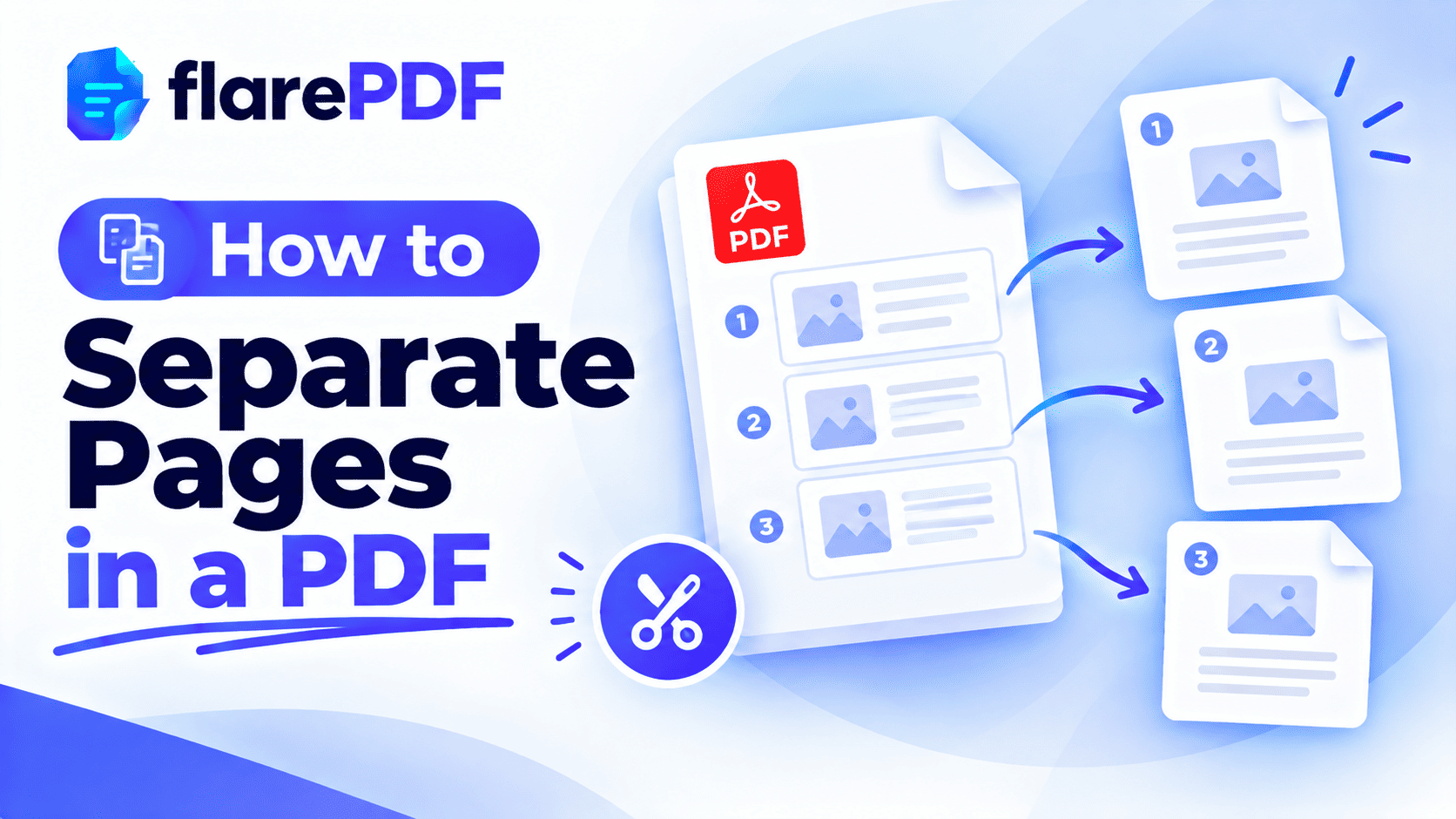
Separating pages in a PDF means taking pages out of one PDF file and saving them as new, separate PDF files. You can make every page its own file, pull a few chosen pages into one new PDF, or save just a single page. The original file usually stays unchanged.
People use different words for the same task: separate, extract, split, divide, break up or cut. They all mean moving pages out of one PDF and into new files.
For splitting large files into several parts by range, see our full guide to splitting a PDF into multiple files.
Separate vs extract vs split vs delete: what’s the difference?
These tasks sound alike, but each one gives you a different result.
Separate: Every page becomes its own file. A 10-page PDF turns into 10 one-page PDFs.
Extract: Chosen pages go into one new PDF. For example, pages 3 to 5 become a new 3-page file.
Split: The file is cut into several parts by page ranges, such as pages 1–10 and 11–20.
Delete: Unwanted pages are removed, and you keep the rest in the same document.
If you want to remove pages rather than copy them out, read how to delete pages from a PDF.
Why would you need to separate PDF pages?
Most PDFs bundle many pages together. Often you only need some of them.
Here are the most common reasons people separate pages:
- Online applications: a portal asks for your CNIC, degree and transcript as separate uploads, but you scanned them as one file.
- Contracts: you only need to send back the signed page, not the whole agreement.
- Study: you want to share one chapter of a textbook PDF, or one page of lecture notes.
- Finance: you need to pull a few months out of a long bank statement for a visa application.
- HR: you need to separate each employee’s payslip from one combined file.
- Freelancing: you need to send a client only the pages relevant to their project.
- Upload limits: smaller files with fewer pages are easier to fit under portal size limits.
How to separate pages in a PDF with FlarePDF, step by step
The easiest way to separate PDF pages online is FlarePDF’s free Split PDF tool. There’s no account to create.
- Open the Split PDF page in your browser.
- Upload your PDF: drag it onto the page or pick it from your files.
- Choose how to separate it: Split evenly with 1 page per file gives every page as its own file, and By range lets you set custom page ranges.
- Enter page numbers if you only need certain pages, such as 2 or 4–6.
- Split the file.
- Download your new PDFs. Multiple files download together as a ZIP.
Pro tip: Before splitting, scroll through the file and note the exact page numbers you need. It saves you from downloading the wrong pages.
How to save one page of a PDF (works on any device)
To save one page of a PDF, use “Print to PDF” and print only that page into a new PDF file. It’s built into almost every computer and phone, so you don’t need extra software.
In Google Chrome or Microsoft Edge (Windows, Mac or Chromebook)
- Open the PDF in Chrome or Edge.
- Press Ctrl + P (Windows) or Command + P (Mac).
- Set Destination to Save as PDF.
- Under Pages, choose Custom and type the page number, such as 3.
- Click Save and choose where to store the file.
You can also type a range like 2-5 or a list like 1,3,7. Google’s guide to printing from Chrome explains the print options.
On Windows with Microsoft Print to PDF
- Open the PDF in any app.
- Press Ctrl + P.
- Choose Microsoft Print to PDF as the printer.
- Under the page range, enter the page you want.
- Click Print, name the new file and save it.
On iPhone or iPad
- Open the PDF in the Files app.
- Tap Share, then Print.
- Tap Range and choose the page or pages you want.
- Tap the Share button at the top of Print Options, then Save to Files.
On older versions of iOS, spread two fingers on the page preview first. That opens it as a new PDF you can share.
On Android
- Open the PDF and tap the menu (three dots).
- Choose Print.
- Set the printer to Save as PDF.
- Under Pages, choose Range and enter the page number.
- Tap the PDF download button and save.
Quick note: Printing to PDF creates a “flattened” copy. Links, bookmarks and fillable form fields may not carry over. If you need those, use a PDF splitter instead.
How to separate pages in a PDF on Mac
Mac users can separate pages with Preview, which is free and already installed.
Drag a page out of Preview
- Open the PDF in Preview.
- Choose View > Thumbnails to show the page sidebar.
- Drag a page thumbnail onto your desktop.
- Preview saves that page as its own new PDF.
To grab several pages at once, hold Command, click each thumbnail, and drag them together.
Save a page range in Preview
- Choose File > Print.
- Under Pages, choose a range, for example from 4 to 6.
- Click the PDF menu at the bottom and choose Save as PDF.
Apple’s Preview User Guide covers more page tools. For other Preview tips, read how to edit a PDF on Mac for free.
How to split a PDF into individual pages
To split a PDF into individual pages, choose the “split every page” option in a PDF splitter. Each page becomes its own one-page PDF.
This is perfect when you’ve scanned several documents into one file and need each one separately.
- Open Split PDF.
- Upload your file.
- Choose Split evenly and set Pages per file to 1.
- Download the separate files.
On a Mac, you can also drag each thumbnail from Preview to your desktop, one by one.
How to separate scanned documents into different files
A common problem is a single scan that holds your CNIC, degree certificate and transcript. Each portal upload box needs its own file.
- Split the scan into individual pages.
- Rename each file clearly, such as “Sara_CNIC.pdf” or “Sara_Degree.pdf”.
- Check each file’s size against the portal’s limit.
If a page is still too big, follow our guide on how to compress a PDF to 200KB or 100KB. To scan pages separately next time, see how to scan a document to PDF.
How to extract specific pages from a PDF
To extract pages from a PDF, choose a custom page range in a PDF splitter or in the print dialog. The chosen pages are saved together in one new PDF.
For example, to pull pages 5 to 9 out of a 40-page report:
- Online: enter 5-9 as a custom range in Split PDF, using the By range option.
- Chrome or Edge: print to PDF and set Pages to 5-9.
- Mac Preview: print pages 5 to 9 and choose Save as PDF.
How to separate odd and even pages
Some print dialogs offer odd pages only or even pages only. If yours doesn’t, type the pages as a list, such as 1,3,5,7,9, into the custom pages box.
How to extract pages in Adobe Acrobat
If you use Adobe Acrobat, open the Organize Pages tool, select the pages, and choose Extract. You can choose to extract them as separate files or as one new PDF. Menu names can differ between Acrobat versions.
Does separating pages change the original PDF?
No. Splitting, extracting and printing to PDF all create new files and leave your original untouched. The only exception is an option like “delete pages after extracting” in some apps, which removes them from the original.
Pro tip: Keep a backup of the full original anyway. It’s easy to lose track of which file is which after splitting.
Can you separate pages from a password-protected PDF?
You’ll need the password to open the file first. Some PDFs also block extracting or printing through their security settings. Only work around restrictions on files you own or have permission to change.
What to do after separating pages
Once your pages are separate, you might need to do more with them.
- Combine them in a new order: use Merge PDF, or read how to combine multiple PDFs into one.
- Reorder or rotate pages: use Organize PDF, or see how to reorder, rotate and delete PDF pages.
- Add pages from another file: read how to add pages to a PDF.
- Sign an extracted page: use Sign PDF, or see how to insert a signature in a PDF.
- Save a page as an image: use PDF to JPG.
Key features and benefits of FlarePDF Split PDF
- Free to use: every FlarePDF tool costs nothing.
- No account or login: open the tool and start.
- Simple steps: upload, choose pages, split and download.
- Related tools in one place: merge, organize, compress and sign on the same site.
- Split options: pick pages, custom ranges or split evenly (including one page per file), with a ZIP download.
- File handling: PDFs up to 50MB. Files are processed in your browser and never sent to flarePDF's servers.
Why choose FlarePDF to separate pages?
Print to PDF is great for grabbing one page. But when you need to split a long scan into many files, a dedicated splitter is faster and keeps links and form fields that printing may lose.
FlarePDF lets you do it in your browser without installing software or creating an account. That’s handy on work laptops, shared computers and phones. For details on how files are handled, see the FlarePDF privacy page.
Tips and common mistakes
- Note page numbers first. Write down exactly which pages you need before you start.
- Check the page count. Make sure a scan doesn’t have hidden blank pages that shift the numbering.
- Rename every new file. “Contract_Signed_Page.pdf” beats “document (3).pdf”.
- Keep the original. Store the full file safely after separating pages.
- Use a splitter for forms. Printing to PDF can remove fillable fields and links.
- Redact before sharing. If an extracted page shows private details, follow how to redact in Adobe Acrobat or our guide to permanently redacting a PDF.
- Check file sizes. Separated pages are usually smaller, but high-resolution scans may still need compressing.
Real-world examples
A graduate in Lahore scanned his CNIC, degree and domicile into one PDF. The job portal needs each in its own upload box, so he splits every page and renames each file before uploading.
A student in Pune needs to share Chapter 4 of a textbook PDF with her study group. She prints pages 61 to 78 to a new PDF in Chrome and shares just that file.
A freelancer in Toronto signed a 15-page client agreement. The client only wants the signature page back, so she saves that single page as a new PDF and emails it.
An HR officer in Dubai has a combined PDF of 30 payslips. He splits it into individual pages and sends each employee their own file.
Related PDF tools you may need
- Split into larger parts: read how to split a PDF into multiple files.
- Remove pages instead: use Organize PDF to delete or reorder pages.
- Shrink separated files: use Compress PDF.
- Understand signature types: read electronic signature vs digital signature.
- New to PDFs? Start with what a PDF is.
Frequently Asked Questions
How do I separate pages in a PDF?
Upload the PDF to a free PDF splitter, choose to split every page or enter the pages you want, and download the new files. Each page or range becomes its own PDF, and your original file stays unchanged.
How do I save just one page of a PDF?
Open the PDF in Chrome or any PDF reader, press Ctrl + P or Command + P, and choose Save as PDF or Microsoft Print to PDF. Set Pages to Custom, type the page number, and save.
How do I extract pages from a PDF for free?
Use a free online tool like FlarePDF Split PDF to pull out a page range, or print to PDF with a custom page range. Both methods create a new PDF containing only the pages you choose, without changing the original.
How do I split a PDF into individual pages?
Choose the option to split every page in a PDF splitter, then download the results, usually as a ZIP file. On a Mac, you can also drag each thumbnail from Preview’s sidebar to your desktop.
Can I separate PDF pages without Adobe?
Yes. You can use a free online splitter, print to PDF from Chrome or Edge, use Microsoft Print to PDF on Windows, or use Preview on a Mac. None of these require Adobe Acrobat.
How do I separate pages in a PDF on Mac?
Open the PDF in Preview and choose View, then Thumbnails. Drag a page thumbnail to your desktop to save it as its own PDF, or select several pages, choose Print, and save the range as a PDF.
Does separating pages change the original PDF?
No. Splitting, extracting and printing to PDF all create new files and leave the original untouched. Still, keep a backup of the original, especially before you delete pages or edit anything.
Will separating pages reduce file size?
Usually, yes. A file with fewer pages is normally smaller, which helps with upload limits. If a single page is still too big, for example a high-resolution scan, compress it after separating.
Conclusion
Now you know how to separate pages in a PDF on any device. Use a PDF splitter to turn every page into its own file or extract a custom range. Use Print to PDF when you just need to save one page, or Preview’s thumbnails on a Mac. Rename your new files clearly, and keep the original safe.
Ready to split your file? Try Split PDF free now. No sign-up, no login.
Keep reading
More guides from the flarePDF blog