How to Redact in Adobe Acrobat: Mark, Apply and Sanitize
Learn how to redact in Adobe Acrobat step by step. Mark text, apply redactions and sanitize hidden data, then check the file so nothing leaks.
How to Redact in Adobe Acrobat: Mark, Apply and Sanitize
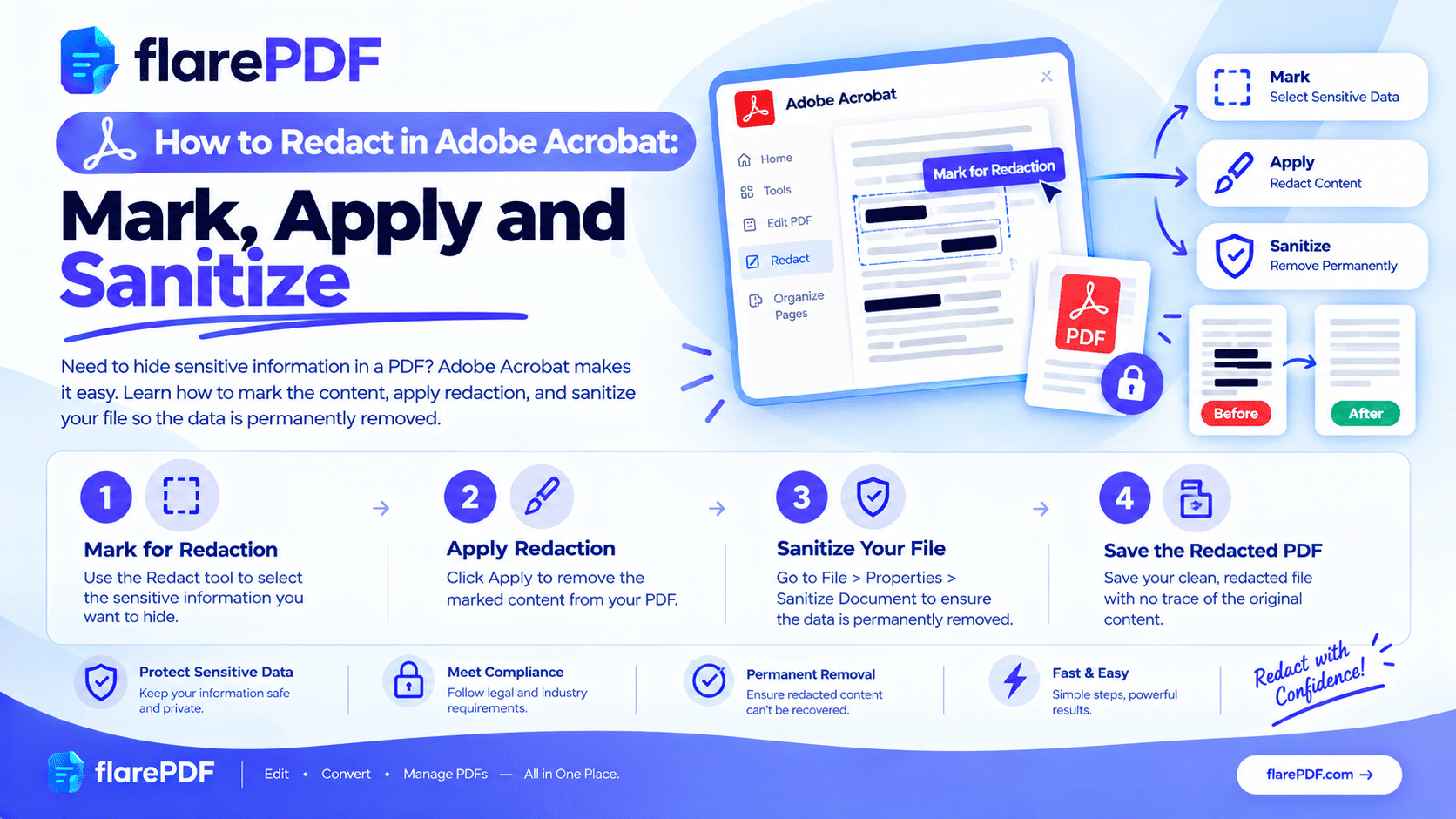
Here’s how to redact in Adobe Acrobat: open the Redact tool in Acrobat Pro, mark the text, images or pages to hide, click Apply, then run Sanitize Document to remove hidden data. Save the result as a new file.
That last part is where most mistakes happen. People mark text in red and assume it’s gone. Or they draw a black box, send the file, and the “hidden” words can still be copied out in seconds.
This guide walks you through all three stages: mark, apply, and sanitize. You’ll learn the Find Text and Redact tool, page redaction and redaction properties, plus how to check your file before you share it. FlarePDF text extractor, which helps you check, is free with no sign-up.
What is redaction in Adobe Acrobat?
Redaction in Adobe Acrobat permanently removes selected text, images or pages from a PDF and replaces them with a solid box. Unlike drawing a shape on top, it deletes the original content from the file. Nobody can copy, search or recover it afterward, and Sanitize removes hidden data like metadata.
The word “redact” simply means to remove or hide information before a document is shared. In PDFs, it has a stricter meaning. The content must be gone, not just covered.
For free methods and the full background, see our complete guide to permanently redacting a PDF.
Quick note: “Redact” and “retract” are different words. Redact means hiding information in a document. Retract means taking back something you said or published.
Why proper redaction matters
A bad redaction can expose exactly what you meant to hide. That can be a legal, financial or personal risk.
People redact PDFs for many reasons:
- Legal work: removing client names or privileged details before court filings or discovery
- HR: hiding salaries, home addresses or ID numbers in employee documents
- Finance: blacking out account numbers on bank statements before sharing them
- Official forms: hiding CNIC, Aadhaar or Emirates ID numbers on copies sent for verification
- Freelancing: removing client names from a portfolio or case study
- Privacy requests: releasing records under GDPR in the UK or FOIA in the US with personal data removed
In every case, the content must truly be removed. A black rectangle that hides words on screen isn’t enough.
Mark vs apply vs sanitize: what’s the difference?
This is the most important idea in Acrobat redaction. Each stage does a different job.
Mark: Shows what you plan to remove, usually with a red outline. You can still change or undo it. Nothing has been deleted yet.
Apply: Permanently deletes everything under your marks and replaces it with a solid box. This can’t be undone once saved.
Sanitize: Removes hidden information the marks don’t touch, such as metadata, comments, attachments, hidden text and scripts.
Think of it like this. Marking is planning, applying is deleting, and sanitizing is cleaning up what’s left behind. A safe redaction uses all three.
Before you start: what you need
You need Adobe Acrobat Pro. The free Adobe Acrobat Reader doesn’t include the Redact tool. If you only have Reader, see the free alternatives section below.
Before redacting:
- Make a copy of the original file and store it safely.
- List what to hide: names, numbers, addresses, pages or images.
- Check whether the PDF is scanned. If you can’t select text, it’s a scan, and Find Text won’t see the words until you run OCR.
Not sure if your file is scanned? Our guide on what a PDF is explains native, scanned and searchable PDFs.
How to redact in Adobe Acrobat, step by step
Menu names can differ slightly between Acrobat versions. The steps below follow the current layout, with older names noted where helpful.
Step 1: Open the Redact tool
- Open your PDF in Adobe Acrobat Pro.
- Select All tools, then choose Redact a PDF. In older versions, go to Tools > Redact.
- The redaction options appear in the side panel.
Step 2: Mark text and images for redaction
- Choose Redact text & images.
- Drag across the text you want to hide, or double-click a word to select it.
- To hide part of an image, drag a box over that area.
- Each selection shows a red outline. That’s a redaction mark.
Pro tip: Hover over a mark to preview how the final box will look. Right-click a mark to delete it if you selected the wrong area.
Step 3: Find and redact repeated words or patterns
If a name or number appears many times, don’t hunt for each one by hand.
- Choose Find text & redact.
- Pick what to search for:
- Single word or phrase, such as a person’s name
- Multiple words or phrases, such as a list of client names
- Patterns, such as phone numbers, email addresses, credit card numbers or dates
- Run the search and review the results list.
- Tick the results you want and mark them for redaction.
Quick note: Pattern searches are built around common formats. They may miss numbers formatted differently, such as a Pakistani CNIC or Indian Aadhaar number. Search for those manually as well.
Step 4: Redact whole pages
Sometimes an entire page has to go, such as a signature page or an appendix with personal data.
- Choose Redact pages.
- Enter the page or page range.
- Mark the pages.
If you’d rather delete pages completely instead of leaving blank boxes, see how to delete pages from a PDF.
Step 5: Set redaction properties
You can control how redacted areas look.
- Open Set redaction properties. In older versions, open Properties in the Redact toolbar.
- Choose the fill color for redacted areas. Black is the default.
- Turn on Use overlay text to add a label like “Redacted”.
- Add redaction codes if needed. Acrobat includes code sets such as US FOIA and Privacy Act exemptions.
Legal and government teams often use codes, so readers know why each item was removed.
Step 6: Apply the redactions
This is the step that actually removes content.
- Click Apply in the redaction toolbar or panel.
- Read the confirmation message and confirm.
- Acrobat may ask whether to also remove hidden information. Choose yes, or do it in the next step.
Your red outlines turn into solid boxes. The content underneath is now deleted.
Step 7: Sanitize the document
Redaction boxes remove visible content. Sanitizing removes what you can’t see.
- Choose Sanitize document.
- Confirm to remove hidden information.
For more control, choose Remove hidden information instead. You can then pick specific items to remove, such as:
- Metadata: author name, title and editing history
- Comments and annotations
- File attachments
- Hidden text and hidden layers
- Form fields
- Bookmarks
- Links, actions and scripts
- Deleted or cropped content still stored in the file
Step 8: Save as a new file
- Choose File > Save As.
- Give it a clear name. Acrobat often suggests adding “_Redacted” to the file name.
- Keep the original stored safely and share only the redacted copy.
Pro tip: Never overwrite your original. If you over-redact by mistake, you’ll need it to start again.
How to redact a scanned PDF in Acrobat
Scanned PDFs are images of pages, so Acrobat can’t search their text until it recognizes the words.
You have two options:
- Draw boxes manually. Use Redact text & images and drag boxes over the areas to hide, then apply. This works without OCR.
- Run OCR first. Use Acrobat’s Scan & OCR tool and choose Recognize text. Then Find text & redact can locate words across the whole document.
New to OCR? Our guide on what OCR is explains it in plain English.
Quick note: After OCR, a scan has a hidden text layer. Make sure your redaction covers the words in that layer as well as the image. Then sanitize to remove anything left behind.
How to black out text in Adobe the right way
Many people search for how to black out text in a PDF when they actually need redaction. The difference matters.
Black box or shape: Covers text visually. The words are still in the file and can be copied, searched or revealed by moving the box.
Black highlight: Also only covers the text. It’s very easy to undo.
Redaction (applied): Deletes the text and replaces it with a box. Nothing remains to copy or reveal.
If the goal is privacy, always use the Redact tool, never a shape or highlight.
Why didn’t my redaction work?
Most failed redactions come from five mistakes. Check each one before you share a file.
- Marks were never applied. Red outlines mean the content is still there.
- A shape or highlight was used instead of Redact. The text sits underneath, untouched.
- The original was shared by mistake. Saving under a new name prevents this.
- The OCR text layer was missed. On scans, hidden recognized text can survive if you don’t redact and sanitize properly.
- Metadata wasn’t removed. The author’s name, earlier titles or comments can still reveal sensitive details.
How to check your redaction with FlarePDF, step by step
Before you send a redacted file, test it. One quick check is FlarePDF Extract Text from PDF tool, which pulls out all the text a PDF still contains. It’s free, with no account to create.
- Open the Extract Text from PDF page.
- Upload your redacted PDF: drag it onto the page or pick it from your files.
- Extract the text.
- Search the results for the names or numbers you redacted.
- Confirm none of them appear.
If a redacted word shows up, the redaction didn’t fully remove it. Go back to the original and redact again.
Quick note: Upload only files you’re comfortable processing online. For details, read the FlarePDF privacy page. Extract Text reads the PDF's text layer, which is where a failed redaction leaves words behind.
Other quick checks
- Search the PDF: press Ctrl + F (Command + F on Mac) and search for a redacted word.
- Copy and paste test: select text across a redacted area and paste it into a notepad.
- Check properties: open File > Properties and look at the author, title and keywords.
Our guide on how to copy text from a PDF explains more ways to see what text a file still holds.
Can a redacted PDF be unredacted?
Not if the redaction was applied properly. Applied redactions delete the content, so there’s nothing left to recover.
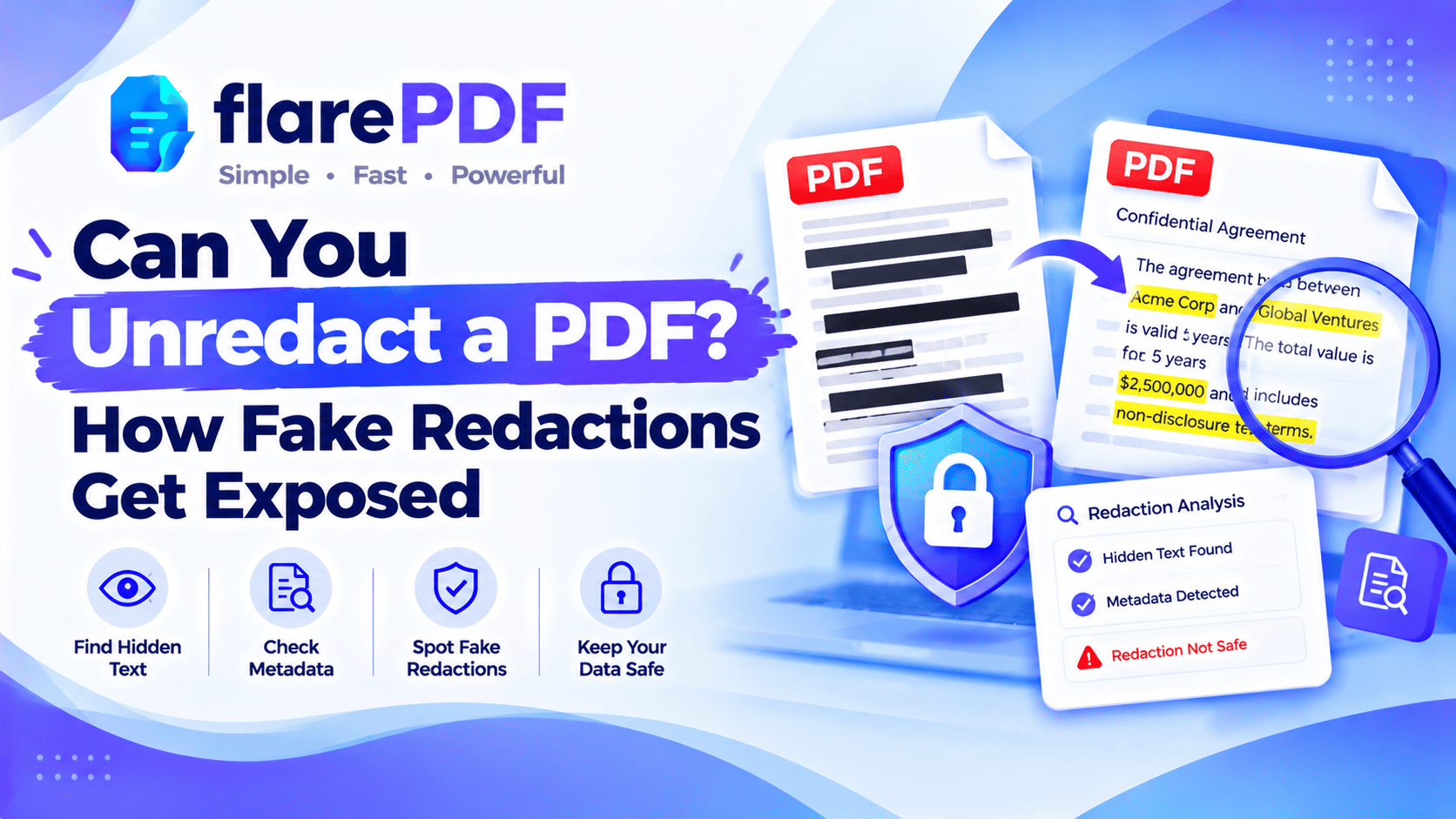
Fake redactions are a different story. Black boxes, highlights, and covered-up text can often be removed or copied, exposing the original words. That’s why people search for “how to unredacted a PDF”. The answer is usually that the file was never truly redacted.
Use this knowledge to protect your own documents. Always check your redacted files before sharing, using the steps above.
Pro tip: If you need to change a redaction later, go back to your saved original and redact it again. You can’t undo an applied redaction in the shared copy.
How to redact a PDF without Adobe Acrobat Pro
If you don’t have Acrobat Pro, you still have safe options:
- Delete whole pages that contain sensitive information with Organize PDF, or split out only the pages you need with Split PDF.
- Follow free redaction methods in our complete guide to permanently redacting a PDF.
- Avoid fake redaction in Word or basic editors. Word has no true redaction tool, so drawing boxes there doesn’t remove the text either.
Whatever method you use, test the result with a text extractor before sharing.
Key benefits of using FlarePDF alongside Acrobat
- Free to use: every FlarePDF tool costs nothing.
- No account or login: open a tool and start.
- A quick redaction check: extract text to confirm hidden words are gone.
- Page tools: delete, split or reorder pages without extra software.
- Finishing tools: compress, watermark or sign your redacted copy.
- File handling: PDFs up to 50MB. Files are processed in your browser and never sent to flarePDF's servers.
Why choose FlarePDF for the steps around redaction?
Acrobat Pro handles the redaction itself. FlarePDF helps with everything around it: checking the result, removing whole pages, shrinking the file for a portal, or watermarking it as a redacted copy.
You can do all of that in your browser without installing more software or creating an account.
Tips and common mistakes
- Always keep the original. Store the unredacted file safely and share only the redacted copy.
- Redact, apply, then sanitize. Skipping any stage can leave data behind.
- Search for every variation. Check full names, first names, initials and numbers with and without dashes.
- Check headers, footers and images. Names often hide in logos, stamps or page footers.
- Don’t forget attachments and comments. Sanitize removes them, but only if you run it.
- Label redacted copies. Add a watermark like “Redacted copy for review”.
- Test before you send. Search, copy-paste and extract text every time.
Real-world examples
A paralegal in Chicago prepares exhibits for a court filing. She uses Find text and redact to remove a client’s name across 80 pages, applies the redactions, sanitizes the file, and runs a final text check.
An HR manager in Karachi shares an employment letter with a bank. He redacts the salary and CNIC number, then saves it as a new “_Redacted” file.
A freelance designer in London adds a client report to her portfolio. She redacts the client’s name and logo, then watermarks the copy as a sample.
A small business owner in Dubai sends invoices to an auditor. She redacts customer phone numbers using the phone number pattern, then compresses the file for email.
Related PDF tools you may need
- Shrink the redacted file for a portal: use Compress PDF, or read how to compress a PDF to 200KB or 100KB.
- Sign after redacting: use Sign PDF.
- Mark it as redacted: use Add Watermark to PDF.
- Remove unneeded pages: read how to split a PDF into multiple files.
- Working on a Mac? See how to edit a PDF on Mac for free.
For Adobe’s own reference, see the official guide to removing sensitive content from PDFs.
Frequently Asked Questions
How do I redact in Adobe Acrobat?
Open the PDF in Acrobat Pro, choose the Redact tool, and select the text, images or pages to hide. Click Apply to permanently remove them, then run Sanitize Document to delete hidden data. Save the result as a new file.
Can you redact in Adobe Acrobat Reader?
No. The free Acrobat Reader does not include the Redact tool. You need Acrobat Pro for true redaction. Drawing black boxes or highlights in Reader only covers the text, which can still be copied or found by search.
Why are my redactions not applied?
Usually because they were only marked, not applied. Marked areas show a red outline, but the content is still there. Click Apply in the Redact toolbar, confirm, and save the file under a new name before you share it.
What is the difference between marking and applying redactions?
Marking shows what you plan to remove, using red outlines, and can still be changed. Applying permanently deletes the content under those marks and replaces it with a box. You must apply redactions before sharing the file.
What does Sanitize Document do in Acrobat?
Sanitize Document removes hidden information from a PDF, such as metadata, comments, attachments, hidden text, hidden layers and scripts. It protects details that redaction boxes do not touch, like the author’s name or earlier comments.
Can a redacted PDF be unredacted?
Not if the redaction was applied properly. Applied redactions delete the content, so there is nothing left to recover. Fake redactions, such as black boxes or highlights, can often be removed, which is why using a real Redact tool matters.
How do I redact a scanned PDF in Acrobat?
Draw redaction boxes over the areas you want to hide, then apply them. To use Find Text and Redact on a scan, run Recognize Text first, because Acrobat needs a text layer to search for words.
How do I check that a redaction worked?
Search the PDF for the redacted words, try copying text from the blacked-out area, and check File Properties for metadata. You can also run the file through a free text extractor to confirm the hidden words are gone.
Conclusion
Now you know how to redact in Adobe Acrobat the safe way. Mark what to hide, apply the redactions to delete it, then sanitize to remove hidden data. Save a new copy and keep the original safe. Before you share anything, search, copy-paste and extract the text to prove the sensitive details are really gone.
Double-check your redacted file now. Try Extract Text from PDF free. No sign-up, no login.
Ready to try it yourself?
No sign-up, no upload — your files never leave your device.
Check a redaction with Extract TextKeep reading
More guides from the flarePDF blog