How to Rotate a PDF Permanently and Save It (Free)
Learn how to rotate a PDF permanently so it stays fixed. Rotate one page or all pages and save on Windows, Mac, iPhone, Android or Google Drive.
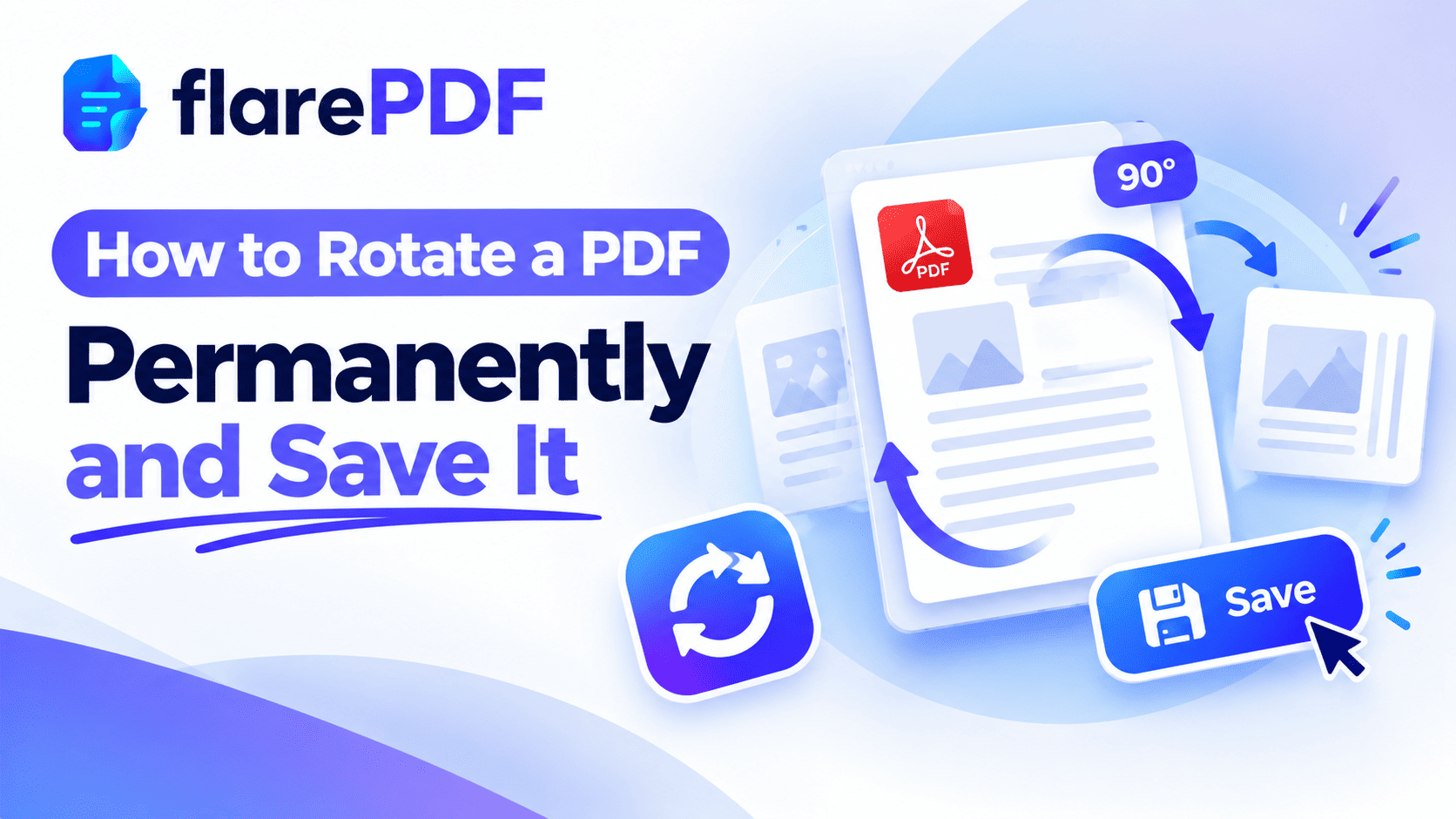
How to Rotate a PDF Permanently and Save It
Here’s how to rotate a PDF permanently: use a tool that rotates the page itself, not just the view. Upload the PDF to a free page organizer, turn the pages you need, and download the new file.
Most people try the rotate button in Chrome, Edge or Adobe Reader first. The page turns, everything looks fine, and then the file opens sideways again tomorrow. That’s because those buttons usually only rotate what you see on screen.
This guide explains why that happens and how to fix it for good. It covers one page or all pages, on Windows, Mac, iPhone, Android and Google Drive. FlarePDF’s Organize PDF tool is free, with no sign-up.
What does it mean to rotate a PDF permanently?
Rotating a PDF permanently means changing the direction of a page inside the file itself, so it stays turned every time anyone opens it. A temporary rotation only changes how the page looks on your screen. The file stays the same, so the page goes back to sideways when it’s reopened or shared.
Rotation works in steps of 90 degrees. Turn a page once and portrait becomes landscape. Turn it twice, 180 degrees, and an upside-down scan becomes the right way up.
For reordering and deleting pages too, see our full guide to reordering, rotating and deleting PDF pages.
Why didn’t my PDF rotation save?
Most PDF viewers only rotate the view, not the page. This is the number one reason rotations “don’t save”.
View rotation (temporary): It only turns the page on your screen. Chrome, Edge, Firefox, the Google Drive viewer and Adobe Reader’s “Rotate View” usually work this way. Close and reopen the file, and it’s sideways again.
Page rotation (permanent): It changes the page inside the file. FlarePDF Organize PDF, Mac Preview, the iPhone Files app and Adobe Acrobat Pro’s Organize Pages work this way. The page stays fixed for everyone.
So if your fix keeps disappearing, the tool you used was probably rotating the view. Switch to one that rotates the page.
Why rotating a PDF correctly matters
A sideways page is more than annoying. It can get a document rejected or make it hard to read.
People need permanent rotation for:
- Online applications: a sideways CNIC, passport or certificate scan looks careless and may be rejected by the portal.
- Study: lecture slides and textbook scans often come out sideways or upside down.
- Work reports: landscape charts and wide tables need to sit correctly inside portrait reports.
- Contracts: one landscape page inside a portrait agreement must be readable before signing.
- Freelancing: clients judge you on how professional your files look.
- Small business: receipts and invoices photographed at odd angles need fixing before they go to the accountant.
Once the rotation is saved, the file looks right on every device, for every reader.
How to rotate a PDF permanently with FlarePDF, step by step
The simplest way to rotate pages and keep them that way is FlarePDF free Organize PDF tool. There’s no account to create.
- Open the Organize PDF page in your browser.
- Upload your PDF: drag it onto the page or pick it from your files.
- Select the page you want to fix, or use Rotate all for every page.
- Rotate the page 90 degrees at a time until it’s the right way up.
- Apply your changes.
- Download the new PDF.
Open the downloaded file once to check it. The rotation is now part of the file, so it stays fixed wherever you send it.
Pro tip: While you’re there, check the page order and remove any blank pages. It saves you a second trip.
How to rotate just one page in a PDF
To rotate only one page, select that single page in a page organizer and rotate it, leaving the others unchanged. This is common when one landscape chart sits inside a portrait report.
- Open Organize PDF and upload your file.
- Find the sideways page in the thumbnails.
- Rotate only that page.
- Download the file.
On a Mac, click the page thumbnail in Preview and press Command + R. Only that page turns.
Quick note: If you need to send just the fixed page, separate it afterward. Our guide on how to separate pages in a PDF shows you how.
How to change a PDF from portrait to landscape
To change a PDF from portrait to landscape, rotate the page 90 degrees. One turn switches it between the two orientations.
- Portrait to landscape: rotate the page 90 degrees left or right.
- Landscape to portrait: rotate it 90 degrees back.
Rotation changes the direction of the whole page. It doesn’t rearrange the text to fit a new shape. If a page has wide white margins after rotating, trim them with Crop PDF.
Rotate vs flip vs mirror: what’s the difference?
Rotate: It turns the page in 90-degree steps. This is what most people need.
Flip upside down: A 180-degree rotation. It fixes pages scanned upside down.
Mirror: It reverses the page like a reflection. Most PDF tools don’t offer this, and you rarely need it.
So when someone asks how to permanently flip a PDF, they usually mean rotating it 180 degrees.
How to rotate a PDF on Windows
Windows has no built-in PDF editor. The Chrome and Edge viewers include a rotate button, but it usually only turns the view, not the saved file.
For a rotation that stays, use an online tool:
- Open Organize PDF in Edge or Chrome.
- Upload the PDF and rotate the pages.
- Download the new file and replace the old one.
Pro tip: In Chrome’s PDF viewer, Ctrl + ] and Ctrl + [ rotate the view quickly. That’s handy for reading, but not for saving.
How to rotate a PDF on Mac with Preview
Mac users are lucky. Preview’s rotation is saved into the file.
- Open the PDF in Preview.
- Choose View > Thumbnails to show the page sidebar.
- Select the page or pages to rotate. Hold Command to select several.
- Press Command + R to rotate right, or Command + L to rotate left.
- Choose File > Save, or press Command + S.
Close and reopen the file to confirm the change stuck. Apple’s Preview User Guide covers more page tools. For other Preview tips, see how to edit a PDF on Mac for free.
How to rotate a PDF on iPhone and iPad
The Files app can rotate pages and save them. Steps can differ between iOS versions.
- Open the PDF in the Files app.
- Swipe from the left edge, or tap the sidebar icon, to show page thumbnails.
- Touch and hold the page you want to rotate.
- Choose Rotate Left or Rotate Right.
- Tap Done.
If you don’t see the thumbnails option, upload the file to Organize PDF in Safari instead.
Once the page is the right way up, you can sign it. See how to sign a PDF on iPhone and iPad.
How to rotate a PDF on Android
Most Android PDF viewers, including the Google Drive viewer, don’t save rotations. The easiest fix is an online tool.
- Open Chrome on your Android phone.
- Go to Organize PDF and upload the PDF from your files.
- Rotate the pages you need.
- Download the new file.
How to rotate a PDF in Google Drive
Google Drive’s viewer can’t save a rotation. You can turn pages while viewing, but the file itself doesn’t change.
To fix it permanently:
- Download the PDF from Google Drive.
- Rotate it with Organize PDF or Mac Preview.
- Upload the fixed file back to Drive.
Pro tip: To keep the same sharing link, right-click the original file in Drive and choose Manage versions. Then upload the rotated file as a new version. Everyone with the link sees the fixed copy.
How to rotate a PDF in Adobe Acrobat
Adobe Acrobat Reader (temporary)
In the free Adobe Acrobat Reader, go to View > Rotate View and choose clockwise or counterclockwise. You can also press Ctrl + Shift + Plus or Ctrl + Shift + Minus.
This is a view rotation. It usually won’t stay when you reopen the file.
Adobe Acrobat Pro (permanent)
In Adobe Acrobat Pro, open the Organize Pages tool. Select the pages, click the rotate arrows and save the file. This rotation is saved into the PDF. Menu names can differ between Acrobat versions.
Bluebeam
Bluebeam Revue users can rotate pages from the Document menu, then save the file.
How to fix an upside-down or sideways scanned PDF
Scanners and phone cameras often save pages the wrong way up, especially from document feeders.
- Open the scanned PDF in Organize PDF.
- Rotate upside-down pages by 180 degrees.
- Rotate sideways pages by 90 degrees.
- Download the fixed file.
To avoid the problem next time, check the preview before saving a scan. Our guides on how to scan a document to PDF and how to scan documents on iPhone have tips for straight scans. You can also use Scan to PDF.
Does rotating a PDF reduce quality?
No. Rotating only changes the direction a page is shown, not its text or images. Quality stays exactly the same.
One warning: some people work around view-only rotation by printing to PDF. That creates a new, flattened copy that can lose links, bookmarks and fillable form fields. A proper rotate tool avoids that.
Key features and benefits of FlarePDF Organize PDF
- Free to use: every FlarePDF tool costs nothing.
- No account or login: open the tool and start.
- Permanent rotation: the pages are changed in the downloaded file.
- More than rotation: reorder and delete pages in the same place.
- Related tools in one place: merge, split, crop, and compress on the same site.
- File handling: PDFs up to 50MB. Files are processed in your browser and never sent to flarePDF's servers.
Why choose FlarePDF to rotate PDFs?
Browser viewers are great for reading but rarely save your changes. FlarePDF gives you a permanent fix without installing software or creating an account.
It’s especially useful on Windows and Android, where there’s no built-in tool that saves rotations. For details on how files are handled, see the FlarePDF privacy page.
Tips and common mistakes
- Don’t trust the view. Close and reopen the file to confirm the rotation saved.
- Rotate before you sign. A signature placed on a sideways page will end up sideways too.
- Fix all pages in one go. Scroll through the whole document before downloading.
- Keep the original. Save a copy before making changes.
- Rename the fixed file. “Degree_Certificate_Fixed.pdf” avoids mixing it up with the old one.
- Rotate, then compress. If a portal has a size limit, read how to compress a PDF to 200KB or 100KB.
- Avoid print-to-PDF workarounds. They can strip links and form fields.
Real-world examples
A graduate in Karachi scanned his degree with his phone, and it came out sideways. He rotates it in Organize PDF before uploading it to a job portal, so the reviewer sees it the right way up.
A student in Chennai downloads lecture slides where every other page is upside down. She rotates those pages 180 degrees and saves one clean file to study from.
An analyst in London has a portrait report with two landscape charts. He rotates only those pages, then merges the report with an appendix using Merge PDF.
A small shop owner in Dubai photographs receipts at different angles. She turns them into a PDF, rotates each page upright and sends one tidy file to her accountant.
Related PDF tools you may need
- Reorder or delete pages: read how to delete pages from a PDF.
- Add missing pages: see how to add pages to a PDF.
- Combine rotated files: read how to combine multiple PDFs into one.
- Split out pages: use Split PDF.
- Every tool in one place: browse the free PDF tools guide.
Frequently Asked Questions
How do I rotate a PDF and save it permanently?
Upload the PDF to a page organizer like FlarePDF Organize PDF, rotate the pages you need, and download the new file. On a Mac, rotate in Preview and choose File, then Save. Both change the page itself, so the rotation stays.
Why does my PDF rotation not save?
Most viewers only rotate the view, not the file. Chrome, Edge, Firefox, Google Drive and Adobe Reader’s Rotate View turn the page on screen, but the file stays unchanged, so it looks sideways again when reopened.
How do I rotate just one page in a PDF?
Open the PDF in a page organizer, select only the page you want, and rotate it. Leave the other pages unchanged, then download or save the file. On a Mac, select the page thumbnail in Preview and press Command + R.
How do I change a PDF from portrait to landscape?
Rotate the page 90 degrees. A portrait page turned once becomes landscape, and turning it back makes it portrait again. Rotation changes the orientation of the page, but it does not rearrange or reflow the content on it.
How do I rotate a PDF in Adobe Acrobat Reader?
Choose View, then Rotate View, or press Ctrl + Shift + Plus. This only rotates the view, so it will not stay when you reopen the file. To save rotated pages, use Acrobat Pro’s Organize Pages tool or a free online organizer.
How do I rotate a PDF in Google Drive?
Google Drive’s viewer cannot save a rotation. Download the PDF, rotate it with a free tool, and upload the fixed file. To keep the same sharing link, use Manage versions in Drive to upload it as a new version.
Does rotating a PDF reduce quality?
No. Rotating changes the direction a page is displayed, not its text or images, so quality stays the same. Printing to PDF as a workaround can remove links, bookmarks and form fields, so a proper rotate tool is better.
Can I rotate a PDF without Adobe?
Yes. You can use a free online organizer like FlarePDF, Preview on a Mac, or the Files app on iPhone and iPad. All of these save the rotation into the file without needing Adobe Acrobat.
Conclusion
Now you know how to rotate a PDF permanently and save it. The key is to rotate the page, not just the view. Use Organize PDF on any device, Preview on a Mac, or the Files app on iPhone. Remember that Chrome, Edge, Google Drive, and Adobe Reader’s Rotate View only turn the display. Always reopen the file to check.
Fix your sideways pages now. Try Organize PDF Free. No sign-up, no login.
Ready to try it yourself?
No sign-up, no upload — your files never leave your device.
Open Organize PDFKeep reading
More guides from the flarePDF blog