How to Sign a PDF on iPhone and iPad (Free, No App)
Learn how to sign a PDF on iPhone and iPad with Markup or a free online tool. Sign from Files, Mail, WhatsApp or Gmail and send it back fast.
How to Sign a PDF on iPhone and iPad (Markup and Online)
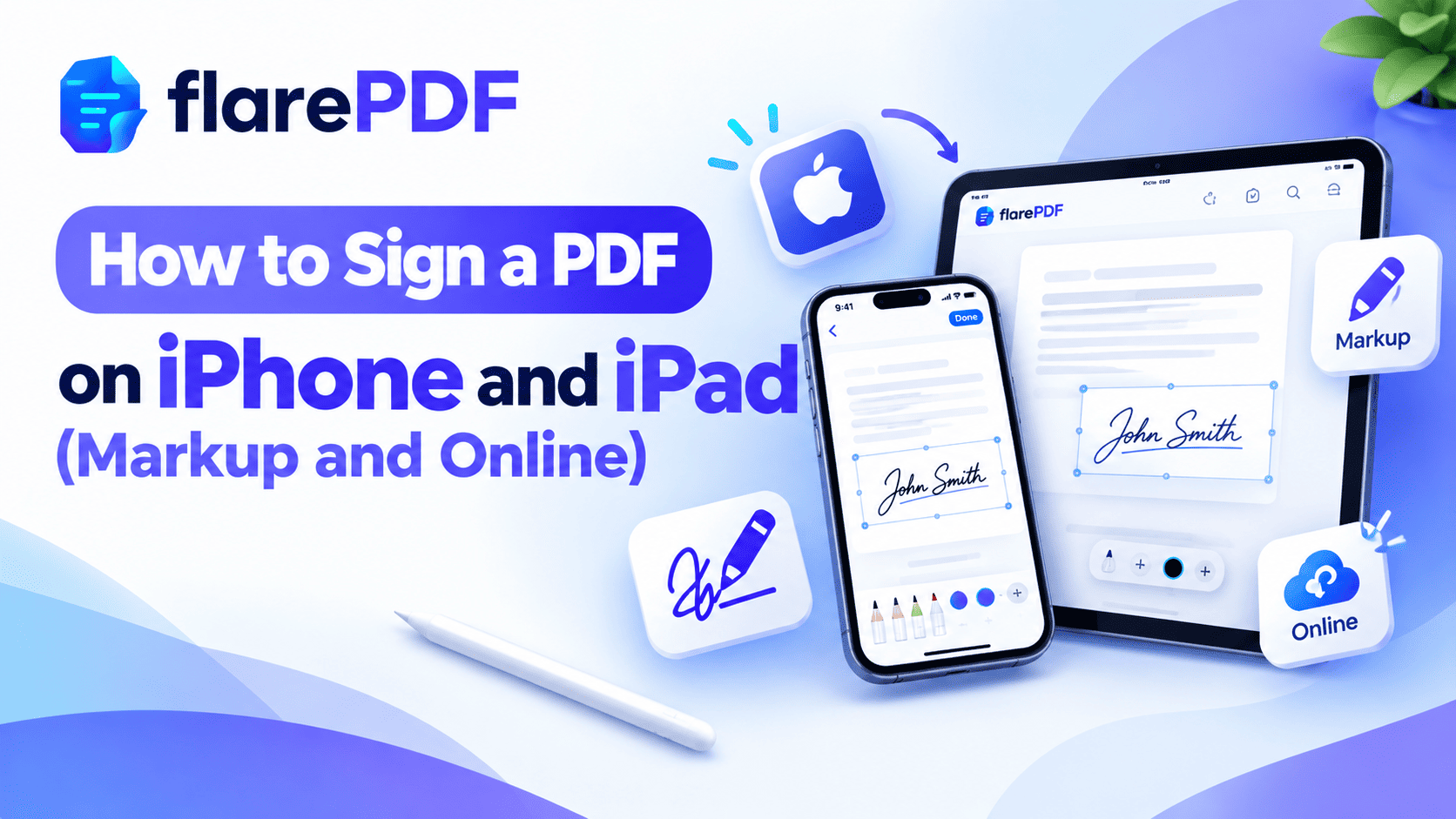
Here’s how to sign a PDF on iPhone: open it in the Files app, tap the Markup (pen) icon, tap the plus button and choose Add Signature. Draw your signature with your finger, tap Done, then drag it into place.
That’s the easy part. The tricky part is everything around it. The PDF came through WhatsApp and there’s no Markup button. Or the signature looks huge, or you’re not sure how to send it back.
This guide covers every way to sign on iPhone and iPad: the Files app, the Mail app, PDFs from other apps, and online in Safari. It also covers forms, Apple Pencil and fixes for common problems. FlarePDF Sign PDF tool is free, with no sign-up.
What does it mean to sign a PDF on iPhone?
Signing a PDF on iPhone means adding your signature to a PDF document using your phone’s screen, then saving or sending the signed file. You usually draw your signature with your finger or an Apple Pencil, then place it on the signature line. The result is an electronic signature on the PDF.
Your iPhone and iPad can do this without any extra apps, using a built-in feature called Markup. You can also sign online in Safari with a free tool.
For all signing methods across devices, see our full guide to inserting a signature in a PDF.
Why sign PDFs on your iPhone or iPad?
Most documents that need a signature now arrive by email or messaging apps. Printing, signing and scanning them back takes time you often don’t have.
Signing on your phone helps when you need to:
- Accept a job offer before the deadline, even when you’re away from a computer
- Sign a rental or tenancy agreement in the UAE, UK or US without visiting the office
- Sign a school or university form for yourself or your child
- Return an NDA or freelance contract to a client within minutes
- Approve an invoice or delivery note for your business
- Sign HR onboarding papers on an iPad during your first week
It’s quick, free and works almost anywhere.
Method 1: How to sign a PDF on iPhone with Markup in the Files app
The Files app is the most reliable place to sign a PDF on iPhone and iPad. It saves your signature straight into the file.
- Open the Files app and tap the PDF to open it.
- Tap the Markup button, a pen tip icon near the top or bottom of the screen.
- Tap the plus (+) button in the Markup toolbar.
- Choose Add Signature.
- Draw your signature with your finger, then tap Done.
- Drag the signature onto the signature line, use the corners to resize it, then tap Done to save.
Your PDF is now signed and saved in the same place.
Pro tip: Turn your iPhone sideways before drawing your signature. The wider space makes it much easier to sign neatly.
How to save and reuse your signature
Your iPhone saves your signature automatically after you create it. Next time, tap plus (+) and then Add Signature, and your saved signature appears in the list. Tap it to place it straight on the page.
How to delete or change a saved signature
- Open any PDF and tap Markup.
- Tap plus (+), then Add Signature.
- Tap Add or Remove Signature.
- Tap the red minus next to the signature you want to remove.
- Tap Done, then create a new signature if you need one.
Method 2: How to sign a PDF from email on iPhone (Mail app)
This is the fastest way to sign and send a PDF back. You never leave your inbox.
- Open the email in the Mail app.
- Tap the PDF attachment to open it.
- Tap the Markup icon.
- Tap plus (+), then Add Signature, and place your signature.
- Tap Done.
- Choose Reply, Reply All or New Message.
The signed PDF is attached to your reply automatically. Type a short note and send it.
Quick note: If you don’t see Markup on the attachment, tap Share, choose Save to Files, and sign it in the Files app instead.
Method 3: How to sign a PDF from WhatsApp, Gmail, Outlook or Google Drive
PDFs opened inside other apps often don’t show the Markup button. The fix is to save the PDF to Files first, then sign it there.
From WhatsApp
- Open the chat and tap the PDF.
- Tap the Share icon.
- Choose Save to Files and pick a folder.
- Open the Files app and sign the PDF with Markup.
- Share the signed PDF back to the chat.
From Gmail or Outlook
- Open the email and tap the attachment.
- Tap Share or the download icon.
- Choose Save to Files.
- Sign it in the Files app, then attach it to your reply.
From Google Drive or Dropbox
- Open the PDF in the app.
- Tap the three dots, then Open in or Send a copy.
- Choose Save to Files.
- Sign in the Files app, then upload or share the signed copy.
From Safari
Opened a PDF from a website? Tap Share, then choose Markup. Sign it, tap Done, and save it to Files.
Method 4: How to sign a PDF online on iPhone with FlarePDF
If you’d rather not use Markup, or you need to sign on a shared device, use FlarePDF free Sign PDF tool in Safari. There’s nothing to download and no account to create.
- Open Sign PDF in Safari on your iPhone or iPad.
- Upload the PDF from your Files app. The tool works in Safari.
- Create your signature by drawing it with your finger or typing it.
- Place the signature on the right line and resize it.
- Apply the signature.
- Download the signed PDF and save it to Files.
Pro tip: An online tool is handy when someone else’s iPhone or iPad is set up with their own saved signatures. You won’t mix yours up with theirs.
How to sign a PDF on iPad (with or without Apple Pencil)
Signing on iPad works the same way as on iPhone, through Markup in the Files or Mail app. The bigger screen just makes it easier.
With Apple Pencil
- Open the PDF in Files and tap Markup.
- Tap plus (+), then Add Signature.
- Sign with your Apple Pencil for a smooth, natural result.
- Tap Done and drag the signature into place.
Pro tip: With Apple Pencil, you can also write directly on the page with the pen tool. That’s useful for initials or short handwritten notes next to your signature.
Without Apple Pencil
Use your finger exactly as you would on iPhone. Signing in landscape mode gives you more room.
The official iPad User Guide covers Markup tools in more detail.
How to fill and sign a PDF form on iPhone
Many forms need your name, a date and other details before you sign.
- Open the form in Files and tap Markup.
- Tap plus (+) and choose Text.
- Tap the text box, choose Edit, and type your name.
- Drag the box into place. Tap the Aa button to change the font size.
- Add another text box for the date.
- Tap plus (+), then Add Signature, and sign.
- Tap Done to save.
On recent versions of iOS, your iPhone may detect form fields automatically and let you tap straight into them.
If you need to change printed text before signing, use the free PDF Editor.
Is a signature added on iPhone legally binding?
In most countries, yes, for everyday documents such as offer letters, leases, NDAs and invoices. A signature added with Markup or an online tool is an electronic signature.
Some documents need more. That includes certain government filings, tenders, wills or property deeds, which may require a certificate-based digital signature or a handwritten one. Learn the difference in our guide to electronic signature vs digital signature.
Quick note: This is general information, not legal advice. If a document is important, check what the receiving organization accepts.
Why can’t I sign a PDF on my iPhone?
Most signing problems come from where the PDF is opened. Here are the common issues and their fixes.
The Markup button is missing
The app you’re using may not support Markup. Tap Share, choose Save to Files, and open the PDF in the Files app.
The signature didn’t save
Make sure you tapped Done in the top corner after placing the signature. If you exit without tapping Done, your changes may be lost.
The signature is too big or in the wrong place
Tap the signature to select it. Drag it to move it, and pull the corner handles to resize it.
The PDF is password-protected
You’ll need the password to open it. Some protected PDFs also block annotations. Ask the sender for an unlocked copy.
The signed file is too big to send
If an email or portal rejects your signed PDF, shrink it with Compress PDF. For strict limits, read how to compress a PDF to 200KB or 100KB.
Paper form? Scan it, then sign it
If you only have a paper copy, turn it into a PDF first.
- Scan the page with your iPhone. Our guide on how to scan documents on iPhone shows you how, using the Notes or Files app.
- Open the scanned PDF in Files.
- Sign it with Markup.
You can also use Scan to PDF. If you’ve taken photos of the pages instead, combine them with JPG to PDF.
Key features and benefits of FlarePDF Sign PDF
- Free to use: every FlarePDF tool costs nothing.
- No account or login: open the tool and start signing.
- No app download: use it straight from Safari.
- Simple steps: upload, sign, place and download.
- Related tools in one place: compress, merge, split and edit on the same site.
- Signature options: draw or type your signature.
- File handling: PDFs up to 50MB. Files are processed in your browser and never sent to flarePDF's servers.
Why choose FlarePDF on iPhone and iPad?
Markup is excellent for quick signatures. FlarePDF helps when you need the next steps too. You might need to send only the signed page, combine it with other documents, or shrink the file for a portal.
It all happens in Safari without installing anything or creating an account. For details on how uploads are handled, see the FlarePDF privacy page.
Tips and common mistakes
- Read before you sign. Scroll through every page, not just the signature line.
- Keep the original. Duplicate the PDF in Files before signing, in case you make a mistake.
- Sign in landscape mode. It gives you a cleaner, more natural signature.
- Tap Done every time. It’s the most common reason signatures don’t save.
- Rename the signed copy. “Lease_Signed_Oct2026.pdf” is easier to find later.
- Send only what’s needed. Use Split PDF to send just the signed page, or read how to separate pages in a PDF.
- Protect your signature. Don’t send a clean image of your signature to people you don’t trust.
Real-world examples
A graduate in Islamabad receives a job offer by email while travelling. She opens it in the Mail app, signs with Markup and taps Reply. It’s done in under two minutes.
A tenant in Dubai gets a tenancy agreement on WhatsApp. He saves it to Files, signs it, and sends the signed PDF back in the same chat.
A parent in Manchester receives a school trip permission form. She adds her child’s name and the date with text boxes, signs it and emails it back.
A freelance designer in Bengaluru signs client contracts on her iPad with Apple Pencil. Then she merges them with her invoice using Merge PDF and sends one file.
Related PDF tools you may need
- Sign on any device: use Sign PDF.
- Signing a contract? Read how to sign a PDF contract online.
- On a Mac? See how to edit a PDF on Mac for free, which covers Preview signatures.
- Combine signed pages: read how to combine multiple PDFs into one.
- Every tool in one place: browse the free PDF tools guide.
Apple’s iPhone User Guide also explains Markup and the Files app.
Frequently Asked Questions
How do I sign a PDF on my iPhone?
Open the PDF in the Files app and tap the Markup icon. Tap the plus button, choose Add Signature, draw your signature with your finger and tap Done. Drag it onto the signature line, resize it, then tap Done to save.
How do I sign a PDF on iPhone without an app?
Use the built-in Markup tool in the Files or Mail app, which comes with every iPhone. You can also sign online by opening a free tool like FlarePDF Sign PDF in Safari, with no app download or account.
How do I sign a PDF from an email on iPhone?
Open the email in the Mail app, tap the PDF attachment, then tap the Markup icon. Add your signature, tap Done, and choose Reply or Reply All. Your signed PDF is attached to the reply automatically.
How do I sign a PDF on iPad with Apple Pencil?
Open the PDF in Files, tap Markup, then tap the plus button and choose Add Signature. Sign with your Apple Pencil for a smoother result, tap Done, and drag the signature into place on the page.
Where is Markup on iPhone?
Markup appears as a pen tip icon, usually at the top or bottom of the screen when you open a PDF in Files, Mail, or Photos. If you cannot see it, save the PDF to the Files app first and open it there.
How do I delete a saved signature on iPhone?
In Markup, tap the plus button, then Add Signature. Choose Add or Remove Signature, tap the red minus next to the signature you want to remove, and confirm. You can then create a new one.
Is a signature added with Markup legally binding?
In most countries, yes, for everyday documents like offer letters, leases and NDAs. It counts as an electronic signature. Some documents, such as wills or certain government filings, may need a digital or handwritten signature instead.
Can I sign a PDF on iPhone for free?
Yes. Markup is free and built into every iPhone and iPad, and FlarePDF Sign PDF is free online with no account. Both let you add a drawn signature and save or share the signed PDF.
Conclusion
Now you know how to sign a PDF on iPhone and iPad. Use Markup in the Files app for most documents, and the Mail app to sign and reply in one go. For PDFs from WhatsApp or Gmail, save them to Files first. Sign online in Safari when you’re on a shared device. Always tap Done, and rename your signed copy.
Ready to sign? Try Sign PDF free now. No sign-up, no login.
Keep reading
More guides from the flarePDF blog