How to Combine Images (JPG, PNG) Into One PDF (Free)
Learn how to combine images into one PDF for free. Merge JPG, PNG, photos and screenshots on Windows, Mac, iPhone or Android, with no app.
How to Combine Images (JPG, PNG) Into One PDF
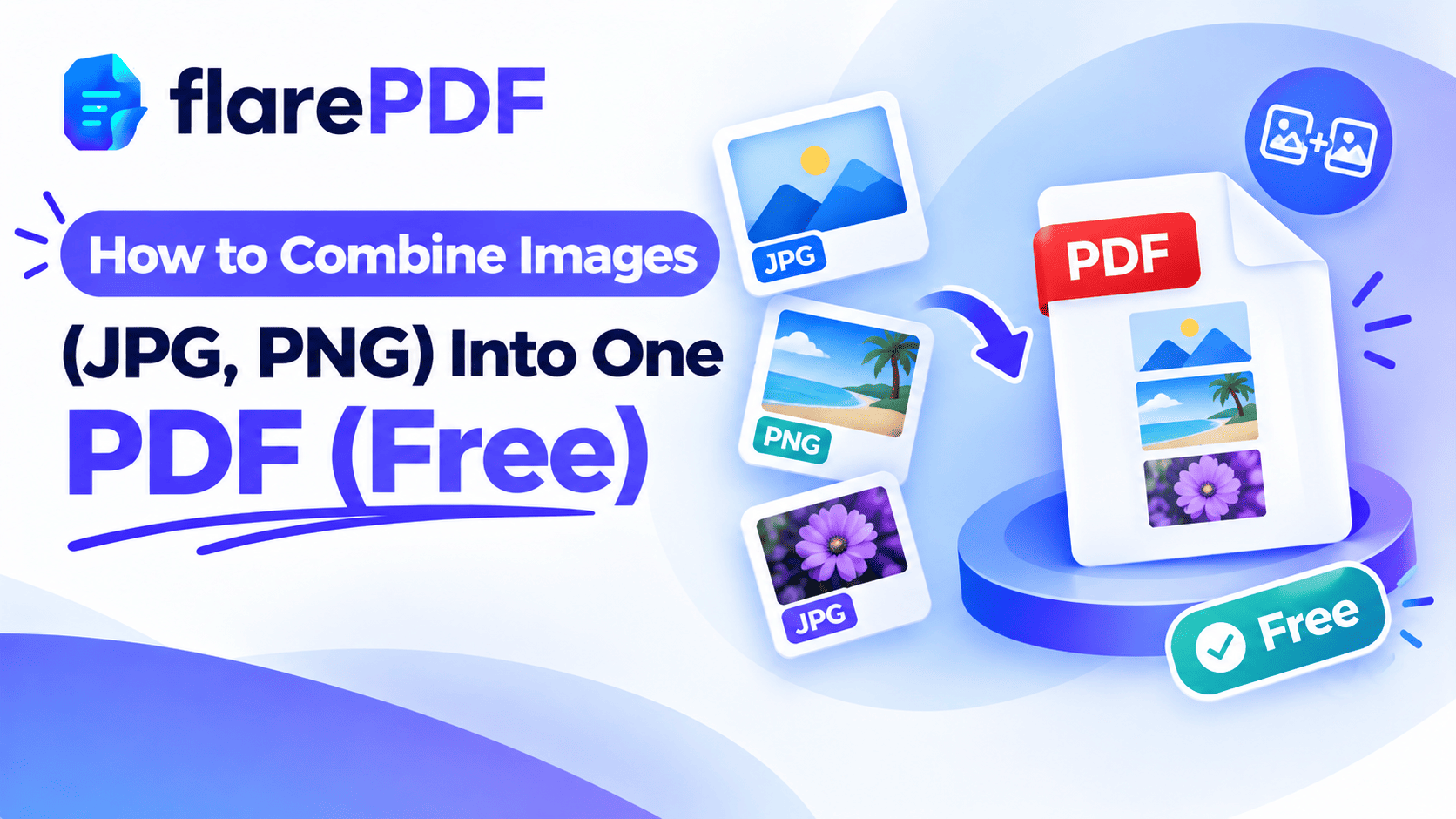
Here’s how to combine images into one PDF: upload all your JPG or PNG files to a free image-to-PDF tool, arrange them in order, and create the PDF. Each image becomes a page in a single file.
It sounds simple, but problems pop up fast. Your phone saves photos in a format some tools reject. The pages come out in the wrong order, or the final file is too big for the form you’re filling in.
This guide covers it all. You’ll learn the online method, built-in methods for Windows, Mac, iPhone and Android, and how to handle PNG files and screenshots. You’ll also see how to keep the file small. FlarePDF’s JPG to PDF tool is free, with no sign-up.
What does it mean to combine images into one PDF?
Combining images into one PDF means turning several picture files, such as JPG, PNG or screenshots, into a single PDF document where each image becomes a page. Instead of sending ten separate photos, you send one tidy file. It keeps everything in order and is easy to view, print or upload.
This is different from converting a single picture. For one image, see our guide to converting a single JPG to PDF. This article focuses on several images going into one file.
New to the format? Our plain-English guide on what a PDF is explains why PDFs are the standard for sharing documents.
Why combine images into a single PDF?
Separate image files are messy to send and easy to lose. One PDF is cleaner for you and for whoever receives it.
People combine images into one PDF for:
- Online applications: a portal wants your CNIC front and back, or several certificate photos, in one file.
- Study: you photographed handwritten assignment pages and need to submit them as one document.
- Expense claims: your manager wants all your receipts in a single file.
- Payment proof: you need to send screenshots of a bank transfer or a chat as one attachment.
- Freelancing: you’re sending a client a portfolio of designs or product photos.
- Visa applications: embassies in the UK, Canada and the UAE often ask for documents as PDFs.
One PDF also keeps the order you chose, so nobody opens page five first.
How to combine images into one PDF with FlarePDF, step by step
The quickest way to merge images into a PDF online is FlarePDF free JPG to PDF tool. There’s no account to create.
- Open the JPG to PDF page in your browser.
- Upload all the images you want to combine. JPG and PNG are supported.
- Arrange the images in the right order with the Move up and Move down buttons.
- Choose page options: page size, orientation and margins.
- Create the PDF.
- Download your combined file.
Open the downloaded PDF and scroll through every page to check the order before you send it.
Pro tip: Before uploading, rename your images with numbers, such as 01_front.jpg and 02_back.jpg. Many tools and computers sort files by name, so this keeps the order right from the start.
How to combine PNG files into one PDF
To combine PNG files into one PDF, use an image-to-PDF tool that accepts PNG, or a built-in option on your computer or phone. The steps are the same as for JPG.
PNG vs JPG: which is better for a PDF?
PNG: Keeps text and lines sharp, and supports transparent backgrounds. Best for screenshots, diagrams, logos and scanned text. Files are often larger.
JPG: Smaller files with slight quality loss. Best for photos of people, places and products.
Mixing both: Fine in most tools. The PDF simply shows each image as a page.
Quick note: Transparent areas in a PNG usually appear white in the PDF. That’s normal and looks clean on most documents.
The FlarePDF tool accepts JPG and PNG. For HEIC or other formats, use the built-in Windows, Mac or iPhone methods below. They handle these files without any extra software.
How to turn screenshots into one PDF
Screenshots are just images, so you combine them the same way. People search for this constantly, usually to send payment proof, chat records or web pages as one file.
On iPhone
- Open Photos, select your screenshots, tap Share and choose Save to Files.
- Open the Files app and find that folder.
- Tap Select, then choose the screenshots.
- Tap the More button (three dots) and choose Create PDF.
On Android
- Open your Gallery or Google Photos and select the screenshots.
- Tap Share or the menu, then Print. Where the Print option sits varies by phone.
- Set the printer to Save as PDF and save the file.
On a computer
Upload the screenshots to JPG to PDF. Or use the Windows and Mac methods below.
Pro tip: Crop screenshots before combining them. Removing the status bar and empty space makes the PDF cleaner and smaller.
How to combine images into one PDF on Windows (no software)
Windows can merge pictures into a PDF using its built-in Microsoft Print to PDF printer.
- Open File Explorer and go to the folder with your images.
- Select all the images. Hold Ctrl and click each one, or press Ctrl + A to select everything.
- Right-click and choose Print. On Windows 11, you may need to click Show more options first.
- Set the printer to Microsoft Print to PDF.
- Choose a paper size, such as A4 or Letter, and a layout, such as Full page photo.
- Untick Fit picture to frame if you don’t want the edges cropped.
- Click Print, name the file and save it.
All your selected images are now in one PDF.
Quick note: The Print Pictures window also offers layouts with two, four or more images per page. That’s handy for receipts or ID card photos.
How to combine images into one PDF on Mac
Macs have two easy built-in methods.
Method 1: Quick Actions in Finder
- Open Finder and select all the images you want.
- Right-click, or Control-click, the selection.
- Choose Quick Actions, then Create PDF.
- A new PDF appears in the same folder.
The images usually follow the order they’re sorted in Finder, so number your file names first.
Method 2: Preview
- Select all the images, right-click and choose Open With > Preview.
- In the sidebar, drag the thumbnails into the right order.
- Choose File > Print.
- Click the PDF menu at the bottom and choose Save as PDF.
Apple’s Mac User Guide covers Finder and Quick Actions in more detail. For more Preview tips, read how to edit a PDF on Mac for free.
How to combine photos into one PDF on iPhone and iPad
Using the Files app (best method)
- In Photos, select your pictures, tap Share and choose Save to Files.
- Open the Files app and go to that folder.
- Tap Select and choose the photos.
- Tap More (three dots), then Create PDF.
Your iPhone creates one PDF in the same folder. It works with HEIC photos too, which some online tools may not accept.
Using the Photos app
- Select your photos in Photos.
- Tap Share, then Print.
- Tap the Share button at the top of the print screen and choose Save to Files.
On older versions of iOS, spread two fingers on the print preview first to open it as a PDF.
Pro tip: To make your iPhone save new photos as JPG instead of HEIC, go to Settings > Camera > Formats and choose Most Compatible.
Apple’s iPhone User Guide explains the Files and Photos apps. Once your PDF is ready, you can sign it. See how to sign a PDF on iPhone and iPad.
How to combine pictures into one PDF on Android
Android phones vary, but you have two good options.
Option 1: Print to PDF from your gallery
- Open Google Photos or your Gallery app.
- Select the pictures.
- Tap Share or the menu, then choose Print.
- Set the printer to Save as PDF and tap the download button.
Not every Android gallery supports printing several photos at once.
Option 2: Use an online tool in Chrome
- Open JPG to PDF in Chrome.
- Upload your photos from the gallery.
- Arrange them, create the PDF and download it.
How to add images to an existing PDF
Sometimes you already have a PDF and want to add photos to it, such as receipts at the end of a report.
- Convert the images into a PDF with JPG to PDF.
- Merge that new PDF with your existing one using Merge PDF.
- Arrange the order so the images appear where you want.
Our guide on how to combine multiple PDFs into one explains the merge step in detail. To add pages in a specific spot, see how to add pages to a PDF.
How to keep your combined PDF small
Photos from modern phones are large, so a PDF made from them can be several MB. That’s often too big for online forms and some email services.
- Use JPG for photos. It’s much smaller than PNG for pictures.
- Crop out backgrounds. Less image area means a smaller file.
- Only include what’s needed. Skip duplicates and blurry shots.
- Compress after combining. Run the PDF through Compress PDF.
If a portal demands a strict limit, read how to compress a PDF to 200KB or 100KB.
Images vs scanning: which is better for documents?
For documents like certificates, forms and receipts, a proper scan usually beats a photo. Scanners flatten the page, fix the angle and remove shadows, giving cleaner and often smaller pages.
See how to scan documents on iPhone and how to scan a document to PDF. You can also use Scan to PDF.
How to fix common problems
The images are in the wrong order
Rename your files with numbers before combining, or reorder them in the tool. If the PDF is already made, rearrange the pages with Organize PDF.
A page is sideways
Phone photos often come out rotated. Fix them with Organize PDF, or read how to rotate a PDF permanently.
Edges are cut off
On Windows, untick Fit picture to frame in the print dialog. Online, check the page size or margin settings.
The tool won’t accept my photo
The file may be HEIC (iPhone) or WebP (from websites). Use the iPhone Files method, or convert the image to JPG first.
I need to read the text in the photos
Images inside a PDF aren’t searchable by default. Learn about OCR, or read how to copy text from a PDF, even scanned ones.
Key features and benefits of FlarePDF JPG to PDF
- Free to use: every FlarePDF tool costs nothing.
- No account or login: open the tool and start.
- Multiple images in one go: turn a batch of pictures into one PDF.
- Related tools in one place: merge, compress, rotate and sign on the same site.
- Supported formats: JPG and PNG.
- File handling: PDFs up to 50MB. Files are processed in your browser and never sent to flarePDF's servers.
Why choose FlarePDF to combine images?
Built-in methods work well, but each device does it differently. FlarePDF gives you one simple method that works the same on any computer, without installing anything or creating an account.
It also connects to every next step: compress for a form, merge with another PDF, rotate a sideways page or sign the final file. For details on how uploads are handled, see the FlarePDF privacy page.
Tips and common mistakes
- Number your files first. “01, 02, 03” keeps the page order right.
- Check every page. Scroll through the PDF before sending it.
- Use good light for photos. Shadows and glare make documents hard to read.
- Crop before combining. Remove fingers, tables and backgrounds from the edges.
- Don’t use PNG for big photos. It can make the PDF much larger than needed.
- Keep the original images. You may need them again if something goes wrong.
- Name the PDF clearly. “Sara_CNIC_Front_Back.pdf” is easy to find and understand.
Real-world examples
A job applicant in Lahore photographs the front and back of his CNIC. He combines both images into one PDF and compresses it to fit the job portal’s limit.
A student in Kolkata writes her assignment by hand. She takes a photo of each page, combines all eight into one PDF and submits it before the deadline.
A sales rep in Texas collects a week of receipt photos. He turns them into one PDF using Microsoft Print to PDF, four receipts per page, and emails it to finance.
A freelance photographer in Dubai sends a client ten edited images as a single PDF portfolio. She then adds a watermark with Add Watermark to PDF.
Related PDF tools you may need
- Go the other way: turn PDF pages back into images with PDF to JPG.
- Trim edges: use Crop PDF.
- Sign the combined file: use Sign PDF.
- Reorder pages: read how to reorder, rotate and delete PDF pages.
- Every tool in one place: browse the free PDF tools guide.
Frequently Asked Questions
How do I combine multiple images into one PDF?
Upload all your images to a free image-to-PDF tool such as FlarePDF JPG to PDF, arrange them in the order you want, and create the PDF. Each image becomes one page, and you download a single combined file.
How do I combine PNG files into one PDF?
Use an image-to-PDF tool that accepts PNG, or a built-in option like Microsoft Print to PDF on Windows or Create PDF on a Mac. Select all the PNG files, put them in order, and save them as one PDF.
How do I turn screenshots into a PDF?
Select your screenshots and convert them like any other images. On iPhone, save them to Files, select them and tap Create PDF. On a computer, upload them to a free image-to-PDF tool or print them to PDF.
How do I combine photos into one PDF on iPhone?
Save the photos to the Files app, tap Select, choose the photos, then tap the More button and choose Create PDF. Your iPhone combines them into one PDF in the same folder, with no extra app needed.
How do I combine images into one PDF on Windows without software?
Select the images in File Explorer, right-click and choose Print. Pick Microsoft Print to PDF as the printer, choose a layout and paper size, then click Print and name the file. Windows saves all images in one PDF.
Can I combine JPG and PNG in the same PDF?
Yes, in most tools. Built-in options on Windows and Mac accept both formats in one batch. If a tool only accepts one format, convert each set separately, then join the PDFs with a free PDF merger.
Will combining images reduce quality?
Usually not by much. Most tools keep your images close to their original quality. If the file is too big and you compress it afterward, photos may soften slightly, so check that text and details stay readable.
Can I put multiple images on one page?
Yes, with some methods. The Windows Print Pictures dialog lets you choose layouts like two or four photos per page before printing to PDF. Many online tools place one image per page by default.
Conclusion
Now you know how to combine images into one PDF on any device. Use an online image-to-PDF tool for the quickest results. On Windows, use Microsoft Print to PDF. On a Mac, use Finder’s Create PDF, and on iPhone, use the Files app. Number your files, check the page order, and compress the result if it’s too big.
Ready to combine your pictures? Try JPG to PDF free now. No sign-up, no login.
Keep reading
More guides from the flarePDF blog