PDF Too Large to Email? 6 Ways to Send It Anyway
PDF too large to email? Learn 6 easy ways to send it: compress, split, remove pages, share a cloud link, zip or use a transfer service.
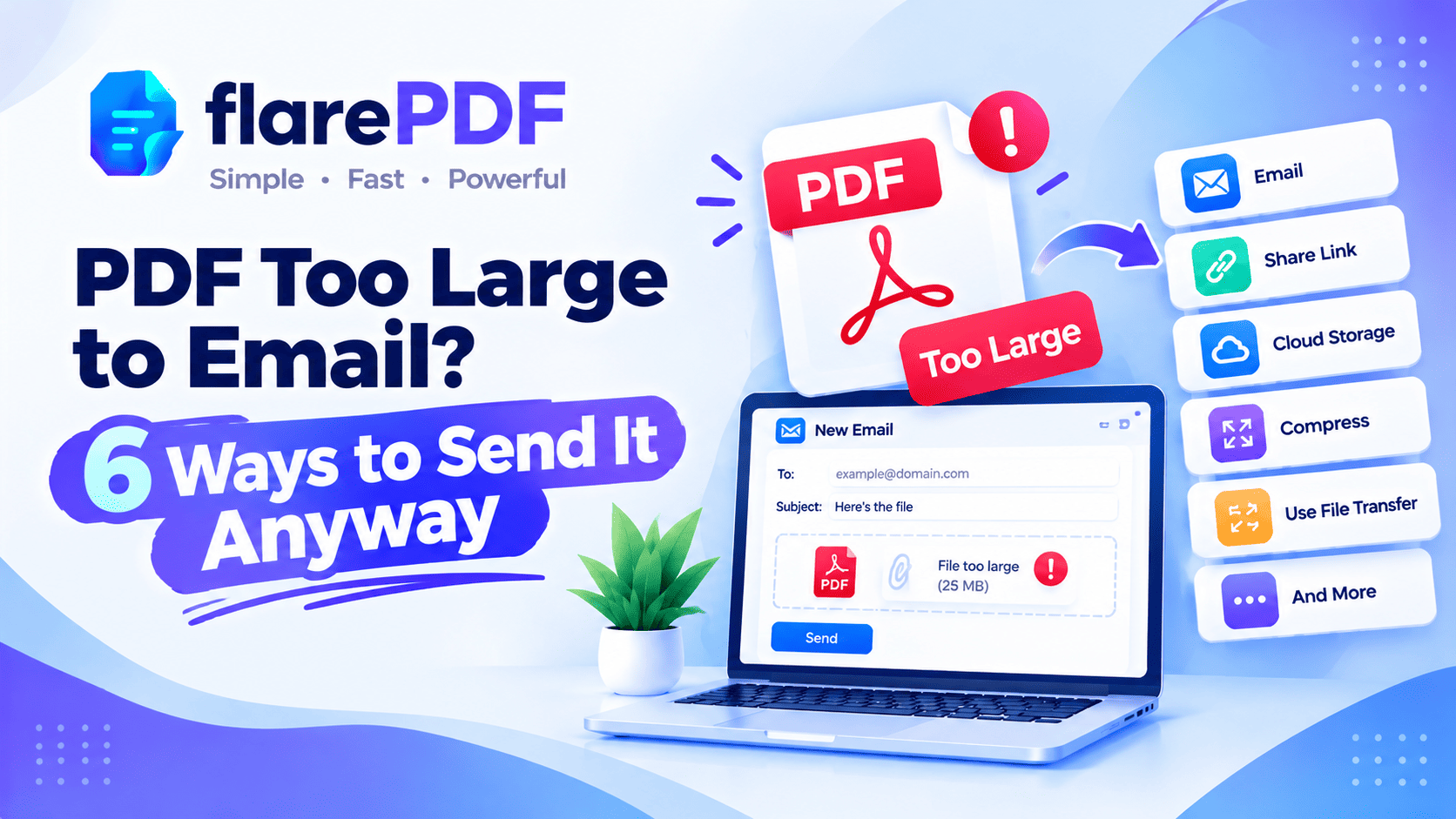
PDF Too Large to Email? 6 Ways to Send It Anyway
If your PDF is too large to email, compress it first. Most PDFs shrink enough to fit under Gmail’s 25MB limit. If it’s still too big, split it, remove pages you don’t need, or send a cloud link instead of an attachment.
You know the feeling. You attach a contract, a portfolio or a scanned application, hit send, and get an error. Or worse, the email bounces an hour later and the deadline has passed.
This guide shows you six reliable ways to get your PDF delivered. It also covers the real attachment limits for Gmail, Outlook and iCloud, a hidden size trap most people miss, and how to send large files safely. FlarePDF tools are free, with no sign-up.
What does “PDF too large to email” mean?
A PDF is too large to email when its file size goes over the maximum attachment size your email service allows. Most providers cap attachments at about 20–25MB. Many company and school servers set lower limits. When you go over, the email won’t send, or it bounces back as undeliverable.
The size of a PDF depends mostly on its images. Scanned pages and phone photos are heavy, while plain text is light. That’s why a 5-page scanned contract can be bigger than a 100-page typed report.
For more on how file size works, see our full guide to compressing PDFs without losing quality.
Email attachment size limits you need to know
Every provider has its own limit, and the limits can change, so check your provider's help page. Here are the common ones.
Gmail: Up to 25MB of attachments per email. Larger files are sent as a Google Drive link.
Outlook.com: About 20MB per email. Larger files can be shared through OneDrive.
Yahoo Mail: Up to 25MB per email.
iCloud Mail: About 20MB per email, or much larger through Mail Drop.
Company or school email: Often 10MB or less, set by the IT team. Ask them if you’re unsure.
Google’s help page on sending attachments in Gmail explains Gmail’s limit and the Drive option.
The hidden size trap most people miss
Email attachments get about a third bigger when they’re sent. Email systems convert files into text using a method called Base64 encoding, and that adds overhead.
So a 20MB PDF can turn into roughly 27MB in transit, which is over Gmail’s 25MB limit. The same applies to the recipient’s mailbox limit.
Pro tip: To be safe, keep your PDF under about 18MB for a 25MB limit, and under about 7MB for a 10MB company limit.
Why a PDF that’s too big causes real problems
A failed email isn’t just annoying. It can cost you an opportunity.
Here’s when large PDFs cause trouble:
- Job applications: HR inboxes in Pakistan and elsewhere often have small limits, so your CV and certificates never arrive.
- Study: a thesis or dissertation full of images bounces when you send it to your supervisor.
- Visa applications: embassies in the UK, Canada and the UAE may reject or never receive large scanned bank statements.
- Contracts: a signed lease or offer letter sits in your outbox instead of reaching the other person.
- Freelancing: a client portfolio can’t be delivered on time.
- Small business: your accountant can’t receive a month of scanned receipts in one email.
The good news is that every one of these has a quick fix.
Way 1: Compress the PDF (the fastest fix)
Compressing is the best first step, because it solves most “too large to email” problems in under a minute. It shrinks images and removes unneeded data while keeping the file readable.
Use FlarePDF free PDF compressor. There’s no account to create.
- Open the Compress PDF page in your browser.
- Upload your PDF: drag it onto the page or pick it from your files.
- Choose a compression level: Light, Recommended or Strong.
- Compress the file.
- Download the smaller PDF and check its size.
- Open it once to make sure text and images are still clear.
If it’s now under about 18MB, attach it and send. For strict portal limits, read how to compress a PDF to 200KB or 100KB.
Quick note: Mac users can also use Preview’s Reduce File Size option, but it can blur text badly. Read how to compress a PDF on Mac without making it blurry first.
Way 2: Split the PDF into smaller parts
If compression isn’t enough, split the PDF into two or more smaller files and send them in separate emails. This works well for long reports, theses and bank statements.
- Open Split PDF.
- Upload your file.
- Choose where to split, for example pages 1–20 and 21–40.
- Download the parts.
- Email each part separately, with clear subject lines like “Report Part 1 of 2”.
Our guide on how to split a PDF into multiple files covers every split option. The recipient can join the parts back together with Merge PDF.
Way 3: Remove pages or crop what isn’t needed
Sending only what the recipient actually needs often fixes the problem on its own. Blank pages, duplicate scans and wide margins all add size for nothing.
- Delete unneeded pages: use Organize PDF, or read how to delete pages from a PDF.
- Send just one page: read how to separate pages in a PDF, for example to send only the signed page of a contract.
- Trim wide margins: use Crop PDF to cut scanner borders and empty space.
Then compress the slimmer file for an even smaller result.
Way 4: Send a cloud link instead of an attachment
For very large files, upload the PDF to cloud storage and email a link. The recipient downloads it from the link, so there’s no attachment limit.
Gmail and Google Drive
When you attach a file larger than Gmail’s limit, Gmail offers to send it as a Google Drive link automatically. You can also click the Drive icon in the compose window and pick a file you’ve already uploaded.
Outlook and OneDrive
In Outlook, attach the file, then choose to upload it to OneDrive and share a link. The recipient gets a link instead of a heavy attachment. The exact wording differs between Outlook versions.
iPhone, iPad and Mac with Mail Drop
In Apple’s Mail app, large attachments can be sent with Mail Drop. It uploads the file to iCloud and sends a download link, which usually stays available for 30 days.
Dropbox or other cloud storage
Upload the PDF, create a share link, then paste it into your email.
Pro tip: Always set the link to view only, and share it only with the recipient’s email address where possible.
Way 5: Zip the PDF, or bundle several files
Zipping a PDF usually saves very little space, because PDFs are already compressed inside. You might save a few percent, but rarely enough to fix a big size problem.
Zipping is still useful when you need to send many files as one attachment, like ten certificates or a folder of invoices.
How to zip a PDF
- Windows: right-click the file or folder, then choose Send to > Compressed (zipped) folder. On Windows 11, choose Compress to ZIP file.
- Mac: right-click the file or folder and choose Compress.
- iPhone or iPad: in the Files app, touch and hold the file and choose Compress.
Zip vs compress: what’s the difference?
Compressing a PDF: Shrinks the images and data inside the PDF itself. It can reduce the size a lot.
Zipping a PDF: Wraps the file in a ZIP archive. It usually saves very little on PDFs, but it bundles many files neatly.
Best approach: Compress each PDF first, then zip them together if you’re sending several.
Quick note: Some company email systems block ZIP attachments for security reasons. If your email bounces, send a cloud link instead.
Way 6: Use a file transfer service or messaging app
File transfer services and messaging apps can send large PDFs without using email attachments at all.
- File transfer services: websites like WeTransfer let you upload a file and send a download link by email. Free plans have their own size limits.
- WhatsApp: you can send PDFs as documents, and the file limit is far higher than email’s.
- Other messaging apps: Telegram, Signal and work tools like Slack or Teams also accept large files.
These are great for quick, informal sharing. For official submissions, check that the recipient accepts files sent this way.
Bonus: Make the PDF smaller at the source
The cleanest fix is often to create a smaller PDF in the first place.
- From Word: choose File > Save As > PDF, then select Minimum size (publishing online).
- From a scanner: scan in grayscale or black and white at 150–200 DPI instead of high-resolution color. Read how to scan a document to PDF for settings.
- From an iPhone: use the Black and White filter. See how to scan documents on iPhone.
- From photos: if your PDF is made of images, rebuild it with smaller JPGs. Our guide on how to combine images into one PDF shows how.
Which way should you use?
Pick the fix that matches how big your file is and what’s inside it.
- Slightly over the limit: compress the PDF.
- Much too big, such as 50MB or more: split it, or send a cloud link.
- Lots of separate files: compress each one, then zip them or share a cloud folder.
- Full of blank or unneeded pages: delete them first, then compress.
- Sensitive documents: compress or split rather than using a public link, and set strict link permissions.
- No time at all: send a Google Drive, OneDrive or Mail Drop link.
How to send a large PDF from your phone
On iPhone or iPad
- Compress the PDF in Safari with Compress PDF if it’s slightly too big. It works in mobile browsers.
- For bigger files, attach it in the Mail app and choose Use Mail Drop when asked.
- Or share an iCloud Drive link from the Files app.
Signing a contract on the go? Read how to sign a PDF on iPhone and iPad.
On Android
- Compress the PDF in Chrome if it’s slightly too big.
- In the Gmail app, attach the file. Gmail switches to a Google Drive link for large files.
- Or share the PDF directly from your Files app to WhatsApp or another app.
Is it safe to send PDFs through links?
Cloud links are safe when you set permissions carefully. The risk comes from links that anyone can open.
Good habits for sensitive PDFs:
- Share with specific people instead of “anyone with the link”.
- Choose view-only access so the file can’t be edited.
- Remove access after the recipient has downloaded the file.
- Avoid public links for ID cards, bank statements and signed contracts.
- Redact private details first. See our guide to permanently redacting a PDF, or how to redact in Adobe Acrobat.
For details on how FlarePDF handles uploaded files, see the FlarePDF privacy page.
Key features and benefits of FlarePDF for large PDFs
- Free to use: every FlarePDF tool costs nothing.
- No account or login: open a tool and start.
- Every fix in one place: compress, split, delete pages and crop on the same site.
- Simple steps: upload, adjust, apply and download.
- File handling: PDFs up to 50MB. Files are processed in your browser and never sent to flarePDF's servers.
Why choose FlarePDF when your PDF won’t send?
When an email bounces right before a deadline, you need a fix that works now. FlarePDF lets you compress, split or trim your file in a web page, without installing software or creating an account.
Because all the tools sit together, you can delete pages, crop margins and compress in a few minutes. Then you attach the smaller file and send it.
Tips and common mistakes
- Check the size before sending. Right-click the file and choose Properties (Windows) or Get Info (Mac).
- Leave room for encoding. Aim for about 18MB for a 25MB limit.
- Don’t expect zipping to shrink a PDF. Compress it instead.
- Keep the original file. Compression and splitting should create new copies.
- Label split parts clearly. Use “Part 1 of 3” in both the file name and the subject line.
- Check readability after compressing. Zoom in on names, numbers and signatures.
- Ask about limits. If you’re emailing a company or university, a quick question can save a bounced email.
Real-world examples
A graduate in Lahore emails his CV, degree and CNIC scan to an HR address. The 14MB file bounces, so he deletes two blank pages and compresses it to 2MB. It arrives within seconds.
A PhD student in Delhi has a 60MB thesis full of charts. She splits it into three parts for her supervisor and also shares a Google Drive link as a backup.
A freelance architect in Toronto sends a 120MB drawing set to a client. He uploads it to OneDrive and emails a view-only link.
An office manager in Dubai needs to send a month of scanned receipts to her accountant. She compresses each PDF, zips them into one folder and sends a single attachment.
Related PDF tools you may need
- Combine parts back together: read how to combine multiple PDFs into one.
- Fix sideways pages before sending: read how to rotate a PDF permanently.
- Sign before you send: use Sign PDF, or read how to sign a PDF contract online.
- New to PDFs? Start with what a PDF is.
- Every tool in one place: browse the free PDF tools guide.
Frequently Asked Questions
What do I do if my PDF is too large to email?
Compress it first, since that fixes most cases. If it is still too big, split it into smaller parts, remove pages you do not need, or upload it to Google Drive, OneDrive or iCloud and email a link instead of an attachment.
What is the maximum attachment size for Gmail?
Gmail lets you attach files up to 25MB per email. Because attachments grow slightly when sent, keep your PDF under about 18MB to be safe. Larger files are automatically shared as a Google Drive link instead.
What is the attachment size limit for Outlook?
Outlook.com allows attachments of about 20MB, and many work accounts set a similar or lower limit. For bigger files, Outlook lets you upload the PDF to OneDrive and share it as a link inside the email.
How do I send a large PDF from my iPhone?
Use Mail Drop in the Mail app, which uploads large attachments to iCloud and sends a download link. You can also compress the PDF in your browser first, or share an iCloud Drive link from the Files app.
Does zipping a PDF make it smaller?
Usually only a little. PDFs are already compressed inside, so zipping rarely saves much space. Zipping is useful for bundling many files into one attachment, but to really shrink a PDF, use a PDF compressor instead.
How do I send a PDF larger than 25MB?
Share it as a cloud link through Google Drive, OneDrive, iCloud Mail Drop or Dropbox, or use a file transfer service. You can also split the PDF into smaller parts and send them in separate emails.
Why is my PDF still too big after compressing?
It probably contains high-resolution scans or photos, or many pages. Remove pages you do not need, crop wide margins, rescan in grayscale at a lower resolution, or split the file into parts before emailing it.
Is it safe to send a PDF as a Google Drive link?
It can be, if you set permissions carefully. Share the file only with the recipient’s email, choose view-only access, and avoid public links for ID cards, bank statements or contracts. Remove access once they have downloaded it.
Conclusion
A PDF too large to email is easy to fix once you know your options. Compress it first, and remember to aim for about 18MB when the limit is 25MB. If that’s not enough, split the file, remove unneeded pages, or send a cloud link. Zip only when you’re bundling several files, and set strict permissions on any link.
Get your file sending again. Try Compress PDF free now. No sign-up, no login.
Ready to try it yourself?
No sign-up, no upload — your files never leave your device.
Open Compress PDFKeep reading
More guides from the flarePDF blog