How to Black Out Text in a PDF (Safely and Permanently)
Learn how to black out text in a PDF so it’s really gone. See why black boxes and highlights fail, and use free methods that remove text.
How to Black Out Text in a PDF (and Why Most Methods Fail)
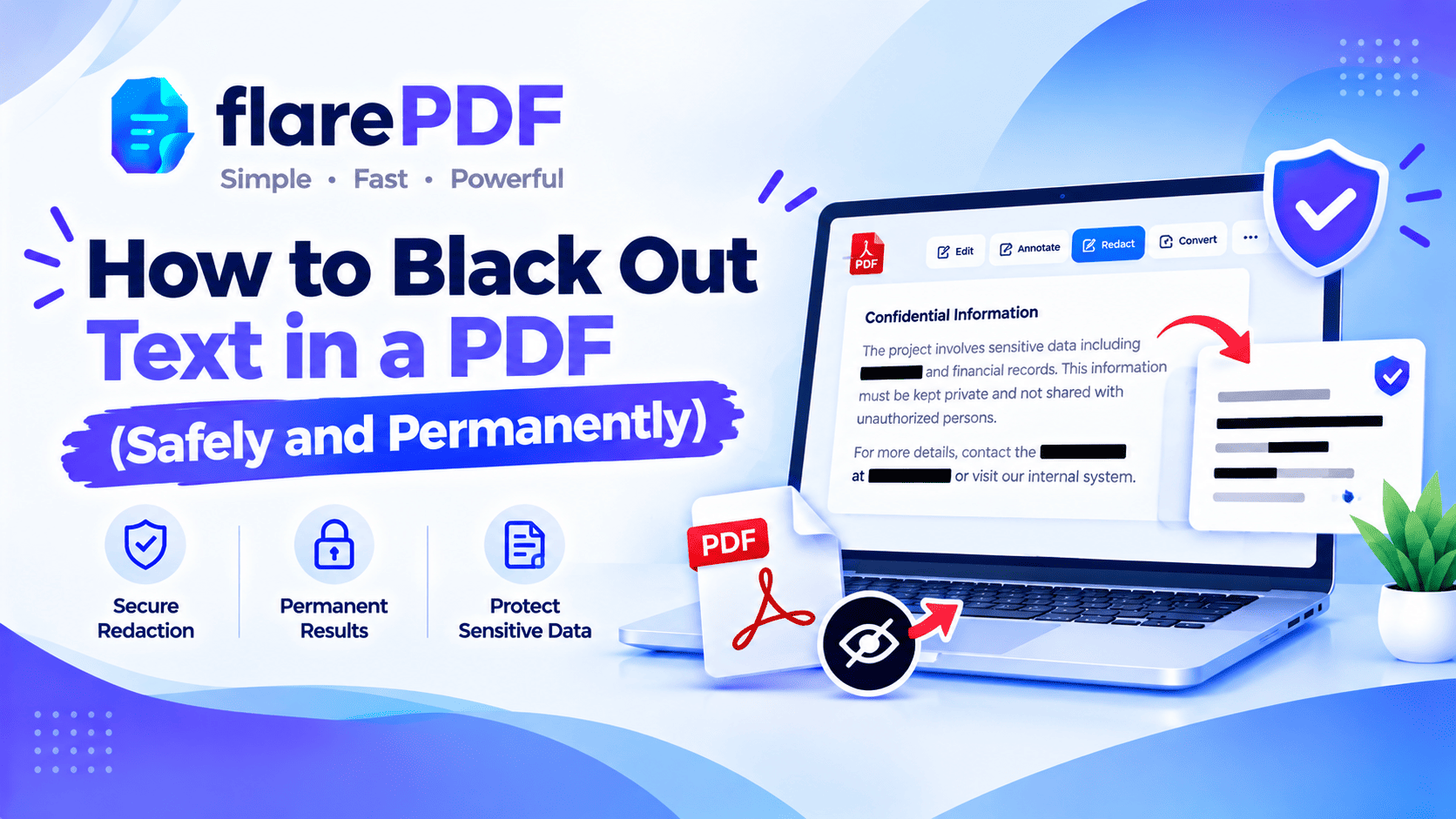
Here’s how to black out text in a PDF permanently: use a real redaction tool, or turn the page into an image and cover the text there. Black boxes, highlights and marker lines only cover the words. The text underneath can still be copied, searched or revealed.
That catches out a lot of people. You draw a neat black rectangle over an account number, send the file, and feel safe. Then someone selects the area, presses copy and pastes the number into an email.
This guide shows you which black-out methods work and which fail. It also covers a free method that really removes the text, and how to test your file before you share it. FlarePDF tools are free and require no sign-up.
What does it mean to black out text in a PDF?
Blacking out text in a PDF means hiding words behind a solid black area so nobody can read them. Done properly, it’s called redaction, and the hidden text is deleted from the file. Done badly, the black area only sits on top, and the original words stay inside the PDF, ready to be copied.
People search for “black out”, “blackout”, “cover” or “hide” text. What they almost always need is permanent removal, not just a black shape.
For the full background on removing private information, see our complete guide to permanently redacting a PDF.
Why most black-out methods fail
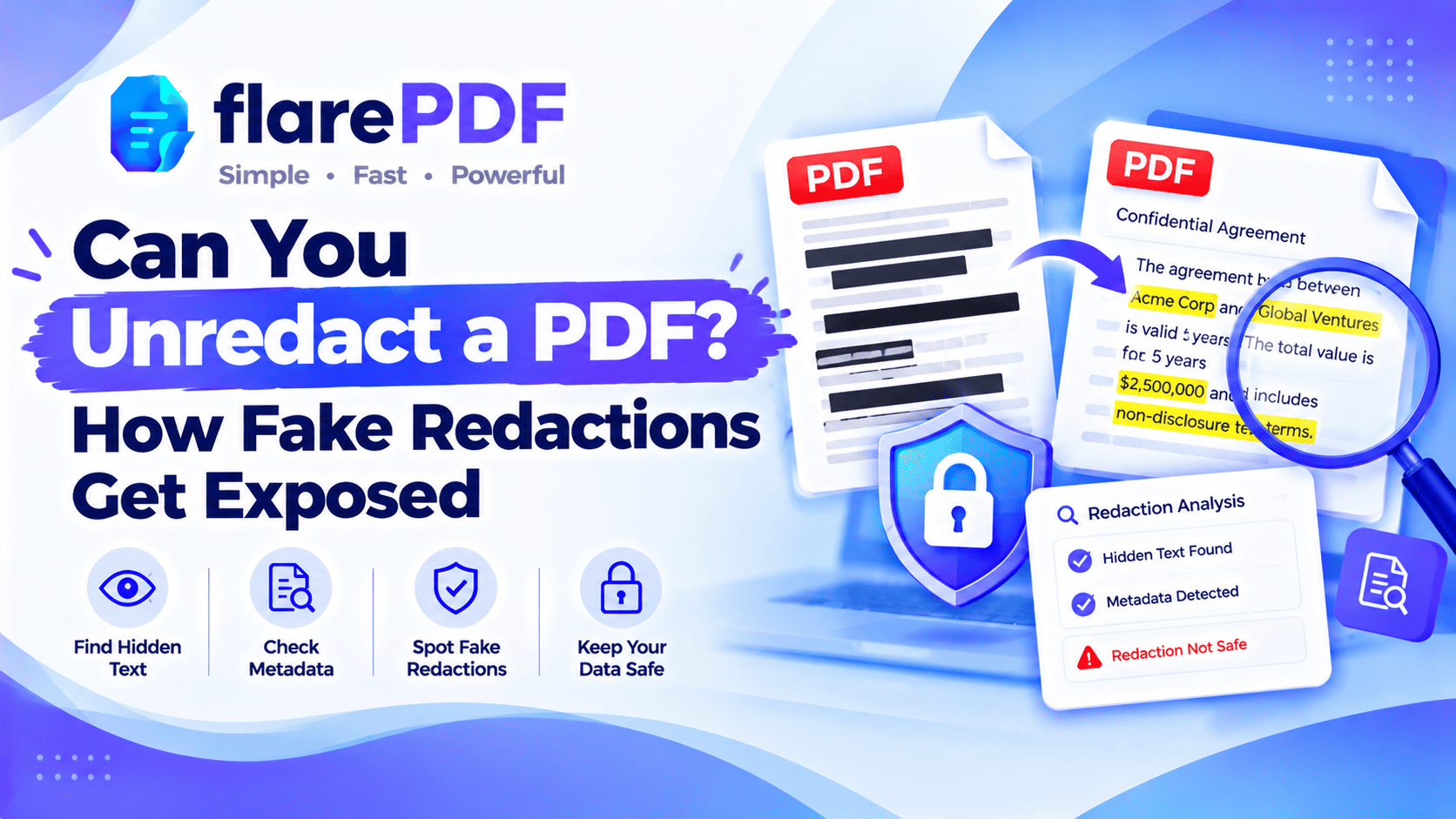
Most black-out methods fail because a PDF stores text separately from what you see on the page. The words live in a hidden text layer. When you draw a box or highlight, you add something on top of that layer, but the text stays underneath.
Think of it like putting a sticky note over a word on a printed page. You can’t see the word, but it’s still printed there. Anyone can peel the note off.
In a PDF, “peeling the note off” is easy:
- Copy and paste: select the area, copy it, and paste it somewhere else. The hidden text appears.
- Search: press Ctrl + F and search for the word. The PDF finds it under the box.
- Move or delete the box: in many apps, the black shape can be dragged away or deleted.
- Text extraction: tools that pull text out of a PDF ignore the black box completely.
To learn more about how PDFs store text, read our plain-English guide on what a PDF is.
Which black-out methods actually work?
Here’s a quick safety check of the most common methods.
Black highlight: UNSAFE. It only changes the color of the text. The words can still be copied and searched.
Drawn black box or shape: UNSAFE. It sits on top of the text. It can be moved, deleted or copied around.
Marker or pen scribble: UNSAFE. Same problem as a box, plus gaps often leave letters visible.
Black highlight in Word, then save as PDF: UNSAFE. The text is still in the saved PDF.
Screenshot of the page: SAFE, but low quality. The text becomes pixels, but the page may look blurry.
Flatten the page into an image: SAFE. The text layer is gone, and covered words become black pixels.
Adobe Acrobat Pro Redact tool: SAFE. It deletes the text and replaces it with a box.
Foxit PDF Editor redaction: SAFE. It works like Acrobat’s Redact tool, in Foxit versions that include redaction.
Mac Preview Redact tool: SAFE. It removes selected text on supported macOS versions.
Deleting the whole page: SAFE. If the whole page is private, remove it entirely.
The rule is simple. If the text can still be selected after you black it out, it isn’t safe.
Why blacking out text properly matters
A failed black-out can expose exactly what you were trying to protect. Even small leaks can cause real harm.
People black out text in PDFs to:
- Share bank statements for a visa or loan without showing full account numbers
- Send ID card copies with CNIC, Aadhaar, Emirates ID or Social Security numbers partly hidden
- Share pay slips without revealing salary details
- Publish portfolios without client names
- File legal documents with personal details removed
- Respond to privacy requests under rules like GDPR in the UK
- Post documents online without phone numbers or home addresses
In every case, the text needs to be removed, not just covered.
The free safe method: flatten the page into an image
The most reliable free way to black out text in a PDF is to turn each page into an image, cover the text on the image, then rebuild the PDF. Once a page is an image, there’s no text layer underneath, so covered words are gone for good.
This method uses free FlarePDF tools and any basic photo editor, with no account needed.
Step-by-step: black out text with free tools
- Convert the PDF pages to images with PDF to JPG.
- Open each page image in a photo editor, such as Paint on Windows, Photos on Mac or iPhone, or Gallery on Android.
- Draw a solid black rectangle over every word you want to hide, then save the image.
- Combine the images back into one PDF with JPG to PDF.
- Check the new PDF with Extract Text from PDF to confirm the hidden words don’t appear.
Pro tip: Black out the text on the images, not on the PDF before converting. That way you know the black box is part of the picture itself.
What to expect after flattening
- The text can’t be searched or copied. That’s the point, but it applies to the whole page, not just the blacked-out parts.
- The file may be larger. Images take more space than text. Shrink it with Compress PDF if needed.
- The quality depends on the images. Use a good resolution so normal text stays readable.
For more on turning images into PDFs, see how to combine images into one PDF.
Quick note: Keep your original, unredacted PDF stored safely. Once flattened, you can’t undo the black-out in the new copy.
How to black out text in Adobe Acrobat
In Adobe Acrobat Pro, use the Redact tool, not a black rectangle. The Redact tool deletes the text, while a shape only covers it.
The short version:
- Open the Redact tool.
- Mark the text or area to remove.
- Click Apply.
- Run Sanitize to remove hidden data.
- Save as a new file.
The free Adobe Acrobat Reader doesn’t include the Redact tool, so black boxes added in Reader are unsafe. For full steps, read how to redact in Adobe Acrobat, or see Adobe’s own guide on removing sensitive content from PDFs.
How to black out information in Foxit
In Foxit, use the redaction feature, not the rectangle or highlight tools. Like Acrobat, Foxit’s redaction removes the content, while shapes only cover it.
- Safe: use Foxit’s Redaction tools (usually under a Protect menu) to mark text, then apply the redaction. Menu names differ between Foxit products.
- Unsafe: drawing a filled rectangle or a black highlight with the comment tools.
If your version of Foxit doesn’t include redaction, use the free flatten method above.
How to black out text on a Mac with Preview
- Unsafe: using Markup > Shapes to draw a black rectangle, or the highlighter set to black. These are annotations that sit on top of the text.
- Safe: recent versions of Preview include a Redact option that removes selected text when you save. It's available on recent macOS versions.
If your Mac doesn’t have the Redact option, use the free flatten method. For more on Preview’s tools, read how to edit a PDF on Mac for free.
How to black out text in Word before saving as PDF
In Word, delete or replace the sensitive text before you save as PDF. Highlighting text in black, or drawing a black shape over it, doesn’t remove the words. They carry straight into the PDF.
The safe way:
- Find the sensitive text in your Word document.
- Delete it, or replace it with a placeholder like [REDACTED] or XXXX.
- If you want a black box look, add the box after the text is gone.
- Choose File > Save As > PDF.
Pro tip: Use Find and Replace in Word to catch every copy of a name or number, not just the first one you spot.
The same rule applies to Google Docs. Delete or replace the text before you download the file as a PDF.
How to black out text on iPhone, iPad or Android
Phone markup tools are handy, but black shapes and markers added in Markup or similar apps are unsafe. They don’t remove the text underneath.
The safe way on a phone:
- Convert the PDF pages to images with PDF to JPG in your browser.
- Open each image in Photos (iPhone) or Gallery (Android).
- Use the markup or edit tool to draw a solid black box over the text, then save.
- Rebuild the PDF with JPG to PDF.
For a single page, a careful screenshot also works. Black out the text on the screenshot, not on the PDF.
Microsoft Edge and Google Chrome
The drawing and highlight tools in browser PDF viewers are unsafe for hiding text. Use them for notes, not for privacy.
How to black out text on a scanned PDF
A scanned PDF can still leak text, even though it looks like a picture. Many scans have a hidden text layer added by OCR (text recognition). That layer lets people search the scan, but it also keeps the words under any black box.
To black out a scan safely:
- Use the flatten method: convert to JPG, black out the image, then rebuild.
- Or use a real redaction tool that removes both the image area and the hidden text.
- Test the result with a text extractor.
To understand why scans can hold hidden text, read our guide on what OCR is.
When to delete pages instead of blacking them out
If an entire page is private, don’t black it out at all. Delete the page. It’s faster, cleaner and completely safe.
- Remove pages with Organize PDF, or read how to delete pages from a PDF.
- Send only the pages someone needs with Split PDF, or read how to separate pages in a PDF.
How to check that blacked-out text is really gone
Always test a blacked-out PDF before you share it. These checks take two minutes and can save you from a serious leak.
- Search for it. Press Ctrl + F (Command + F on Mac) and type a word you blacked out. It should not be found.
- Try to copy it. Select across the black area, copy and paste into a notepad. Nothing hidden should appear.
- Extract the text. Run the file through Extract Text from PDF and search the results. It reads the PDF's text layer, which is where unsafe black boxes leave the words.
- Try to move the box. If you can drag or delete the black area, the text is still underneath.
- Check the properties. Open File > Properties and look for names or details in the title, author or keywords.
For more ways to see what text a PDF still holds, read how to copy text from a PDF.
Can blacked-out text be recovered?
It depends entirely on the method you used.
- Black boxes, highlights and marker lines: often yes. The text is still in the file and can be copied, searched or revealed.
- Properly applied redactions: no. The text has been deleted.
- Pages flattened into images: no. The covered words have been replaced with black pixels.
That’s why so many people search for how to “underact” a PDF. In most cases, the file was never truly redacted. Use this knowledge to protect your own documents, and always test before sharing.
Key benefits of FlarePDF for safe black-outs
- Free to use: every FlarePDF tool costs nothing.
- No account or login: open a tool and start.
- A complete free workflow: PDF to JPG, JPG to PDF and Extract Text work together to flatten and
- Page tools: delete or split pages when a whole page is private.
- Finishing tools: compress the flattened file, or add a “Redacted copy” watermark.
- File handling: PDFs up to 50MB. Files are processed in your browser and never sent to flarePDF's servers.
Quick note: FlarePDF doesn’t have a dedicated one-click redaction tool. The flatten method above is the free, reliable alternative.
Why choose FlarePDF to black out text safely?
Most “quick fixes” for blacking out text fail silently, and you only find out after the file has been shared. FlarePDF gives you a free, honest method that removes the text, plus a way to prove it’s gone.
Everything works in your browser, with no software to install and no account to create. For details on how uploaded files are handled, read the FlarePDF privacy page.
Tips and common mistakes
- Never trust a black highlight. It only changes the color.
- Don’t black out in Word. Delete or replace the text before saving as PDF.
- Black out every copy. Names and numbers often appear in headers, footers and more than one page.
- Test every time. Search, copy and extract the text before sending.
- Remember scans. OCR layers can hide text under black boxes.
- Keep the original safe. Store the unredacted file where only you can reach it.
- Label redacted copies. Add a watermark like “Redacted copy for review”.
Real-world examples
A job applicant in Karachi needs to share a bank statement for a background check. He converts the pages to JPG, blacks out all but the last four digits of his account number, rebuilds the PDF and checks it with Extract Text.
An HR officer in Bengaluru shares a pay slip format with a new manager. She deletes the salary figures in the source document, replaces them with “XXXX” and then saves the PDF.
A paralegal in London prepares a document for a GDPR request. She uses Acrobat Pro’s Redact tool to remove names, sanitizes the file and tests it before sending.
A freelance designer in Dubai adds a client report to her portfolio. She flattens the pages, blacks out the client’s name and logo, and compresses the final file for her website.
Related PDF tools you may need
- Shrink a flattened file: read how to compress a PDF to 200KB or 100KB.
- Too big to send? Read PDF too large to email? 6 ways to send it.
- Every tool in one place: browse the free PDF tools guide.
Frequently Asked Questions
How do I black out text in a PDF permanently?
Use a real redaction tool, such as the Redact feature in Adobe Acrobat Pro, or flatten the page into an image. Convert the page to JPG, cover the text on the image, then rebuild the PDF. Both remove the text instead of hiding it.
Why can I still see or copy text under a black box?
Because the box only sits on top of the page. A PDF stores text in a separate layer, so the words remain underneath. Anyone can copy, search or move the box to reveal them unless the text is actually removed.
Is highlighting text in black the same as redacting?
No. A black highlight only changes how the text looks. The words stay in the file and can be copied or searched. Redaction deletes the text and replaces it with a box, so nothing remains to recover.
How do I black out text in a PDF for free?
Convert the pages to images with a free PDF to JPG tool, cover the text with a black box in any photo editor, then turn the images back into a PDF. Finally, check the result with a free text extractor.
How do I black out text in Word before saving as PDF?
Delete or replace the sensitive text in Word first, for example with REDACTED or XXXX, then save as PDF. Black highlighting or shapes in Word do not remove the words, so they still appear in the saved PDF.
Can blacked-out text be recovered?
It depends on the method. Black boxes, highlights and marker lines can often be removed or copied around. Properly applied redactions and pages flattened into images cannot be recovered, because the original text is no longer in the file.
How do I check that blacked-out text is really gone?
Search the PDF for the hidden word, try copying text across the black area, and run the file through a text extractor. Also try moving the box and check File Properties for names or details in the metadata.
Does converting a PDF to an image remove the hidden text?
Yes. When a page becomes an image, the separate text layer is gone, and anything covered by a black box is replaced by black pixels. The result cannot be searched or copied, so keep your original file separately.
Conclusion
Now you know how to black out text in a PDF the safe way. Black boxes, highlights and marker lines only cover the words, so they fail. Use a real redaction tool, or flatten the page into an image and black it out there. Delete whole pages when you can. Before you share, always search, copy and extract the text to prove it’s gone.
Check your blacked-out file now. Try Extract Text from PDF free. No sign-up, no login.
Keep reading
More guides from the flarePDF blog