How to Add an Image or Picture to a PDF (Free)
Learn how to add an image to a PDF for free online, on Mac, iPhone, or Windows. Insert photos, logos, and stamps, or add a picture as a new page.
How to Add an Image or Picture to a PDF
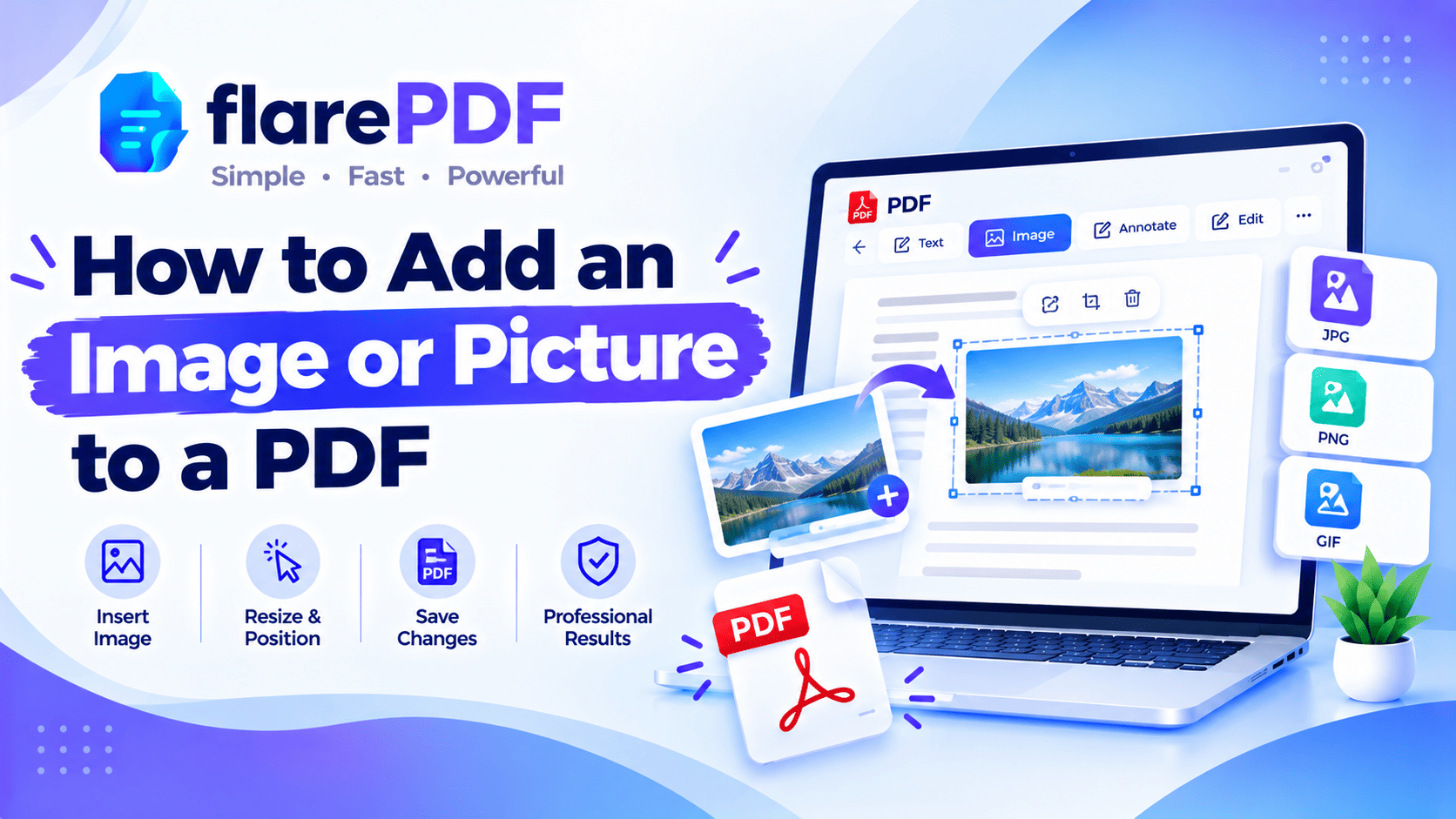
Here’s how to add an image to a PDF: open the file in a PDF editor, choose the image tool, pick your JPG or PNG and drag it into place. To add the picture as a separate page instead, convert it to PDF and merge it with your document.
It sounds simple, but many free PDF viewers can’t do it. You open the file in your browser, look for an “insert picture” button, and find nothing.
This guide shows you every reliable way to add a picture to a PDF. It covers online tools, Adobe Acrobat, Mac, iPhone and Word, plus logos, stamps and passport photos. FlarePDF tools are free, with no sign-up.
What does it mean to add an image to a PDF?
Adding an image to a PDF means placing a picture, such as a photo, logo, stamp or scanned signature, into a PDF file. You can put the image on an existing page, on top of the content, or add it as a new page of its own. The rest of the document stays the same.
There are four common ways to do it, and each suits a different job:
On an existing page: place a photo, logo or stamp exactly where you want it. Use a PDF editor.
As a new page: turn the picture into a PDF page and add it to the document. Use JPG to PDF, then Merge PDF.
As a watermark: repeat a faded logo on every page. Use a watermark tool.
As a signature: place an image of your handwritten signature. Use a Sign PDF tool.
Pick the method that fits, and the rest is quick.
How do PDFs handle images?
A PDF stores each picture as a separate object that’s placed on the page at a set size and position. That’s why you can add, move or resize images without retyping any text.
This structure is defined in the official PDF standard, ISO 32000. In practice, it means two things:
- Images keep their own quality. A sharp photo stays sharp, and a blurry one stays blurry.
- Images add to the file size. Large photos can make a small PDF heavy, so compress afterwards if needed.
New to the format? Read our plain-English guide to what a PDF is.
Why you might need to add a picture to a PDF
People add images to PDFs for all kinds of everyday tasks. The most common are:
- Application forms: a passport-size photo on a visa, admission or job application form
- Business documents: a company logo on quotes, invoices and letterheads
- Official paperwork: a company stamp or seal on invoices and certificates
- Resumes: a profile photo, where local practice expects one
- Reports: charts, screenshots and product photos
- Flyers and menus: a QR code or event image
- Proof documents: a receipt or ID photo attached to a claim
In each case, the goal is the same: put the picture in the right place without breaking the document.
How to add an image to a PDF with FlarePDF
The quickest way to add a picture to a PDF for free is with an online PDF editor. You upload the PDF, insert the image, drag it into place and download the result.
Step-by-step: place an image on a PDF page
- Open the FlarePDF PDF Editor and open your PDF.
- Choose the Image tool, then select your file. JPG and PNG images are supported.
- Drag the image to the right spot on the page.
- Resize it using the corner handles, so it doesn’t stretch.
- Download the edited PDF and open it once to check the result.
Pro tip: Resize from a corner, not a side. That keeps the picture’s proportions, so faces and logos don’t look squashed.
How to add an image as a new page
Sometimes the picture should be a full page of its own, like a scanned receipt or a certificate. This method uses tools that are always available.
- Convert your picture with JPG to PDF.
- Combine it with your document using Merge PDF.
- Move the new page into place with Organize PDF if needed.
- Download the finished file.
For more on this route, see how to convert JPG to PDF and how to combine images into one PDF. To insert other kinds of pages, read how to add pages to a PDF.
How to add an image to a PDF in Adobe Acrobat
In Adobe Acrobat Pro, use Edit a PDF and choose Add Image. The free Acrobat Reader can’t place images on a page in most versions.
In Acrobat Pro
- Open the PDF and choose Edit a PDF.
- Click Image (or Add Image) in the toolbar.
- Select a JPG, PNG or other image file.
- Click on the page to place it, then drag the corner handles to resize.
- Save the file.
You can also replace, rotate, crop or flip the image from the same toolbar.
In the free Acrobat Reader
Reader is mainly a viewer. To add a picture without paying for Pro, use an online PDF editor or the “new page” method above.
Quick note: Menu names change between Acrobat versions. If you don’t see “Add Image”, look under All tools > Edit a PDF.
How to add a picture to a PDF on Mac
On a Mac, you can paste an image straight into a PDF in Preview, then drag and resize it. No extra software is needed.
- Open the image in Preview.
- Press Command + A to select it, then Command + C to copy it.
- Open your PDF in Preview.
- Press Command + V. The image appears on the page.
- Drag it into position and resize it from a corner.
- Choose File > Save (or Export to keep the original).
To add the image as a new page in Preview: choose View > Thumbnails, then Edit > Insert > Page from File, and select your image.
For more of Preview’s tools, read how to edit a PDF on Mac for free, or see Apple’s Preview User Guide.
How to add a picture to a PDF on iPhone or Android
On a phone, the easiest way to add a picture to a PDF is with an online PDF editor in your mobile browser. Built-in markup tools are mainly for drawing, text and signatures.
- Online: open the FlarePDF PDF Editor in Safari or Chrome, open the PDF and add your image.
- iPhone and iPad: the Markup tools in the Files app focus on drawing, text and signatures. Some recent iOS versions add more options.
- As a new page: convert the photo with JPG to PDF, then merge it into your document.
Quick note: iPhone photos are often HEIC files. If a tool won’t accept your photo, export it as JPG first, or change the camera format in Settings.
Signing on your phone instead? See how to sign a PDF on iPhone and iPad.
Can you add an image to a PDF in Edge or Chrome?
No. The PDF viewers in Microsoft Edge and Google Chrome can’t insert images. Edge lets you draw, highlight and add text, but it has no picture tool. Chrome mainly views and prints PDFs.
To add a picture on Windows without Adobe, use one of these:
- An online PDF editor in your browser
- The “new page” method with JPG to PDF and Merge PDF
- Microsoft Word, if you have the original document
How to insert a picture in Word before saving as PDF
If you still have the original Word file, add the picture there and save it as a PDF again. It’s often the cleanest result, because Word handles text wrapping for you.
- Open the document in Word.
- Click where the picture should go.
- Choose Insert > Pictures > This Device and select the image.
- Use Wrap Text to place it next to or behind the text.
- Choose File > Save As > PDF.
Quick note: You can open a PDF directly in Word, but Word converts it. The layout may shift, especially in complex files, so check every page.
The same idea works in Google Docs: choose Insert > Image, then File > Download > PDF Document.
How to add a logo to a PDF
To add a logo to a single page of a PDF, place it as an image with a PDF editor. To add it to every page, use a watermark or header tool.
- One page: use the PDF Editor to place the logo, for example top left on a cover page.
- Every page: use Add Watermark to PDF with your company name as text, at low opacity. It adds text watermarks only, so for an image logo use the PDF Editor on each page.
- In Acrobat Pro: use Edit a PDF > Add Image, or the Watermark and Header & Footer options for every page.
Pro tip: Use a PNG logo with a transparent background. It sits cleanly on the page without a white box around it.
For more on page-wide logos, read how to add a watermark to a PDF.
How to add a stamp to a PDF
To add a company stamp or seal to a PDF, scan or photograph the stamp, save it as an image, then place it like any other picture.
- Stamp a blank white sheet of paper with your company stamp.
- Scan or photograph it in good light. Scan to PDF can help with clean scans.
- Crop the image so only the stamp shows, and remove the background if you can.
- Place the stamp on the page with a PDF editor, next to the signature.
- Save a copy of the stamp image to reuse next time.
In Acrobat Pro, you can also create a reusable stamp from the Stamp tool under Comment, using Custom Stamps > Create.
Quick note: A digital image of a stamp is easy to copy. Keep the image file somewhere private, and only use it on documents you’re allowed to stamp.
Adding a signature next to the stamp? Read how to insert a signature in a PDF, or set up a proper signature box or signature block.
How to add a passport photo to a PDF form
To add a passport photo to a PDF form, crop the photo to the size of the form’s photo box, then place it in that box with a PDF editor.
- Check the form’s photo size, often printed in the box (for example 35 × 45 mm).
- Crop your photo to match, with a plain background.
- Place it inside the photo box, then resize it so it fits inside the border.
- Check that it doesn’t cover any text or lines.
- Save and print a test page if the form will be printed.
Quick note: Some official portals ask you to upload the photo separately, not inside the PDF. Always follow the form’s own instructions.
Why is my PDF so large after adding images?
PDFs grow when you add large, high-resolution photos, because each image is stored at its full size. A single phone photo can add several megabytes.
To keep files small:
- Resize photos first. A logo rarely needs to be bigger than a few hundred pixels.
- Use JPG for photos and PNG for logos and stamps with sharp edges.
- Compress afterwards with Compress PDF.
Need to hit an upload limit? Read how to compress a PDF to 200KB or 100KB.
Key features and benefits of FlarePDF for adding images
- Free to use: every FlarePDF tool costs nothing.
- No account or login: open a tool and start straight away.
- Several ways to add pictures: on a page, as a new page, or as a watermark.
- Page tools: merge and organize pages after adding images.
- Size control: compress the finished file for email or upload.
- File handling: PDFs up to 50MB. Files are processed in your browser and never sent to flarePDF's servers.
Why choose FlarePDF to add a picture to a PDF?
Adding one photo shouldn’t mean installing software or paying for a subscription. Browser viewers can’t do it, and the free Acrobat Reader is limited.
FlarePDF gives you free tools to place images, add picture pages and tidy up the file afterwards, without an account or login. Your documents may contain photos and ID details, so read the FlarePDF privacy page to see how uploaded files are handled.
Tips and common mistakes
- Use good images. A blurry photo will stay blurry in the PDF.
- Keep proportions. Resize from a corner handle so pictures don’t stretch.
- Use transparent PNGs for logos, stamps and signatures.
- Don’t cover text. Check that the image doesn’t hide important words or lines.
- Mind the file size. Compress large photos before or after adding them.
- Rename the new file. Try a name like “Application-Form-With-Photo.pdf”.
- Keep the original. Save a clean copy before you edit.
Real-world examples
A student in Lahore fills in a university admission form. She crops her passport photo, places it in the photo box with a PDF editor and uploads the form.
A small business owner in Dubai sends quotes to clients. He adds his transparent PNG logo to the top of the first page and his company stamp beside the signature.
An HR officer in Pune collects ID copies from new staff. She converts each photo with JPG to PDF and merges it into the employee’s file.
A freelance designer in London shares a project report. She adds screenshots of her work in Preview on her Mac, then compresses the file for email.
Related PDF tools you may need
- Turn photos into a PDF: read how to convert JPG to PDF.
- Edit text too: read how to edit text and pages in a PDF.
- Pull images out of a PDF: use PDF to JPG.
- File too big to send? Read PDF too large to email? 6 ways to send it.
- Every tool in one place: browse the free PDF tools guide.
Frequently Asked Questions
How do I add an image to a PDF?
Open the PDF in a PDF editor, choose the image or picture tool and select your JPG or PNG. Drag it into place, resize it from a corner and save. To add it as a new page, convert it to PDF and merge.
How do I add a picture to a PDF for free?
Use a free online PDF editor to place the picture on a page, or convert the picture with a free JPG to PDF tool and merge it into your document. On a Mac, you can also paste images into a PDF in Preview.
How do I add an image to a PDF without Adobe?
Use an online PDF editor, Mac Preview, or the JPG to PDF and Merge PDF method. If you have the original document, insert the picture in Word or Google Docs, then save it as a PDF again.
Can I paste an image into a PDF?
Yes, in some apps. On a Mac, copy the image and press Command + V in Preview, then drag it into place. Browser viewers like Edge and Chrome don’t support pasting images into PDFs.
How do I add a logo to a PDF?
Place the logo as an image with a PDF editor for one page. To show it on every page, use a watermark tool with your logo image. A PNG with a transparent background gives the cleanest result.
How do I add a stamp to a PDF?
Stamp a blank sheet, scan or photograph it, and crop it to just the stamp. Then place the image on the page with a PDF editor. In Acrobat Pro, you can also create a reusable custom stamp.
How do I add an image as a new page in a PDF?
Convert the image to a PDF with a JPG to PDF tool. Then combine it with your document using Merge PDF, and move the new page into position with a page organizer if needed.
Why is my PDF so large after adding images?
Each image is stored at its full size, so big photos make the PDF heavy. Resize images before adding them, use JPG for photos, and compress the finished PDF to reduce its size.
Conclusion
You now know how to add an image to a PDF in every common situation. Place pictures on a page with a PDF editor, Acrobat Pro or Mac Preview. Add them as new pages with JPG to PDF and Merge PDF. Use watermarks for logos on every page, and transparent PNGs for stamps. Check the file size before you send it.
Ready to add your picture? Try the FlarePDF PDF Editor free. No sign-up, no login.
Keep reading
More guides from the flarePDF blog