How to Add a Signature Box or Signature Block to a PDF
signature block to a PDF
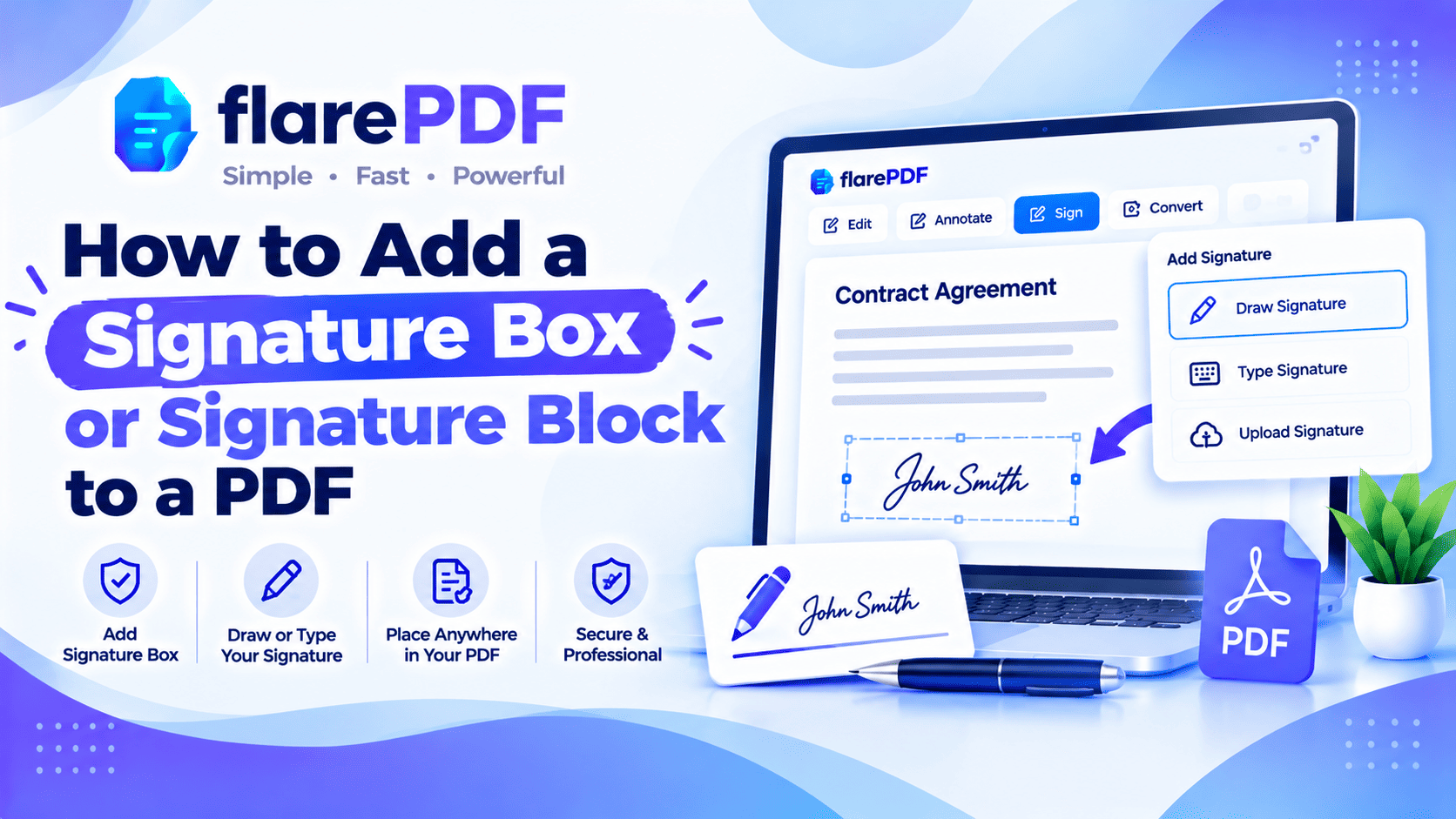
How to Add a Signature Box or Signature Block to a PDF
The quickest way to add a signature box or signature block to a PDF depends on who is signing. If someone else signs, add a fillable signature field with Adobe Acrobat or an e-sign app. If you’re signing, type a signature block (line, name, title, date) and place your signature with a free Sign PDF tool.
Most people get stuck because “box”, “block”, “field” and “line” sound like the same thing. They aren’t. Pick the wrong one and your client can’t click to sign, or your contract looks unfinished.
This guide explains each one, shows you how to add them in common apps, and gives you signature block templates to copy. FlarePDF tools are free, with no sign-up.
What is a signature box or signature block in a PDF?
A signature box is a marked space where someone signs. A signature block is the layout around the signature, usually a line plus the printed name, job title, company and date. In a PDF, a signature box can be a simple drawn space or a clickable form field. A signature block is usually plain text on the page.
Here’s how the common terms compare:
Signature box: A space for a signature. It may be a printed rectangle or a clickable field.
Signature field: a fillable PDF form field. The signer clicks it and adds a signature.
Digital signature field: a special field that uses a certificate (Digital ID) to sign and lock the file.
Signature line: A simple line, often with “Signature” printed underneath.
Signature block: the full set: the line, name, title, company and date, often with “Signed by” or “For and on behalf of”.
In short, a block is the whole package. A box, field or line is the spot where the signature itself goes.
Why adding a signature box or block matters
A clear signature area tells the reader exactly where to sign and who is signing. That saves time and avoids messy back-and-forth emails.
You’ll usually need one for:
- Contracts and agreements: client contracts, NDAs, service agreements and leases
- HR paperwork: offer letters, policy forms and leave forms
- Invoices and quotes: a “signature and stamp” area for approval
- Official forms: visa letters, consent forms and declarations
- Freelance work: a project brief or scope sign-off
- Rental and tenancy documents: landlord and tenant signature blocks
A good signature block also records the details people check later: who signed, in what role and on what date.
Quick note: The box or block itself doesn’t make a document legally binding. The signature, the intent to sign and local law do. More on that in the FAQ.
Which method should you use?
Pick your method based on one simple question: who is signing, and how?
You sign it yourself: type a signature block, then place your signature with FlarePDF Sign PDF.
Someone else signs on paper: add a printed signature line and block, then send the PDF to print.
Someone else signs online by clicking: add a fillable signature field in Adobe Acrobat Pro or an e-sign app like DocuSign.
A certificate-based signature is required: add a digital signature field in Acrobat Pro.
You’re still writing the document: add the signature line in Word or Google Docs, then save as PDF.
The sections below walk through each method.
How to add a signature block to a PDF with FlarePDF
To add a signature block to a PDF for free, type the block’s lines with a PDF editor, then place your signature on the line. This works well for documents you sign yourself, like a letter, a declaration or a contract you’re returning.
Step-by-step: build and sign a signature block
- Open your file in the FlarePDF PDF Editor. Use the Text tool to add a text box.
- Type the block where the signature should go, for example a line of underscores, then “Name”, “Title” and “Date” below it.
- Save and download the edited PDF.
- Open the new file in the free Sign PDF tool and add your signature above the line. You can draw it or type it.
- Download the signed PDF and open it once to check that everything sits neatly.
Pro tip: Use a row of underscores ( ______________ ) as your signature line. It’s simple, and it prints cleanly at any size.
For more on the signing step, read how to add your signature to a PDF.
Option: add a separate signature page
Sometimes there’s no room at the bottom of the last page. In that case, add a dedicated signature page instead.
- Create a one-page signature block in Word, Google Docs or any editor, then save it as a PDF.
- Join it to your document with Merge PDF.
- Move the page into place with Organize PDF if needed.
- Sign the new page with FlarePDF Sign PDF.
For more ways to insert pages, see how to add pages to a PDF.
Quick note: FlarePDF builds visual signature blocks and lets you sign them. It doesn’t create fillable signature fields for other people to click. For that, use one of the apps below.
How to add a signature box to a PDF for someone else to sign
To add a signature box that someone else can click and sign, you need a tool that creates form fields. Adobe Acrobat Pro and e-sign apps like DocuSign and Dropbox Sign can do this. Free viewers usually can’t.
There are two common ways:
- Fillable form field: you add a signature field to the PDF and send the file. The other person opens it and signs in the field.
- E-sign request: you upload the PDF to an e-sign app, drop signature fields on it and send a signing link by email.
E-sign requests are easier for most people. The signer doesn’t need special software, and you get a record of who signed and when.
How to add a signature block in Adobe Acrobat
In Adobe Acrobat Pro, use the Prepare a Form tool to add a signature field, or use Request e-signatures to send fields to signers. Fill & Sign is for signing yourself, not for creating fields for others.
Add a fillable signature field
- Open the PDF in Acrobat Pro.
- Choose Prepare a form from the tools list.
- Pick the signature field (or digital signature field) from the toolbar.
- Drag a box where the signature should go.
- Name the field, for example “Client signature”, and save.
Add text fields for the name and title, and a date field next to the signature. That turns a simple box into a complete signature block.
Send it for signing
Use Request e-signatures if you want Acrobat to email the file. You can drag signature, initials and date fields for each signer before you send.
Quick note: Menu names change between Acrobat versions, so the labels on your screen may differ slightly. Adobe explains the signing options in its guide on signing PDF documents.
The free Acrobat Reader lets you sign with Fill & Sign. It doesn’t let you create new form fields.
How to add a digital signature field to a PDF
A digital signature field is a box where the signer uses a certificate-based Digital ID to sign. Once signed, the file is sealed, and any later change shows that the document was altered.
To add a digital signature field to a PDF:
- Open the file in Acrobat Pro and choose Prepare a form.
- Select the digital signature field tool.
- Draw the box where the signer should sign.
- Save the PDF and send it.
The signer clicks the field and signs with their own Digital ID. You’ll usually see this with government filings, banking and some legal documents.
This is different from a regular e-signature. For the full comparison, read electronic signature vs digital signature.
How to add signature fields in DocuSign and other e-sign apps
In DocuSign, you add signature boxes by dragging fields (called “tabs”) onto your uploaded PDF, then sending it to the signer. Dropbox Sign and similar apps work in almost the same way.
The usual steps:
- Upload your PDF to the e-sign app.
- Add each signer’s name and email.
- Drag a Signature field onto the page for each signer.
- Add extra fields: Initials, Date Signed, Name and Title.
- Set the signing order if more than one person signs.
- Send. Each signer gets an email link and signs in their boxes.
Pro tip: Put an Initials field at the bottom of each page for long contracts. It shows the signer saw every page.
How to add a signature line in Word before saving as PDF
If you’re still writing the document, add the signature line in Word first, then save as PDF. It’s often the neatest way to get a well-aligned signature block.
In Microsoft Word
- Click where the block should go.
- Go to Insert > Signature Line > Microsoft Office Signature Line.
- Enter the signer’s name, title and email.
- Click OK. Word adds a line with an X and the signer’s details.
- Choose File > Save As > PDF.
Quick note: After you save as PDF, the Word signature line becomes part of the page. It isn’t a clickable field anymore. Sign it with a PDF signing tool, or print it to sign by hand.
In Google Docs
Type the block yourself, using underscores for the line. A two-column table without borders works well when two people sign side by side. Then choose File > Download > PDF.
How to add a signature box to a PDF on Mac
On a Mac, Preview can add a signature line and text, then place your signature. It can’t create a fillable field for someone else.
- Open the PDF in Preview.
- Click the Markup toolbar icon.
- Use Shapes to draw a line or rectangle as the signature box.
- Use Text to add the name, title and date.
- Use Sign to add your signature, then save.
For more of Preview’s tools, read how to edit a PDF on Mac for free. Signing on a phone? See how to sign a PDF on iPhone and iPad.
What should a signature block include?
A complete signature block includes a signature line, the signer’s printed name, job title, company name (if signing for a business) and the date.Some documents also need a witness, a stamp or initials.
Use these templates as a starting point. Copy them into your document and replace the details.
Individual signature block
Signature: ______________________________
Name: ______________________________
Date: ______________________________
Company signature block
For and on behalf of [Company Name]
Signature: ______________________________
Name: ______________________________
Title: ______________________________
Date: ______________________________
Two-party contract block
Party A:[Company or Name]
Signature: __________________ Name: __________________ Date: __________
Party B: [Company or Name]
Signature: __________________ Name: __________________ Date: __________
Witness block
Signed in the presence of:
Witness signature: ______________________________
Witness name: ______________________________
Witness address: ______________________________
Invoice approval block
Approved by: ______________________________
Signature and stamp: ______________________________
Date: ______________________________
Pro tip: Keep the block on the same page as the last line of the agreement. A signature alone on a blank page is easier to misuse.
For signing full agreements, see how to sign a PDF contract online.
Key features and benefits of FlarePDF for signature blocks
- Free to use: every FlarePDF tool costs nothing.
- No account or login: open a tool and start straight away.
- Sign PDF: place your signature in the block you created.
- PDF Editor: type names, titles and dates on the page.
- Page tools: add a signature page with Merge PDF and move it with Organize PDF.
- Finishing tools: shrink the signed file with Compress PDF before emailing.
- File handling: PDFs up to 50MB. Files are processed in your browser and never sent to flarePDF's servers.
Why choose FlarePDF for adding a signature block?
Many signing apps ask you to create an account before you can do anything. When you only need to sign your own copy and send it back, that’s extra hassle.
FlarePDF keeps things simple. Build the block, sign it and download the file, without an account or login. Signed documents often hold personal details, so read the FlarePDF privacy page to see how uploaded files are handled.
When you need fields that other people click and sign, use Acrobat Pro or an e-sign app. FlarePDF is the quick, free option for everything you sign yourself.
Tips and common mistakes
- Match the method to the signer. A typed line can’t be clicked. Use a form field when someone else signs online.
- Label every box. Write “Client signature” or “Employee signature” so no one signs in the wrong place.
- Add a date line. Missing dates cause the most follow-up questions.
- Keep the block with the text. Don’t leave the signature block alone on a blank last page.
- Check alignment. Open the final PDF and zoom in to make sure the signature sits on the line.
- Rename the signed file. Try a name like “Service-Agreement-Signed-2026-10-19.pdf”.
- Keep the original. Save an unsigned copy in case changes are needed later.
Real-world examples
A freelancer in Lahore sends a project agreement to a client in the US. She uploads it to an e-sign app, adds signature and date fields for the client, and sends a link.
An HR officer in Bengaluru prepares offer letters. She adds a Word signature line for the candidate, saves the letter as a PDF and emails it.
A landlord in Dubai needs both parties to sign a tenancy contract. He adds a two-party signature block, prints the PDF, and both sign on paper.
A small business owner in Manchester returns a supplier contract. He adds a “For and on behalf of” block with the PDF Editor, signs it with Sign PDF and emails the file back.
Related PDF tools you may need
- Add your signature: read how to insert a signature in a PDF.
- Join a signature page: read how to combine multiple PDFs into one.
- Number long contracts: use Add Page Numbers to PDF.
- Signed file too big to send? Read PDF too large to email? 6 ways to send it.
- Every tool in one place: browse the free PDF tools guide.
Frequently Asked Questions
What is a signature block in a PDF?
A signature block is the area where a document is signed. It usually includes a signature line, the signer’s printed name, job title, company name and date. In a PDF, it can be plain text on the page or include a fillable signature field.
What’s the difference between a signature box and a signature block?
A signature box is the space where the signature goes. A signature block is the full layout around it, including the line, name, title and date. A box can be a clickable field, while a block is usually printed text.
How do I add a signature box to a PDF for someone else to sign?
Use Adobe Acrobat Pro’s Prepare a Form tool or an e-sign app like DocuSign. Drag a signature field onto the page, add name and date fields, then send the file or signing link to the other person.
How do I add a signature block to a PDF for free?
Type the signature line, name, title and date with a free PDF editor. Then place your signature on the line with a free Sign PDF tool. This works well for documents you sign yourself and send back.
How do I add a digital signature field to a PDF?
Open the PDF in Adobe Acrobat Pro and choose Prepare a Form. Select the digital signature field tool, draw the box and save. The signer then signs with a certificate-based Digital ID, which seals the document.
Can I add multiple signature boxes to one PDF?
Yes. In Acrobat Pro or an e-sign app, add a separate signature field for each signer and label each one clearly. E-sign apps also let you set a signing order, so each person signs in turn.
How do I add a signature line in Word and save it as PDF?
In Word, go to Insert, then Signature Line, then Microsoft Office Signature Line. Enter the signer’s details and click OK. Then choose File, Save As, PDF. The line becomes part of the page, not a clickable field.
Is a signature box legally binding?
No. The box itself only shows where to sign. What counts is the signature, the signer’s intent and local law. Laws like the US ESIGN Act and the EU eIDAS Regulation recognize electronic signatures. Check local rules for important documents.
Conclusion
Now you know how to add a signature box or signature block to a PDF for any situation. Use a fillable field in Acrobat Pro or an e-sign app when someone else signs online. Use a typed block when you sign yourself or the document will be printed. Copy a template, check the alignment and keep the original safe.
Ready to sign your block? Try FlarePDF Sign PDF free. No sign-up, no login.
Further reading on e-signature law: the US ESIGN Act (Public Law 106-229)and the EU’s eIDAS Regulation.
Keep reading
More guides from the flarePDF blog