How to Split a PDF in Adobe Reader (and Free Alternatives)
Can you split a PDF in Adobe Reader? Not in the free version. See how Acrobat Pro splits files, plus free ways that work, including Print to PDF.
How to Split a PDF in Adobe Reader (and Free Alternatives)
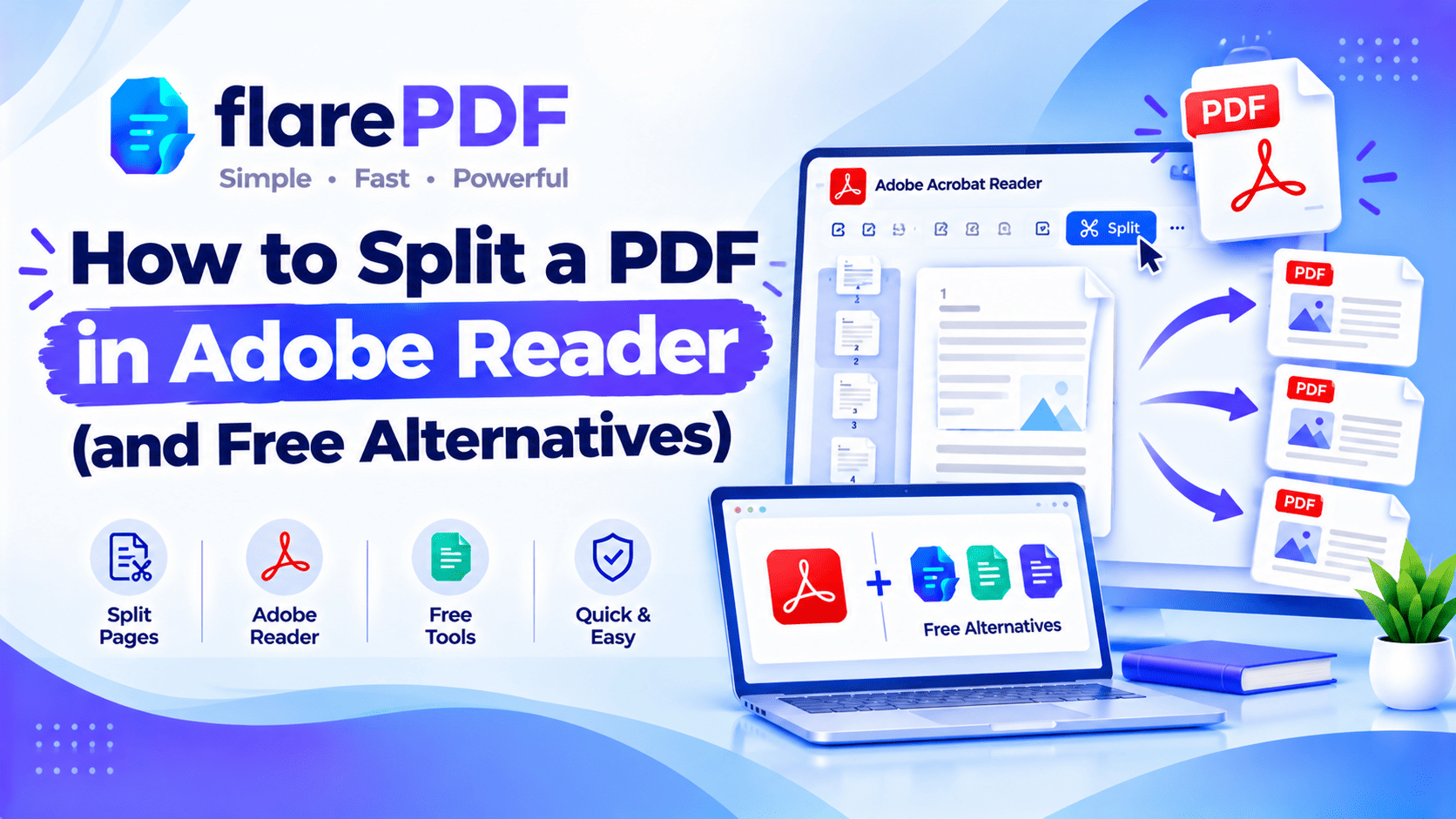
You can’t split a PDF in Adobe Reader, because the free Reader has no Split tool. Splitting needs Acrobat Pro’s Organize Pages tool. But there’s a free workaround inside Reader: print the pages you want to a new PDF, or use a free online splitter.
That catches a lot of people out. You open Reader, find “Organize Pages”, click Split, and get asked to upgrade.
This guide shows how splitting works in Acrobat Pro, and the free ways to get the same result. They cover Windows, Mac, any browser, and FlarePDF’s tools, which are free with no sign-up.
Can you split a PDF in Adobe Reader?
No. The free Adobe Acrobat Reader can’t split a PDF. Reader is built for viewing, printing, commenting and signing. The Split and Extract tools are part of Acrobat Pro. You can still create smaller PDFs from Reader using Print to PDF with a page range.
Here’s a quick comparison of your options:
Adobe Acrobat Reader (free): opens, prints and signs PDFs. No Split or Extract tool.
Adobe Acrobat Pro: splits by number of pages, file size or bookmarks, and extracts selected pages.
Adobe’s online Split tool: splits in the browser. Download rules can change, so check what it asks for when you use it.
Print to PDF (Windows, Mac, browsers): a free workaround. Print a page range to a new PDF file.
FlarePDF Split PDF: a free online splitter with no account or login.
For the bigger picture, see our complete guide to splitting a PDF into multiple files.
What does splitting a PDF mean?
Splitting a PDF means breaking one PDF file into two or more smaller PDF files. You can split by page range, by a set number of pages, or into single pages. The original file stays the same, and each new file holds only the pages you chose.
Splitting is different from deleting pages. When you delete, you remove pages from one file. When you split, you create new files.
If you just want to pull a few pages out, read how to separate pages in a PDF.
Why people need to split PDFs
A single large PDF is often harder to share than a few smaller ones. Splitting helps you send only what’s needed.
Common reasons include:
- Upload limits:university portals, visa sites and job boards often cap file size.
- Email limits:big PDFs bounce back from Gmail and Outlook.
- Privacy: you send only the pages someone needs, like one month of a bank statement.
- Organising scans: a batch of scanned invoices or receipts becomes separate files.
- Study notes: a long notes PDF can be split into chapters.
- Court and office filing: some systems need one document per file, or files under a set size.
How to split a PDF in Adobe Acrobat Pro
In Acrobat Pro, open Organize Pages, choose Split, set how you want to divide the file, then click Split.Acrobat creates the new files in the folder you choose.
Split a PDF document in Adobe Acrobat
- Open the PDF in Acrobat Pro.
- Go to All tools > Organize pages (in older Acrobat DC versions: Tools > Organize Pages).
- Click Split in the top toolbar.
- Choose how to split:
- Number of pages, for example every 5 pages
- File size, for example 2 MB per file
- Top-level bookmarks, one file per chapter
- Click Output options to pick a folder and file names.
- Click Split. Acrobat saves the new files.
Extract pages in Adobe Acrobat
Want specific pages rather than equal parts? Use Extract instead.
- Open Organize pages.
- Select the pages you want. Hold Ctrl (Windows) or Command (Mac) to pick several.
- Click Extract.
- Tick Extract pages as separate files if you want one file per page.
- Tick Delete pages after extracting only if you want to remove them from the original.
- Click Extract and save.
Quick note: Menu names change between Acrobat versions, so your screen may look a little different. Adobe’s help pages on managing PDF pages cover the current layout.
Power users: the third-party AutoSplit plug-in adds more split rules to Acrobat Pro, such as splitting by text on the page. It doesn’t work with the free Reader.
How to split a PDF in Adobe Reader for free (Print to PDF)
The free way to split a PDF in Adobe Reader is to print a page range to a new PDF. On Windows, use the built-in Microsoft Print to PDF printer. Repeat for each part you need.
Step-by-step on Windows
- Open the PDF in Adobe Acrobat Reader.
- Press Ctrl + Pto open the Print window.
- Choose Microsoft Print to PDF as the printer.
- Under Pages to Print, select Pages and type a range, such as 1-5.
- Click Print, then name the new file and save it.
- Repeat with the next range, such as 6-10, until you have every part.
Pro tip: Name each file clearly as you go, for example “Statement-Jan.pdf” and “Statement-Feb.pdf”. It saves confusion later.
What you lose with Print to PDF
Print to PDF is a handy workaround, but it re-creates each page rather than copying it. Expect a few changes:
- Links and bookmarks usually don’t carry over.
- Fillable form fields become flat text.
- File sizemay change, up or down.
- Textusually stays selectable, but check one file to be sure.
For most everyday documents, like statements, notes and letters, these changes don’t matter.
Quick note: You may see an “Adobe PDF” printer in the list. It comes with Acrobat Pro, not the free Reader. Use Microsoft Print to PDF instead.
How to split a PDF with FlarePDF (free alternative to Adobe)
To split a PDF without Adobe, upload it to a free online splitter, choose the pages or ranges, and download the new files. This keeps links and page quality better than printing, and it works on any device with a browser.
Step-by-step: split a PDF online
- Open FlarePDF Split PDF and upload your file.
- Choose how to split: pick specific pages, set page ranges, or split evenly into files with the same number of pages.
- Enter your ranges, for example 1-3 and 4-10.
- Click the split button and wait for the files to be ready.
- Download the new PDFs and open each one to check the pages.
Pro tip: Add page numbers first with Add Page Numbers to PDF if the file has none. It makes choosing ranges much easier.
Extract or remove pages instead
If you only need to keep a few pages, Organize PDF lets you delete the ones you don’t want and download the rest. Read how to delete pages from a PDF for the full steps.
How to split a PDF on Mac with Preview
On a Mac, Preview can split a PDF for free. Drag page thumbnails to your desktop, or print a page range to a new PDF.
Method 1: drag pages out
- Open the PDF in Preview.
- Choose View > Thumbnails to show the sidebar.
- Select the pages you want. Hold Command to select several, or Shift for a range.
- Drag the selected thumbnails onto your desktop.
- Preview creates a new PDF with just those pages.
Method 2: Print a page range
- Press Command + P.
- Under Pages, enter a range, such as From 1 to 5.
- Open the PDF menu at the bottom left.
- Choose Save as PDF, name the file and save.
Quick note: In some macOS versions, dragging creates a file with an odd name, like “document (dragged)”. Rename it straight away.
For more of Preview’s tools, read how to edit a PDF on Mac for free, or see Apple’s Preview User Guide.
How to split a PDF in Chrome or Edge
Chrome and Edge can split a PDF using Save as PDF with a custom page range. It works on Windows, Mac and Chromebooks.
- Open the PDF in Chrome or Edge.
- Press Ctrl + P (Command + P on Mac).
- Set the destination to Save as PDF.
- Under Pages, choose Custom and type a range, such as 2-4.
- Click Save and name the file.
Repeat for each part. The same limits as Print to PDF apply: links and form fields may not carry over.
How to split a large PDF for email
To split a large PDF for email, divide it into parts that each fit under the attachment limit. Gmail’s limit is 25 MB, and most providers set something similar.
- Check the file size first.
- Split it into parts with FlarePDF Split PDF, or by file size in Acrobat Pro.
- If a part is still too big, shrink it with Compress PDF.
- Send each part in its own email, labelled “Part 1 of 3” and so on.
Want other options, like sharing a link instead? Read PDF too large to email? 6 ways to send it.
Key features and benefits of FlarePDF for splitting
- Free to use: every FlarePDF tool costs nothing.
- No account or login: open the tool and split.
- Flexible splitting: pick pages, page ranges or split evenly, with a ZIP download for multiple files.
- Related page tools: organize, merge and number pages in the same place.
- Size control: compress any part that’s still too big to send.
- File handling: PDFs up to 50MB. Files are processed in your browser and never sent to flarePDF's servers.
Why choose FlarePDF instead of Adobe for splitting?
If you have Acrobat Pro, its Split tool is a solid choice. But many people only have the free Reader, and they don’t want to install anything new or create an account for one quick job.
FlarePDF fills that gap. You split the file in your browser, with no account or login, and keep working with related tools if you need them. Split files often contain personal data, so read the FlarePDF privacy page to see how uploaded files are handled.
Tips and common mistakes
- Don’t use “Rotate View” or “Organize” in Reader expecting to split. The free Reader can’t save a split.
- Plan your ranges first. Write down the page numbers for each part before you start.
- Check the last page of each part. A missed page is easy to overlook.
- Name files as you go. Use clear names like “Invoice-03.pdf” or “Chapter-2.pdf”.
- Keep the original. Splitting creates new files, but keep a backup anyway.
- Use the online splitter for forms and links. Print to PDF flattens fields and drops links.
- Merge back if needed. Use Merge PDF to rejoin parts in a new order.
Real-world examples
A visa applicant in Islamabad has a six-month bank statement in one PDF. The embassy wants each month separately, so he splits it into six files with an online splitter.
A student in Hyderabad has a 200-page notes PDF that’s too big for her university portal. She splits it into chapters and uploads each one.
A bookkeeper in Birmingham scans 40 invoices into one PDF. She uses Acrobat Pro to split it every page, then renames each file by invoice number.
A paralegal in Chicago must file exhibits under a size limit. She splits the file by size, then compresses one part that’s still too big.
Related PDF tools you may need
- Join files back together: read how to combine multiple PDFs into one.
- Reorder or rotate pages: read how to reorder, rotate and delete PDF pages.
- Hit an upload limit: read how to compress a PDF to 200KB or 100KB.
- Every tool in one place: browse the free PDF tools guide.
Frequently Asked Questions
Can you split a PDF in Adobe Reader?
No. The free Adobe Acrobat Reader has no Split or Extract tool. Those features are part of Acrobat Pro. As a free workaround, print a page range to a new PDF with Microsoft Print to PDF, or use an online splitter.
How do I split a PDF in Adobe Reader for free?
Open the PDF in Reader and press Ctrl + P. Choose Microsoft Print to PDF, enter a page range such as 1-5, and click Print. Save the new file, then repeat for each range you need.
How do I split a PDF in Adobe Acrobat Pro?
Open Organize Pages and click Split. Choose to split by number of pages, file size or top-level bookmarks. Set the output folder under Output options, then click Split to create the new files.
How do I extract pages in Adobe Acrobat?
Open Organize Pages, select the pages you want, and click Extract. Tick Extract pages as separate files for one file per page. Leave Delete pages after extracting unticked to keep your original file complete.
How do I split a PDF without Adobe Acrobat?
Use a free online splitter such as FlarePDF Split PDF, Mac Preview, or Save as PDF with a custom page range in Chrome or Edge. Each method creates new PDF files from the pages you choose.
How do I split a PDF on Mac with Preview?
Open the PDF in Preview and show thumbnails. Select the pages you want and drag them to your desktop to create a new PDF. Or print a page range and choose Save as PDF.
Does Print to PDF change my file?
Slightly. Print to PDF re-creates each page, so links, bookmarks and fillable form fields usually don’t carry over. Text normally stays selectable. For files with forms or links, use an online splitter instead.
How do I split a large PDF for email?
Split the file into parts that each fit under your email limit, such as Gmail’s 25 MB. Use an online splitter or Acrobat Pro’s split by file size. Compress any part that’s still too large.
Conclusion
Now you know how to split a PDF in Adobe Reader, even though the free Reader has no Split tool. Use Print to PDF with a page range for a quick fix. Use Acrobat Pro’s Organize Pages if you have it. Or use Mac Preview, your browser, or a free online splitter to keep links and forms intact.
Ready to split your file? Try FlarePDF Split PDF free. No sign-up, no login.
Keep reading
More guides from the flarePDF blog