How to Change a PDF From Portrait to Landscape
Learn how to change a PDF from portrait to landscape, or back. Rotate pages for free online, or re-save a true landscape layout in Word or Print to PDF.
How to Change a PDF From Portrait to Landscape
To change a PDF from portrait to landscape, rotate the page 90 degrees and save the file. That fixes pages that are sideways. If you need upright text on a wider page, print the PDF to a new PDF with Landscape selected, or change the original document and export again.
Most people only find out there are two different fixes after the first one fails. They rotate the page, and the text ends up lying on its side.
This guide explains both fixes, and how to tell which one you need. It covers free online tools, Adobe, Mac, Windows, Word and phones, plus the reverse: landscape to portrait. FlarePDF tools are free, with no sign-up.
What does it mean to change a PDF from portrait to landscape?
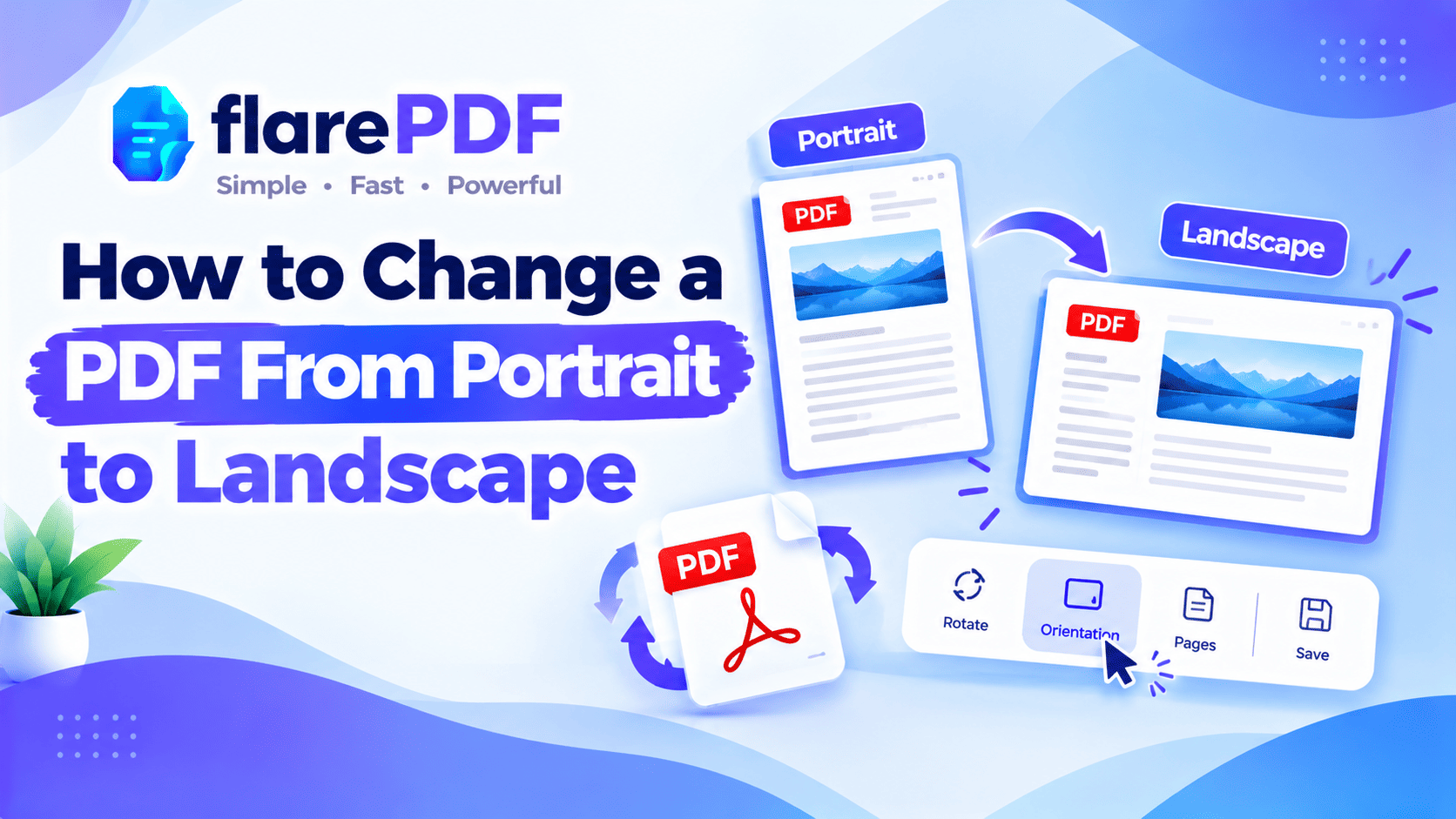
Changing a PDF from portrait to landscape means making the page wider than it is tall. You can do this in two ways. Rotating turns the whole page, content included, 90 degrees. Re-laying out keeps the text upright and places it on a wider page.
Portrait pages are tall, like a letter. Landscape pages are wide, like a slide or a spreadsheet printout.
Here’s the difference that matters:
Rotate the page: turns the whole page and its content 90 degrees. Use it when a page is sideways, like a scanned ID card or a wide chart.
Change the layout to landscape: keeps text upright on a wider page. Use it when you want a landscape document, like a report with wide tables.
If your page looks sideways now, you need to rotate it. If it looks fine but you want it wider, you need to change the layout.
How PDFs store orientation (and why it matters)
Every page in a PDF has two separate settings: a page size and a rotation value. The page size sets the width and height. The rotation value tells PDF viewers to turn the page by 0, 90, 180 or 270 degrees when showing it.
This comes from the official PDF standard, ISO 32000. It explains why rotating is quick and doesn’t damage your file. The content stays exactly the same, and only the rotation value changes.
It also explains why a PDF doesn’t “reflow” like a Word file. A PDF fixes text in place on the page. To get upright text on a wider page, the layout has to be rebuilt, either by printing to a new PDF or by changing the source document.
New to the format? Read our plain-English guide to what a PDF is.
Why you might need a landscape PDF
Page orientation affects how a document reads, prints and looks on screen. The wrong orientation makes even a good document hard to use.
People usually change PDF orientation to:
- Fix sideways scans: ID cards, receipts and certificates often scan the wrong way.
- Show wide tables: spreadsheets, payroll sheets and budgets fit better on a wide page.
- Print correctly: a landscape PDF that prints in portrait wastes space and shrinks the text.
- Present slides: handouts made from slides should be landscape.
- Display charts and diagrams: wide visuals are easier to read on a landscape page.
- Submit official forms: some portals reject files with pages turned the wrong way.
- Combine documents: a mix of portrait and landscape pages often needs some fixing.
How to change a PDF from portrait to landscape with FlarePDF
To make a PDF landscape online for free, rotate the pages 90 degrees with a page tool and download the file. This permanently fixes sideways pages and works for one page or the whole document.
Step-by-step: rotate PDF pages online
- Open FlarePDF Organize PDF and open your file. Every page appears as a thumbnail you can rotate.
- Find the page or pages that need changing in the thumbnail view.
- Rotate each page 90 degrees until it looks right, or use Rotate all to turn every page at once.
- Check that every page reads correctly and that the page order hasn’t changed.
- Download the new PDF and open it once to confirm the change was saved.
Pro tip: Judge each page by the text, not the page shape. The text should read left to right, top to bottom.
For more detail on saving rotation, read how to rotate a PDF permanently and save it.
Backup method: rotate pages as images
If a page won’t rotate the way you want, you can rebuild it from images.
- Convert the pages to images with PDF to JPG.
- Rotate the images in your phone or computer’s photo app.
- Rebuild the PDF with JPG to PDF.
Quick note: This turns the pages into images, so text can’t be selected or searched afterwards. Use it only when the normal rotate method doesn’t work.
How to make a PDF landscape without rotating the text
To get upright text on a landscape page, print the PDF to a new PDF with Landscape orientation selected. The content is placed on a wider page, often scaled down to fit.
On Windows (Microsoft Print to PDF)
- Open the PDF in any viewer and press Ctrl + P.
- Choose Microsoft Print to PDF as the printer.
- Set Orientation to Landscape.
- Choose Fit or Fit to page under scaling, if you see it.
- Click Print, then name and save the new file.
On Mac (Save as PDF)
- Open the PDF and press Command + P.
- Click the landscape orientation icon.
- Check the preview, then open the PDF menu at the bottom.
- Choose Save as PDF and save the new file.
Quick note: This doesn’t reflow the text. A tall page placed on a wide page will usually have white space on both sides. For a true landscape layout, change the original document instead (see the Word section below).
How to change PDF orientation in Adobe Acrobat
In Adobe Acrobat, Rotate View only changes how you see the page. To save the change, rotate the pages themselves.
- Temporary (Acrobat Reader): go to View > Rotate View > Clockwise. The page turns on your screen, but the file stays the same.
- Permanent (Acrobat Pro): open Organize Pages, select the pages, click a rotate button and save the file.
This is why so many people find their PDF opening in portrait again after they rotated it. The view turned, but the page didn’t.
If you only have the free Reader, use a free online tool to save the rotation, then open the file in Reader again.
How to change a PDF to landscape on Mac
On a Mac, Preview can rotate PDF pages and save the change permanently.
- Open the PDF in Preview.
- Choose View > Thumbnails to see all pages.
- Select the page you want to change. Hold Command to select more than one.
- Choose Tools > Rotate Left or Rotate Right (Command + L or Command + R).
- Choose File > Save.
Preview rotates the selected pages only, so you can mix orientations. For more of Preview’s tools, read how to edit a PDF on Mac for free.
How to change PDF orientation in Chrome, Edge and Firefox
Browser PDF viewers can rotate a page so it’s easier to read, but the rotation usually isn’t saved with the file.
- Google Chrome: click the rotate icon in the PDF toolbar.
- Microsoft Edge: click the Rotate button in the PDF toolbar.
- Firefox: open the menu (>>) in the PDF viewer and choose Rotate Clockwise.
Use these for quick reading. To keep the rotation, save it with an online page tool or a desktop app.
Google Drive works the same way. Its preview lets you view a PDF but not save a new orientation. Download the file, rotate it, then upload it again.
How to change a Word or Excel document to landscape before saving as PDF
The cleanest way to get a landscape PDF is to set landscape in the original document, then save it as PDF. The text reflows to fit the wider page, with no awkward white space.
In Microsoft Word
- Go to Layout > Orientation > Landscape.
- Check that tables and images still fit.
- Choose File > Save As > PDF.
Pro tip: To make only some pages landscape, insert a section break (Layout > Breaks > Next Page) before and after them. Then change the orientation for that section only.
In Microsoft Excel
- Go to Page Layout > Orientation > Landscape.
- Use Fit to 1 page wide under scaling so columns don’t split across pages.
- Choose File > Save As > PDF.
In Google Docs
- Go to File > Page setup.
- Select Landscape and click OK.
- Choose File > Download > PDF Document.
How to change a PDF from landscape to portrait
To change a PDF from landscape to portrait, rotate the page 90 degrees, or print it to a new PDF with Portrait selected. It’s the same process in reverse.
- The page is sideways: rotate it 90 degrees with Organize PDF or Preview, then save.
- The page is upright but too wide: use Print to PDF with Portrait orientation and Fit to page. Expect smaller text.
- You have the original file: change it to portrait in Word, Excel or Google Docs and save as PDF again.
Quick note: Wide tables become hard to read when squeezed onto a portrait page. Consider keeping those pages in landscape.
How to change one page of a PDF to landscape
You can change one page of a PDF to landscape by rotating just that page and leaving the rest as they are. PDFs handle mixed orientations without any trouble.
- Open the file in Organize PDF or Mac Preview.
- Select only the page that needs changing.
- Rotate it 90 degrees.
- Save or download the file.
For bigger jobs, you can also split the landscape pages out with Split PDF, fix them, then join everything back with Merge PDF. Our guide to reordering, rotating and deleting PDF pages covers more page tasks.
How to change a PDF to landscape on iPhone or Android
On a phone, use a mobile browser and an online page tool, or your device’s file app.
- Online: open Organize PDF in your mobile browser and rotate the pages. It works in Safari and Chrome on phones.
- iPhone and iPad: on recent iOS versions, open the PDF in the Files app, show the page thumbnails, then touch and hold a page to find the rotate options. Menu names can differ between iOS versions.
- Android: many file and PDF apps include a rotate page option. Check that it saves the change, not just the view.
Scanning with your phone? Pages often come out sideways. See how to scan a document to PDF for tips on getting it right first time.
Key features and benefits of FlarePDF for page orientation
- Free to use: every FlarePDF tool costs nothing.
- No account or login: open a tool and start.
- Page tools in one place: rotate, reorder, and delete pages with Organize PDF.
- Mixed documents: split and merge to handle portrait and landscape sections.
- Image route: PDF to JPG and JPG to PDF for difficult pages.
- Clean finish: trim extra margins with Crop PDF after a layout change.
- File handling : PDFs up to 50MB. Files are processed in your browser and never sent to flarePDF's servers.
Why choose FlarePDF to change PDF orientation?
Fixing a sideways page should take a minute. Many tools make you install software or create an account first.
FlarePDF lets you rotate pages, rearrange them and download the result without signing up or logging in. It also gives you related tools for the next steps, like splitting, merging and cropping.
For a true landscape layout with upright text, FlarePDF works alongside Word, Excel or Print to PDF. Use the right tool for each job.
Tips and common mistakes
- Don’t confuse rotate view with rotate page. Rotate View in Acrobat and browsers isn’t saved.
- Check every page. One sideways page in a long file is easy to miss.
- Rotate the right way. Clockwise and counterclockwise give opposite results. Read the text to check.
- Expect white space with Print to PDF. Text won’t reflow. Use the source document for a clean layout.
- Keep tables in landscape. Wide tables shrink badly on portrait pages.
- Rename the new file. Try a name like “Annual-Report-Landscape.pdf”.
- Keep the original. Save a backup before you change anything.
Real-world examples
A student in Karachi scans a certificate, but it comes out sideways. She rotates the page in Organize PDF and uploads it to her university portal.
An accountant in Leeds exports a wide budget from Excel. He sets Landscape and Fit to 1 page wide, then saves it as a PDF.
An HR officer in Bengaluru has a policy document with one wide salary table. She rotates only that page to landscape and leaves the rest in portrait.
A trainer in Dubai needs printed slide handouts. He uses Print to PDF with Landscape selected so each slide fills the page.
Related PDF tools you may need
- Fix more page issues: read how to rotate a PDF permanently and save it.
- Remove unwanted pages: read how to delete pages from a PDF.
- Turn photos into a PDF: read how to combine images into one PDF.
- Shrink the final file: use Compress PDF.
- Every tool in one place: browse the free PDF tools guide.
Frequently Asked Questions
How do I change a PDF from portrait to landscape?
Rotate the page 90 degrees with a PDF page tool and save the file. That fixes sideways pages. For upright text on a wider page, print the PDF to a new PDF with Landscape selected, or change the original document and export again.
How do I change a PDF from landscape to portrait?
Rotate the page 90 degrees and save it, if the page is sideways. If the page is upright but too wide, print it to a new PDF with Portrait and Fit to page selected. Expect the text to appear smaller.
Is rotating a PDF the same as changing it to landscape?
Not quite. Rotating turns the whole page, including its text, 90 degrees. Changing to landscape usually means upright text on a wider page. That needs Print to PDF or a change in the original Word, Excel or Google Docs file.
How do I change only one page of a PDF to landscape?
Open the PDF in a page tool such as Organize PDF or Mac Preview. Select only the page you want, rotate it 90 degrees and save. The other pages keep their portrait orientation.
Why does my PDF keep opening in portrait after I rotate it?
You probably rotated the view, not the page. Rotate View in Acrobat Reader and browser viewers changes only your screen. Rotate the pages with a page tool, Acrobat Pro or Mac Preview, then save the file.
How do I print a PDF in landscape?
Press Ctrl + P on Windows or Command + P on Mac. Choose Landscape under orientation, select Fit to page if needed, then print. To save a landscape copy instead, choose Microsoft Print to PDF or Save as PDF.
Can I have portrait and landscape pages in the same PDF?
Yes. Each PDF page has its own size and rotation setting, so mixed orientations work fine. Rotate only the pages that need it, or build the document with section breaks in Word before saving as PDF.
How do I make a PDF landscape for free?
Use a free online tool such as FlarePDF Organize PDF to rotate the pages and download the result. For upright text on a wider page, use the free Microsoft Print to PDF on Windows or Save as PDF on Mac.
Conclusion
You now know how to change a PDF from portrait to landscape, and back again. If a page is sideways, rotate it and save. If you want upright text on a wider page, use Print to PDF or change the original document. Check every page, and keep a copy of the original.
Ready to fix your pages? Try Organize PDF free. No sign-up, no login.
Ready to try it yourself?
No sign-up, no upload — your files never leave your device.
Open Organize PDFKeep reading
More guides from the flarePDF blog